Trying to watch your favorite videos on the YouTube app or in Safari and constantly hit with buffering and playback errors or see a notice that the connection to the server was lost or timed out? Seeing these errors even when your internet connection is excellent? Learn what to do to get your YouTube videos playing normally with these tips.
A number of our readers inordinately slow YouTube download speeds on their iPads, iPhones, and iPod touch. In almost all these cases, users have strong Wi-Fi or Mobile Data signals and experience fast throughput in Safari when looking at other sites and when using other apps, but very slow, stuttering playback of YouTube videos due to poor throughput.
“I tried watching a YouTube video on my iPad and noticed it was buffering slowly on my Wi-Fi. I immediately switched to my MacBook (which was right next to me) and streamed the same video much faster.”
“I have the same problem with my iPad and iPhone inside my Wi-Fi network. But my iPhone does fine on a cellular network so I’m baffled.”
“I’m having the same problem with my iPad. Sometimes if I repeatedly tap the Play/Pause button it loads the video completely in a second or so and ends up playing just fine. However, that method doesn’t always work so it could just be a fluke.”
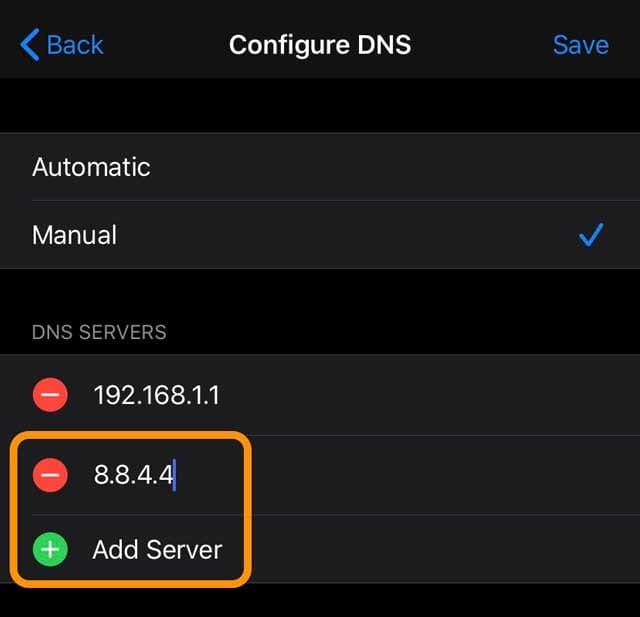
Some users have found that using an alternate DNS server can alleviate the slowness. Try changing your systems’ DNS servers to those offered by a third-party like Google or OpenDNS. To do so:
On your iPhone or Pad, go to Settings > Wi-Fi.
Tap the blue arrow next to your current Wi-Fi network.
Choose Configure DNS.
Select Manual instead of Automatic.
Under DNS Servers, tap Add Server and enter the following: 208.67.222.222 and 208.67.220.220 (Open DNS) OR 8.8.8.8 and 8.8.4.4 (Google DNS)
Open Safari again or the YouTube app and see if that makes a difference.
Clear your browser’s cache
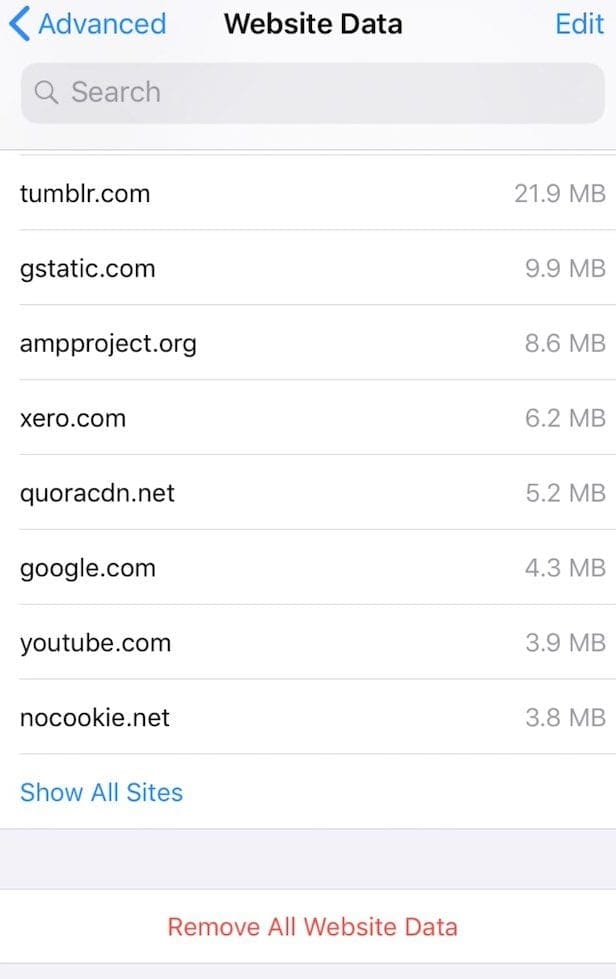
Oftentimes, it’s those cookies and other website data that’s getting in the way. To clear Safari’s cache:
Go to Settings > Safari
Scroll down and select Advanced
Tap Website Data
Choose Remove All Website Data
Slide to remove individual website data, or tap the button at the bottom of the page to Remove All Website Data from Safari.
Change video resolution
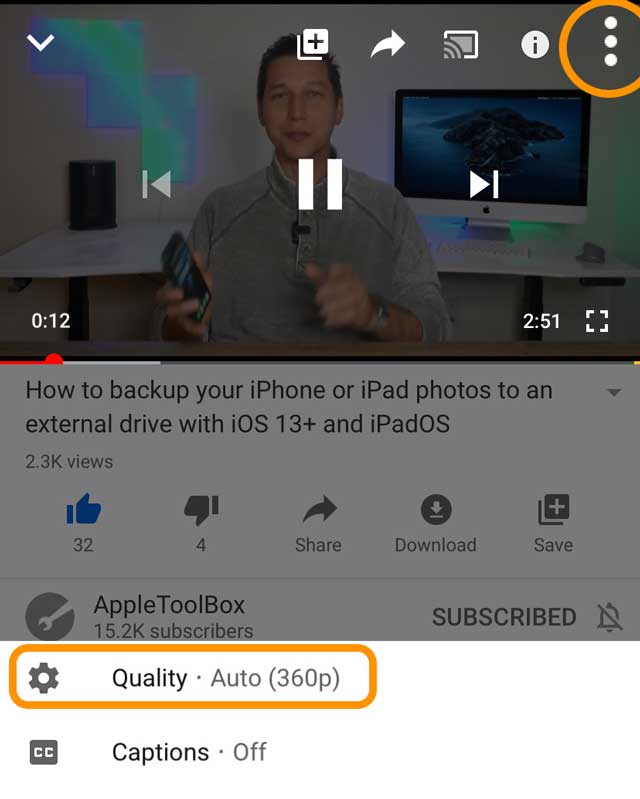
In both the YouTube app and when using YouTube in Safari or another browser, you can always change the video playback settings to a lower quality (resolution).
In the YouTube app, tap inside the video, then tap again on the three dots menu, choose Quality and select a lower resolution
To do so in YouTube’s web version, tap inside the video, then tap the Settings gear, select Quality and choose a lower resolution.
If you still have a lot of problems streaming YouTube videos or if you are in an area where internet coverage is spotty, consider trying YouTube premium. With this monthly subscription service, you get to download and save videos directly to your device and it’s also free of advertising. Another big advantage is that you can download videos for times when you can’t connect, like when traveling. Plus, with YouTube premium, you get to play all your videos in the background, even when you open and use another app on your device. And videos will still play, even when you turn the screen off on your mobile device.
If you use YouTube a lot, Premium may very well be worth the monthly subscription cost.
YouTube currently offers a 1-month free trial. Once that trial is over, it costs $11.99 USD per month. But you can cancel at any time. There’s also a family offering at $17.99/month that covers up to 5 people (over 13 years old) and a student plan at $6.99/month for any verified student.
I hope this guide has helped you solve the problem where YouTube video on your iPad or iPhone is too slow. Share your experience in the comments section.
Obsessed with tech since the early arrival of A/UX on Apple, Sudz (SK) is responsible for the original editorial direction of AppleToolBox. He is based out of Los Angeles, CA.
Sudz specializes in covering all things macOS, having reviewed dozens of OS X and macOS developments over the years.
In a former life, Sudz worked helping Fortune 100 companies with their technology and business transformation aspirations.













Write a Comment