For years, Apple device users had to rely on iTunes in order to interface with their devices on Windows, until the Apple Devices app rolled around. This software aims to be a handy way to manage, sync between, and update all your devices through one dedicated app.
So, what do you do when Apple Devices on Windows can’t update iPhone? In this article, we’ll be taking a closer look at this problem and providing a few potential fixes.
Updates are an important part of any device. But when you can’t do so, things get frustrating quickly. Apple Devices can fail an iPhone update for a few reasons, including:
Outdated software
A blocked hosts file
A bad connection
A faulty internet connection
An unrecognized device
If one of these sounds like it could be your problem, let’s get busy fixing it.
Apple Devices App on Windows Can’t Update iPhone: Fixes to Try
If your iPhone isn’t updating through Apple Devices, here are some potential solutions and workarounds:
Choose a Different Slot
An easy check. If your iPhone isn’t showing up at all on Apple devices, it may be due to the USB port. Try switching to a different USB 2.0 port if you’re using a 3.0, or simply try plugging in to another slot. Another quick check is to ensure your cable is in working order. If possible, try plugging your iPhone into a charger in a wall outlet or into another PC.
Check Your Internet Connection
If an iPhone Update with Apple devices on Windows is suddenly telling you that it can’t contact the update server, then you might be experiencing connectivity issues. Try connecting to the web through a browser. If it’s not connecting, try resetting your internet connection.
Update, Update, Update
You may be trying to update your iPhone, but you might first need to take care of your Windows device. Update your Windows operating system to the latest version, and ensure your version of the OS on your Apple devices is similarly new. Windows 10 and 11 do update apps automatically, but just check the app in the Microsoft Store to be sure. Don’t forget to restart after the update.
Microsoft has acknowledged that the Windows 24H2 update has caused problems for Apple devices (along with a lot of other apps), but this should be ironed out by now, unless you still haven’t updated your PC.
Use iTunes
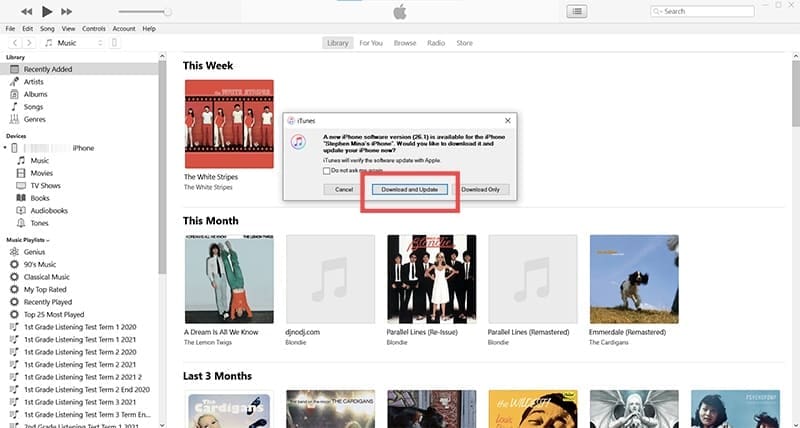
If you are still having no luck with Apple devices, it may be better to try updating through the reliable iTunes. It’s still downloadable via the Microsoft Store (not from Apple Music) and will search for iPhone updates as soon as you plug your smartphone into your PC. It’s not a fix, but a very viable workaround.
Do Things Directly
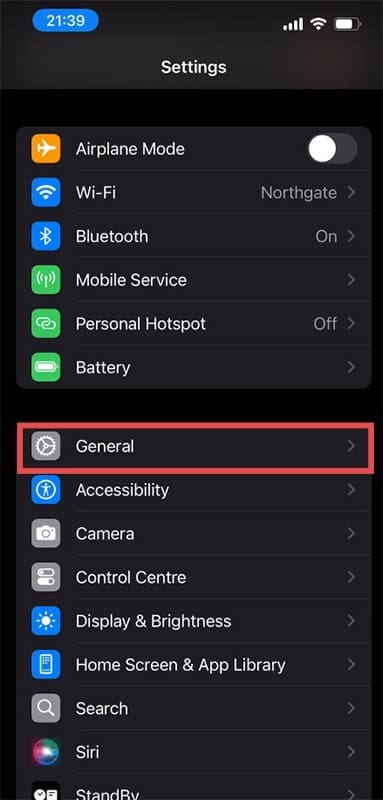
If possible (and your storage permits it), update your iPhone using iOS itself. It’s very simple to do:
Step 1. Go to “Settings” on your iPhone.
Step 2. Tap “General” and then navigate to “Software Update.”
Step 3. You’ll see the latest software update available for your iPhone. Click “Update Now” to download and install immediately or select “Update Tonight” to do it later.
As an avid gamer, I’ve run into my fair share of error codes and weird faults that have forced me to find fixes to problems I never anticipated. That gave me a passion for sharing those fixes with others so we can all game without feeling like our hardware is rebelling against us.












Write a Comment