Screen burn-in, contrary to what you might think, is not actually a thing of the past. In fact, if you have a newer iPhone, your device may be vulnerable to the exact same problem.
But there are a number of things you can do to help avoid screen burn-in. Here’s what you need to know about the phenomenon, as well as how to avoid it in common everyday scenarios.
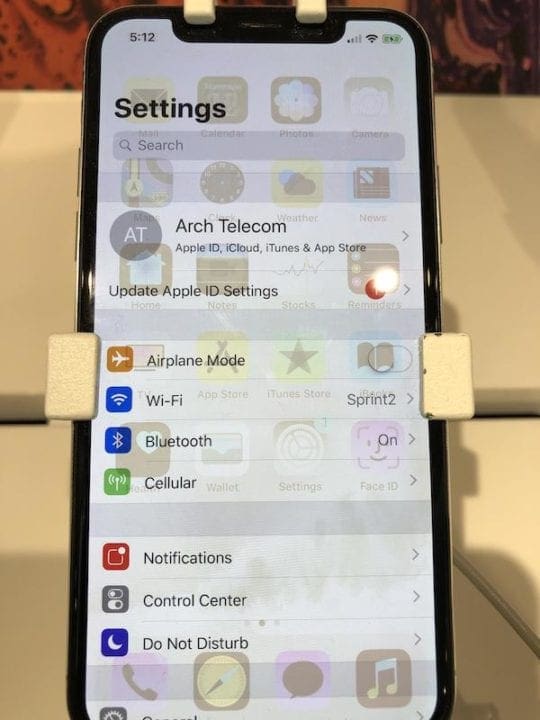
An example of severe OLED display burn-in seen on an device at a Sprint store. Image via Gameza4.
If you’ve used plasma-based TVs in the past, you’re likely familiar with burn-in. But even if you’re not, there’s a good chance that a device you own can suffer from the phenomenon.
Burn-in, essentially, is when a display shows a faint or “ghostly” remnant of an image or UI element. It’s typically caused by persistent and unmoving elements on a display, like the logo on a cable news network. That means if you use a navigation app for even 15 to 30 minutes a day, you may experience burn-in.
While not as big of a problem as plasma-based televisions, OLED displays are still prone to burn-in. In fact, according to most experts, burn-in is pretty much inevitable on the display technology.
That’s because it’s cumulative. There’s no way to “reset” an image. If you frequently display an app with unmoving elements, your device may suffer burn-in.
Similarly, burn-in is not covered under warranty. It’s considered normal “wear and tear.” In other words, if you have burn-in, don’t expect Apple to repair or replace your device for free.
Image retention versus burn-in
To be clear, burn-in is not image retention. They appear very similar at first glance, but there’s one key difference between the two display problems.
Burn-in is permanent — there’s no way to get rid of it. Image retention, while appearing very similar to burn-in, will eventually go away with time.
Do manufacturers mitigate it?
Yes, virtually all device manufacturers implement some type of mitigation tactic on OLED displays. One such tactic, which your iPhone already uses even if you don’t notice, is called pixel shifting.
Essentially, when your iPhone detects that your device is on too long and you aren’t looking at it, it’ll subtly shift the entire display image by a few pixels. It’s not a perfect defense against burn-in, but it does help.
Avoiding Burn-In Tips
With a few simple tips, you can keep your iPhone’s OLED display looking new for longer.
As mentioned earlier, burn-in occurs when an app displays static logos, content or UI elements persistently.
While Apple has some mitigation tactics available, it won’t protect against burn-in unless you also follow these steps.
Avoid static content. Unless you have a reason to leave an app on your display for extended periods of time, it’s best to avoid it. This doesn’t include videos, unless they have a static or unmoving object in them.
Use CarPlay. Navigation apps are notorious for burn-in, mostly because people use them frequently and consistently. If you can, use CarPlay or your vehicle’s built-in entertainment system instead.
Enable auto-lock and auto-brightness. You can set auto-lock by going to Settings —> Display & Brightness —> Auto-Lock. A shorter interval is better. Display brightness can be set manually in the same Settings menu.
Turn down the brightness. Sometimes, avoiding static content on your iPhone isn’t an option. But you can reduce the severity of burn-in by lowering your brightness. Turn it down manually using the Control Center.
Enable True Tone. If your device has a True Tone display, keep it enabled. There’s a chance it can help mitigate the problem over time, since blue sub pixels are the worst burn-in offenders.
If you notice certain UI elements burned into your display but want to know where they came from, you can use Screen Time to see which apps you use the most.
We hope that you found these tips helpful. Please let us know if you have any questions or comments.
Mike is a freelance journalist from San Diego, California.
While he primarily covers Apple and consumer technology, he has past experience writing about public safety, local government, and education for a variety of publications.
He’s worn quite a few hats in the journalism field, including writer, editor, and news designer.












Write a Comment