If the Calendar app is behaving strangely after upgrading to macOS Monterey, rest assured, you’re not the only one experiencing this problem. Many users have complained the app is taking a long time to open. The wheel can sometimes spin for up to one minute before the app finally launches. It may take anywhere between 5 to 20 seconds to switch from one week to the other. Let’s explore what’s causing these issues and how you can fix them.
Fix: Calendar App Is Sluggish After Installing macOS Monterey
Disable Exchange Calendar
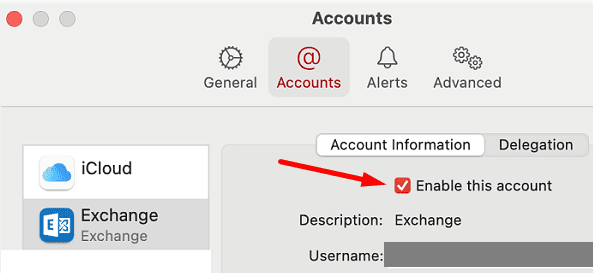
If you have an Exchange account associated with your Calendar app, disable it and check if the app works properly. Launch the Calendar app on your Mac, go to Calendar, and select Accounts. Then untick the Exchange account to stop using it.
If turning off the Exchange calendar doesn’t do anything, try unsubscribing. Your Exchange calendar may sometimes prevent your Mac from syncing with iCloud. The Calendar app attempts to sync data (hence the spinning wheel) but is unable to. Use the Outlook app until this issue gets fixed.
This problem seems to be caused by an unexpected Exchange client-side issue. However, it’s still not clear if the issue is caused by Apple’s implementation or Microsoft’s implementation of the calendar.
Delete com.Apple.ical.plist Path
Launch Finder.
Click on the Go menu.
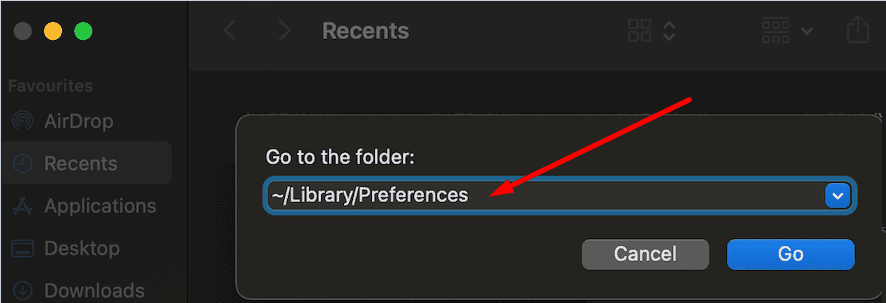
Select Go to folder.
Then go to ~/Library/Preferences.
Locate and delete the com.Apple.ical.plist file.
Restart your MacBook.
Launch the Calendar app and check if the issue persists.
Boot Into Safe Mode
Boot into Safe Mode and check if one of the apps or programs installed on your Mac is interfering with the Calendar app. Safe Mode also detects and repairs directory issues.
If your Mac is equipped with an Intel CPU, restart it. Then immediately press and hold the Shift key as your device boots up. Release the Shift key when the login window appears on the screen.
If you own an Apple Silicon Mac, shut your device down. Then, turn on your device but keep on holding the Power button down until the Startup Options appear on the screen. Select your startup disk, press and hold the Shift key and click on “Continue in Safe Mode“.
If the Calendar app works properly in Safe Mode, uninstall any third-party programs that promise to clean, optimize, speed up your Mac or keep threats at bay. They may sometimes interfere with native macOS apps.
Conclusion
If your Calendar app is slow to sync or update information after installing macOS Monterey, disable your Exchange account. Then go to ~/Library/Preferences, delete the com.Apple.ical.plist file, and restart your computer. If the issue persists, boot into Safe Mode and uninstall third-party system optimization programs.
Did you manage to solve the problem? Hit the comments below and let us know which of the methods above did the trick for you.
Madalina has been a Windows fan ever since she got her hands on her first Windows XP computer. She is interested in all things technology, especially emerging technologies — AI and DNA computing in particular.
I cannot even get my calendar to open any more – just a loading page with nothing that ever loads. The article talks about 1 mintue delays – mine would take up to 20 minutes to load a week view. Disaster. It trippled up on all versions of my exchange calendars. Couldn’t delete any of them.
I would really like to just delete the whole app and reinstall. Anyone know how to do this?
I can confirm that doing the following two actions did not resolve the issue for me:
(1) Deleting com.Apple.ical.plist Path
(2) Boot Into Safe Mode
I followed the steps outline below but no luck. The steps above are also what Apple Sr. Support told me to engage, in addition to a re-install of MacOS Monterey. So far, nothing as resolved the Office 365 calendar problem that I’m witnessing on Week view in the native Calendar app. This sluggishness in UI only occurs in the Week view of the Calendar app (not Day, Month, or Year views). My Office 365 calendar syncs fine, it’s just extremely sluggish when you navigate week-to-week.
My problem seems to be with Exchange. Duke also made me install a virus protector to operate on the internal wifi/VPN. It seems one or both are interfering. However, since disabling Exchange solved the problem, it seems that is the issue and perhaps will be solved in a future system upgrade.












I cannot even get my calendar to open any more – just a loading page with nothing that ever loads. The article talks about 1 mintue delays – mine would take up to 20 minutes to load a week view. Disaster. It trippled up on all versions of my exchange calendars. Couldn’t delete any of them.
I would really like to just delete the whole app and reinstall. Anyone know how to do this?
Deleting the com.apple.iCal.plist file and rebooting did the trick.
Thank you!
Scott
I can confirm that doing the following two actions did not resolve the issue for me:
(1) Deleting com.Apple.ical.plist Path
(2) Boot Into Safe Mode
I followed the steps outline below but no luck. The steps above are also what Apple Sr. Support told me to engage, in addition to a re-install of MacOS Monterey. So far, nothing as resolved the Office 365 calendar problem that I’m witnessing on Week view in the native Calendar app. This sluggishness in UI only occurs in the Week view of the Calendar app (not Day, Month, or Year views). My Office 365 calendar syncs fine, it’s just extremely sluggish when you navigate week-to-week.
Can you give an example of “uninstall third-party system optimization programs”?
My problem seems to be with Exchange. Duke also made me install a virus protector to operate on the internal wifi/VPN. It seems one or both are interfering. However, since disabling Exchange solved the problem, it seems that is the issue and perhaps will be solved in a future system upgrade.
Thanks for the info. My calendar would only sync one way. Deleted the plist and it all worked out.