If you are a regular reader of our blog, chances are that you love Apple (and Appletoolbox too). As much as we love Apple, there are little things, which we think could be handled differently.
One such thing is the “Sent from my iPhone” line that goes with every email you send through your iPhone.
Honestly speaking, it used to look cool in our 2G’s & 3G’s letting people know that we have a premium brand. But we wonder now why a company would want its commercial attached to every email sent from its device and even more than that, why do people still keep it there?
We are not the best self-help shrinks but Let’s find out:
#1. Not sure how to take it off
It’s hard to believe but there are many loyal iPhone users belonging to this category of “I don’t know how to…”. They want to change the “Sent from my iPhone line” but just can’t figure out how. The later part of this article is going to show you how to change that.
#2. Hey you! I’ve got an iPhone
Let’s agree to the fact that there are many in the world who can’t afford an iPhone. The gadget is undoubtedly a bit expensive. Whether the price is justified or not is another debate but there are many in the world who crave iPhone. And when they succeed in getting one, they tend to show off a bit. Nothing wrong with that, we say!
#3. My emails might have errors
We generally don’t expect our written communication these days to contain any sort of spelling or grammatical errors. However, writing an e-mail while jogging in the park is more likely to contain errors. This is where “Sent from my iPhone” line comes in handy for some. It tells the reader that this email was sent from a phone and the reader should not complain about typos and bad grammar.
#4. Perhaps I’m a little bit lazy
“I don’t like the line, I know how to take it off, but I will do it tomorrow”
Professionally speaking, these tag lines attached to your email doesn’t paint a pretty picture of you. They show how lazy you are, and probably a person who doesn’t give much attention to details. Now, that hurts!
Here’s what Mark Twain has to say about writing,
“Writing is easy, all you have to do is cross out the wrong words”
If you don’t want that “Sent from my iPhone” line, here is what you should be doing.
How to change “Sent From my iPhone”
The “Sent from my iPhone” message is there in your email app by default. These simple steps can take it off and help you with a custom signature of your own.
1- Tap “Settings”
2- Scroll down and select “Mail” from the list
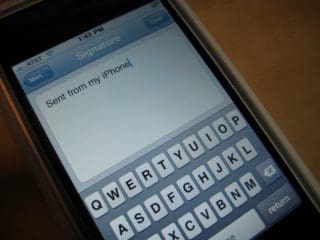
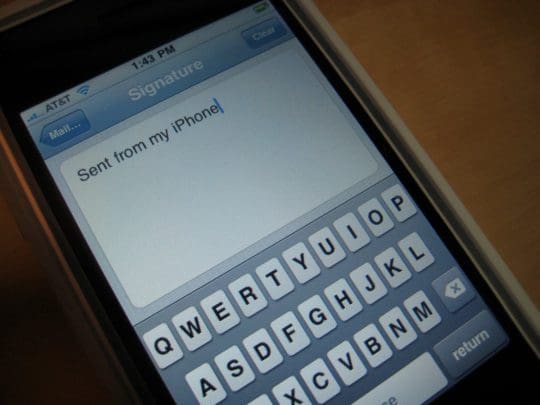
3- Now tap on the “Signature” option.
4- Here you can put anything that you want at the end of your emails. Your name, contact info, name of the organization you are associated with are a few example. Or you can simply leave it blank!
Please feel free to give it a try especially with spring cleaning this is another item that can be taken care of in less than 60 seconds.
Now, if you wanted to use multiple email signatures between you iPhone and iPad, please take a look at this article that shows How to set up multiple Signatures for all your split personality and alter egos.
If you still want to retain it, we would love to hear from you the reasons or excuses that you have for keeping it!










Write a Comment