There are a lot of great things about the iPad, including the ability to use an Apple Pencil. This allows you to take notes, doodle, or draw some serious artwork, right from your iPad.
However, you never want to run out of battery juice with your Apple Pencil. This leaves you frustrated and likely impatient while you wait for your Pencil to recharge. Here’s how you can check Apple Pencil battery level.
For those who have the 2nd-generation Apple Pencil, you’ll be able to see the battery life every time you attach it to your iPad. After your Apple Pencil attaches magnetically, the battery level will briefly appear. This gives you a quick idea of how much juice is left.
However, that does not work for owners of the 1st-generation Apple Pencil. Instead, you’ll have to take advantage of the Today View and the ability to view widgets. There is a built-in Batteries Widget that can be enabled. Here’s how to do so:
From the first Home Screen on your iPad, swipe from left to right.
This reveals the Today View with all of your widgets.
If the Batteries widget does not appear, scroll to the bottom.
Tap the Edit button.
From the next panel, tap the + icon next to the Batteries icon.
Click Done.
If you are running the Public Beta of iPadOS 14, here’s how you can enable the Batteries widget:
From the first Home Screen on your iPad, swipe from left to right.
This reveals the Today View with all of your widgets.
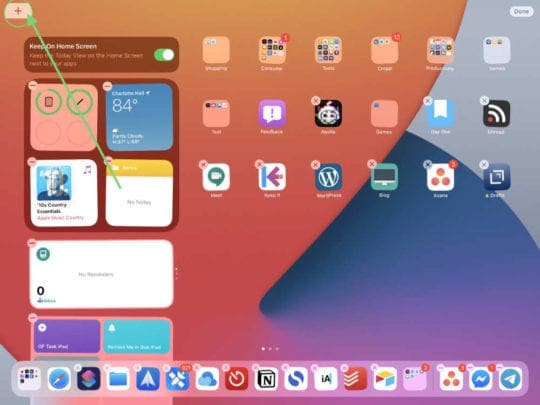
If the Batteries widget does not appear, press and hold on the Home Screen.
Tap the + button in the top left-hand corner.
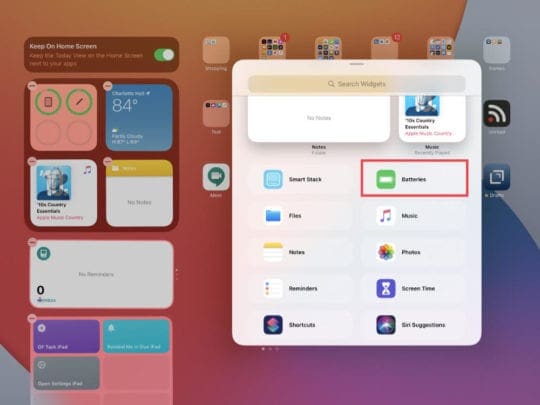
Scroll and find the Batteries widget
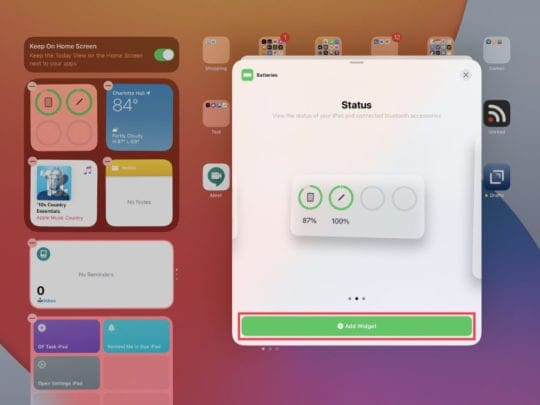
Select the widget you want to use.
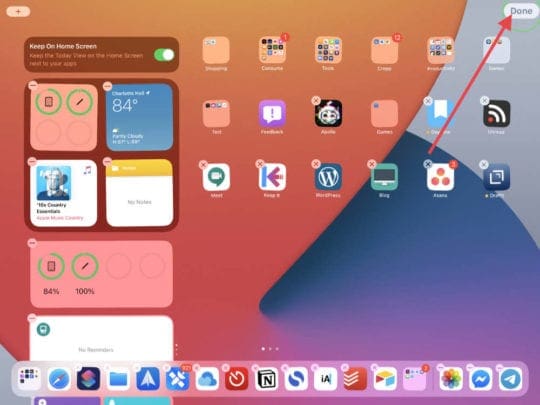
Tap Done in the top right-hand corner.
Once completed you will be able to swipe over to the Today View and see your Apple Pencil battery level. Plus, you’ll be able to see the remaining battery life for any other Bluetooth devices. This includes your AirPods, wireless keyboard, and even your Xbox or DualShock 4 controller.
What to do if your Apple Pencil doesn’t recharge?
Sometimes you may run into an issue with your Apple Pencil where it doesn’t seem to recharge. With the Apple Pencil 2, you are kind of out luck, as there’s no where to plug anything in. Those with the first-generation Apple Pencil can try plugging into a different Lightning charger.
There are a few steps that you can take before reaching out to Apple. But before starting, make sure your Apple Pencil 2 is attached to your iPad Pro.
Restart your iPad by holding down the Power and Volume Up buttons simultaneously. Then, drag the slider to Power off your iPad. Once the iPad is turned off, power it back on by holding the Power button.
Open the Settings app on your iPad and navigate to the Bluetooth menu. Ensure that Bluetooth is turned on, then try to reconnect your Apple Pencil.
From the Bluetooth menu, look for the name of your Apple Pencil. Tap the “i” icon next to your Pencil and tap Forget this Device. Then remove and reconnect your Apple Pencil to your iPad.
If the Apple Pencil does not appear after being reconnected, wait 60 seconds and then try again.
AppleCare to the rescue
You can only purchase AppleCare for brand new products. Image Credit: Apple
In the event that you have tried all of those methods and you are still having issues, then you’ll want to reach out to Apple. Those who purchased AppleCare+ for their iPad Pro can rest easy knowing that the Apple Pencil is also covered.
This change occurred back in 2018, as now AppleCare+ covers your iPad and its Apple-branded accessories. In the event that you need an Apple Pencil replacement and you have AppleCare, then you’ll only need to pay $29. If not, you are better off buying a brand new one altogether.
Conclusion
The Apple Pencil 2 is a phenomenal tool, even for those who don’t take notes on a regular basis. It gives you a fine-tuned control over how you can interact with your iPad.
Plus, with iPadOS 14 on the horizon (coming this Fall), you’ll be able to take advantage of Scribble. This allows you to use your Apple Pencil and write in any open text field.
Let us know if you have issues with your Apple Pencil, or if you found another fix that we didn’t mention here.
Andrew Myrick is a freelance writer based on the East Coast of the US. He enjoys everything to do with technology, including tablets, smartphones, and everything in between. Perhaps his favorite past-time is having a never-ending supply of different keyboards and gaming handhelds that end up collecting more dust than the consoles that are being emulated.













Write a Comment