After purchasing a new pair of AirPods, you expect a smooth run with your new device. A failed connection for AirPods to Mac can be irritating, especially when you’ve to spend several hours trying to figure out what the problem could be.
This is even more frustrating as Apple’s AirPods are supposed to pair almost immediately to devices synchronized to your iCloud. Luckily, troubleshooting a failed connection with Mac is possible with these easy steps.
One main reason your AirPods won’t connect to Mac is if you haven’t done an update of your Mac software. AirPods are compatible with Macs running on the latest or an updated version of the Mac OS.
For 1st generation AirPods, you should have a Sierra or any upper version installed.
For 2nd Generation AirPods, macOS 10.14.4 or any newer version will work as expected.
When you are using an updated mac OS, but you still cannot connect your AirPods to Mac, check out these next steps to troubleshoot the problem.
Connect the AirPods to Mac Automatically
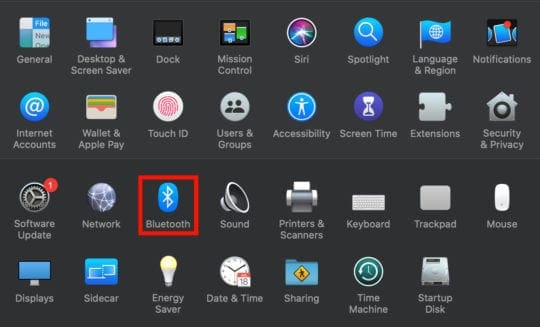
Turn on your Mac’s Bluetooth – here’s how:
Select System Preferences,
Select Bluetooth,
After that click turn on Bluetooth or toggle the turn on Bluetooth button
After turning on your Mac’s Bluetooth, Turn on the Bluetooth pairing mode on your AirPods. This is necessary when your iPhone is not connected to your iCloud account.
To turn on the Bluetooth pairing mode on your AirPods:
Put your AirPods into their charge case
Open the lid of your charge case
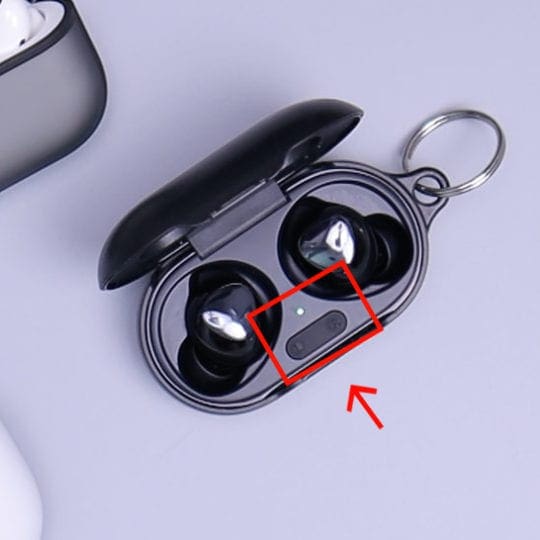
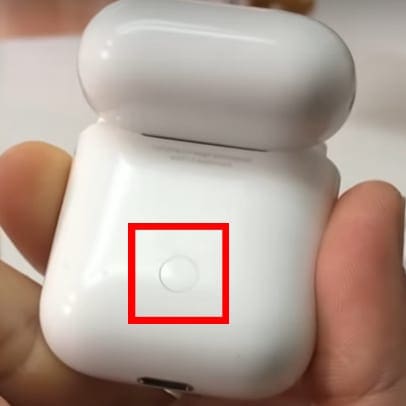
On the setup button, press then hold on the back of the charging case
After the status light flashes white, your AirPods are now in Bluetooth pairing mode
Connect your AirPods to Mac Manually
When your AirPods do not connect automatically to your Mac, well, you don’t have to put your brain under unnecessary stress — you can connect them manually. With your Bluetooth toggle option on, click on AirPods under your list of devices.
In some cases, your MacBook may be connected to a different output device, making your AirPods appear like they cannot link to our Mac.
Fixing this is simple:
Under the list of your Macs output devices; click on AirPods
Make sure you have turned on your Mac’s Bluetooth
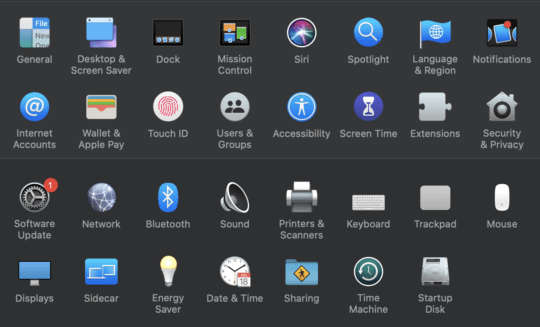
Click on System Preferences
Select sound
Click the Output tab
Then select your AirPods
Charge Your AirPods and Their Case
Well, this sounds a bit like a mouthful, but your charging case needs to be charged in order to charge your AirPods. So on your charging case, plug in the lightning cable. Hook up the other end into a socket charger and wait a few hours for your charging case to be fully charged.
Charge your AirPods
To ensure your AirPods have enough battery life to function correctly, you need to charge them.
Put your AirPods in the charging case
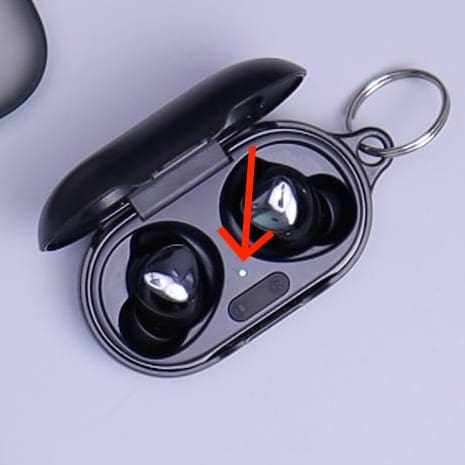
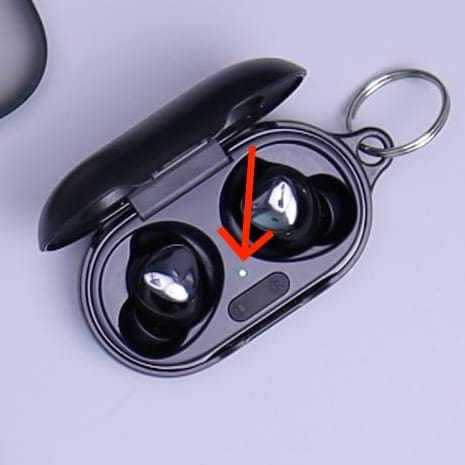
The status light indicates the amount of charge present in the AirPods when the AirPods are in the charging case.
When your status light turns white, the AirPods are now ready to connect, and when it turns green the AirPods are fully charged
Clean Your AirPods and Their Charging Case
In some cases, dust getting into your AirPods or charging case deteriorates its functionality. Here’s how to clean them:
Use a lint-free soft cloth.
Wipe your AirPods with a lubricated cloth
You can use an anti-static brush clear off the debris
Reset your AirPods
To fix bugs, give your AirPods a fresh start by simply resetting your AirPods.
On the rear of your case, press and hold the setup button.
When the status light flashes amber a few times and then flashes white, release the setup button
Your AirPods are now reset. Proceed to connect your AirPods to your device to repair your AirPods. If they still don’t connect after trying everything above, then there might be a problem with your AirPods, and they probably need a repair.
How Do You Repair Your AirPods?
Use the apples online support or make an appointment at the genius bar at your local apple store then set up an online mail-in repair through Apple’s online help.
When this doesn’t work, return your AirPods to the store where you purchased them and exchange them for a new pair if you are still under warranty.
Having a pair of AirPods is exciting; however, this becomes frustrating when a device that is manufactured to “just work” does not work automatically. When things get awry, there are simple ways to fix your problem, making your desire to listen to your favorite podcasts, audiobooks, and favorite song enjoyable. Using the steps above, your AirPods can now connect to your Mac.













Write a Comment