An IPA file is a native file extension type that holds iOS app data. Not the most exciting feature of the app, but without it, you literally could not use the app on your phone. Think of it this way: .ipa means iOS application. The two terms are practically the same.
If you are already aware of .ipa files, you know that you can go into them and customize the app icon, reverse engineer components of the app, etc. You also understand that they are data files for a reason. They aren’t mean to be opened and edited by the regular user. Still, people do it and continue to do it despite recent roadblocks.
Since Apple introduced iTunes 12.7, you can no longer download the .ipa files of an iOS app without the help of another app. In other words, app management and purchases through iTunes became impossible. You can only download apps for your iOS devices directly through your iPhone or iPad from the App Store, not iTunes.
Downloading .ipa files to your iOS is simple, regardless of your iTunes version, since it is just an app. .ipa management, however, is a bit trickier. If we think of .ipa management as app management and configuration, it’ll be easier for us to grasp. Many people suggest the app Apple Configurator 2 for the job.
Before 12.7, you would drag-and-drop the downloaded .ipa file into the iTunes App Library. Then, you’d hook up your iOS device to your Mac or PC and sync the data. This made it easy to sync multiple devices with the same app.
Now, if you want to download an .ipa file, you have to work through the App Store on your iOS device.
Open the App Store app.
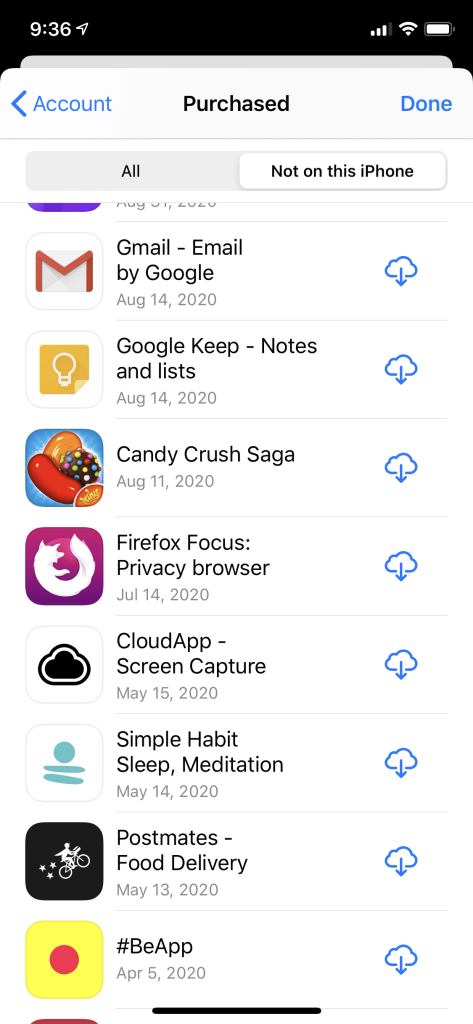
Go to Purchased. You will see a list of purchased apps.
Tap “Not on this [device].”
Next, tap the Cloud button and choose the apps you wish to sync with that device.
Technically speaking, you have downloaded .ipa files to your iOS device.
Apple Configurator 2
To sync a large number of iOS devices with the same .ipa files, use Apple Configurator 2. Developed by Apple, a lot of individuals download the app to format their iOS device’s home screen. Businesses and schools use it to configure iOS management profiles. There is no version of this app that will work for Windows, and you must be running macOS 10.14.6 or later.
Many users claim that this isn’t the best app for individual use, but for managing a huge amount of devices, it does the job.
Step 1: Download Updates
Download the app to your Mac from the App Store.
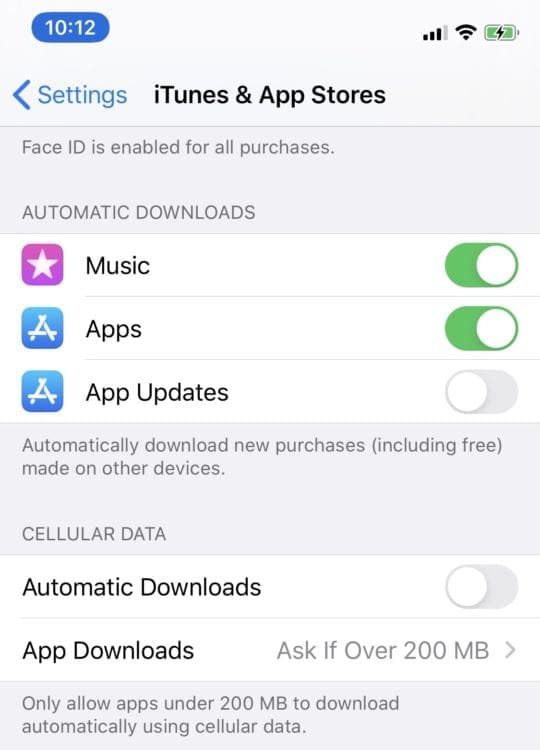
You may have to disable Automatic Updates. These updates may make you wait for the next update to happen before you can use Apple Configurator 2 to access the app’s .ipa files.
Open Settings.
Tap iTunes & App Store.
Toggle off Updates.
Step 2: Log into Apple Account
Open Apple Configurator 2.
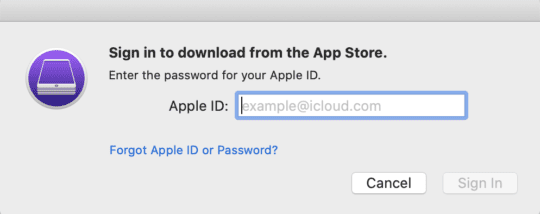
Select Account > Sign In.
Enter your credentials.
Step 3: Connect Your iOS Device
Next, use the iOS USB cable to connect to your Mac.
If the iOS’s connection is Untrusted, go ahead and Trust it.
Step 4: Update Selected Apps
Select the “popup” iOS device from Apple Configurator 2.
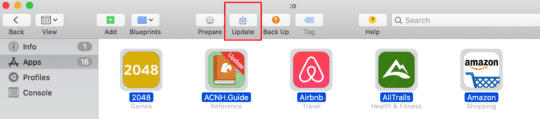
Select Update.
The app will request to update all updateable apps.
Click Update.
Note: You may also choose to update Only Some Apps using the drop-down feature. Uncheck unneeded apps before you click on Update.
Step 5: Locate Relevant .ipa Files
Once the update process is complete, it’s time to find the apps in the user library.
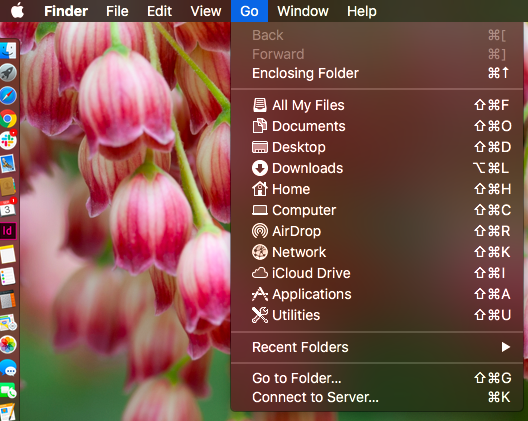
Open your Finder.
From the menu, select Go > Go to Folder.
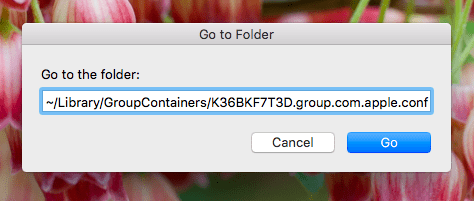
Paste the following: ~/Library/GroupContainers/K36BKF7T3D.group.com.apple.configurator/Library/Caches/Assets/TemporaryItems/MobileApps
Click Go.
When you’re in the temporary folder for mobile apps, you’ll see randomly numbered folders. Open these folders until you find the .ipa files you need.
Step 6: Copy .ipa Files
Keep in mind that the existing Apple Configurator 2 folder is temporary. This means it could vanish after the Apple Configurator 2 closes or after the computer restarts. To prevent this, copy the .ipa files. Select the files you want and copy-paste them into your documents, desktop, wherever you want! Just not iTunes.
You now have access to .ipa files on both your iOS device and desktop.
Conclusion
Apple took away the app management factor from iTunes, so it could specifically focus on music, book, and podcast sales. Though this may have benefited them in the long run, it means users have to find another way to download their apps to iOS devices and the associated .ipa files onto their Macs. Honestly, downloading .ipa files to your iOS device isn’t that difficult, and once you find an app that works for you, migrating them to your computer isn’t so hard either.
I want to get the .app or .ipa IOS app file from the App store to use in the Apptize.io emulatr. How can I download the correct file format of the app from the App Store?










I want to get the .app or .ipa IOS app file from the App store to use in the Apptize.io emulatr. How can I download the correct file format of the app from the App Store?
os version : big sur 11.3.1
apple configurator 2
iphone7 version 13.1
don’t process more step 2 when install
why?
ya, WHY