Many macOS users have complained that their computers save downloaded files as hidden files, regardless of the browsers they use. However, it appears that this behavior is more common when using third-party browsers, especially Chrome and Brave.
The quickest workaround to make downloaded files visible is to press the Command, Shift, and Period keys together. This shortcut reveals hidden files.
Alternatively, you can use Terminal to make downloaded files visible again.
Launch Terminal and run the command: chflags nohidden
However, there’s a catch – you’ll need to repeat these steps each time you download new files, as macOS will still save them as hidden files.
The good news is that once you make changes to these files, they become visible without the need for shortcuts or Terminal commands.
Switch to Safari
Using Safari can help reduce this glitch. Many macOS users have found that downloading files with Safari works normally.
If your third-party Chromium browser has issues on the latest macOS version, this indicates the developers haven’t prepared it for the most recent macOS updates.
Safari is optimized to work smoothly with Apple devices, offering a more stable browsing experience compared to third-party browsers.
Change Your Download Folder Settings
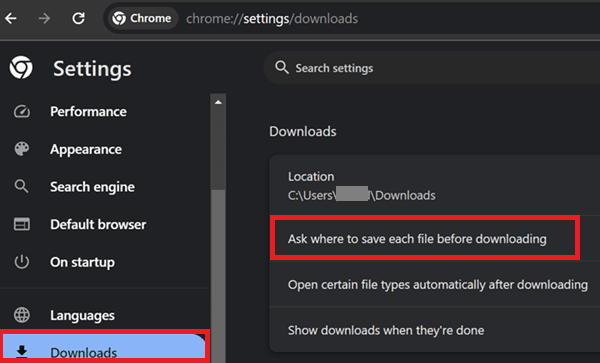
Check your browser settings to see if the option to choose where to download each file is enabled.
If this option is on, your files are marked as hidden only if you stick to the default download folder. If you manually select a different folder, your files will download as non-hidden files.
This glitch typically occurs due to compatibility issues between your Chromium browser and the latest macOS version. In fact, many macOS users complained about this problem after upgrading to Sonoma.
What you can do is leave the current download folder as is and manually select any other folder to download your files, and they should download normally.
To simplify further, you can disable the option to select the download folder for each file you download on your Mac.
If you’re using Chrome, go to Settings, select Downloads, and toggle off Ask where to save each file before downloading.
Disable iCloud Syncing
If your default download folder syncs with iCloud, that’s another reason why you’re experiencing this issue. It doesn’t matter that you didn’t save your files to the default download location.
As long as the default download folder is set to sync with iCloud, your downloaded files will still be marked as hidden.
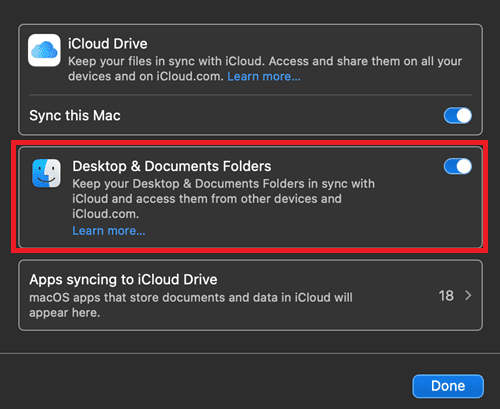
The easiest way to resolve the problem is to disable iCloud syncing for the default download folder.
Go to Settings, select iCloud, navigate to iCloud Drive, and toggle off the Desktop and Documents option.
Unfortunately, disabling this option may trigger some errors when you try to empty your Bin folder.
Don’t forget to check for browser updates regularly. Your browser’s developers are likely working to fix the compatibility issues between it and the latest macOS version.
There you go! We hope these solutions helped you solve the problem. If you found other helpful workarounds, do let us know in the comments below.
Madalina has been a Windows fan ever since she got her hands on her first Windows XP computer. She is interested in all things technology, especially emerging technologies — AI and DNA computing in particular.











Write a Comment