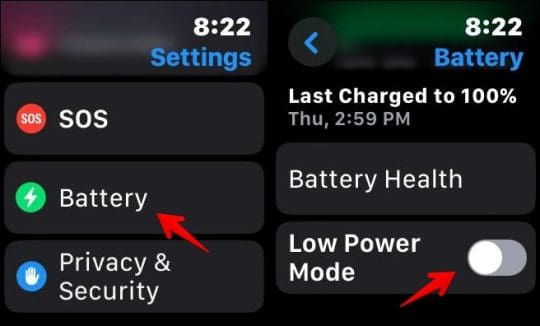
To maximize the watch battery, you should put it in the Low Power mode. Go to Apple Watch Settings > Battery and enable the toggle next to Low Power Mode. Please keep in mind that it will turn off the following things:
Always On display
Background heart rate measurements
Background blood oxygen measurements
Double-tap gesture
Time in Daylight
Heart rate notifications for irregular rhythm, high heart rate, and low heart rate
Start workout reminder
It will also slow down Siri, complications, background app refresh, and phone calls. In case you don’t want to turn off all these features, you can individually turn off unwanted features as shown in the following tips.
Tip: You can have Low Power Mode turned on automatically when you begin any workout in the Workout app by going to Watch Settings > Workout and enabling Low Power Mode.
Tip 2: Make Display Changes
When your Apple Watch battery is dying, turning off the Always-on display will help a lot.
Turn off Always on Display: Go to Settings on your Apple Watch> Display and Brightness > Always On. Turn off the toggle next to Always On.
Reduce Wake Duration Time: You should reduce the time the watch display stays on. Go to Watch Settings > Display and Brightness > Wake Duration. Select Wake for 15 seconds.
Turn off Wake on Wrist Raise: Go to Watch Settings > Display and Brightness and turn off Wake on Wrist Raise.
Reduce Brightness: Go to Watch Settings > Display and Brightness. Reduce the brightness using the available slider under Appearance.
Tip 3: Turn off Hey Siri Detection
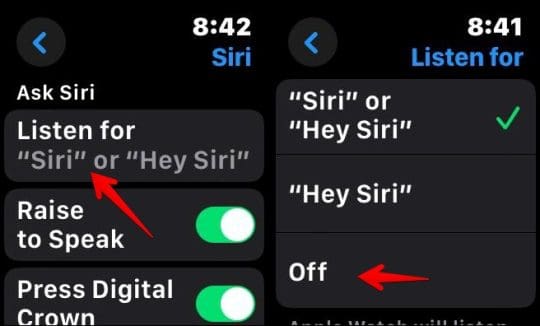
Just like the iPhone, Siri is always listening in the background. You should turn off this feature to extend battery juice. Go to Watch Settings > Siri > Listen for. Select Off. Also, go back and turn off Raise to Speak.
Tip 4: Use a Watch Face Having Fewer Complications
The watch complications are regularly updated to show real-time data which consumes battery power. To save some battery, you should temporarily switch to a watch face with minimal or no complications.
Tip 5: Turn off Sensors Like Heart Rate, Blood Oxygen
To extend the battery life of your Apple Watch, you can turn off sensors like Heart Rate, Blood Oxygen, Respiratory Rate, and Headphone Audio Levels. Go to Watch Settings > Privacy and Security > Health. Turn off the sensors that you don’t need.
Tip 6: Enable Cinema aka Theatre Mode
You can also try enabling Theatre Mode as it will also turn off some features affecting the battery. The features that get affected are:
To enable Cinema mode, open Control Center on the Watch and tap the Cinema Mode icon (two masks icon). Use the same icon to turn it off.
Tip 7: Enable Airplane Mode
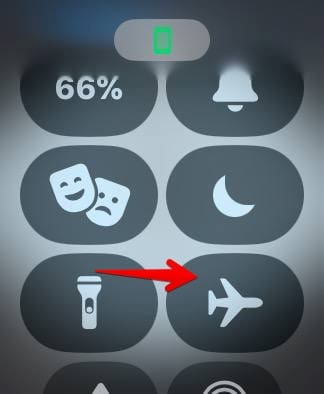
If you are okay with no connectivity on your watch such as Wi-Fi, Bluetooth, etc., you should enable Airplane mode on it to extend the battery life. Open Control Center and tap the Airplane icon to enable it.
Tip 8: Reduce Notifications
Whenever a notification appears on the watch screen, it uses battery power. You can extend the battery by turning off notifications for low-priority apps. For that, open the Watch app on your iPhone and go to Notifications. Scroll down to the list of the apps as well as the Mirror iPhone Alerts From section and turn off the toggle for the apps whose notifications are inessential.
Tip 9: More Tips to Extend Battery Power
Become Unavailable in Walkie Talkie: Open Control Center and tap on the yellow Walkie Talkie icon to turn it off.
Turn off Environmental Noise Monitoring: Go to Watch Settings > Noise > Environmental Sound Measurements and turn off Measure Sounds.
Disable Animations on the Watch: Go to Watch Settings > Accessibility > Reduce Motion and turn on the toggle next to Reduce Motion.
Also, keep your watch updated with the latest watchOS and remove unnecessary apps from the watch.
Mehvish Mushtaq is a computer engineer by degree. Her love for Android and gadgets led her to develop the first Android app for Kashmir. Known as Dial Kashmir, she won the prestigious Nari Shakti award from the President of India. She has been writing about technology for 6+ years and her favorite categories include how-to guides, explainers, tips and tricks for iOS/iPadOS, Android, social media, and web apps.













Write a Comment