Okay, problems with notifications are nothing new. But when it’s Facebook that’s giving you a notification problem; it easily becomes YOUR PROBLEM.
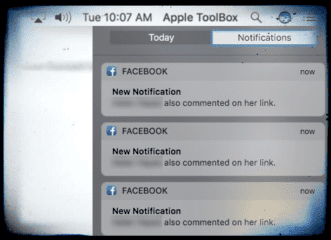
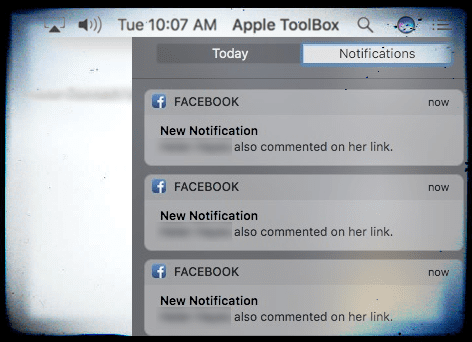
The situation is common enough: when people comment on your FB messages, updates, and status, you end up getting repeat notifications of those comments.
This repetition occurs multiple times over many days. And it’s annoying, almost to the point of wanting to close out that darn FB account! Some readers report that they get well above 20 notifications for each “real” notification. And others tell us that they’ve seen upwards of 80, even as high as 200 repeated notifications–all for the same FB event!
If this situation sounds like you, you are not alone. Most of us routinely use Facebook notifications on our MacBook and usually these notifications work as intended. There are however times when Facebook’s notifications display erratic behavior. One of the more common complaints when Facebook Notifications keep repeating over and over again. This particular issue appears to primarily impact readers who upgraded their MacBooks to macOS Sierra 10.12.1, but it occurs on all macOS and MAC OS X versions and all types of Macs, not just MacBooks.
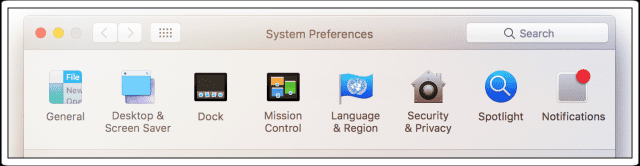
First, you get to Notifications via your System Preferences. So click on the Upper-Left Apple Logo and choose System Preferences. There you find Notifications.
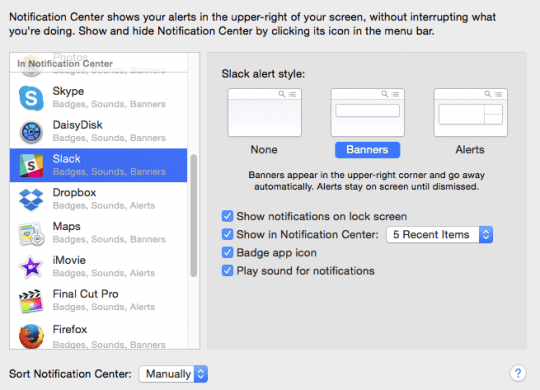
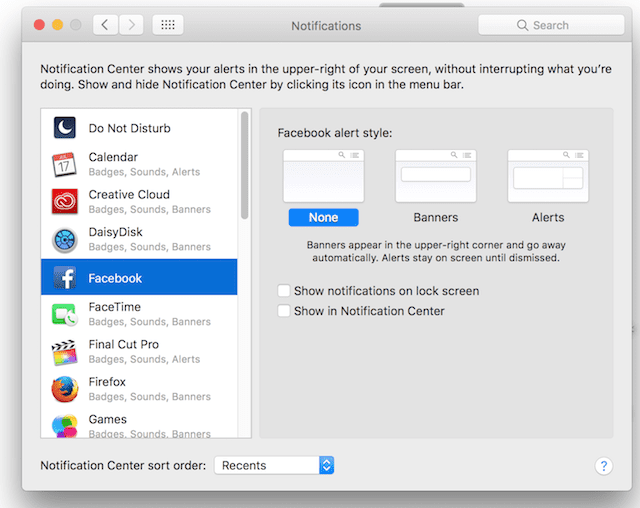
The Notifications Pane in System Preferences provides overall control of how the system works. On the left, you have a list of apps that can display statuses in the notification center. When you click an app on the left, you can control the behavior of its notifications. Banners appear briefly on the top right corner of your screen when activated. Alerts appear in the same place on the screen but remain persistently until dismissed. You decide if an App displays things on the sidebar and how many items appear.
macOS and Mac OS X Notifications on Your Lock Screen
Apps show notifications on your Mac’s lock screen. Review these settings for all apps to keep private stuff under wraps. Some apps, including Mail, let you hide notifications or just message previews.
To disable the display of notifications on the lock screen of macOS and Mac OS X
Click on the Apple menu > System Preferences > Notifications
Uncheck “Show notifications on the lock screen.”
If you are having this Facebook Notifications Repeating issue with your Mac or Macbook, please follow the steps below
Quick Fixes for Facebook Notifications Keep Repeating
This fix doesn’t cure the problem, but it does provide relief! Try these quick fixes out and wait a few days, weeks, or until the next macOS update to revisit and see if the problem is fixed or gone.
QuickFix 1
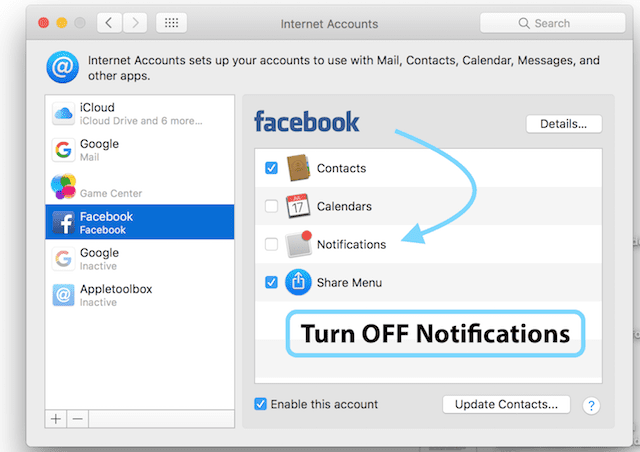
So for the meantime, turn off notifications for Facebook. Go to System Preferences > Internet Accounts > Facebook. Uncheck the Notification checkbox. That’s it. You won’t receive ANY notifications from FB.
QuickFix 2
Go to System Preferences > Notifications > Choose Facebook. Select None from alert style and un-check all boxes for “show notifications on lock screen” and “Show in Notification Center.”
How-To Fix Facebook Notifications Keep Repeating
Turn off your Facebook Notifications on Your MacBook
Remove your Facebook Account from Your Macbook
Wait for 30 minutes or so and restart your MacBook
Now add back your Facebook account
Make sure to turn ON Notifications for Facebook
These simple five steps should help you resolve this issue on your Mac or Macbook.
Still Having Problems with Facebook Notifications Keep Repeating?
If you are still experiencing this issue, delete all the Facebook-related items from your keychain, change your Facebook password and then try setting up the account back on your Macbook.
Getting to your Keychain
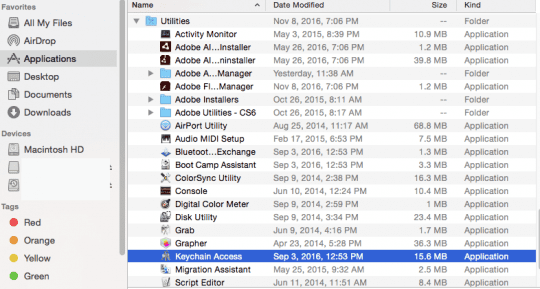
Click on Applications -> Utilities -> Scroll down, and you find keychain access here
Click on Keychain Access
Once it opens, click on Passwords on the left-hand pane
Delete all the Facebook-related items from this list
Reader Tips
Our reader Wolfen discovered another fix that worked! If the above tips didn’t work for you, give Wolfen’s suggestion a try.
Disable all Facebook-related notification settings in system settings > notifications
Remove your Facebook account from system settings > internet accounts
Delete all Facebook-related objects from your keychain and restart your Mac
Log on to Facebook, it asks if you want to use this account for Mac system integration, click on later
On Facebook go to Settings > Security > Where you’re logged in > Delete all old session, especially the ones under “Apple OS Integration”
Clear Safari cache and restart your Mac
Log on to Facebook, it asks if you want to use this account for Mac system integration, this time click ok and check the notifications setting, if everything ok, restart your Mac once again
In this process, Wolfen discovered that Facebook kept all his old sessions active. In fact, he had 67 active “Apple OS Integration” Sessions. And you get a notification for every single one of them.
If you use iDevices and cleared everything under the “where you’re logged in” tab, make sure you put in your credentials on those devices again.
We hope these simple steps helped you in fixing the issue of your Facebook Notifications repeating. Please let us know in the comments below if there are any other tips that you would like to share.
Obsessed with tech since the early arrival of A/UX on Apple, Sudz (SK) is responsible for the original editorial direction of AppleToolBox. He is based out of Los Angeles, CA.
Sudz specializes in covering all things macOS, having reviewed dozens of OS X and macOS developments over the years.
In a former life, Sudz worked helping Fortune 100 companies with their technology and business transformation aspirations.
The solution above did not work for me. My solution was a bit more complex. Here is what i did:
1. disable all facebook related notification settings in system settings -> notifications.
2. remove your facebook account from system settings -> internet accounts.
3. remove all facebook related objects from your keychain and restart your mac.
now comes the magic
4. log on to facebook, you will be asked if you want to use this account for mac system integration, click on later.
5. in facebook go to settings -> security -> where you’re logged in -> delete all old session, especially the ones under “Apple OS Integration”.
6. clear safari cache and restart your mac.
7. log on to facebook, you will be asked if you want to use this account for mac system integration, this time click ok and check the notifications setting, if everything ok, restart your mac once again.
This worked for me, it seems facebook keeps old sessions still active, i had 67 active “Apple OS Integration”- Sessions and you will get a notification for every single one of them.
If you use iOS devices and cleared evrything under the “where you’re logged in” tab, you have to put in your credentials on the devices again.












Wolfen, thanks for your solution. This was the only solution that ended up fixing the problem for me. Appreciate your help with this stubborn issue!
The solution above did not work for me. My solution was a bit more complex. Here is what i did:
1. disable all facebook related notification settings in system settings -> notifications.
2. remove your facebook account from system settings -> internet accounts.
3. remove all facebook related objects from your keychain and restart your mac.
now comes the magic
4. log on to facebook, you will be asked if you want to use this account for mac system integration, click on later.
5. in facebook go to settings -> security -> where you’re logged in -> delete all old session, especially the ones under “Apple OS Integration”.
6. clear safari cache and restart your mac.
7. log on to facebook, you will be asked if you want to use this account for mac system integration, this time click ok and check the notifications setting, if everything ok, restart your mac once again.
This worked for me, it seems facebook keeps old sessions still active, i had 67 active “Apple OS Integration”- Sessions and you will get a notification for every single one of them.
If you use iOS devices and cleared evrything under the “where you’re logged in” tab, you have to put in your credentials on the devices again.
Wolfen!
Love this solution. And thank you so very much for sharing it with others in the same situation. We’ll add it to the article as a fabulous reader tip!
Good going!
Be well,
Liz