If a family member loses one of their Apple devices, you might be able to help them find it using your iPad. This is incredibly easy to do using the Find My app, and if you already use Family Sharing then it only takes a second.
Even if you don’t use Family Sharing, your family member can sign in to their Apple ID account through the Find My app to find their missing device that way.
Use the Find My App to Find Your Family Member’s Devices
We’ve already written a complete guide to using the Find My app. But you don’t need to know much about the app to use it to find missing devices from your iPad.
The only thing to know is that there are two options, depending on whether you use Family Sharing or not.
If You Already Use Family Sharing
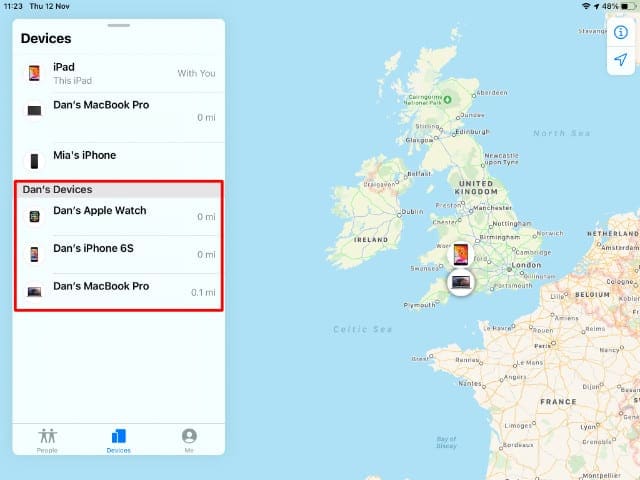
If you already use Family Sharing, all you need to do is open Find My on your iPad and tap the Devices button.
This shows a list of all your Apple devices, followed by all the devices in your Family Sharing group. Just tap your family member’s missing Apple device to view its last known location on the map.
Your family member’s devices appear beneath your own devices.
You can even choose to Play Sound from that device to help find it. Or if you need to travel to get to it, tap Directions to load a route in the Maps app.
Of course, you can also Activate Lost Mode to mark that device as lost, locking it and presenting a message onscreen for whoever finds it.
If your family member’s missing device is offline, enable Notifications to receive an alert the next time it connects to Wi-Fi, mobile data, or even Bluetooth.
Find My gives you the option to Erase missing devices, but that’s a bad idea since you can’t track it afterward.
If You Don’t Use Family Sharing
You can still use your iPad to find a family member’s missing device even if you aren’t in a Family Sharing group together. This is also what you need to do if you’re trying to help find a friend’s missing Apple device.
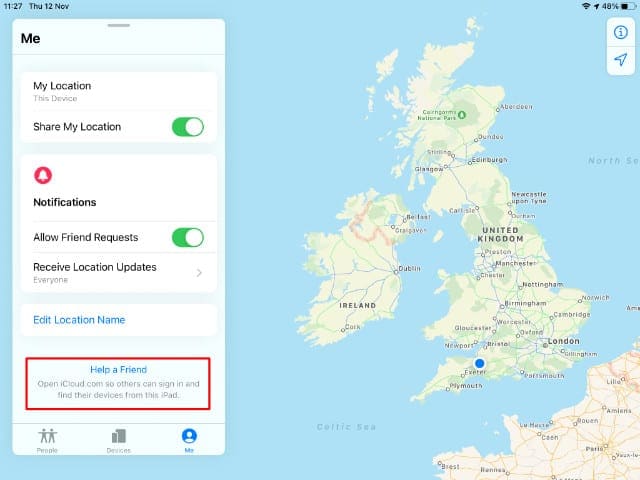
Open the Find My app on your iPad and go to the Me tab. Scroll down and tap the Help a Friend button to open iCloud.com in your web browser.
Tap the Help a Friend button to sign in to the iCloud website.
Your family member or friend needs to sign in to their Apple ID account in the link that opens up. Your iPad may try to sign in to your account automatically, so be sure to tap the Use a Different Account button if it does.
After signing in to your family member’s account, tap All Devices to see a list of each device connected with their account, then select the missing device to see its location on the map.
You can choose to Play Sound from that device or put it in Lost Mode. You can also choose to Erase missing devices, but we advise against this as it makes them impossible to track.
If the missing device is offline, enable the Notify me when found option to get an email the next time it connects to Wi-Fi, cellular data, or Bluetooth.
What to Do If the Missing Devices Don’t Show Up
The Find My app only works if Find My was turned on for each device before it went missing. Apple suggests enabling this feature during the setup, but you can also change it at any time in the Settings app.
Unfortunately, if Find My was disabled for your family member’s missing Apple device, you can’t find it using the Find My app, iCloud, or Family Sharing.
If that’s the case, you need to go back to the traditional methods of retracing your steps and asking around in the place it went missing.
How to Turn On Find My for Your Apple Devices
To make sure you can always find your Apple devices if they go missing, you need to turn on the Find My option in the Settings app.
On an iPhone or iPad:
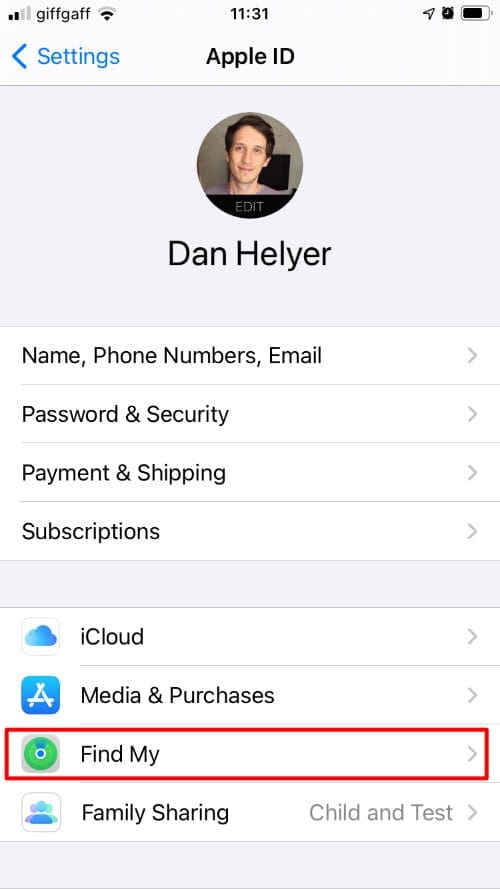
Go to Settings > [Your Name] > Find My.
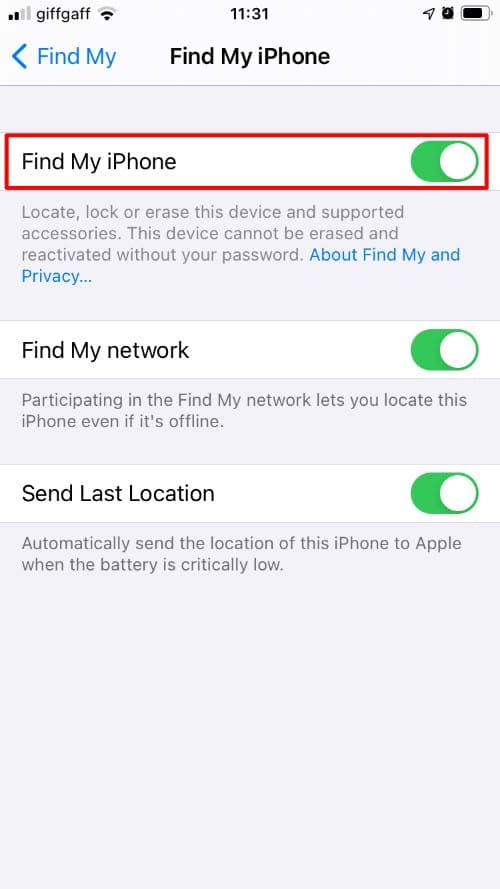
Tap on Find My iPhone/iPad and turn on all three options:
Find My iPhone/iPad
Find My network
Send Last Location
Open the Apple ID settings.
Expand the Find My settings.
Turn on every Find My option.
On a Mac:
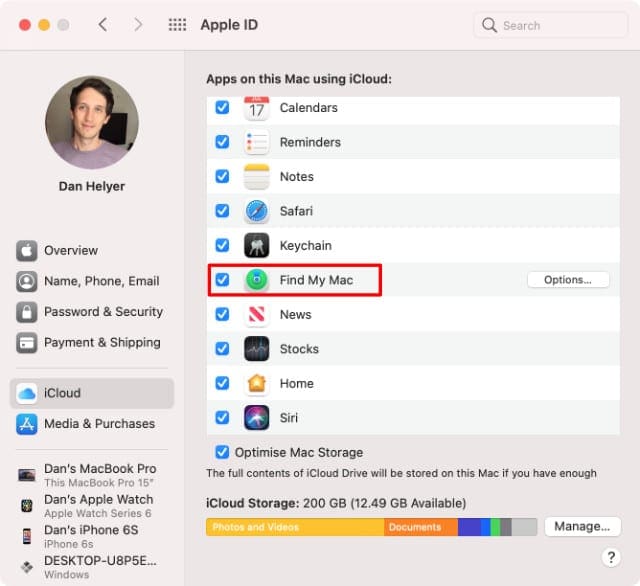
Open the System Preferences and go to Apple ID.
Click iCloud from the sidebar, then enable the Find My Mac option.
Open the Options to turn on Find My network as well.
Enable Find My Mac in your System Preferences.
A Missing Device Is Better With a Backup
Hopefully you were able to find your family member’s missing Apple devices using the Find My app on your iPad. If that wasn’t the case, and those devices are gone forever, you could still recover your family member’s lost data if they made a backup.
Even if your family member hasn’t replaced their missing device yet, they can use any other Apple device to find out if they have a backup by checking through iCloud, iTunes, or Finder. That way they know what they have to look forward to if they ever do replace it.
Dan writes tutorials and troubleshooting guides to help people make the most of their technology. Before becoming a writer, he earned a BSc in Sound Technology, supervised repairs at an Apple Store, and even taught English in China.













Write a Comment