watchOS 4 from Apple made it possible for faster app responsiveness and access to more background modes for developers. The new update also made it possible for developers to take advantage of core Bluetooth in order to connect directly to accessories. Despite the improvements, there are times when an app becomes frozen and is not responsive on your Apple Watch. Here is how you can fix a frozen app on your Apple Watch.
In this short article, we will show you how you can easily force quit apps on your Apple Watch. Prior to watchOS 3, you could simply double-click the side button and force quit it but now it appears that this requires a few other steps.
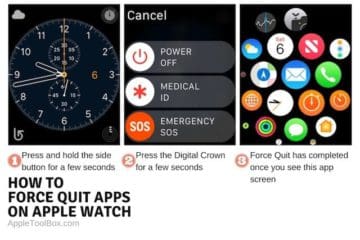
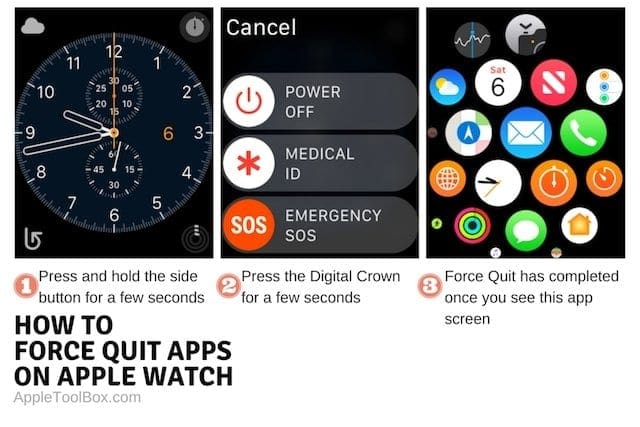
Start by Pressing the Side button and holding it for a few seconds
You will be taken to the Power off screen on your Apple Watch.
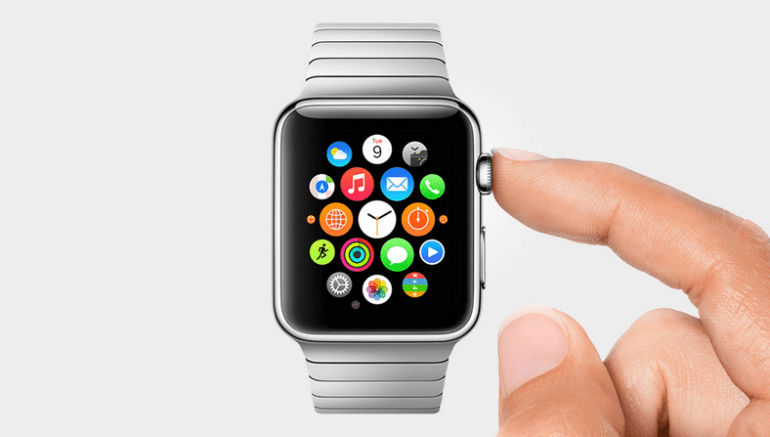
Instead of chossing one of the display screen options here, press the digital crown and hold it down for a few seconds
When you see the homescreen for apps on your Apple Watch, it would signal that you have force quit the frozen app successfully.
Restart your Apple Watch by pressing and holding the side button until the slider appears and then drag the power off slider. Restart your watch.
Launch the Problematic app and see if you still have issues.
If you have had issues with the particular problematic app on your Apple Watch for some time and have tried force quitting and restarting your Apple Watch to no success, your best bet may be to uninstall the app completely and then re-install it on your device.
Uninstall The App Completely and Re-Install on Your Apple Watch
In order to delete the problematic app from your Apple Watch, On iPhone, touch and hold the app icon until you see an X on the icon, then tap the X to remove the app from your iPhone and Apple Watch. To restore an app that’s been removed, download it to iPhone from the App Store.
You can remove the app directly from your Apple Watch by holding the app icon until you see the familiar X on the icon. When you do it this way, the app remains on your paired iPhone. The best bet is to remove it from both your iPhone and Watch and then reinstall it back again using the App store.
We hope that you found this quick tip helpful. Please let us know in the comments below if you have any question or concerns.
Obsessed with tech since the early arrival of A/UX on Apple, Sudz (SK) is responsible for the original editorial direction of AppleToolBox. He is based out of Los Angeles, CA.
Sudz specializes in covering all things macOS, having reviewed dozens of OS X and macOS developments over the years.
In a former life, Sudz worked helping Fortune 100 companies with their technology and business transformation aspirations.
My apple watch keeps defaulting to a screen called Stand — Almost there. I can’t get it to change. The buttons to unlock the watch don’t work. The big button doesn’t do anything. Even holding it down doesn’t give me the option to turn it all the way off to restart. Help!











My Apple watch is totally stuck on Edit aps. Nothing seems to work.
My apple watch keeps defaulting to a screen called Stand — Almost there. I can’t get it to change. The buttons to unlock the watch don’t work. The big button doesn’t do anything. Even holding it down doesn’t give me the option to turn it all the way off to restart. Help!