• Skip to primary navigation
  • Skip to main content
  • Skip to primary sidebar
  • Skip to footer

AppleToolBox

Tools and Fixes for Mac, iPad, iPhone & iWatch

Search posts

  • About
  • Contact

CONNECT WITH US

CATEGORIES

  • iPhone
  • iPad
  • iPod
  • Apple Watch
  • Mac/MacBook
  • AirPods
  • Apple TV
  • News
  • Apple Services
  • HomePod
  • Reviews

SITE

  • Home
  • About Us
  • Contact
  • Advertise

Search posts

You are here: Home / Mac / Fix Microsoft Teams Error Code 500 on Mac

Fix Microsoft Teams Error Code 500 on Mac

By Madalina Dinita 0 comments Last updated December 29, 2022

Microsoft Teams error code 500 usually occurs when you load the app or try to log into your account. The screen saying “Something went wrong” doesn’t disappear even if you restart Teams. Let’s explore what troubleshooting methods yielded positive results for users.

Contents

  • How to Fix Teams Error 500 on MacBook
    • Force Quit the App
    • Clear the Cache
    • Reinstall Teams
    • Conclusion

How to Fix Teams Error 500 on MacBook

Force Quit the App

Many users noticed that if they force quit the app and launch it again, Teams prompts them to enter their email. The app sometimes opens as soon as you type in your email address. As strange as this workaround may appear, it worked for many users and could work for you as well. So, click on your Apple menu, select Force Quit, select Teams in the Force Quit window, and then hit the Force Quit button.

Additionally, if you’re using a VPN, disable the tool and try logging into your Teams account again. Restart your router and check if you notice any improvements.

Clear the Cache

Clearing the app cache helps you to get rid of all those temporary files that might be interfering with your current Teams session. In other words, the app keeps accessing data from your previous app sessions.

  1. First of all, you need to right-click the Teams icon in the Dock and select Quit to exit the app completely.
  2. Then open Finder, click on the Go menu, and select Go to folder.
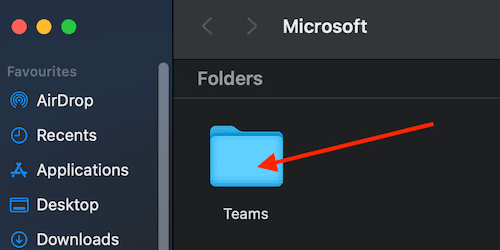
  3. After that, enter ~/Library/Application Support/Microsoft in the search box and hit Go.
  4. Select the Teams folder and move it to Trash.microsoft teams cache folder mac
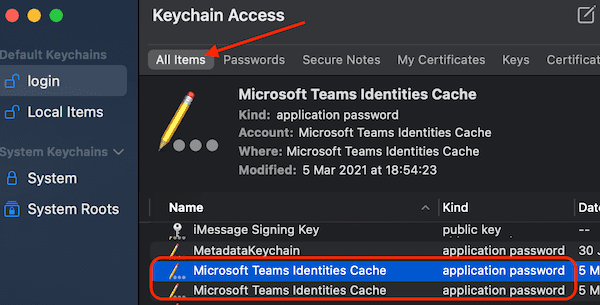
  5. Then launch Keychain and select Keychain Access.
  6. Delete the Microsoft Teams Identity cache entries.microsoft teams identities cache mac
  7. Restart your computer, launch Teams again and check if error 500 is gone.

Reinstall Teams

If nothing worked, try reinstalling Teams. First, uninstall the app and restart your Mac. Then download Teams from the App Store. Install the app and check if you can log into your account. If the first version of the app got corrupted, installing a fresh app copy should solve the problem.

Conclusion

Teams error code 500 indicates the app could not sign you in to your account. Most likely, your cache files are interfering with your current Teams session. To fix the issue, clear your cache and remove the Microsoft Teams Identity cache entries from Keychain. Restart Teams and check the results. If the issue persists, reinstall the app. Did these solutions help you troubleshoot the problem? Let us know in the comments below.

Related Posts:

  • pexels-tima-miroshnichenko-6860464
    How To Start Using Regex With The Shortcuts App
  • pexels-cottonbro-5474033
    How To Navigate Folders Using The Mac Terminal
  • pexels-hana-mara-3650616
    The Best Homebrew Apps For Mac
  • 2023 Mac Studio lifestyle - 1
    macOS Could Not Be Installed, How-To Fix
  • How to Fix Verifying Microsoft Outlook Mac Stuck Error 11 Best Methods
    How to Fix Verifying Microsoft Outlook Mac Stuck…
  • pexels-mockupeditorcom-205316
    10 Mac Terminal Tips And Tricks For Pro Users
  • fix-cant-log-into-teams-mac
    What to Do if You Can't Log in to Teams on Mac
  • microsoft teams not working on mac
    Fixes for Microsoft Teams Not Working on Mac
  • pexels-cottonbro-5474033
    How To Use The Mac Terminal: The Basics
Madalina Dinita

Madalina has been a Windows fan ever since she got her hands on her first Windows XP computer. She is interested in all things technology, especially emerging technologies — AI and DNA computing in particular.

Reader Interactions

Write a Comment Cancel reply

Primary Sidebar

Recent Posts

  • Gaming Alternatives to Whisky: Which Is Better for Running Windows Games on Mac?
  • How to Hide App Results From Spotlight
  • How to Set Up iCloud Passwords on a Windows PC?
  • How to Turn Off Apple Music’s Dark Mode
  • How to Disable Predictive Text in iOS 26
  • How to Stop Sharing Analytics in iOS 26

Connect with us

Footer

ABOUT

  • About Us
  • Contact us
  • Advertise
  • Privacy
  • Terms of Use

GUIDES

  • iOS & iPadOS
  • Apple ID
  • iCloud
  • App Store
  • iTunes
  • FaceTime
  • iMessage
  • Siri
  • Books and iBooks
  • Game Center
  • AirPlay

CONNECT

  • Facebook
  • Twitter
  • FeedBurner
  • YouTube

© Copyright 2010-2024 Guiding Tech Media · All Rights Reserved

This site and its content are in no way affiliated or endorsed by Apple, Inc. · Reproduction without explicit permission is prohibited

Last Updated on December 29, 2022 by Mitch Bartlett