• Skip to primary navigation
  • Skip to main content
  • Skip to primary sidebar
  • Skip to footer

AppleToolBox

Tools and Fixes for Mac, iPad, iPhone & iWatch

Search posts

  • About
  • Contact

CONNECT WITH US

CATEGORIES

  • iPhone
  • iPad
  • iPod
  • Apple Watch
  • Mac/MacBook
  • AirPods
  • Apple TV
  • News
  • Apple Services
  • HomePod
  • Reviews

SITE

  • Home
  • About Us
  • Contact
  • Advertise

Search posts

You are here: Home / iPhone / Fix: OneDrive Couldn’t Download File, Error 60 on Mac

Fix: OneDrive Couldn’t Download File, Error 60 on Mac

By Madalina Dinita 0 comments Last updated December 29, 2022

OneDrive is pretty popular among Mac users, especially if your collaborators use Windows computers. But Microsoft’s cloud platform may sometimes show a strange error when you click on Documents. Error code -60 indicates OneDrive for Mac couldn’t access and sync your files. Let’s explore how you can get rid of this annoying error.

Contents

  • How Do I Fix OneDrive Error 60 on macOS?
    • Delete Duplicate OneDrive Folders and Restart the App
    • Enable Files on Demand
    • Reset OneDrive
    • Reinstall the App
    • Conclusion

How Do I Fix OneDrive Error 60 on macOS?

Delete Duplicate OneDrive Folders and Restart the App

  1. Navigate to the Applications folders.
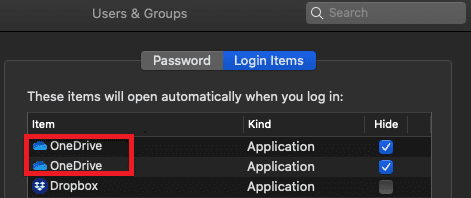
  2. Then check if there are multiple OneDrive copies listed in that folder.
  3. If this is the case, delete the duplicates. If you keep multiple OneDrive copies, macOS will launch multiple OneDrive instances which may lead to many unexpected glitches. duplicate onedrive mac
  4. Restart OneDrive a couple of times.
  5. Check if this quick method fixed the problem.

Unfortunately, this workaround may not do the trick for all users. If the error persists, go to the next step.

Enable Files on Demand

Many users solved the problem after enabling Files On demand.

  1. Click the OneDrive cloud icon in the top ribbon.
  2. Go to Help and Settings.
  3. Select Preferences, and click Turn on Files On demand.onedrive-for-mac-files-on-demand
  4. Restart OneDrive and check if error code 60 persists.

Reset OneDrive

Try resetting your app settings with the help of the built-in reset script. Keep in mind that OneDrive is usually slow to load and sync after the reset.

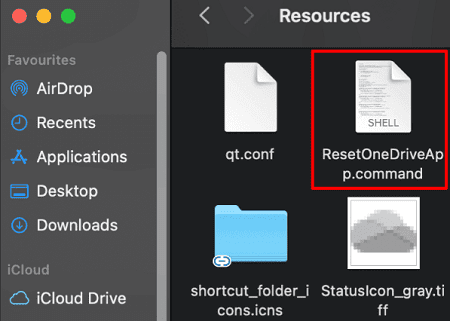
  1. Close OneDrive and open the Applications folder.
  2. Right-click on your OneDrive folder and select Show Package Contents.
  3. Then select Contents, and go to the Resources folder.
  4. Double-click on ResetOneDriveApp.command to launch the reset script.reset-onedrive-on-mac
  5. Wait until your Mac finishes running the script, restart OneDrive and try again.

Reinstall the App

If error code 60 won’t go away, reinstall OneDrive. Go to Applications, locate OneDrive and drag the app to the Trash folder. Empty the Trash folder, restart your Mac and download the latest OneDrive version on your machine.

By the way, don’t skip the app reset step. Reinstalling OneDrive without first resetting the app won’t solve the problem.

Conclusion

To sum up, if you want to fix OneDrive error code 60, go to Applications, and delete duplicate OneDrive entries. Then restart the app, and enable Files on Demand. If the error persists, reset and reinstall OneDrive. Which of these solutions worked for you? Comment below.

Related Posts:

  • pexels-cottonbro-5474033
    How To Navigate Folders Using The Mac Terminal
  • pexels-tima-miroshnichenko-6860464
    How To Start Using Regex With The Shortcuts App
  • pexels-hana-mara-3650616
    The Best Homebrew Apps For Mac
  • Windows computer
    How to AirDrop from iPhone to Windows PC
  • 14 Best Mac Cloud Storage for Home, Work, and School in 2023
    14 Best Mac Cloud Storage for Home, Work, and School in 2023
  • 2023 Mac Studio lifestyle - 1
    macOS Could Not Be Installed, How-To Fix
  • pexels-mockupeditorcom-205316
    10 Mac Terminal Tips And Tricks For Pro Users
  • How to Fix Verifying Microsoft Outlook Mac Stuck Error 11 Best Methods
    How to Fix Verifying Microsoft Outlook Mac Stuck…
  • pexels-adam-fejes-5702341
    How To Download YouTube Videos To Mac Safely (and…
Madalina Dinita

Madalina has been a Windows fan ever since she got her hands on her first Windows XP computer. She is interested in all things technology, especially emerging technologies — AI and DNA computing in particular.

Reader Interactions

Write a Comment Cancel reply

Primary Sidebar

Recent Posts

  • How to Set Up iCloud Passwords on a Windows PC?
  • How to Turn Off Apple Music’s Dark Mode
  • How to Disable Predictive Text in iOS 26
  • How to Stop Sharing Analytics in iOS 26
  • How to Manage Your iPhone Call Log
  • Are Apple’s Safety Precautions Enough for AirTags?

Connect with us

Footer

ABOUT

  • About Us
  • Contact us
  • Advertise
  • Privacy
  • Terms of Use

GUIDES

  • iOS & iPadOS
  • Apple ID
  • iCloud
  • App Store
  • iTunes
  • FaceTime
  • iMessage
  • Siri
  • Books and iBooks
  • Game Center
  • AirPlay

CONNECT

  • Facebook
  • Twitter
  • FeedBurner
  • YouTube

© Copyright 2010-2024 Guiding Tech Media · All Rights Reserved

This site and its content are in no way affiliated or endorsed by Apple, Inc. · Reproduction without explicit permission is prohibited

Last Updated on December 29, 2022 by Mitch Bartlett