Many Parallels Desktop users complained the full-screen option sometimes fails to fill the entire screen. For example, Windows won’t reclaim the space that’s normally taken by the Dock. Or the Windows screen sometimes shrinks down to a small box. Let’s discuss what you can do to fix this problem.
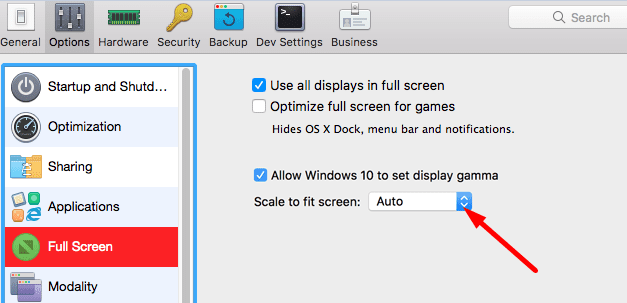
Launch Parallels Desktop, go to Configuration, select Options, and click on Full Screen.
Then, go to Scale to fit screen, and select Keep ratio from the drop-down menu.
Launch Windows in Full-Screen mode.
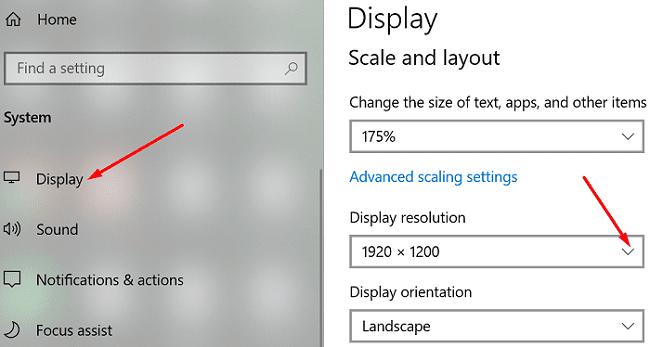
Then, go to Windows Settings, select System, and click on Display.
Scroll down to Screen Resolution and set it to your preferred values.
Restart Windows and check if the full-screen issue is gone. If the problem persists, test several resolution settings and check the results.
If you see black bars on the bottom of the Windows screen, force the screen to stretch. Keep in mind that objects and fonts in Windows will look a bit weird. Go back to Scale to fit screen, and use the drop-down menu to select Stretch.
Parallels may sometimes enter Windowed mode after installing the latest macOS updates. The problem is that when you go back to full-screen mode, Windows doesn’t use the appropriate resolution and keeps the Dock and toolbar visible. Go to Windows display settings, and manually set up the correct resolution to fix the issue.
If the full-screen problem persists, uninstall Parallels and restart your Mac. Then, reinstall the program and check if the issue is gone.
Conclusion
If Windows 10 doesn’t fill the entire Parallels Desktop screen, go to your virtual machine settings, and enable the “Keep ratio” option under “Scale to fit screen”. Then, go to Windows 10 Display settings, and use a different resolution. Did you manage to find the right settings for your system? Let us know in the comments below.
Madalina has been a Windows fan ever since she got her hands on her first Windows XP computer. She is interested in all things technology, especially emerging technologies — AI and DNA computing in particular.
Running M1 Mac, Parallels ARM Virtual Machine. Playing Sniper Ghost Warrior 3. Parallels Desktop 18.0.3
Zoom scope in and window expands to take full screen and part of adjacent monitor. Can’t zoom out to return to regular view. Tried your article “How to fix Parallels Desktop Full-Screen Issues”. Couldn’t find anything like your screenshots.
What am I doing wrong?










Running M1 Mac, Parallels ARM Virtual Machine. Playing Sniper Ghost Warrior 3. Parallels Desktop 18.0.3
Zoom scope in and window expands to take full screen and part of adjacent monitor. Can’t zoom out to return to regular view. Tried your article “How to fix Parallels Desktop Full-Screen Issues”. Couldn’t find anything like your screenshots.
What am I doing wrong?
I just cannot get Windows 10 to fill the Parallels Desltop screen! Very fustrating These steps are not working!