Your Mac may sometimes throw kernel panic errors when shutting down. Other users reported they encountered the same issue when waking their computers from sleep. This problem has been around for a long time and fixing it is not an easy task. Let’s take a closer look at the root causes of this problem.
Kernel panic errors are actually important safety measures. Your operating system decides to shut everything down after detecting fatal errors that could potentially lead to major data loss.
Software conflicts and incompatible hardware are two of the most common triggers for kernel panic errors on Mac. Outdated app and OS versions may also cause unexpected system glitches and trigger kernel panic errors.
Other reasons include not enough RAM, not enough free space on your hard drive, outdated driver versions, and conflicting system settings. Let’s explore how you can fix kernel panic errors on Mac.
How Do I Get My Mac Out of Kernel Panic?
Free up Space and Move Data to External SSD
A number of users solved this problem by moving data to an external drive (ideally, use an external SSD). It appears that during the shutdown, the process that should reset the watchdog closes while other background processes actually delay the shutdown long enough to trigger the watchdog errors. Or maybe one of the internal drives fails to shut down properly.
So, free up more space on your Mac by moving files to an external drive. Make sure that you have at least 50GB of free space on your machine.
Boot into Recovery Mode
Boot up your Mac in Recovery Mode and check if the error persists.
Click on the Apple logo and select Restart.
Then immediately hold down the Command and R keys.
Release the keys when you see the Apple logo or the spinning globe on the screen.
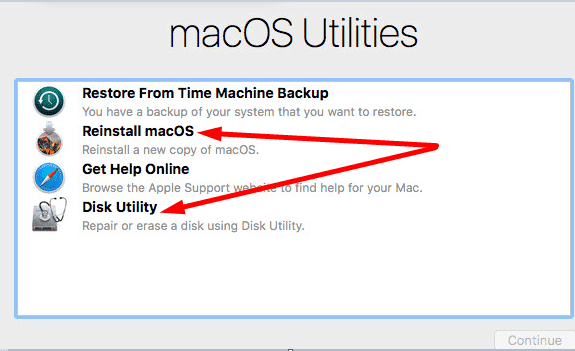
The macOS Utilities window should appear on the screen with the following options:
Restore from Time Machine Backup
Reinstall macOS
Get Help Online
Disk Utility
Select Disk Utility.
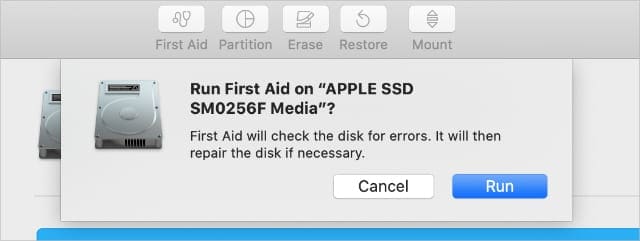
Run First Aid to repair your disk. Restart the computer and check the results.
Run First Aid on any problematic drives.
If the kernel panic issue persists, select Reinstall macOS to install a fresh copy of macOS.
If you own an M1 Mac computer, the process is a bit different.
First, turn off your device. Shut it down completely.
Then press the Power button and keep on pressing it until the Apple logo appears on the screen.
Keep on holding down the Power button until you see the startup options.
Then select Options and hit Continue to enter Recovery mode.
Disconnect All Peripherals
Unplug or disconnect all the devices connected to your MacBook. Then restart your computer and check if the issue persists. If it doesn’t, this indicates one of the devices connected to your Mac may be the culprit.
Check For Software Conflicts
Many Mac users complained that Photoshop, Adobe Premier, and Lightroom often cause kernel panic errors. Close your Adobe apps or uninstall them completely and check if this action solves the kernel panic problem.
Other users identified AdGuard as the culprit. If this problem occurred shortly after you installed new apps and programs on your Mac, uninstall them, restart your machine and check if the issue persists.
Update Your Mac
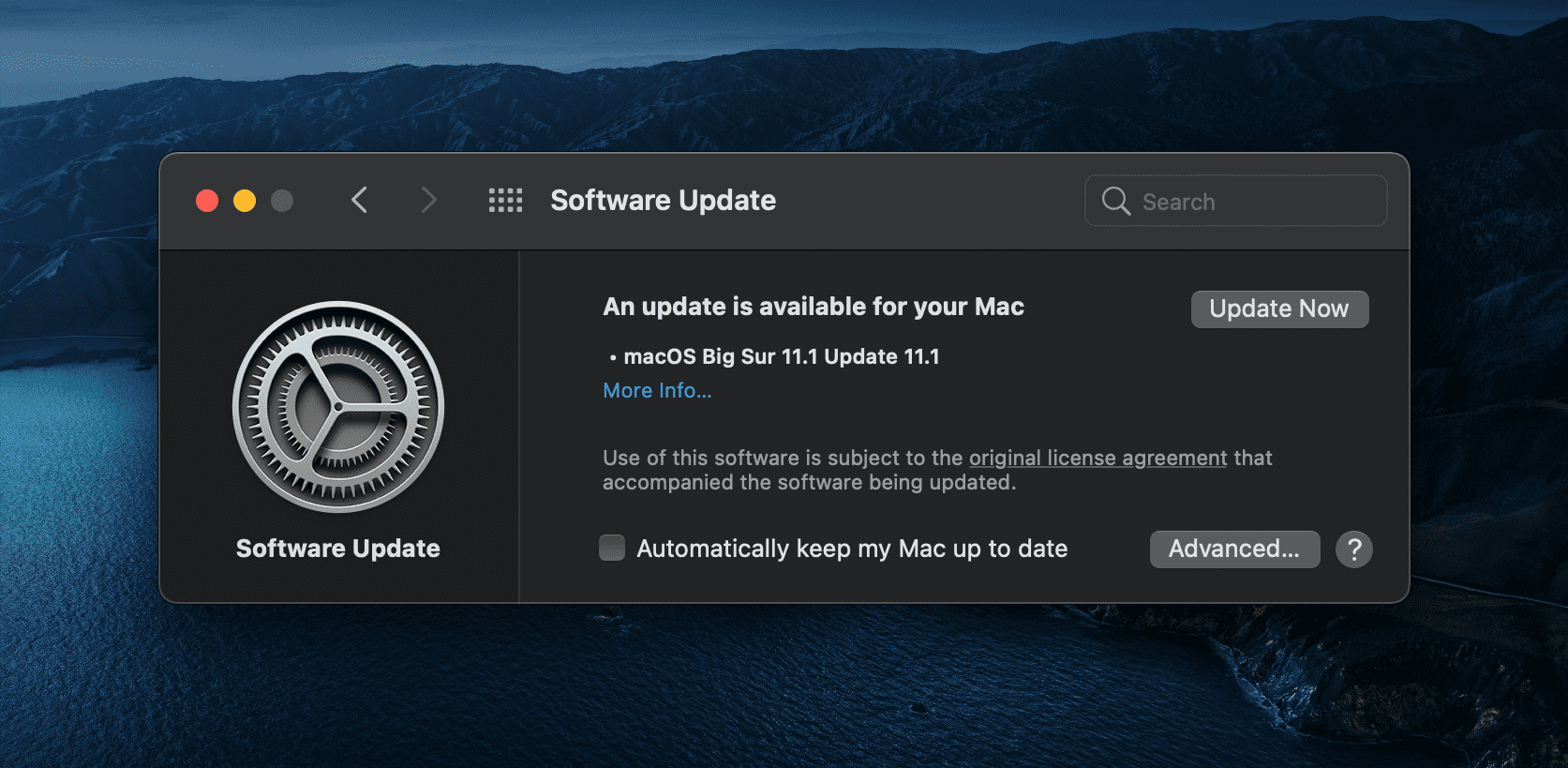
Make sure you’re running the latest macOS version on your machine. Go to System Preferences, select System Update, and check for updates.
Then launch the App Store app and hit the Update button to check if there are any updates available for your apps. Make sure to regularly update macOS and all the other apps installed on your machine.
Disable FileVault
A number of users confirmed they fixed the kernel panic issue by disabling the FileVault settings. The main role of the FileVault is to prevent unauthorized access to your startup disk. Test this method and check if it works for you as well.
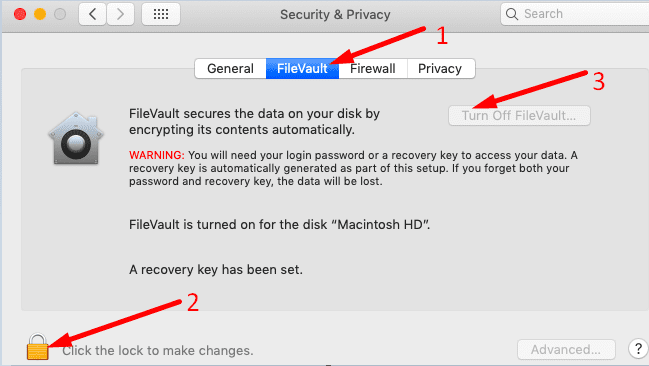
Click the Apple menu and select System Preferences.
Then navigate to Security & Privacy.
Select the FileVault tab, click the lock icon and enter your credentials.
Click Turn Off FileVault.
Other users also disabled SIP (System Integrity Protection) and Gatekeeper. Go to Utilities, select Terminal and run the following commands: csrutil disable and sudo spctl –master-disable.
Keep in mind that SIP and Gatekeeper are two important security features that prevent unauthorized access to your Mac. Disable them at your own risk.
Additionally, run the sudo kextcache -i / command to rebuild the kext cache. Restart your computer and check if the kernel panic errors are gone.
Reset NVRAM and SMC
To reset your NVRAM, you need to first shut down your MacBook.
Then, power up the device and immediately hold down the Command + Option + P + R keys.
You need to hold these four keys down for 20 seconds.
After you release them, your computer should boot up normally. If your Mac plays a chime sound at boot, release the keys when you hear the second chime.
Check your System Preferences and tweak them as needed.
To reset the System Management Controller (SMC), turn off your Mac.
Then hold the Power button for 10 seconds.
Release it, wait 30 more seconds and then power up your machine.
If the issue persists, shut down your Mac and then hold the following keys: Control (left side of the keyboard), Option (left side of the keyboard), and Shift (the right side of the keyboard).
With all these three keys pressed, hold down the Power button as well.
Now, hold down the four buttons for 7 seconds and then release them.
Wait two minutes, boot up your MacBook and check the results.
Conclusion
Kernel panic errors occur due to unexpected hardware and software problems. Avoid connecting third-party peripherals to your Mac. If possible, use an external SSD to store your multimedia files. If the problem persists, try resetting your NVRAM and SMC.
How often do you experience kernel panic issues on your MacBook? What solutions do you usually use to troubleshoot the problem? Share your thoughts in the comments below.
Madalina has been a Windows fan ever since she got her hands on her first Windows XP computer. She is interested in all things technology, especially emerging technologies — AI and DNA computing in particular.
Hi I have a 2018 Mac mini and only came with 256gb storage. I don’t have enough storage to update software despite getting rid of most of my apps to update so am using Catalina still. I decided to use open core legacy patcher to update Mac OS and use unsupported version Ventura. So I boot from an external drive. It had been perfect for about 12 months but now get the watchdog boot errors and it struggles to boot up. So I will follow your advice and see if I can fix the issue. But I will have to continue to use the external drive because I use Photoshop a lot.












Hi I have a 2018 Mac mini and only came with 256gb storage. I don’t have enough storage to update software despite getting rid of most of my apps to update so am using Catalina still. I decided to use open core legacy patcher to update Mac OS and use unsupported version Ventura. So I boot from an external drive. It had been perfect for about 12 months but now get the watchdog boot errors and it struggles to boot up. So I will follow your advice and see if I can fix the issue. But I will have to continue to use the external drive because I use Photoshop a lot.