Pinger textfree is a wonderful little collection of apps that do everything that the native iPhone and SMS apps do. The difference between regular calls and pinger textfree is that Pinger apps do all your phone needs over WiFi or Data Connections.
That means you don’t even need a mobile or cellular phone plan to make calls or text. And the apps work with all types of iDevices–iPhones, iPads, or iPod Touches.
Pinger apps allow you to make free calls and send free text and picture messages. Pinger textfree is a collection of free phone and messenger apps that give you a real US phone number, so you text or call anyone, even if they don’t have the app.
These apps use your WiFi or Mobile Data connection to keep you in touch with friends and family around the world. And pinger textfree offers robust features like group messaging, picture messaging, emojis, stickers, and even international calling & texting! And there’s even voicemail. How amazing is that?
Pinger textfree is available for iOS, Android, and also has a web version. So all your friends and family have access to this app, no matter their operating system or phone manufacturer.
So what’s really free?
All calls to and from your friends on Textfree are free–always and all the time. So are all incoming calls. So get your friends and family onboard so you all call and text free.
Quick SnapShot of Pinger TextFree
ALL inbound calls are free
ALL Textfree-to-Textfree calls are free
You need minutes to call friends who are not on Textfree
Supports calls internationally to US, Canada, Mexico, China, and India (that do not have textfree accounts)
Outgoing calls require credits, either purchased or earned via watching advertisements, videos, completing partner offers or downloading suggested apps.
For Outgoing Calls
watch videos to earn minutes
complete offers from partners
buy minutes from the app store
So, Who Uses These Apps Anyway?
These are perfect apps for iPad and iPod Touch users who want their iPods or iPads to function more like an iPhone. Even iPhone owners find pinger textfree useful, for international calling or for those with plans that count minutes and texts. And pinger textfree is also very handy for texting when there’s no phone signal, but there is WiFi or Data.
Another significant advantage of pinger textfree is that it allows you to have multiple numbers on one iPhone or iDevice. This means you can have personal and business numbers, all ringing to the same phone or iDevice!
source: Pinger
Great Uses for Pinger Textfree
Use pinger as a secondary phone number for your iPhone when you don’t want to give out your real phone number to someone or a business. Pinger textfree allows you to keep your actual iPhone number or phone number private so you feel safe giving away your personal information when providing your pinger textfree number to strangers and others. It’s a great way to stay anonymous.
And if you’ve fallen on hard times or are on a tight budget, pinger textfree allows you to continue making and receiving calls and texts without a carrier. So if you or a loved one lost a job or are struggling to pay those mobile phone bills, pinger textfree provides you a new phone number, so you maintain all your connections, even if you need to shut off your cellular service. With Pinger textfree, you still have a phone number to be reached at, even without a mobile carrier plan! And nobody knows that you are using pinger instead of a mobile plan. Everything works normally.
Pinger textfree gives you an actual 11 digit phone number that people with any type of phone from any carrier or landline call. It’s all just like any other phone call!
The Pluses of Pinger Textfree
• Texting and calling are free to the US and Canada from anywhere in the world when you have a Data Connection or WiFi
•Pinger Textfree works around the globe, so making free calls and sending free texts is a breeze
•Send and receive beautiful MMS picture messages
•Choose ringtones and text tones
•FREE TEXTING + CALLING APP for both the US and Canada.
•Send a text from your regular number or send a text from your Pinger Textfree number–all free
•Text groups too! Create groups, leave groups, add participants and let everyone be part of the conversation
The Rules of the Game with Pinger Textfree
Of course, there are some caveats. The most important one is that pinger textfree DOES NOTsupport emergency calls so make sure you use your standard carrier provided phone number when calling emergency services.
And since pinger textfree is free, there are advertisements. So ads appear routinely, and you need to earn credits (call minutes) by watching advertisements and videos to make calls. But don’t fret, it’s pretty easy and straightforward to get extra minutes for all your phone calls.The app does offer in-app purchases such as ad-free texting for a year for around USD 6 and other purchases for ad-free minutes.
Also, when roaming outside your carrier provided network, you still incur data roaming charges if that’s part of your plan.
And if your contacts aren’t on Textfree, they might have to pay regular carrier charges for texts and pictures. Fees depend on their carrier and plan.
Finally, if you sign up but don’t use your assigned phone number within 30 days, it will expire and return to the pool of available numbers. Also, if you go more than 30 days with no use, your assigned number expires. So, the best practice is to text or call someone every few weeks. Make sure this is someone other than yourself–messaging yourself does NOT count.
A Word of Caution
Textfree recycles old phone numbers from accounts that have expired (30 days of no use.) So if you receive a lot of calls from people you don’t know, chances are they’re just looking for the previous Textfree user. Simply let them know that the person they are trying to reach is no longer associated with this phone number.
About International Calling and Texting
Not all countries are supported. Check Pinger’s website for an updated list of supported countries. And if the country you’re looking for is not yet supported, check and see if you or your friends have access to the US App Store or US Google Play. If so, download Textfree from the US store.
Once if you and your friends have Textfree downloaded on your devices, you can text and call each other free as much as you want no matter where you are.
What about receiving messages internationally?
Whether or not Pinger supports a country, you receive messages from anywhere in the world. Country support impacts sending messages only.
How To Set Up Pinger Textfree
Step 1: Download Pinger Textfree
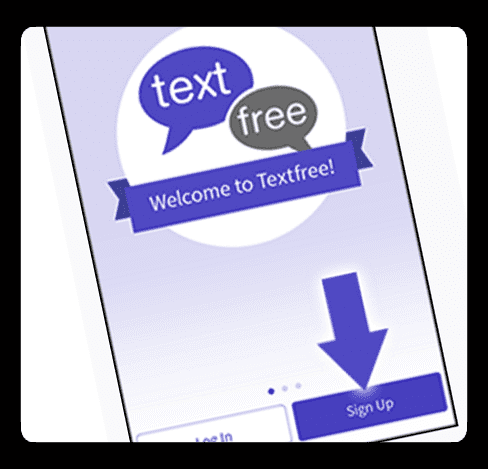
Go to the app store and download the app, search pinger, Inc. Select the one called “Pinger Textfree Ultra.” It’s a free app. (Pinger also has others apps so check those out too.) Download as you would any other app, and open the app. After installing and launching the Pinger Textfree, tap on the purple ‘Sign up’ button. It’s that simple!
Step 2: Set Your Location
To get a local number, Pinger Textfree needs access to your location. So go to Settings>Privacy>Location Services>Textfree and choose “While Using.”
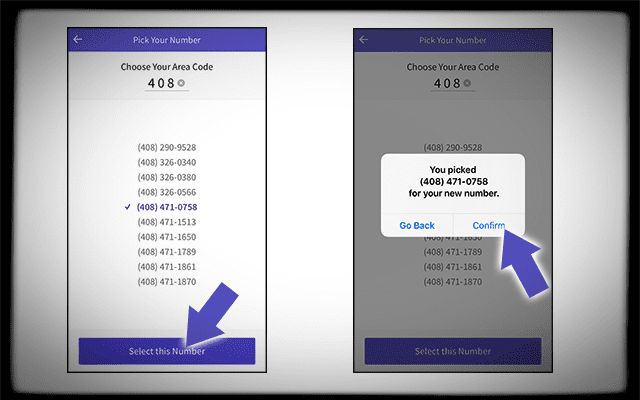
Now, enter the Textfree app again, and a list of local phone numbers appears. Go ahead and pick your new phone number and tap “Select this Number.” A message box appears with your selected number if it’s correct tap “Confirm.” If its incorrect, press “Go Back.”
source: Pinger
Step 3: Register Your Account
Now, fill in the information they ask for, a username, password, and your email address (They seldom email you other than for password changes and to confirm your email.) Enter in all the requested basic information such as your age and gender.
These are now your login credentials with Pinger. Use these for logging into the app or the web to access your account and connect with friends and family.
Step 4: Notifications and Facebook Connect
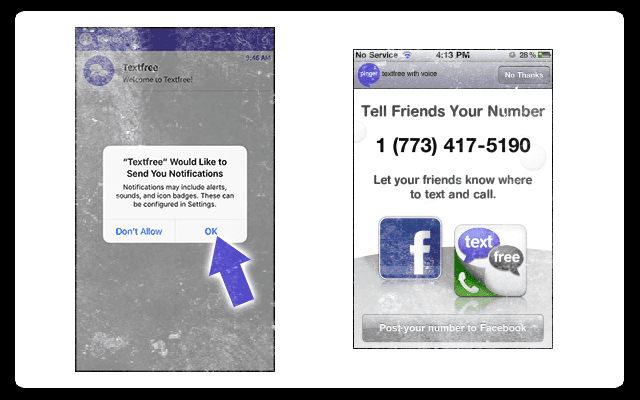
Next, allow Pinger Textfree to send you notifications and give it access to your contacts. A message box asks your permission. Select “OK.”
Pinger also allows you to make a post to your Facebook wall giving everyone your new number.
How To Use Pinger Textfree
Step 1: Send your first text
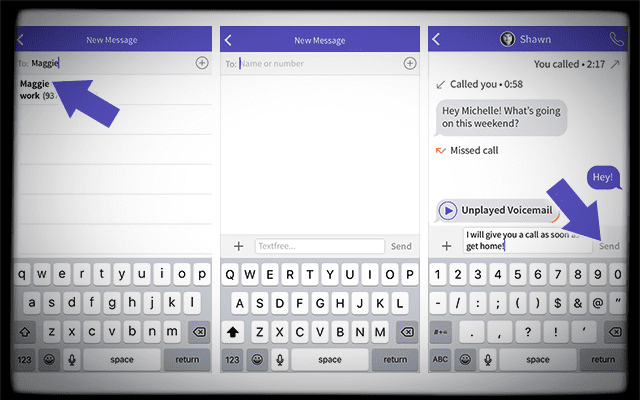
Open your inbox, and in the top right corner there is a compose button
Tap that button. A new message screen opens with a search bar at the top where you type the name or number of your contact(s). Select your contact(s) for the message. And then type your message in the text box as you would in any messaging app. When done, tap the Send button. That’s it!
source: Pinger
Receiving Texts
To refresh your screen to see if you have received any new texts pull down the screen until you see an arrow. The screen will refresh.
Step 2: Getting minutes to make calls
To get free minutes to make calls you need to watch suggested videos, partner offers, or download apps that they recommend. Alternatively, you can purchase minutes in packages of 100, 400, or 1000.
For Free Minutes
From your Inbox, Click the button that looks like an old-fashioned telephone(called the dial pad icon) in the top right corner of the toolbar
Tap on the lower left box that shows your current minute balance
Choose to watch videos for free minutes or complete partner offers for free minutes,
OR purchase minutes
source: Pinger
Once you completed the video or partner activity, within a few minutes or so a message should pop up on the screen telling you that you have received your free minutes. There you go!
Purchase Options
If watching videos, doing partner activities, and using apps isn’t your game, buy minutes using the same payment method you use for your iTunes account—currently at 100 minutes for USD$1.99, 500 minutes for USD$9.99, and 100 minutes for USD 18.99.
Step 3: Make a call
It’s as simple as sending a text and pinger textfree gives us serval ways of making calls. Select a contact, enter the phone number on your dial pad for who you want to call, or pick up on a conversation from your inbox–all these ways make calls.
When the call is connecting, check the upper left corner during the call to make sure you have a consistent ‘HD’ or ‘excellent’ quality signal for best results.
Step 4: Set-Up Your Voicemail
Yes, pinger textfree comes with voicemail too! And setting this up is easy. Pretty much all you need to do is record your custom voicemail message, and you’re done.
source: Pinger
Set-Up Custom Voicemail
Open Inbox
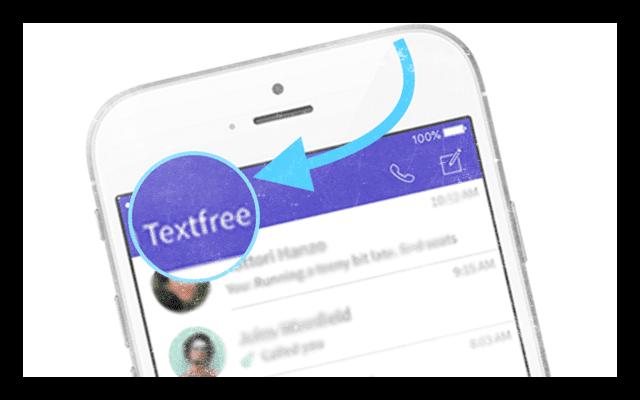
Tap on Textfree button at top left. This opens the Settings menu
Select Voicemail greeting from Settings menu
Select Custom then tap record. Press Stop when completed
Limited to 30 seconds or less
When done, tap Save
There is also a Default option if you do not want to customize your voicemail.
Set-Up or Change Pinger Textfree Signature
Letting people know who you are is an important part of the process, so your friends, family, and other connections know who you are. Your signature is your calling card, so make it shine!
Luckily, Pinger makes it easy to set-up or change. First, go to the Settings menu by tapping on Textfree button at top left. This opens the Settings menu. Select Signature from the menu options to set-up, edit, remove and change. That’s it!
Using Pinger Textfree When Travelling
Remember that Textfree uses the internet to work so traveling with your iPhone is as easy as a WiFi connection. Make sure to switch your iDevice to airplane mode, so you avoid any international data-roaming fees. The rule of thumb is that when you have WiFi, you have Textfree. So go ahead and make those texts and calls to all your friends and family back home.
And remember that all calls to and from your friends on Textfree are free. So are all incoming calls. When you need to make outgoing calls, you’ll need your credits.
Plus, you receive messages from anywhere in the world. Whether or not Pinger supports a country does not affect your ability to receive any text messages.
Will my friends get charged international fees?
Never fear! Because Textfree gives you a US or Canadian phone number, you can use Textfree, and your friends at home WON’T get international fees when you’re abroad! Only their standard texting and calling rates will apply.
Troubleshooting Pinger Textfree
Not Getting a Local US Phone Number
If you’re not seeing an area code that looks familiar, first check that location services is enabled for Textfree. So go ahead and make sure that this is on via Settings>Privacy>Location Services>Textfree>While Using
When location services are set to Never, a random list of area codes and numbers shows up. So double check that Location Services is indeed set to While Using. When its set this way (to While Using,) your local area codes are available.
Deleting Messages
Removing old messages is super easy in Pinger Textfree and follows the same process of most of our iOS apps. Just swipe right to left over a conversation until the red trash button appears. Then tap “Delete” from the pop-up message. That’s it.
If you only want to delete a single message rather than an entire conversation, just tap and hold the message you want to remove. A pop-up menu provides the following options: copy, forward, delete, and delete all. Select Delete to delete a single message from a conversation or Delete all to delete all messages from that conversation.
Warning
Once your messages are deleted, they cannot be recovered later. When your message is removed from your inbox, it’s also removed from Pinger’s servers. So proceed with caution.
Trouble Sending Pictures or Stickers?
Sending and receiving pictures with pinger textfree is the same process as most messaging apps. Initiate a new message or continue a current message conversation. From the bottom left corner, select the “+” sign. This opens a menu to either take a picture, choose an image, or stickers. Select your option, and a small thumbnail of the image is added to your text. Add your typed message and voilà, send it!
Some Caveats
If you’re in Canada: at this time, picture messages cannot be received from contacts whose carrier is Rogers Communications
If you re in the US: at this time, picture messages cannot be received from contacts whose carrier is T-Mobile
Friends Telling You They Can’t Hear Anything You Say?
If folks are letting you know that they don’t hear you, the chances are that pinger textfree is not accessing your microphone. You need to provide permission for that so follow these steps to get everything working again.
How-To Mic Up Pinger Textfree
Tap Settings> Privacy> Microphone
Ensure that Textfree is toggled ON
It’s green if you allow access
What’s That Little Checkmark on My Texts?
If you see a little check mark next to your messages, that’s a really great thing. It means both you and your friend are using Pinger Textfree. So now you know you get to call and text each other for free no matter where you are located, as long as you are both connected via WiFi or Data. Pretty awesome!
Want to Send Calls Straight to Voicemail?
Yup, this little app does that too. To set this up, tap on Textfree button at top left. This opens the Settings menu. In Settings, toggle ON the option Send All Calls to Voicemail (button background turns purple.) And you guessed it; you’re done.
Need to Block a Contact?
Sometimes we get messages from folks who we just don’t want showing up in our digital neighborhood. The good news is that Pinger Textfree has a couple of ways to block these folks from showing up.
The easiest way is to reply to any unwanted contact is by sending the message “STOP.” Make sure you remove any signature in the message before sending. When you send the word “STOP” it blocks that person from messaging you. This holds true for folks that use or do not use Textfree.
source: Pinger
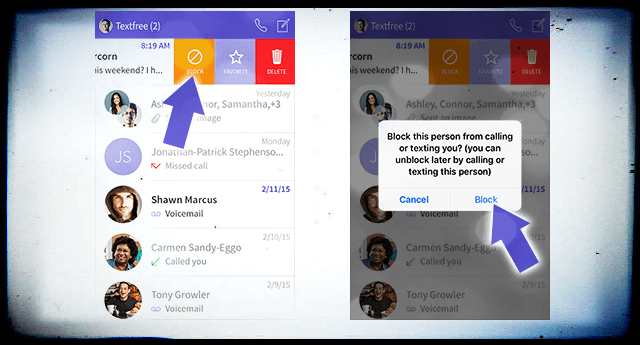
A second way to block someone is to swipe on the conversation from your inbox. Swiping opens up a menu that includes BLOCK (along with Delete and other options.) Select BLOCK. A pop-up message confirms the block letting you know it blocks both calls and texts from this person. Choose Block if that’s what you want.
Once someone is blocked, all conversations are removed from your Inbox. And those messages are not retrievable. If you decide later that you want messages and calls from that person, unblocking them is as simple as sending that person a new message. They immediately are unblocked. Simple and beautiful!
If you are NOT using Textfree and want to block a Textfree user
The easiest way to block someone is to text STOP to their number. Do not include anything else in this message. Pinger auto-replies back with a message asking you to confirm the block. Once confirmed, that person is blocked from sending messages to you.
iOS Crashing After Updates?
If after updating your iDevice’s iOS you experience app crashing, there a couple of things to try. Check out our article on app crashing or stuck for more detailed information.
Reset Network Settings
Settings > General > Reset > Reset Network Settings
Flushes all settings that your iDevice stores including passwords, VPN, and APN settings
Turn WiFi Off and On
Settings>Wi-Fi
Toggle Off
Wait 20-30 seconds
Toggle back ON
Connect to a different WiFi Network if available
Select from the available list under Choose a Network
You may need to enter a password
Forget WiFi Network
Settings>Wi-Fi
Tap on WiFi Network Name
Choose Forget This Network
Confirm Forget
Wait 20-30 seconds
Reconnect to the Network
You need to enter the password again
Reset Your iDevice’s Settings
Settings>General>Reset>Reset All Settings
Removes your preferences for WiFi, Bluetooth, Do Not Disturb, Notifications, General, Sounds, Brightness & Wallpaper and Privacy
Wrap Up
Phone alternatives like Pinger Textfree offer iFolks flexibility and freedom when making calls or texting, whether in the country or out of the country. And having a designated and real USA number provides you some privacy when you want to limit the number of people and businesses that have your “real” iPhone number.
And for those on a tight budget, this app helps keep you connected to your loved ones and all your business contacts. It even provides voicemail!
Pinger textfree offers additional features such as custom themes for your text conversations, your recent calls list, and various text tones and ringtones. And Pinger is always updating the app, so check to see what the latest features by updating your app or checking out the app store.
A note for incoming calls. If you use the auto-lock feature of your iDevice, sometimes incoming calls get disconnected as you are entering your passcode. This is a nuisance that the developers are working on.
Obsessed with tech since the early arrival of A/UX on Apple, Sudz (SK) is responsible for the original editorial direction of AppleToolBox. He is based out of Los Angeles, CA.
Sudz specializes in covering all things macOS, having reviewed dozens of OS X and macOS developments over the years.
In a former life, Sudz worked helping Fortune 100 companies with their technology and business transformation aspirations.
What does it mean when you download the app and go get it set up pick your number and then hit go to set up and it comes back saying your app is not acceptable to your device I done used this app for several months on my same phone and it want let download it and then I can go to tablet and both app download on that
I create a account but after all i dont get a consistent HD or Excellent quality thats why i cannt make a call or sms! When i try to make a call it says there is no sip account set in your pinger account? What can i do? There is no signal in the upper right corner of the screen….please help me!!
Unfortunately, that needs addressing with Pinger support. Please contact support@pinger.com and let their team know about your problem connecting. Before you contact Pinger, we suggested performing a hard restart on your iPhone or other iDevice by pressing Power + Home (or Power + Volume Down for phones without mechanical home buttons.) Press and hold until you see the apple logo on screen.
Keep us posted on this one. I’m sure others have encountered this issue too.
My relatives always say that I am killing my time
here at web, except I know I am getting experience every day by reading such fastidious articles or reviews.
Each timme I try to buy more mins, I get a message sayiing”we can’t find the item you are trying to buy right now, try again later”what is the. Cause of this message and what can I do to buy more mins
it not the best i have it and it STINKS AT LEAST ON TEXTPLUS GOLD YOU CAN PICK YOUR OWN 228 NUMBER AND NOT SOME NUMBER YOU CANT REMEMBER LOL U AND THIS APP SUCKS
Thank you very much for this advice ! I have the text free app and I only have 7 minutes left , but now I know how to get more minutes for FREE ! So once again , thank you so very much !
You have to change your settings. Using a Iphone 4 or 4S Go to your Iphones home page on your phone. Go to Setting ICON…Look for NOTIFICATIONS….should be 3rd at top for most….look for “In Notifications Center” and look for TEXT FREE app…, when that opens select Notification Center to “ON” and choose an ALERT STYLE…..you must choose BANNER or ALERTS in order for this to work…then go to bottom of this area and change BAND ICON to ON. If you want to hear a sound, then change SOUNDS to ON as well. The final step would be to allow to view this in locked screen. Decide if you want that open to view at all times or not..
Are ALL incoming voice calls free or does the incoming caller also have to have the Pinger Textfree app as well in order for the call to be free and not use minutes?
How do you get an alert message when you’re outside the app? I don’t get any message when I’m outside the application and someone texts/calls me. Only when the application is open, is when I get notice that I have missed calls or new text messages. Please help.













What does it mean when you download the app and go get it set up pick your number and then hit go to set up and it comes back saying your app is not acceptable to your device I done used this app for several months on my same phone and it want let download it and then I can go to tablet and both app download on that
I create a account but after all i dont get a consistent HD or Excellent quality thats why i cannt make a call or sms! When i try to make a call it says there is no sip account set in your pinger account? What can i do? There is no signal in the upper right corner of the screen….please help me!!
Hi Arjun,
Unfortunately, that needs addressing with Pinger support. Please contact support@pinger.com and let their team know about your problem connecting. Before you contact Pinger, we suggested performing a hard restart on your iPhone or other iDevice by pressing Power + Home (or Power + Volume Down for phones without mechanical home buttons.) Press and hold until you see the apple logo on screen.
Keep us posted on this one. I’m sure others have encountered this issue too.
Cheers,
SK
Me podrian ayudar en decirme como descargo la aplicacion x favor….
This app is great and makes Apple devices like the iPod touch even cooler.
Can i use this application in my iphone 3g
My relatives always say that I am killing my time
here at web, except I know I am getting experience every day by reading such fastidious articles or reviews.
Am using an IPhone 4 with 4.1 iOS, my mobile can’t upgrade, and I need a pinger textfree that will work on my mobile.
Please how can I get the app?
Will an incoming call from a pinger user to a landline or cellphone cost money for the landline/cellphone?
can you use this app without using wifi?
can i recive text messages or phone calls from people who are not in my contact list?
how do you get more minutes if when you go to view more video to get more minute option is sealed and keep say more videos comin soon?!?!?
Is it free calling (ANOTHER) pinger phone????
Each timme I try to buy more mins, I get a message sayiing”we can’t find the item you are trying to buy right now, try again later”what is the. Cause of this message and what can I do to buy more mins
Do u need wifi 4 this app? Answer!
slt hadchi 3yan mafih waloo
What does the blue dot mean on the side of my contacts?
I would like to know that also.
this app is the best amd will be
Can I use FaceTime with this app?
can I use this app with 3g?
can i change my zip code and number? i from guatemala
thANKS
Hi
Tommy
it not the best i have it and it STINKS AT LEAST ON TEXTPLUS GOLD YOU CAN PICK YOUR OWN 228 NUMBER AND NOT SOME NUMBER YOU CANT REMEMBER LOL U AND THIS APP SUCKS
Your mom sucks. And yes, this app IS the best.
can you use this app without wifi on a iPod touch
@Suzy, obv u cannot, u need wifi in order to connect to the internet, and revieve text/calls
Thank you very much for this advice ! I have the text free app and I only have 7 minutes left , but now I know how to get more minutes for FREE ! So once again , thank you so very much !
You have to change your settings. Using a Iphone 4 or 4S Go to your Iphones home page on your phone. Go to Setting ICON…Look for NOTIFICATIONS….should be 3rd at top for most….look for “In Notifications Center” and look for TEXT FREE app…, when that opens select Notification Center to “ON” and choose an ALERT STYLE…..you must choose BANNER or ALERTS in order for this to work…then go to bottom of this area and change BAND ICON to ON. If you want to hear a sound, then change SOUNDS to ON as well. The final step would be to allow to view this in locked screen. Decide if you want that open to view at all times or not..
Hy Suzy! What does it mean if there’s a blue dot by someones name?
Are ALL incoming voice calls free or does the incoming caller also have to have the Pinger Textfree app as well in order for the call to be free and not use minutes?
U have to update the textfree app at the app store
How do you get an alert message when you’re outside the app? I don’t get any message when I’m outside the application and someone texts/calls me. Only when the application is open, is when I get notice that I have missed calls or new text messages. Please help.
go to settings: notifications: click on textfree and click on Alerts & click show on lock screen 🙂