Recording audio with GarageBand should be an easy process. Unfortunately, the app may sometimes fail to capture audio input coming from your microphone. Let’s jump right in and explore what you can do if GarageBand failed to synchronize Audio and MIDI.
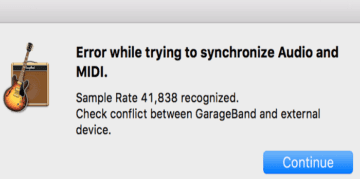
If GarageBand encountered an error while trying to synchronize Audio and MIDI, this indicates the app detected a weird sample rate that it couldn’t process.
Interestingly enough, this error often affects Blue Yeti microphones. So, before you tweak your sample rate settings, make sure your Mac recognizes your Blue Yeti mic.
Check the Sample Rate
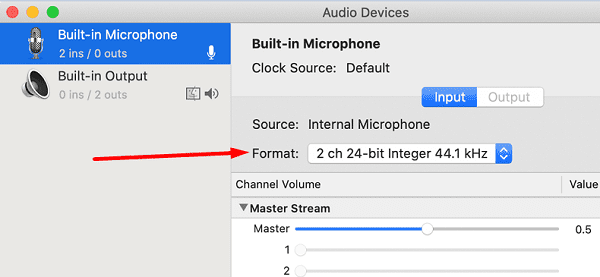
Navigate to Applications, select Utilities, launch the Audio MIDI Setup utility and check your sample rate settings. If the format is set up to 2 channel 16-bit integer 44.1kHz (CD quality), change the settings. Keep in mind that for a microphone, you should use the 1 channel option.
Additionally, try changing the bit depth from 32, or 24 to 16. GarageBand is actually pretty picky about the sample rate and bit depth settings. Use the standard GarageBand options (44.1kHz and 16 bit), and then tweak your settings one by one until you find the right setup. Double-check to make sure the input is lower than 48,000.
Use a Different USB Connection
Make sure your microphone is properly connected to your computer. Use a different USB hub (or a non-powered USB hub) and check if you notice any improvements. For example, many users solved the problem by plugging the mic into a different USB audio interface. If there are any compatibility issues between your mic and GarageBand or the OS, an audio interface device should help you fix the problem. Consider replacing the mic cable as well.
Close Background Apps
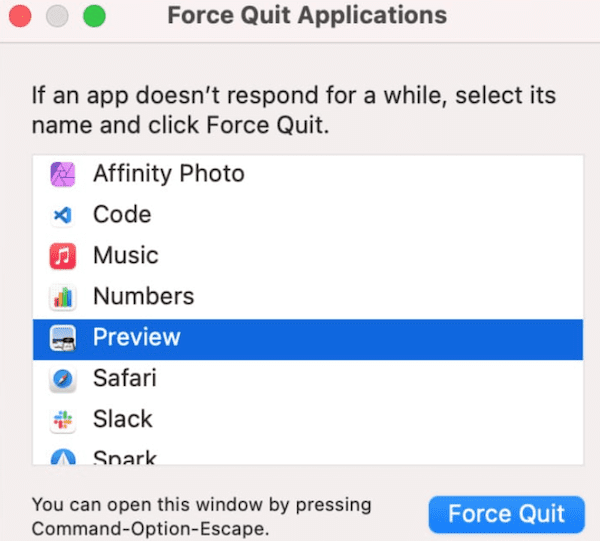
The synchronization issue can also occur when you’re low on memory or processing power. Reduce the strain that background apps put on your hardware by quitting unnecessary apps. Click on your Apple menu and select Force quit.
Third-party apps might also interfere with GarageBand breaking the app’s functionalities. For instance, if other apps are on stand-by waiting to use the mic or they’re actively using it, GarageBand may fail to capture audio input from your mic.
The memory problem usually occurs when your computer is not running at the same sample rate as your project. For instance, your project runs at a 48kHz sample rate but GarageBand samples at 41.1kHz. The catch is that in order for those samples to work properly, the app needs to convert them in real-time causing high memory usage. That’s why you should always double-check your sample rate settings.
To reduce the conversions that need to be done, you want everything to run at the same sample rate. And this includes your Mac, GarageBand, the project you’re working on, your plugins, your mic, and the other devices connected to your computer.
Create a New User Account
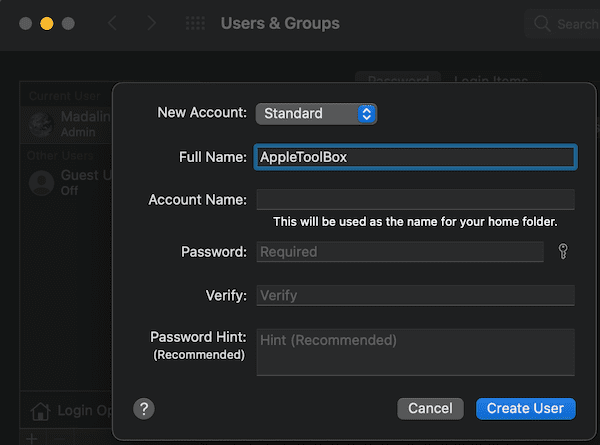
If your user profile got corrupted, there’s an endless list of glitches that may occasionally affect your Mac. Create a new user profile and check if GarageBand works as intended.
Click on the Apple menu, go to System Preferences, and select Users & Groups. Then click the Add button, select the new account option and follow the on-screen instructions to create the new account.
Get a New Mic
Your microphone might be too old for the latest macOS version. For example, if you own a Blue Yeti mic, check if you have the USB symbol on the bottom of the device. If you do, your mic is too old and the chip might not the compatible with the newest macOS releases. Newer mic models have the letters USB near the connector. Maybe it’s time to upgrade your gear.
Conclusion
If GarageBand says it couldn’t synchronize Audio and MIDI, check your sample rate settings. Then close your background apps, and use a different USB hub to connect your mic to your Mac. If you’re using an old microphone, chances are it’s incompatible with the latest macOS versions. Did you manage to troubleshoot the problem? Share your feedback in the comments below and let us know which method worked for you.
Madalina has been a Windows fan ever since she got her hands on her first Windows XP computer. She is interested in all things technology, especially emerging technologies — AI and DNA computing in particular.
You stated: “If the format is set up to 2 channel 16-bit integer 44.1kHz (CD quality), change the settings. Keep in mind that for a microphone, you should use the 1 channel option.” IS THERE a 1 channel option, or is it only available on certain Macs or certain OS versions? I only see 2 channel options. Thank you.
I can’t play music from garage band out of my speakers. Haven’t tried recording but I can’t even just listen to old things. Don’t know what the issue is I’ve been trying all I can find for the past week.
I just got the Clarity VX app on garageband. Needed to get Rosetta to work it but it generates the error while syncronising message. Doesn’t happen when the app is not activated so I think Waves might have to help me with this one eh?
My Blue Yeti Pro has been recording out of tune (about a quarter tone flat) with GarageBand for a couple of years now. I suspect on of the OS updates has changed a setting. Audacity records at the same sample rate of 44100 Hz which is the same as my Audio Midi Setup so I can’t figure it out. Such a shame because the Blue Yeti Pro is such a good mic, but it’s useless if it doesn’t record in tune









You stated: “If the format is set up to 2 channel 16-bit integer 44.1kHz (CD quality), change the settings. Keep in mind that for a microphone, you should use the 1 channel option.” IS THERE a 1 channel option, or is it only available on certain Macs or certain OS versions? I only see 2 channel options. Thank you.
I can’t play music from garage band out of my speakers. Haven’t tried recording but I can’t even just listen to old things. Don’t know what the issue is I’ve been trying all I can find for the past week.
I just got the Clarity VX app on garageband. Needed to get Rosetta to work it but it generates the error while syncronising message. Doesn’t happen when the app is not activated so I think Waves might have to help me with this one eh?
My Blue Yeti Pro has been recording out of tune (about a quarter tone flat) with GarageBand for a couple of years now. I suspect on of the OS updates has changed a setting. Audacity records at the same sample rate of 44100 Hz which is the same as my Audio Midi Setup so I can’t figure it out. Such a shame because the Blue Yeti Pro is such a good mic, but it’s useless if it doesn’t record in tune