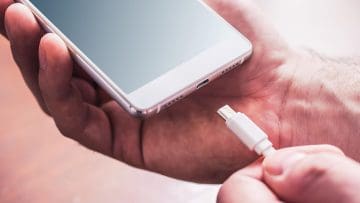
There’s no question that the latest generations of iPhones are moving closer to actual computers in our pockets. One of the few limitations that remains is the lack of USB ports when you need to hook up external devices or storage to a phone.
With more people using their phones for hobbies and work, how to add more USB ports to an iPhone has become a more common question. Luckily, there are a couple of ways around this limitation and you don’t need to be super tech savvy to do it.
If you have a USB C iPhone, you can use almost any standard USB-C hub designed for MacBooks or PCs.
For Lightning iPhones, look for Apple’s Lightning to USB 3 Camera Adapter with a powered hub.
How to Get More USB Ports on iPhone
USB Dongles
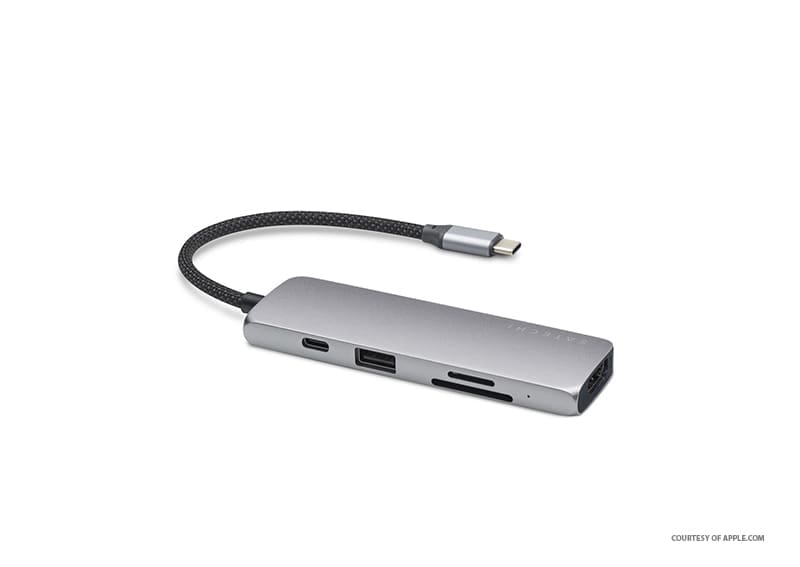
USB dongles are the most common way to add USB ports to an iPhone. There is a large variety of different first and third-party options to choose from. Apple offers official USB dongles that provide connectivity to many commonly needed utilities like SD cards, cameras, and standard USB-A or USB-C connections.
If you need something quick, you can’t go wrong with the classic USB dongle, and other cheaper, third-party options are available if you don’t care about first-party products.
USB dongles are compact, so carrying them around is no big deal. Keep in mind that dongles can add stress to the connectors on the iPhone. Be sure to handle them carefully to avoid any issues. You should also consider that your accessories may need more power than your iPhone can supply on its own.
For more demanding accessories like large drives or when using multiple devices, an adapter or hub that uses external power may be necessary. Otherwise, your device may not get enough power to work correctly.
Make sure to use the correct connector cord as well, as some USB-C hubs may not work properly when using simple USB-C-to-Lightning conversion. This can cause you to only have charging capabilities and not data transfer.
MagSafe USB Hub
If your iPhone supports MagSafe, you have another more robust option to consider. The MagSafe USB Hub connects to your iPhone using magnets and can offer a variety of different ports wrapped in one neat unit.
MagSafe USB Hubs are typically packed with different ports like USB-A, USB-C, micro-SD, and even HDMI ports. The magnet holds the hub firmly in place, an advantage over the typical dongle which tends to flop around. This setup also reduces the pressure on the port by using magnets for added support. However, you must still plug a small attached cable into your iPhone’s bottom port to enable these extra connections.
While there is no official Apple release, there are some third-party MagSafe USB hubs that are compatible with all MagSafe iPhones. Availability and quality will vary by brand, as they are still somewhat niche in the market. This option is a little more expensive than a standard USB dongle, but you may enjoy the premium look and feel.
Apple: Modular Design for the Future
The iPhone is designed to be used with a huge variety of different external devices. Luckily, there is no shortage of different options for adding USB ports when needed. Take a look at the USB dongles or a MagSafe USB hub if you find yourself wanting some extra ports.
As an avid gamer, I’ve run into my fair share of error codes and weird faults that have forced me to find fixes to problems I never anticipated. That gave me a passion for sharing those fixes with others so we can all game without feeling like our hardware is rebelling against us.










Write a Comment