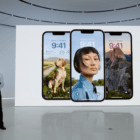
Understandably so, when Apple released the final version of iOS 16 to the masses, there was a lot of focus placed on the complete redesign that came to the iPhone Lock Screen. Being able to add widgets and customize the Clock’s font are things that we never imagined Apple would allow. But iOS 16 also implemented quite a few different features that have largely been “under the radar”, even months after iOS 16’s release. One such example is the additional features added to Personalized Sound Recognition with your iPhone.
How to Add Personalized Sound Recognition on iPhone
The Personalized Sound Recognition functionality has been around on the iPhone for a little while now, but with iOS 16, Apple provided quite a bit more customization for those who rely on this feature. Essentially, when enabled, Personalized Sound Recognition will alert iPhone users whenever selected sounds have been detected. As you can probably surmise, this is one of Apple’s methods for improving the overall accessibility of the iPhone, and can truly come in handy.
Open the Settings app on your iPhone.
Scroll down and tap Accessibility.
Scroll down until you reach the Hearing section.
Tap Sound Recognition.
Tap the toggle next to Sound Recognition to the On position.
Once the Sound Recognition feature is enabled, a new option will appear at the bottom of the appropriate Settings pane. This will be aptly named “Sounds”, and tapping this allows you to select which sounds can be recognized.
Open the Settings app on your iPhone.
Scroll down and tap Accessibility.
Scroll down until you reach the Hearing section.
Tap Sound Recognition.
Tap Sounds.
From here, there are several different categories with options of sounds to choose from:
Alarms
Fire
Siren
Smoke
Animals
Cat
Dog
Household
Appliances
Car Horn
Door Bell
Door Knock
Glass Breaking
Kettle
Water Running
People
Baby Crying
Coughing
Shouting
Additionally, the Alarms and Household categories have a “Custom” option that you can enable. Selecting either of these will require an audio recording of the sound so that your iPhone can properly recognize it.
Select either the Custom Alarm or Custom Appliance or Doorbell option.
Tap the Continue button at the bottom of the screen.
Enter a name for the Alarm, Appliance, or Doorbell.
Tap the Continue button.
From the Set Up Custom Sound screen, make sure that your Alarm, Appliance, or Doorbell is ready to make the sound.
Tap the Start Listening button.
Your iPhone will need to record the sound five times in order to properly identify and recognize it.
Once the five recordings are complete, follow the on-screen instructions to finish setting up the Custom Sound.
Now, whenever your iPhone recognizes the custom sound that you set up, you’ll receive a notification on your iPhone, letting you know that it was detected. And you can always jump back into the settings and options if you find yourself getting a new alarm or a new appliance that has a different sound than the one that you had before.
Andrew Myrick is a freelance writer based on the East Coast of the US. He enjoys everything to do with technology, including tablets, smartphones, and everything in between. Perhaps his favorite past-time is having a never-ending supply of different keyboards and gaming handhelds that end up collecting more dust than the consoles that are being emulated.







Write a Comment