Apple makes interconnectivity easy within its ecosystem, but when users step out of it, things get a little more complicated. Thankfully, when it comes to connecting your PC and iPhone, there are a few ways to get connected.
This article will take you through the nitty gritty of these solutions.
Depending on your version of Windows and the software options available to you, there are many ways to get your iPhone and PC connected. Here are a few:
How to Control iPhone From PC via USB
One of the most common ways of connecting the two devices has been via the trusty USB cable and iTunes. For PC users unfamiliar with iTunes, this Apple software allows users to not only sync music, photos, and videos but also update system software manually. It’s the best method of control.
Once you’ve made sure both your iPhone’s software and iTunes are fully updated, you’re ready to connect. Here’s how to control iPhone via PC from USB:
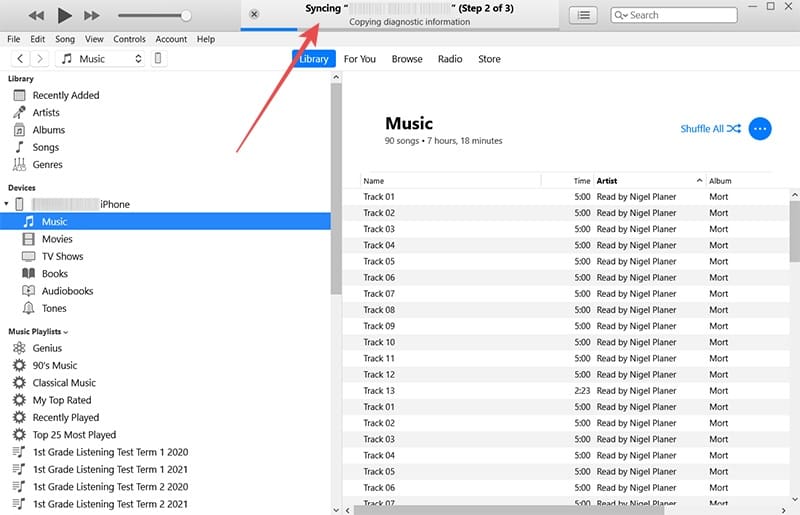
1. Plug your iPhone into your PC via USB cable and start iTunes.
2. Unlock your phone to ensure it connects.
3. If this is your first time connecting, you’ll be asked via popup to allow access. To accept, hit the “Continue” button. You’ll also be asked to confirm access on your iPhone. Press “Trust” to continue.
4. Your iPhone will begin syncing with your device and searching for any software updates.
5. You should now be able to access the different media sections of your phone and upload or delete files off it.
To remove your iPhone, simply hover your mouse over the iPhone name and an “Eject” option should appear next to it.
Pairing Via Bluetooth
While USB was once the only way to get these devices to communicate, that’s no longer the case. Windows now makes syncing your devices easier than ever before thanks to the software Phone Link. Previously called Your Phone, this handy tool allows you to seamlessly connect via Bluetooth. Here’s what to do:
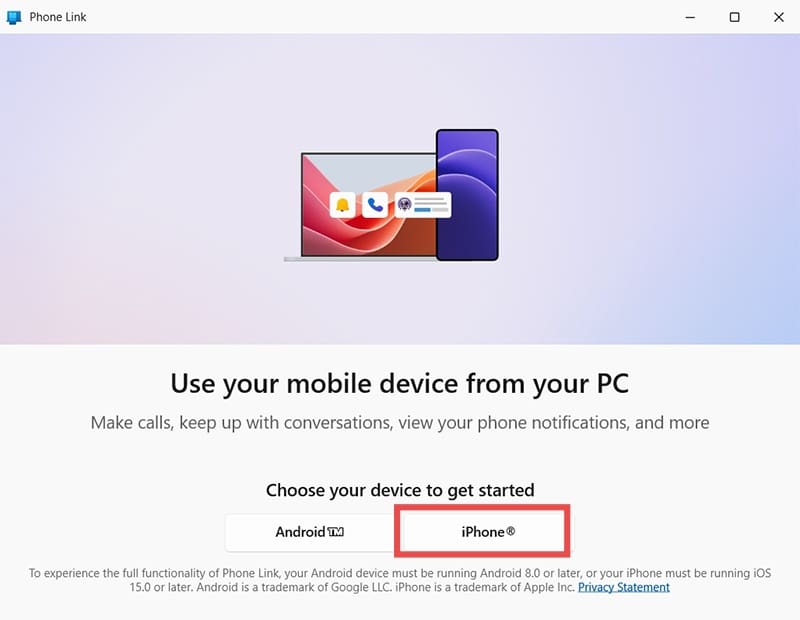
1. Open the Phone Link via the Search Bar.
2. Choose the “iPhone” option on the welcome screen to continue.
3. If need be, turn on your Bluetooth to continue the sync.
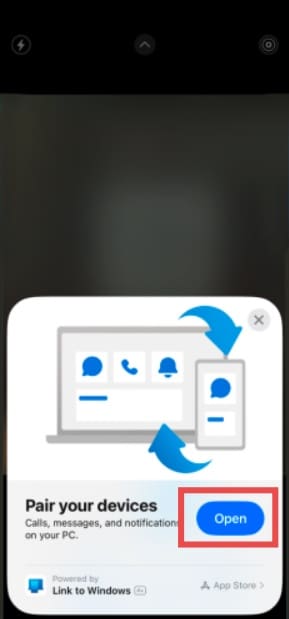
4. A QR code will then pop up, valid for three minutes. Scan it with your phone to bring up the syncing app.
5. Press “Open” to begin the process.
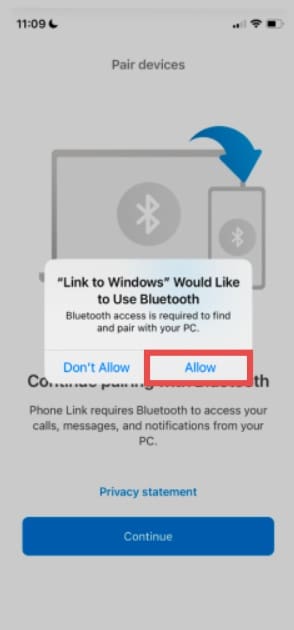
6. Enable Bluetooth, accept the Privacy Statement and your iPhone will be ready to sync.
7. On your PC, you’ll see a verification code appear. Input this into your iPhone, click “Pair” and the devices should begin syncing.
Phone Link will now run with your iPhone and be accessible via your System Tray. With the devices paired, you’ll be able to make and take calls, text, see notifications, and even check the battery level.
However, you may not be able to transfer files, although Microsoft has begun to roll out file transfer capabilities to some users.
Intel Unison
For users of Windows 11, the Intel Unison app provides a quick and seamless way to pair PC (and Android) devices with iOS via Bluetooth. Once the app has been downloaded to both devices, you sync a PC (and only one) to the phone via a QR Code and an eight-digit verification code.
Unfortunately, this service will be discontinued as of June 2025, so if you want to use this app, you better do so soon.
As an avid gamer, I’ve run into my fair share of error codes and weird faults that have forced me to find fixes to problems I never anticipated. That gave me a passion for sharing those fixes with others so we can all game without feeling like our hardware is rebelling against us.












Write a Comment