Even though 2021 seems to be an “S” year for many of Apple’s products, the company is still innovating in different ways. This includes the camera hardware on the iPhone, iPad, and finally, the Mac. But there are even some other features, such as Center Stage, that you would never even think about needing until after you try it.
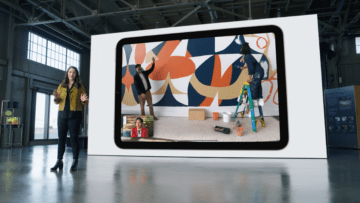
Apple is beginning to integrate an all-new 12MP ultra-wide TrueDepth camera into its iPad lineup. With this new camera, along with the advancements of machine learning, your camera can automatically pan and crop. By doing so, you remain the primary focus throughout your video calls.
In addition to keeping you in the center of the frame when you need to be, your iPad also recognizes when someone else enters the frame. So in the event that someone else wants to jump into the video chat, they can, and the iPad will automatically adjust to allow for that.
What Devices Are Compatible With Center Stage?
Center Stage was first introduced alongside the release of the M1-powered iPad Pro lineup early in 2021. Since then, Apple has added two more devices that include this new 12MP camera and Center Stage. Those are the iPad Mini 6 and the 9th-generation iPad. With a grand total of four devices that offer compatibility with Center Stage, you now have options to choose from, instead of being relegated to the most expensive iPads. It also wouldn’t come as a shock if the feature makes its way into future devices. One prime example of this is the MacBook lineup, which is sorely in need of an updated selfie camera.
iPad Pro 11 (2021)
iPad Pro 12.9 (2021)
iPad mini 6 (2021)
iPad (9th Generation)
How To Enable Center Stage
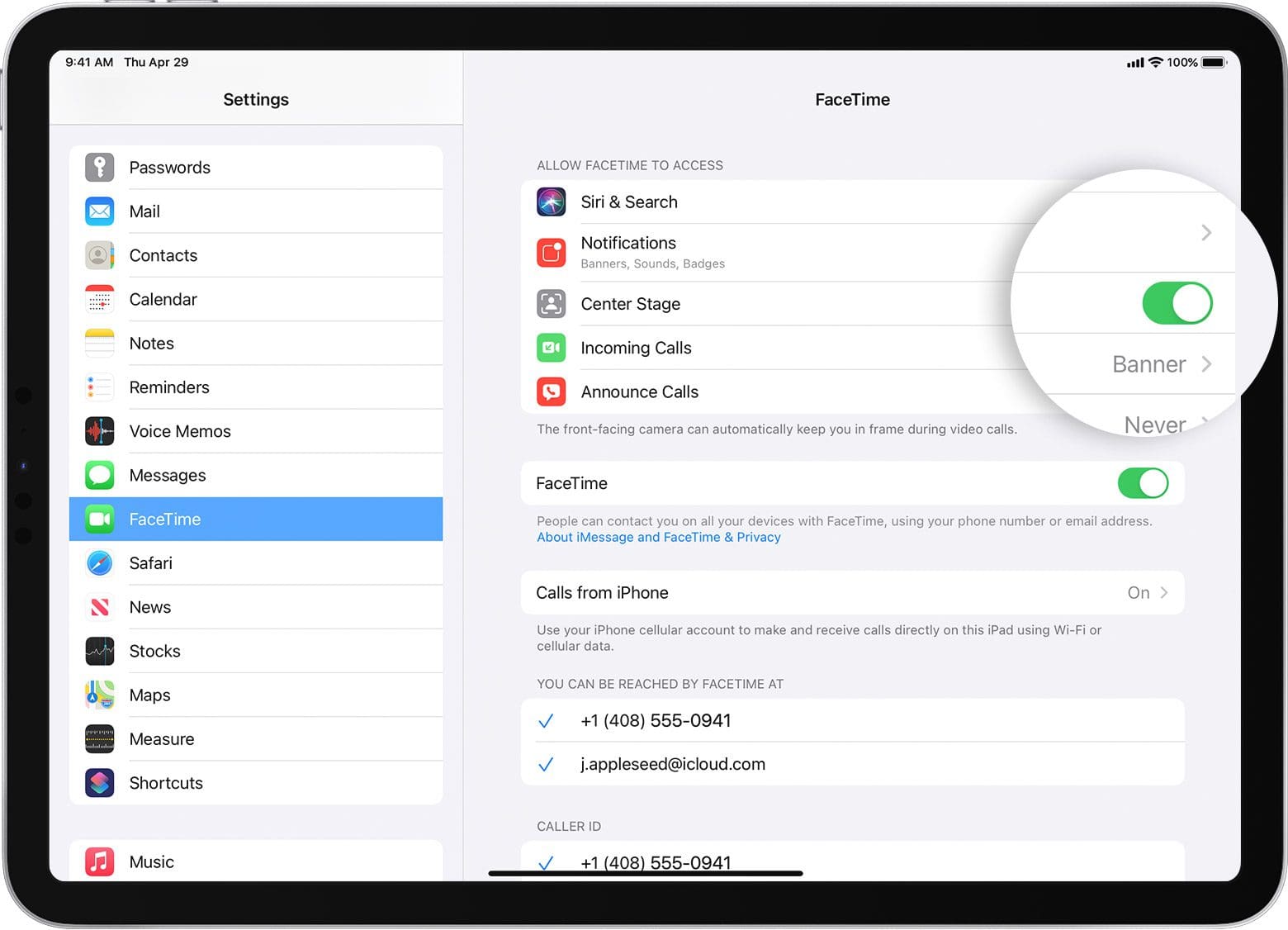
Out of the box, Center Stage will likely already be enabled if you are trying to use the feature with a FaceTime video call. However, Apple has gone the extra mile here, and has made Center Stage also compatible with other video calling apps. These include the likes of Zoom or Google Meet, but you might find yourself needing to enable the feature before you can actually use it. Here’s how you can enable Center Stage for your favorite video-calling apps.
Open the Settings app on your iPad.
Scroll down and locate the app you want to enable Center Stage for.
Tap the toggle next to Center Stage to the On position.
Once Center Stage has been enabled, you will then have the ability to toggle the feature on or off while in your video call. This is done in the sidebar from whatever video-calling app you are using, including FaceTime. Just swipe to reveal the side menu, then tap the Center Stage button to turn the feature on or off.
Andrew Myrick is a freelance writer based on the East Coast of the US. He enjoys everything to do with technology, including tablets, smartphones, and everything in between. Perhaps his favorite past-time is having a never-ending supply of different keyboards and gaming handhelds that end up collecting more dust than the consoles that are being emulated.
Likewise, cannot turn off center stage on zoom because nothing I’ve tried shows anything to turn it off with. I intensely dislike this feature and want to disable it on my iPad 9th generation.
No Center Stage button appears for the Camera app, regardless of how I access the app settings. I tried going through the settings menu and into the app for which I wanted to enable Center Stage. Specifically, Safari and Zoom did not have Center Stage button within the camera settings for those apps or otherwise. Please help! Ipad Air running 15.3.1










Likewise, cannot turn off center stage on zoom because nothing I’ve tried shows anything to turn it off with. I intensely dislike this feature and want to disable it on my iPad 9th generation.
I cannot turn center stage off for zoom calls, I can access the button for it thru control panel, but it simply won’t click off. HELP!!!
No Center Stage button appears for the Camera app, regardless of how I access the app settings. I tried going through the settings menu and into the app for which I wanted to enable Center Stage. Specifically, Safari and Zoom did not have Center Stage button within the camera settings for those apps or otherwise. Please help! Ipad Air running 15.3.1
The iPad Air is not on the Center Stage compatibility list.