Smartphones have made music accessible to just about everyone. From collaborative playlists to features like Spotify Wrapped, there are so many ways to enjoy your favorite tunes and beats. One such way is Apple Music, a hugely popular app and a full streaming service in its own right, instantly accessible to most iOS device users.
However, despite its popularity, this app does have the occasional glitch. One that pops up repeatedly is the music pausing mid-play without any intervention from the user. If your Apple Music keeps randomly pausing, we’ve got steps to follow to fix it.
Streamed media needs a reliable connection. Unless you’ve downloaded songs to your device, a poor connection will cause music to stop and start.
If you’re on Wi-Fi, check the strength of the Wi-Fi connection. If the Wi-Fi symbol in the top right corner has less than three bars, this could be the problem. Try restarting your router, if possible. You can also manually disconnect and reconnect to the Wi-Fi network by turning the Wi-Fi off and then on again. Simply click Settings > Wi-Fi> [Wi-Fi off] [Wi-Fi on].
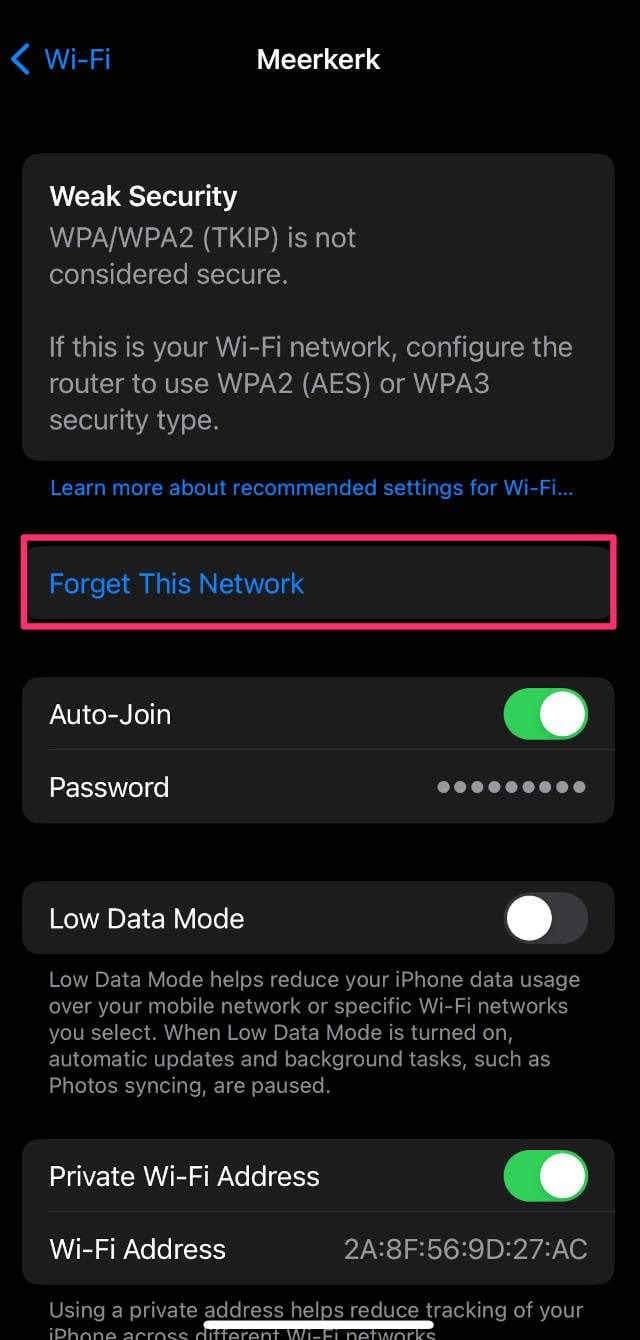
You can also click on the network name, manually forget it, and reconnect. Only do this if you have access to the relevant Wi-Fi password.
To check a cellular (mobile) data connection, look for the signal bars also in the top right corner. Alternatively, swipe down from the top right and you can see the signal bars and network name in the top left.
Two or fewer bars indicate a poor signal. Try moving around or turning cellular data off and on again. Unfortunately, if you’re simply in a low-signal area, you may have to wait until you’re near a Wi-Fi source to start enjoying your tunes again.
2. Ensure “Stop Playing” Isn’t Active
Did you know you can use your timer to stop your music? Some iOS users don’t realize when they’ve accidentally activated this feature. Follow these steps to check:
Go to the Clock app.
Press “Timer” on the bottom right
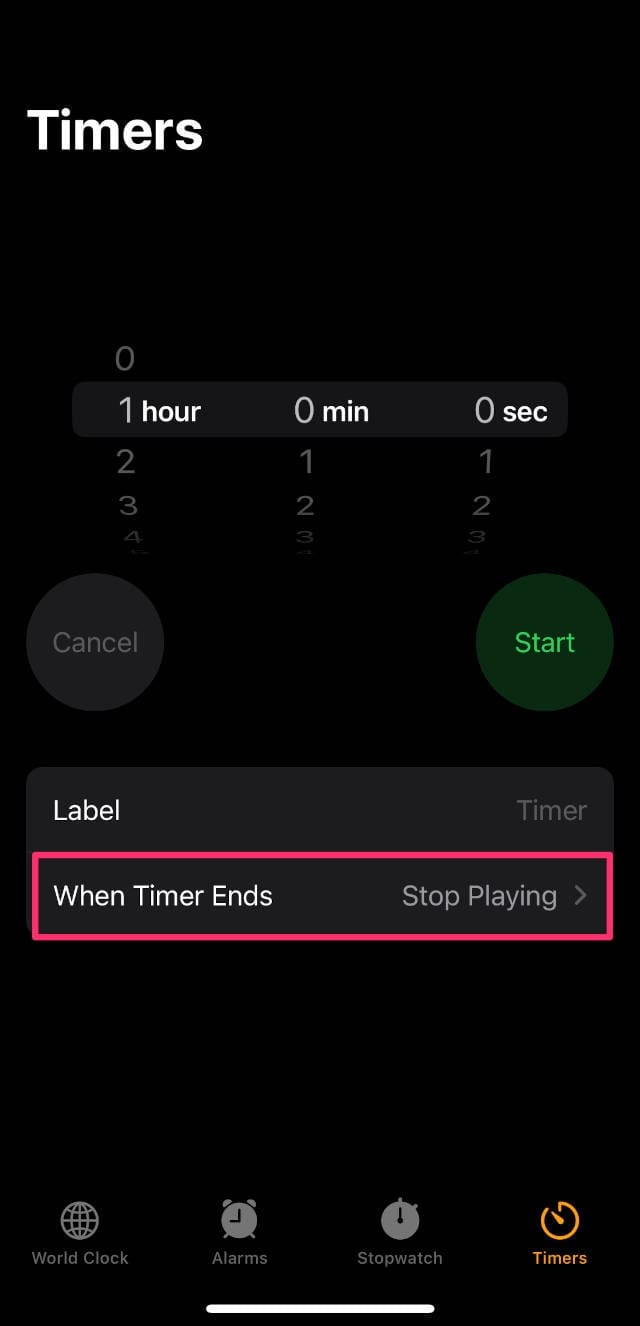
Review what it says next to “When Timer Ends”
If it looks like the above image and you can see “Stop Playing,” you can change this by clicking it. “Stop Playing” means that all music will pause as soon as a timer ends. This is a top cause of Apple Music randomly pausing and super simple to fix.
3. Close Other Apps
Some apps have sounds that override any music features on your phone. For example, many games have music or dialog. Their programming tells the phone to prioritize this audio over the sound of your favorite Apple Music playlist.
You can use a process of elimination here. Close apps one at a time and see if the random pausing continues. If you figure out which app is pausing your Apple Music, see if there’s an option to disable sounds in the app’s menu. This may fix the issue.
To close other apps:
Go to your Home Screen.
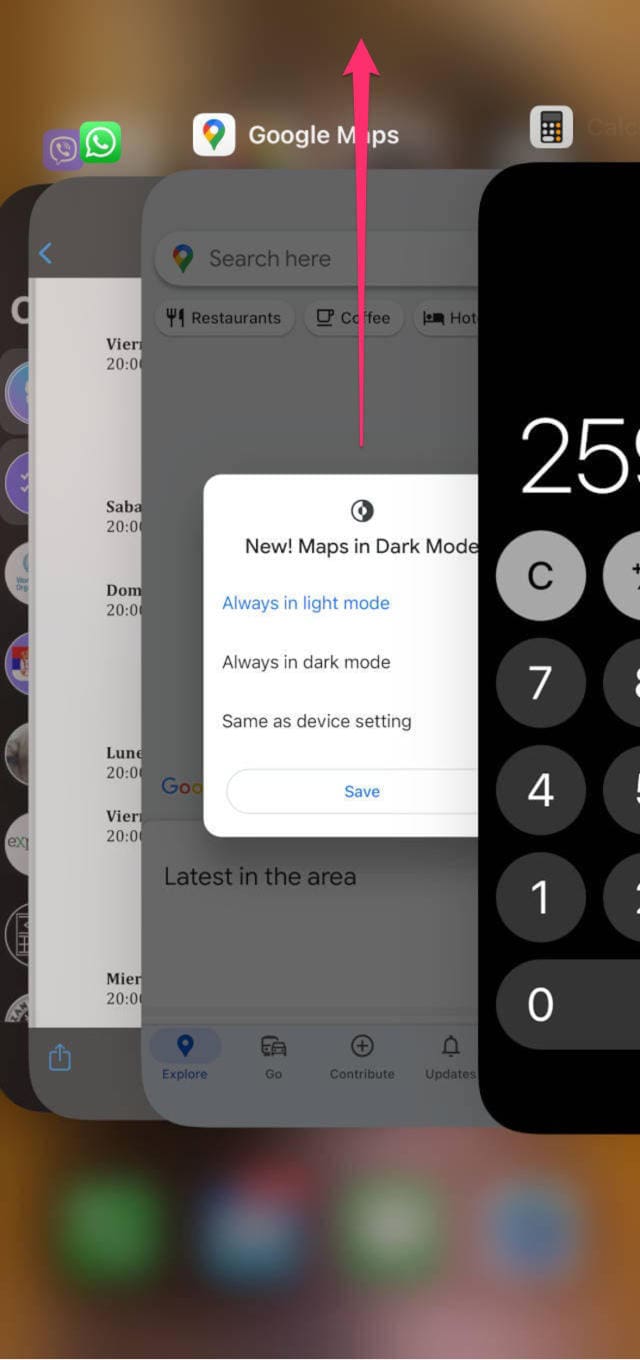
Swipe up from the bottom of the screen and pause in the middle. You can now see previews of all apps currently open.
Swipe up on the app’s preview to close it.
If you have a device with a Home button, you should double-click the Home button to access the App Switcher and then swipe up on each app’s preview to close it.
If you want to close multiple apps simultaneously, the only way to do it is to swipe up with more fingers to close a few apps at a time.
If you find that turning all other apps off fixes the issue, you know for sure that one of these was the culprit.
4. Disconnect Bluetooth Devices
All Bluetooth devices can interfere with the audio controls on any smartphone. If you have headphones, sleep bands, fitness bands, smartwatches, or other Bluetooth devices, turn them off and see if the issue continues.
For example, a sleep band that’s left on after the user wakes up can cause Apple Music to randomly pause if it has a sleep timer feature that’s not been switched off. A smartwatch might not have Apple Music integrated with its own app which could cause conflict.
Going through your devices one at a time can help you discover if there’s a Bluetooth-related issue.
5. Check Your Earphones/Headphones
Faulty AirPods, earbuds, or even wired headphones can send incorrect signals that tell your device to pause when you don’t want it to.
Switch off the headphones you’re currently using. Try a different set of headphones or earphones. If the issue continues, try switching from wireless to wired headphones (or vice versa). If this doesn’t help, you know this is not the issue.
6. Turn Off Low Power Mode
Low Power Mode is a fantastic feature that allows you to get a little extra battery life out of your device when you need it. However, it does turn certain features completely off and interferes with others.
To switch Low Power Mode off:
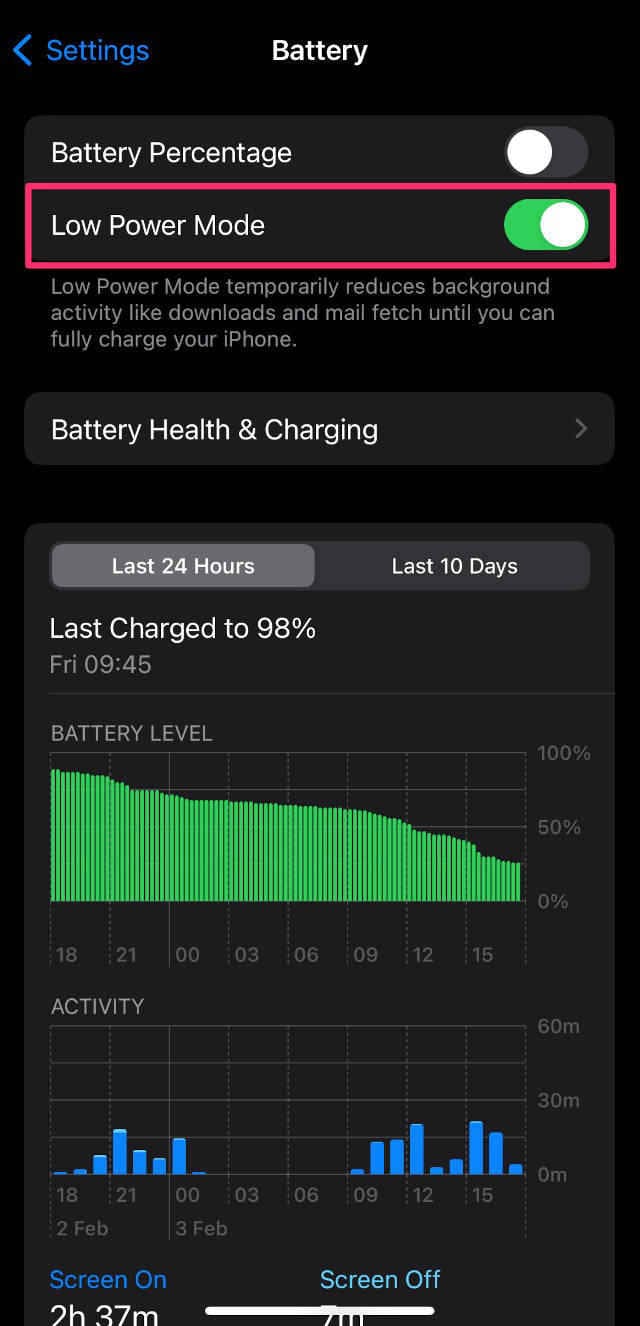
Go to Settings > Battery.
Check if your Low Power Mode is turned on (green). If it is, switch it off.
Use your Apple Music again for a few minutes to see if this has fixed the problem.
7. Update Your Apple Music App
Your apps always work better when you keep them updated. Go to the App Store, click on your Account, and see if Apple Music is listed in the apps requiring updates. If so, simply click “Update” and wait for the process to complete.
8. Delete and Reinstall Apple Music
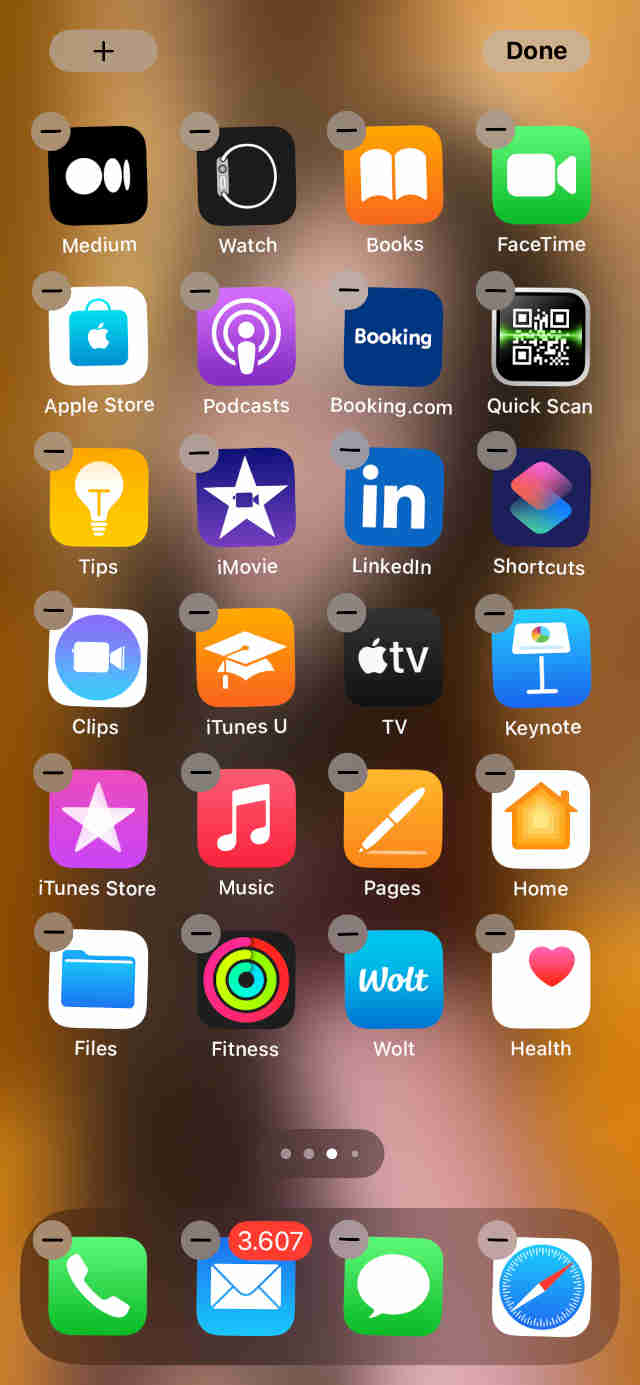
If an update doesn’t help, try deleting the app and then reinstalling it. To do this, hold your finger on the app. When the screen starts to wobble, you’ll see a gray minus sign next to the app. Click this and confirm you want to delete Apple Music.
To reinstall, simply go to the App Store and search for the app again.
9. Restart Your Device
After any of these changes, we recommend restarting your device.
iPhone X Series or later and iPads with No Home Button
Press and hold the power button and either volume button until the slider appears.
Drag the slider to the right.
Wait for about 30 seconds until your device completely turns off.
To power your device on, press and hold the power button until you see the Apple logo.
iPhone SE, 8, or earlier and iPads with the Home Button
Press and hold the power button.
When the slider appears, drag it to the right.
Wait for about 30 seconds for your device to turn off.
Press the power button to turn your device on.
If you have iOS 11 or later, there’s an additional option to restart your device. Head to Settings > General > Shut Down.
One or more of these checks should eliminate problems with Apple Music randomly pausing. Share this guide with your followers on social media and leave us a comment if you have any additional tips.
As an avid gamer, I’ve run into my fair share of error codes and weird faults that have forced me to find fixes to problems I never anticipated. That gave me a passion for sharing those fixes with others so we can all game without feeling like our hardware is rebelling against us.








Write a Comment