When Apple Music users learned that they could set up collaborative playlists in iOS 17, they met the announcement with positive feedback. And while it took over a month longer than expected for the feature to go live, you now have the option to create and share playlists with your friends.
Today, you’ll learn how to set up collaborative playlists in iOS 17.
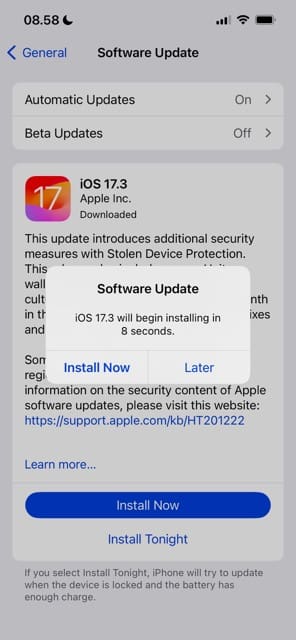
Before moving any further down this guide, make sure that you’ve installed at least iOS 17.3 on your device. Follow these instructions to do that:
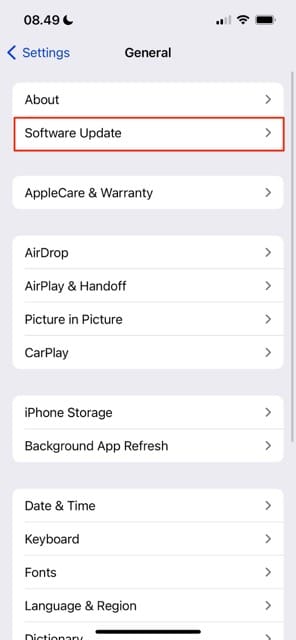
Open the Settings app and select General.
Tap Software Update.
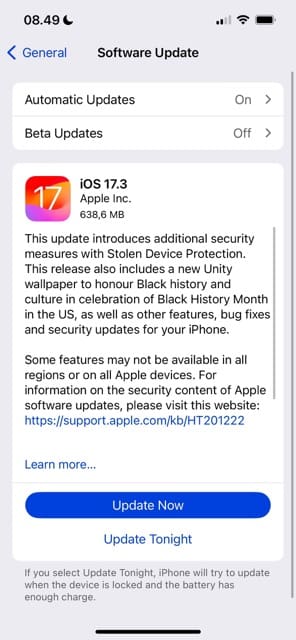
Wait for your iPhone to search for iOS 17.3. When you have the option to download, select Update Now.
Enter your passcode if you’re asked to.
When the pop-up window appears, tap Install Now.
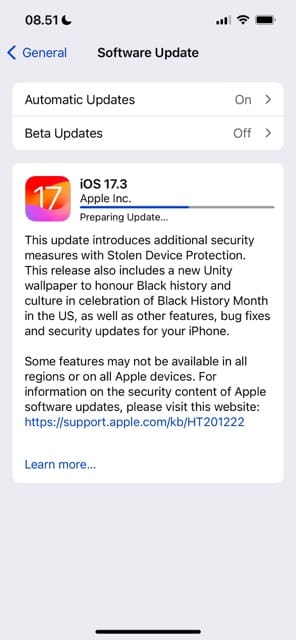
Wait for iOS 17.3 to install on your device. Your iPhone will restart during the process.
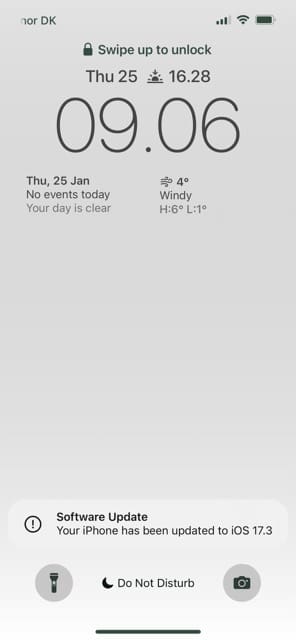
Once iOS 17.3 has downloaded to your device, you’ll see a notification telling you that your software has been updated.
Enter your iPhone passcode to use your device again before navigating to Apple Music.
Can I Use Collaborative Playlists Without an Apple Music Subscription?
No – at the time of writing in January 2024, the Music collaborative playlists feature is only available to those with a subscription. You can purchase an Apple Music subscription directly through your device; in the US, you’ll pay $10.99 per month ($5.99 per month if you’re a student).
How to Set Up a Collaborative Playlist in Apple Music After Downloading iOS 17.3
Once you’ve downloaded iOS 17.3 and subscribed to Apple Music, follow these instructions to set up a collaborative playlist in the app.
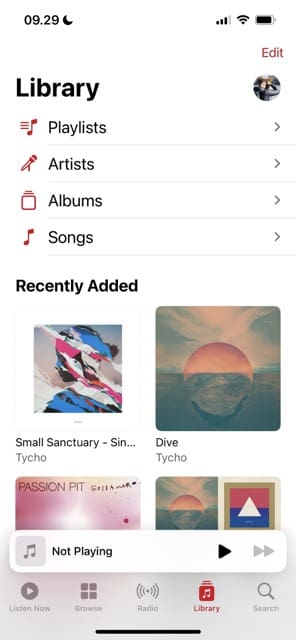
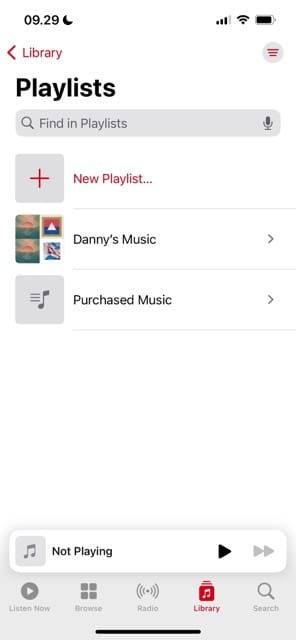
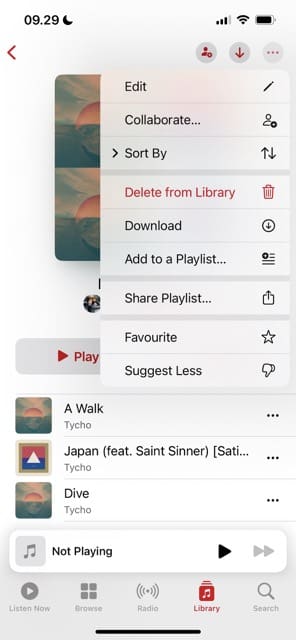
Go to Library > Playlists in Apple Music.
Select the playlist that you want to share with others.
Either tap the person with a + sign icon at the top of your screen or select the three-dot icon and choose Collaborate.
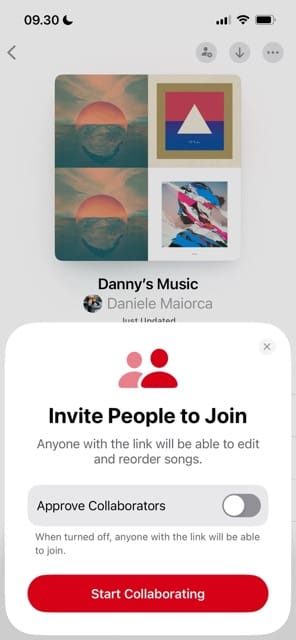
A window called Invite People to Join will appear. If you want to approve collaborators before someone joins, toggle Approve Collaborators on. When you’re happy with your settings, select Start Collaborating.
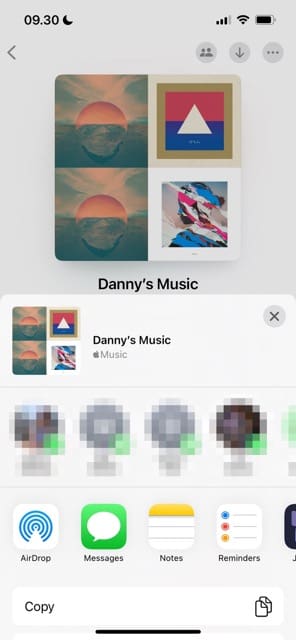
Start sharing your playlist with others. A window with your favorite contacts will then show, and you can also send via other methods like AirDrop.
How to Share Your Apple Music Playlist With Others After the Initial Set-Up
Beyond the initial set-up phase, it’s quite easy to share your playlists with others in Apple Music. You can use the steps below to collaborate with others.
Go to the playlist you want to share.
Tap the Collaborate icon at the top.
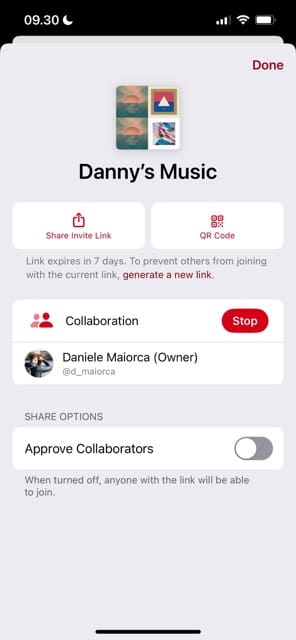
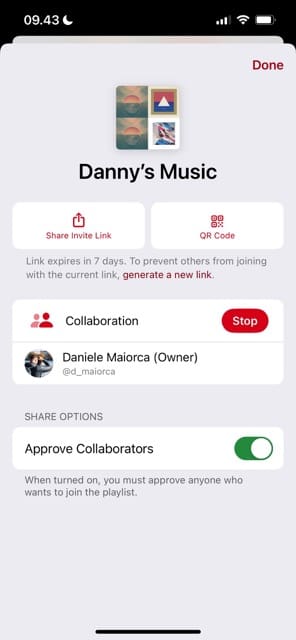
Select either Share Invite link or QR Code. If you pick the latter, a QR code will appear on your screen, and the other person will need to scan it via their device’s camera.
Tap Done when you’re finished.
Other Useful Things to Know About Apple Music’s Collaborative Playlists Feature
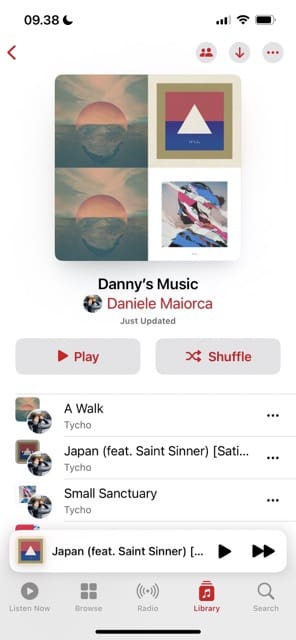
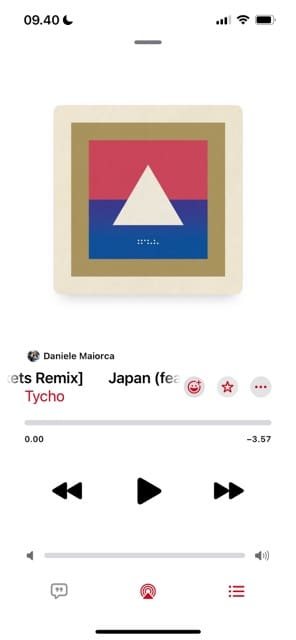
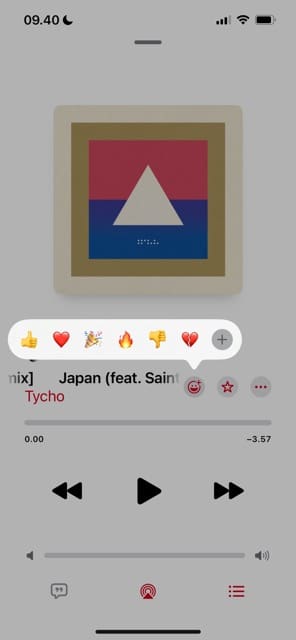
When you create a collaborative playlist, you’ll see who added music to your list via the profile picture icon next to each song. You can also react to songs via the smiley icon and tapping an emoji.
How to Stop Sharing Your Collaborative Playlist With Others
If you later want to stop sharing your collaborative playlist with others in iOS 17, doing so is very straightforward.
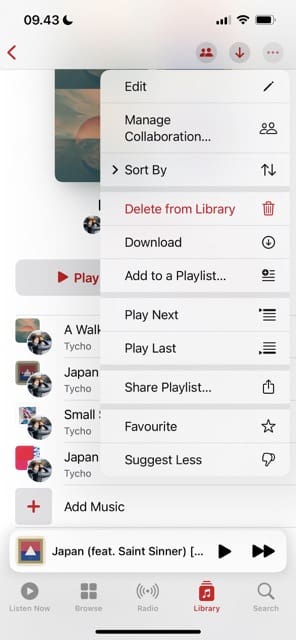
Select the Collaborate icon or tap the three-dot icon and choose Manage Collaboration.
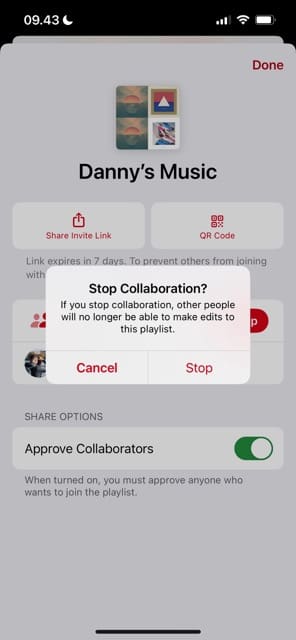
Next to Collaboration, select Stop.
Confirm that you want to stop sharing your playlist with others by tapping Stop, before selecting Done to save your changes.
Share Music With Your Friends With This Cool Apple Music Feature
The collaborative playlists feature in Apple Music is a user-friendly way to share the songs you love with friends and family. It’s a great tool for road trips, parties, and any other kind of social situation you can think of.
Now that you’ve read this guide, you have all the information you need to successfully use collaborative playlists in Apple Music. Once you’ve tried the feature for yourself, let us know what you think about it in the comments section.
Danny has been a professional writer since graduating from university in 2016, but he’s been writing online for over a decade. He has been intrigued by Apple products ever since getting an iPod Shuffle in 2008 and particularly enjoys writing about iPhones and iPads. Danny prides himself on making complex topics easy to understand. In his spare time, he’s a keen photographer.










Write a Comment