When an emergency happens, you need to stay informed. And one of the best ways is to enable government alerts on your iPhone. These alerts help us all maintain contact with our authorized national, state, and local authorities so we are aware of any public safety emergencies and any required action.
Public safety, emergency, and Amber alerts should already be enabled on your iPhone and Apple Watch as Apple puts these types of government alerts on by default. But it never hurts to check and make sure that you receive these important alerts, especially in times of crisis.
And when the crisis is over, you can change your government alert settings back to normal at any time. So why not have them on when you need them?
Unfortunately, not all countries support emergency alerts. So if you look for these settings but don’t find them, contact your carrier to double check that your country does not support a government emergency alert system.
Wireless Emergency Alerts (WEA) including notices about evacuation orders and other critical messages for the geographic area affected by an emergency
Alerts involving imminent threats to safety or life
Alerts for extreme weather conditions
Public Safety Alerts
Presidential Alerts during a national emergency
Missing or abducted child alerts (AMBER alert)
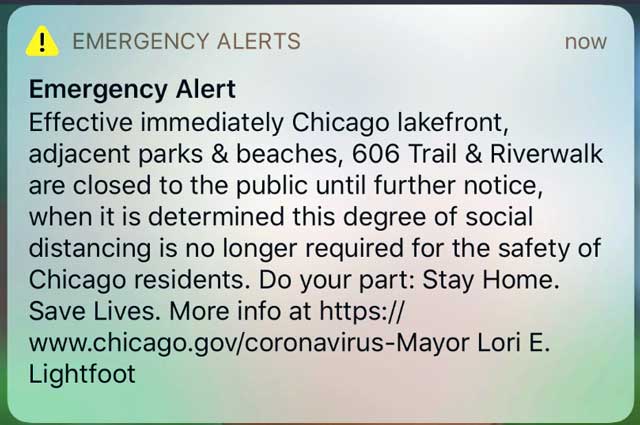
alerts like this from the city of Chicago let the public know what is going on and any action the public needs to take
When a government authority issues an alert, you get a notification and an alarm-like sound plays plus vibration to get your attention. This sound and the vibration repeats twice.
You get emergency alerts even if you turned on Do Not Disturb, Bedtime, or any other feature that normally silences notifications.
Finally, these alerts are free. Your carrier should not charge you for any emergency alert issued by a government agency. Plus, these messages do not count towards any texting limit on your wireless plan.
How to view emergency alerts on iPhone
Check your iPhone’s government emergency alert settings
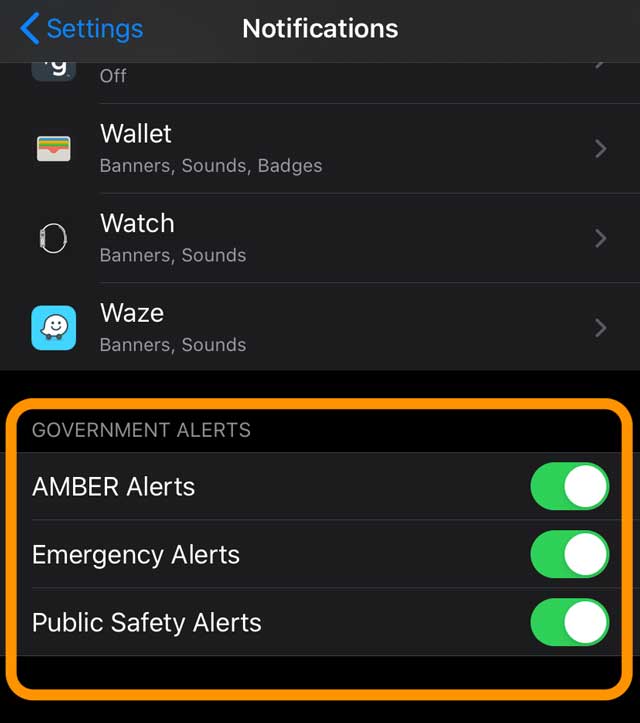
Go to Settings > Notifications
Scroll to the bottom of the screen
Look for the Government Alerts category. In some countries, it’s labeled as Emergency Alerts
Toggle on or off any changes you want
We strongly recommend you to enable both Emergency and Public Safety alerts!
Not hearing the alert’s alarm sound?
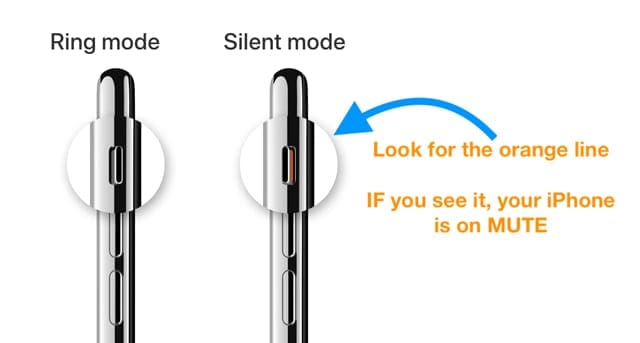
If you do not hear an alert but see it as a notification on your screen, it’s likely that your iPhone’s ringer sound is turned all the way down or you flipped the iPhone’s side switch to mute.
Check your side switch on your iPhone. If you see orange, you’re on mute
To hear the sounds, turn your iPhone’s ringer volume up and make sure the side switch is not on mute.
Not getting emergency alerts?
Disable all government alerts in your notification settings
Restart the device
Toggle all alerts back on
Other alert options
A lot of our frequently used apps also offer emergency notification services.
Twitter has an in-app option to receive information about crises and emergencies. Along with your iPhone government alerts, Twitter is a good option for times when you need frequent updates on the situation.
Open the Twitter app
Tap your account icon (usually your picture)
Choose Settings and privacy
Select Notifications
Tap SMS Notifications and Push Notifications (one at a time)
Toggle on Crisis and emergency alerts
Check with your local city, county, or state/province
Many localities also offer their own emergency alert systems, usually through SMS texts or emails.
So visit your city, state, or other government site and look for any emergency alert systems.
Receive Test Emergency Alerts (the US only)
When you use a US carrier and you are in the U.S, you can receive Test Emergency Alerts–just to make sure the system is working.
By default, this is turned off.
When you receive this type of alert, you hear an alarm and the alert says that it’s a test–not an actual emergency.
Turn these test alerts on or off
Open the Phone app and tap Keypad
To turn it on, type in *5005*25371# and make a call. You hear confirmation that”test alerts enabled”
To turn it off, type in *5005*25370# and make a call. You hear confirmation that”test alerts disabled”
For most of her professional life, Amanda Elizabeth (Liz for short) trained all sorts of folks on how to use media as a tool to tell their own unique stories. She knows a thing or two about teaching others and creating how-to guides!
Her clients include Edutopia, Scribe Video Center, Third Path Institute, Bracket, The Philadelphia Museum of Art, and the Big Picture Alliance.
Elizabeth received her Master of Fine Arts degree in media making from Temple University, where she also taught undergrads as an adjunct faculty member in their department of Film and Media Arts.
Twitter has an in-app option to receive information about crises and emergencies. Along with your iPhone government alerts, Twitter is a good option for times when you need frequent updates on the situation.
Open the Twitter app
Tap your account icon (usually your picture)
Choose Settings and privacy
Select Notifications
Tap SMS Notifications and Push Notifications (one at a time)
Toggle on Crisis and emergency alerts
Where can I find the alert after I unlock my iphone? Say you want to talk to a family member about the alert, It shows up on screen when you first receive it, but where is it once you unlock your phone to make a call?











It doesn’t work for me there’s no options only emergency alerts on and off switch I’ve checked and it does work because my Moms phone has got these
Government awards is not at the bottom of my notifications spot on my settings on my iPhone XR
Twitter has an in-app option to receive information about crises and emergencies. Along with your iPhone government alerts, Twitter is a good option for times when you need frequent updates on the situation.
Open the Twitter app
Tap your account icon (usually your picture)
Choose Settings and privacy
Select Notifications
Tap SMS Notifications and Push Notifications (one at a time)
Toggle on Crisis and emergency alerts
Where can I find the alert after I unlock my iphone? Say you want to talk to a family member about the alert, It shows up on screen when you first receive it, but where is it once you unlock your phone to make a call?
After your phone is unlocked, you can find all of your notification by swiping down from the top left corner of your screen.
Idk I just found this on the web….