Locking the keyboard on a Mac without locking anything else in the process is impossible to do solely through native apps and keyboard shortcuts. However, that doesn’t mean you can’t protect your Mac from accidental keystrokes and unwanted input.
Here are some ways to lock your Mac’s keyboard and the device itself.
If you don’t want to delve into third-party apps to prevent someone from getting access to your files or any other kind interaction with your keyboard while you’re not around (e.g., your cat sleeping on your keyboard), then locking the Mac itself is the next best thing. It’s a pretty straightforward process.
You can use the keyboard shortcut “Control + Command + Q” to lock your Mac. Anyone who comes up to the computer will need to use your password (or Touch ID if you’ve set that up as an authentication method) to unlock the screen.
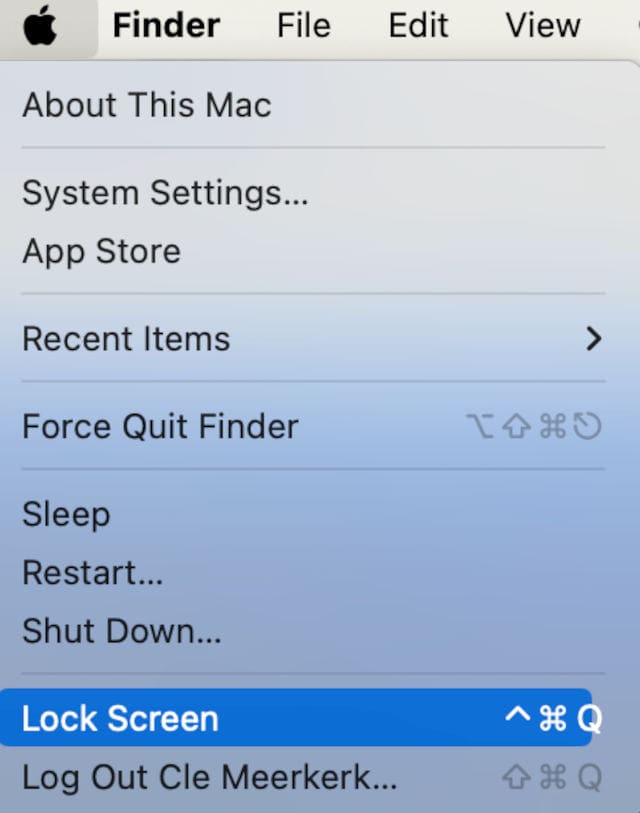
You can also lock the Mac manually through menus:
Click on the Apple icon on the top-left of the screen.
Select “Lock Screen” from the list of options on the drop-down.
That’s all there is to it. With the screen locked, your Mac won’t accept any keyboard inputs except for the password.
Using the Mac Touch Bar to Lock Your Mac
If you’re a proud owner of a Macbook Pro, then you can utilize your touch bar to lock your Mac super quick using a “Screen Lock” icon.
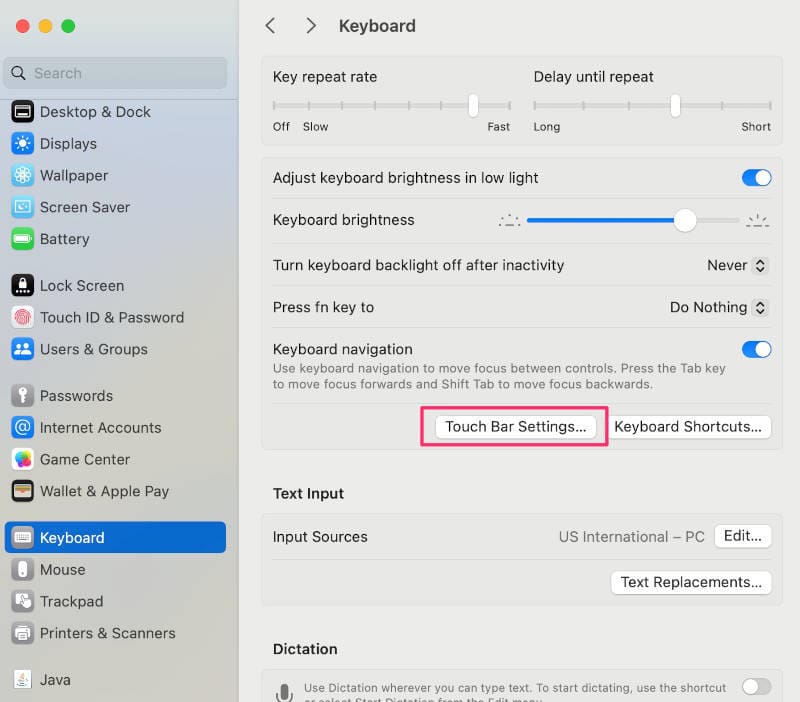
Click the Apple icon in the upper left corner and head to System Settings (System Preferences on older macOS).
Click on “Keyboard“ followed by “Touch Bar Settings…“
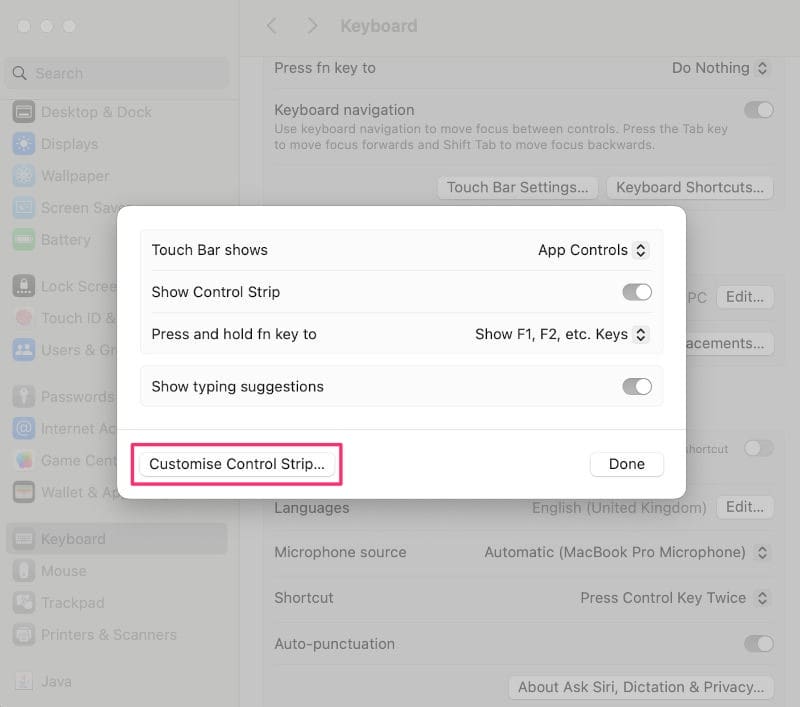
Click on “Customize Control Strip”.
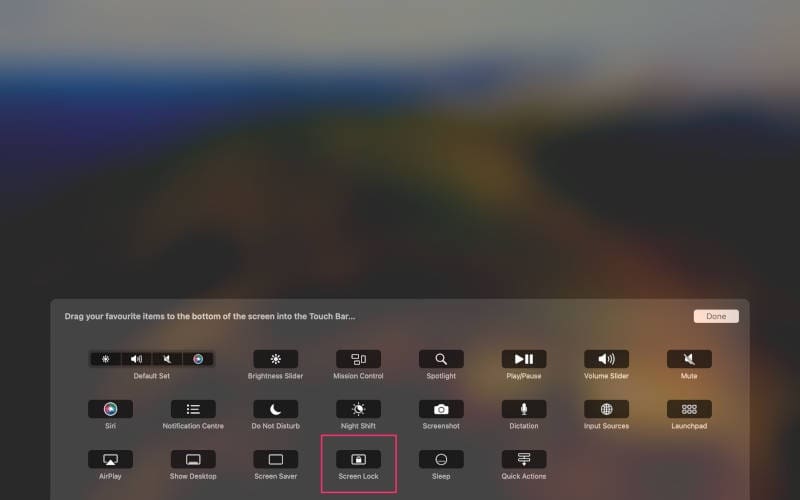
You will access the icon menu.
Find the “Screen Lock” icon and drag it into your Mac’s touch bar.
Use the Shortcuts App
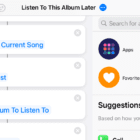
The Shortcuts App is the official app from Apple that allows you greater control over your Mac by assigning additional keyboard and menu shortcuts. You can use it to set up a keyboard lock shortcut by following these steps:
In Finder click on Applications > Shortcuts.
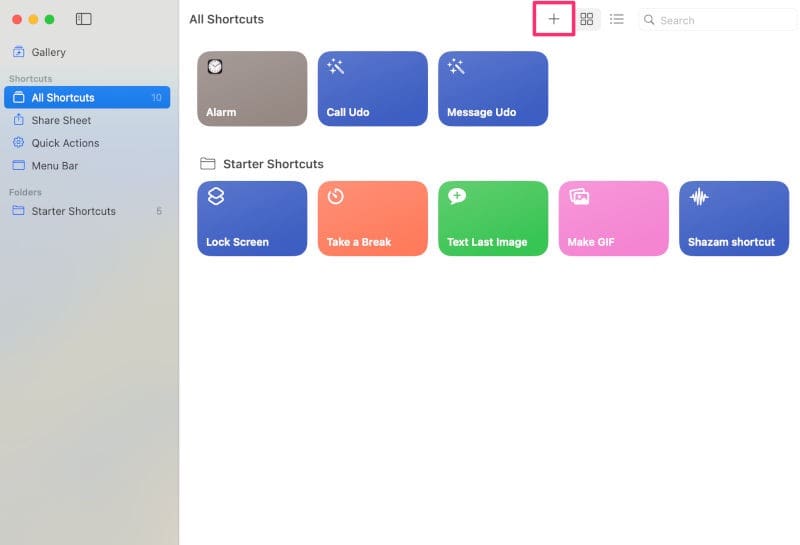
Open the app and select “New Shortcut” (the plus sign) or press “Command + N”.
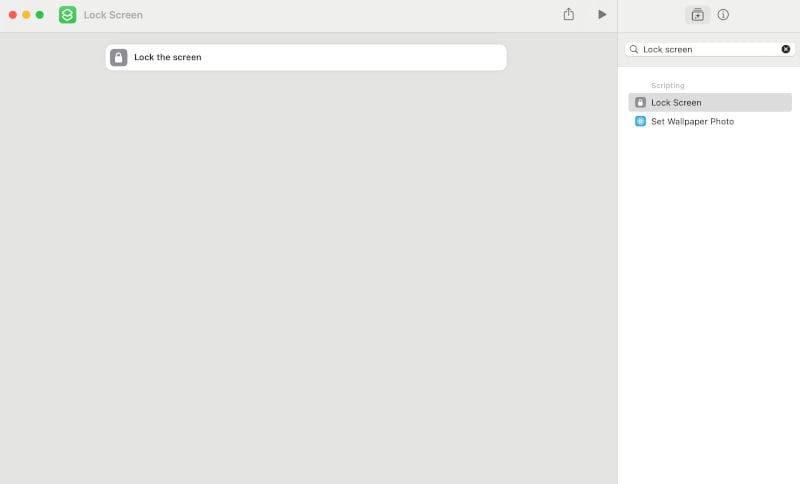
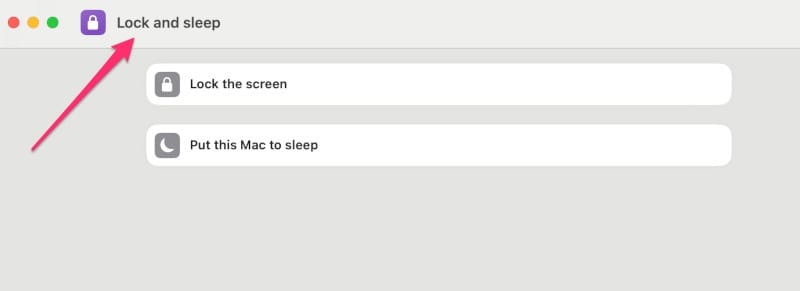
Click on the search bar in the “Shortcut Editor” window and type in “Lock screen.”
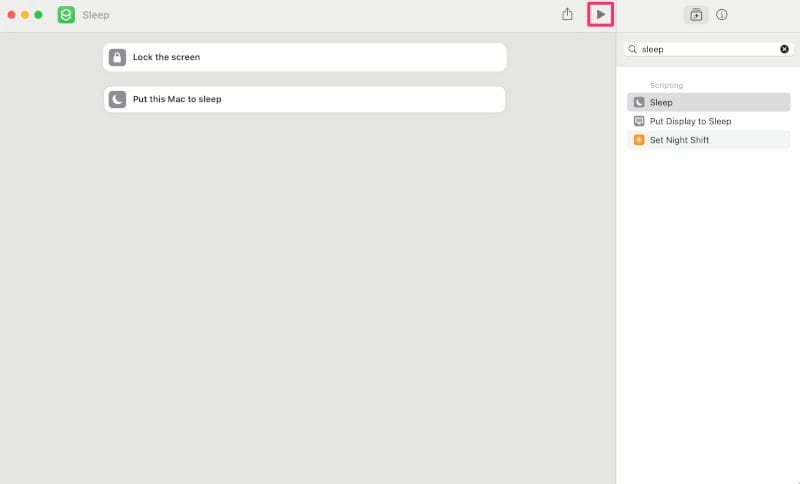
Double-click or drag it to the Editor workflow. You can further customize what happens by adding more shortcuts, such as muting the sound or putting the Mac to sleep.
Select “Play” to test out the shortcut.
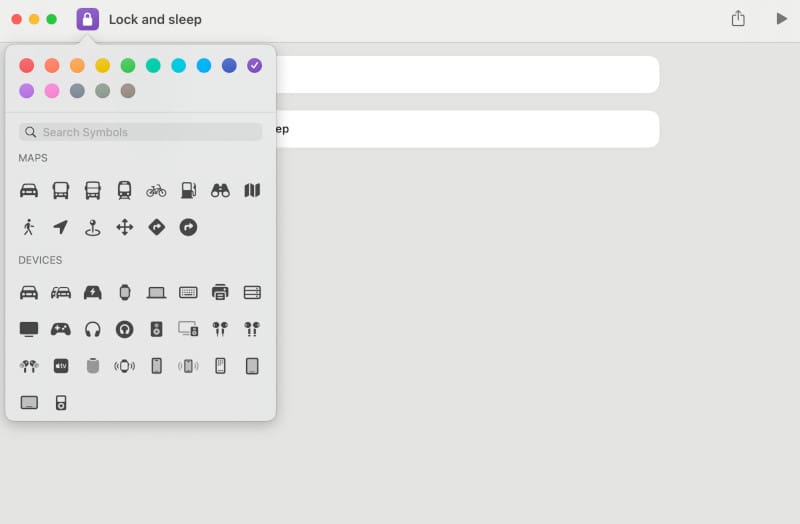
Customize the icon for your shortcut. You can add emojis or symbols and change color.
Name your shortcut to your liking.
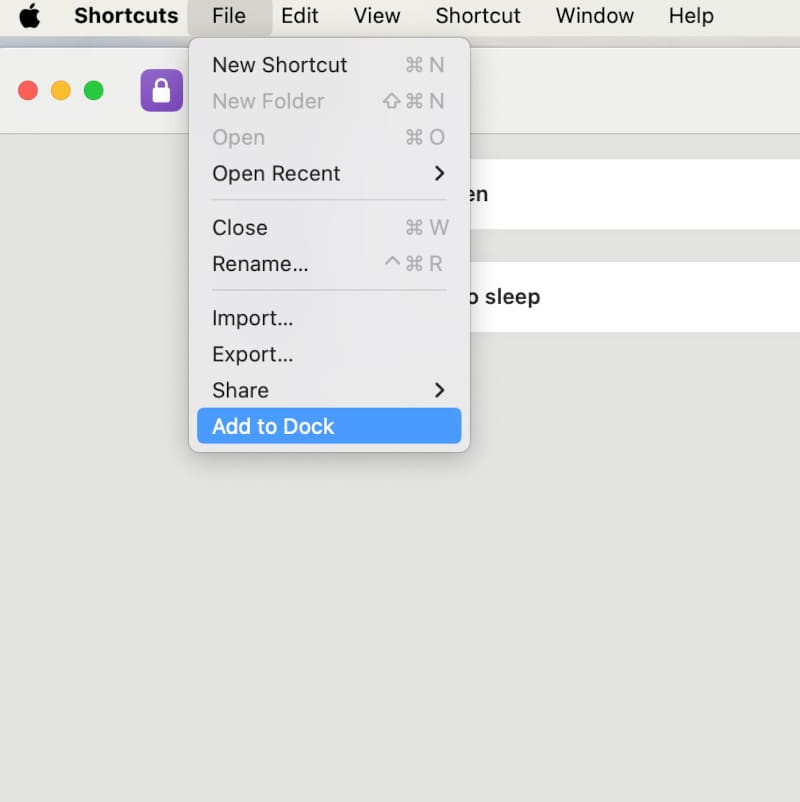
Click on File and then “Add to Dock” for easy access.
Use Third-Party Apps
If you want a full hands-off experience to create a keyboard lock shortcut, you’ll need to use a third-party app that manages them. There are several solid options in or outside of the App Store you could try, including:
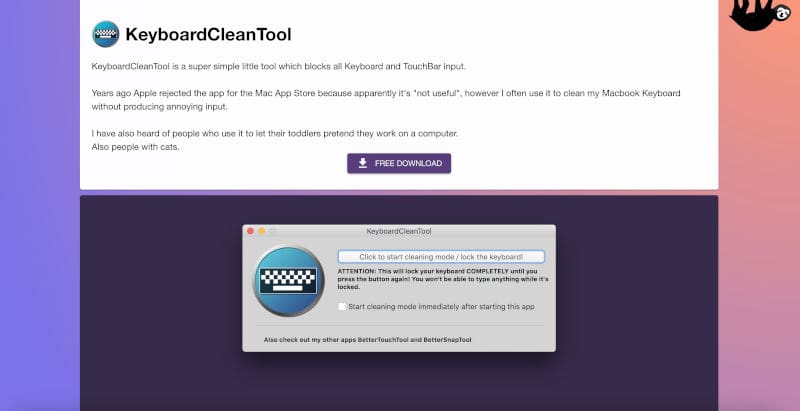
Keyboard Clean Tool: This app allows you to lock the keyboard with a single button click so you can clean it without producing random inputs.
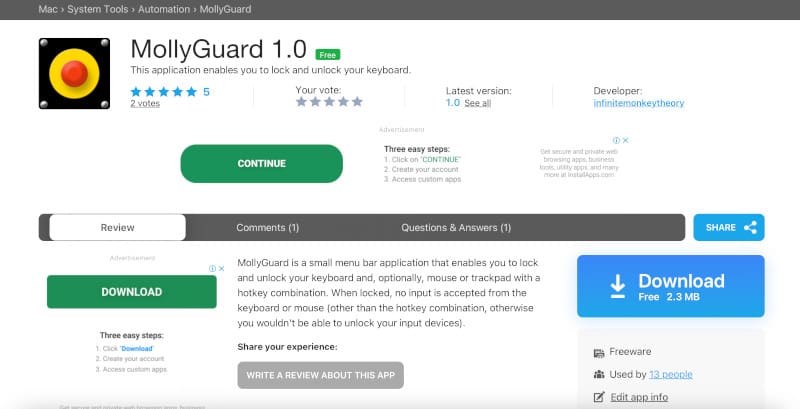
MollyGuard: This nifty app is another solid choice if you just want to create a simple shortcut for locking your keyboard, mouse, or trackpad.
Alfred App: Alfred is another keyboard shortcut suite that allows you greater control over your keyboard. It’s fairly comprehensive, but if you need it solely to get a lock keyboard shortcut, it’ll do the trick.
Keyboard Locked
Whether you want to clean your keyboard without typing random characters and ruining your text or need to prevent others from browsing through your Mac when you’re not around, you have a few ways to lock the keyboard. The simplest process is definitely to lock your screen, but it may not do exactly what you need. That’s where the third-party apps can come in handy.
What option did you use to lock your keyboard? When has it come in handy? Let us know in the comment section below.
As an avid gamer, I’ve run into my fair share of error codes and weird faults that have forced me to find fixes to problems I never anticipated. That gave me a passion for sharing those fixes with others so we can all game without feeling like our hardware is rebelling against us.











Write a Comment