Microsoft Intune provides comprehensive management capabilities for devices across your organization, from mobile devices to computers. However, Apple’s differing management policies make it a bit of a hassle if you need to manage Apple devices with Microsoft Intune. Furthermore, setting up Microsoft Intune for Apple devices may differ based on the exact configuration you use (company-assigned or BYOD system). Here’s what you’ll need to do.
Setting Up the Apple Device Management Infrastructure
Before you can manage Apple devices with Intune, you need to establish the foundation for communication between Apple’s services and Microsoft’s cloud platform.
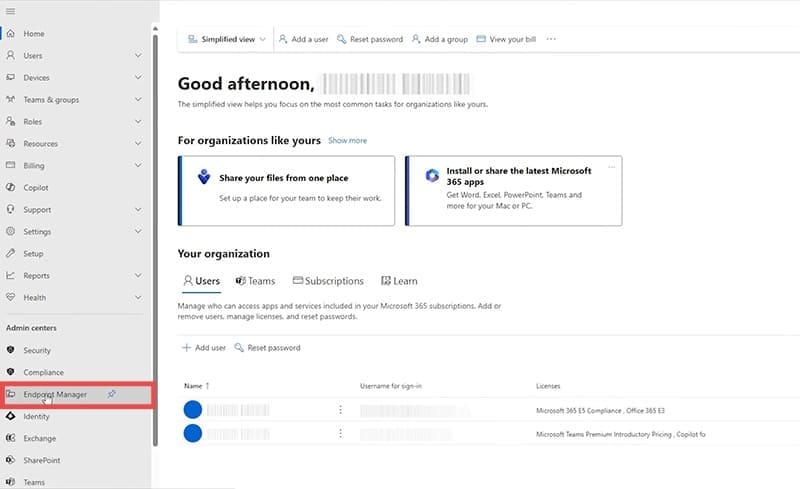
Step 1. Go to the Intune Microsoft Endpoint Manager Admin Center.
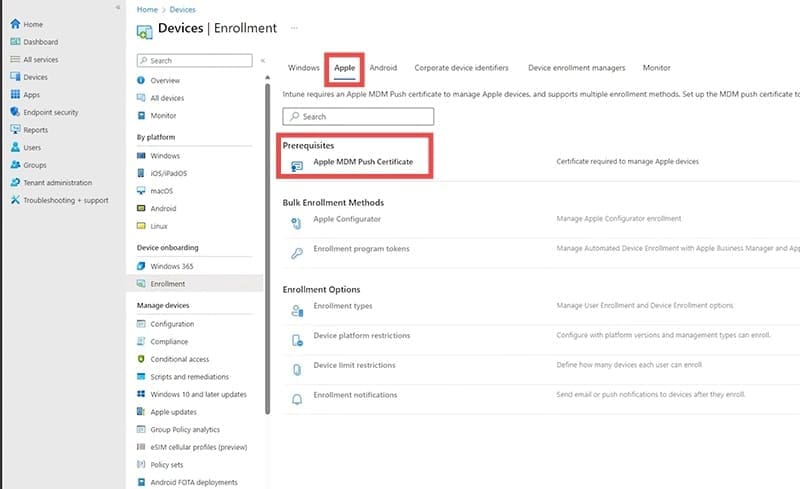
Step 2. Choose “Devices” from the sidebar and select “Enroll Devices.”
Step 3. Select “Apple Enrollment” and click on “Apple MDM Push Certificate.”
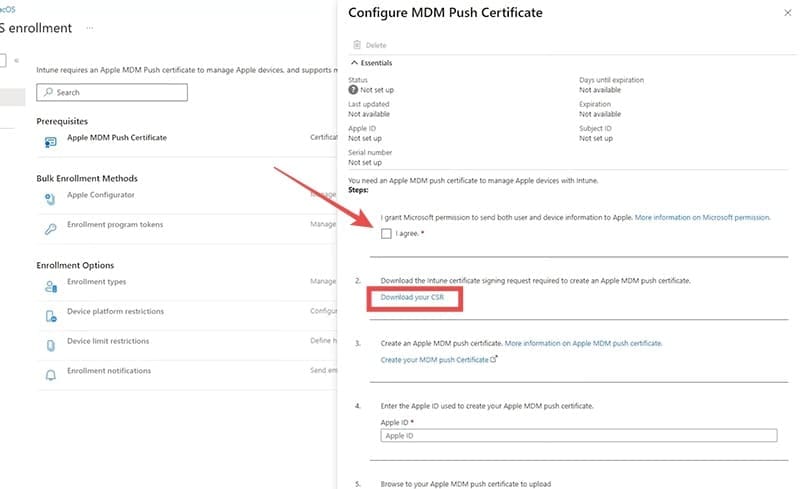
Step 4. Confirm the choice and download the CSR file, then save it to your PC.
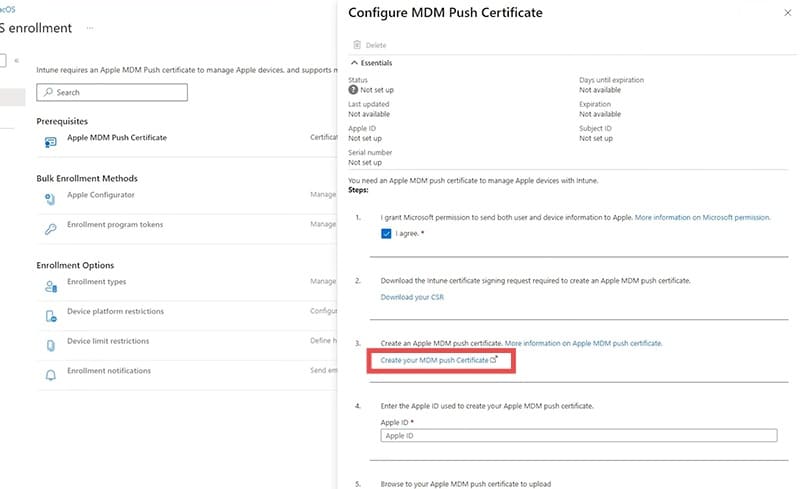
Step 5. Click on “Create your MDM Push Certificate.”
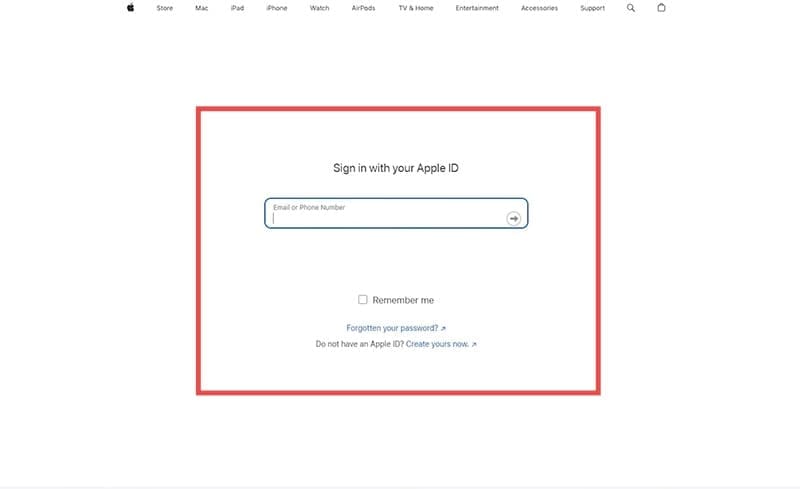
Step 6. In the certificate portal, enter an Apple device ID and accept the agreement.
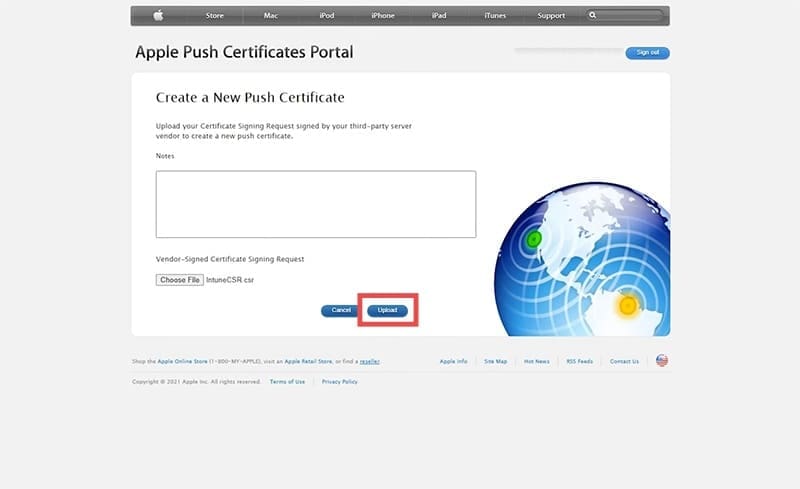
Step 7. When prompted, upload the CSR file.
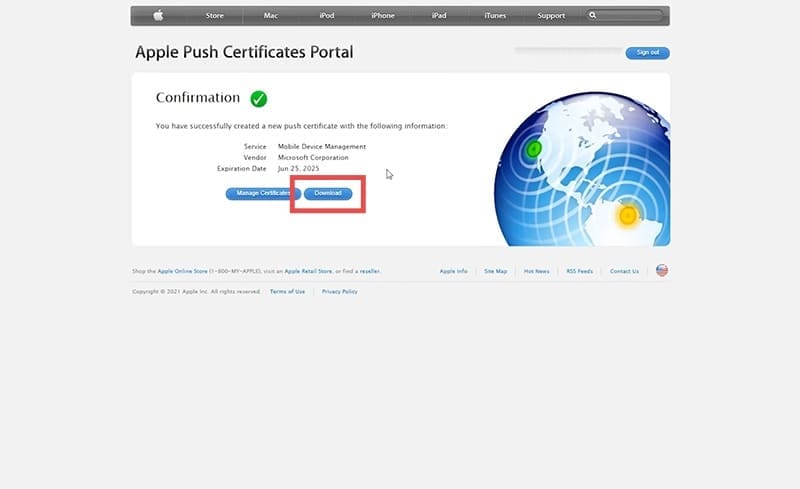
Step 8. Download the PEM file and store it.
Step 9. Go back to the Intune manager and enter the same Apple ID you used to create the certificate and the PEM file you saved.
After that, you’ll need to configure your organizational policies and determine your device management approach. Consider your organization’s requirements, such as the platforms you’ll support, the tasks people need to do, and which groups or teams need specific apps. You may also want to set up Microsoft Entra user groups and device groups for policy assignment, as devices will receive policies based on these group memberships after enrollment.
Getting the Corporate Apple Devices Into Intune
Automated Device Enrollment through ABM provides the most streamlined experience for corporate device management, similar to Windows Autopilot.
Step 1. Upload device serial numbers to your management portal.
Step 2. Assign devices to the MDM server you created for Intune integration. This step tells Apple which devices should be managed by your Intune tenant.
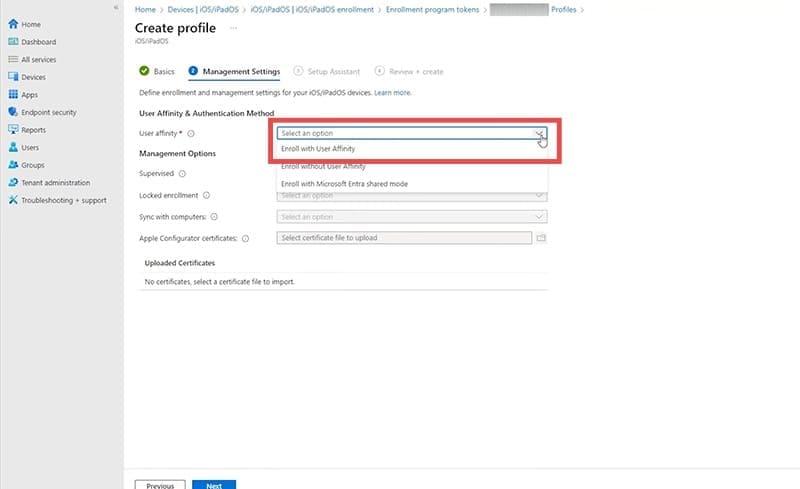
Step 3. Create an enrollment profile for corporate-owned Apple mobile devices in the Intune admin center. This profile defines the out-of-box experience and management settings.
Step 4. Configure enrollment profile settings based on your security requirements:
Enroll with User Affinity for devices used by specific users, or without User Affinity for shared devices.
Microsoft recommends “Setup Assistant with Modern Authentication” for the best security and user experience.
Enable supervised mode for enhanced management controls and disable Activation Lock.
Configure device naming templates and Setup Assistant screen visibility.
Step 5. Assign the enrollment profile to specific devices or device groups in the Intune admin center.
Step 6. Enroll your devices into Intune, depending the type of organizational management you use. We’ve previously posted a guide on this, which you can find here.
Configuring Device Policies and Compliance
Once devices are enrolled, you can deploy management policies to ensure security and compliance across your Apple device fleet.
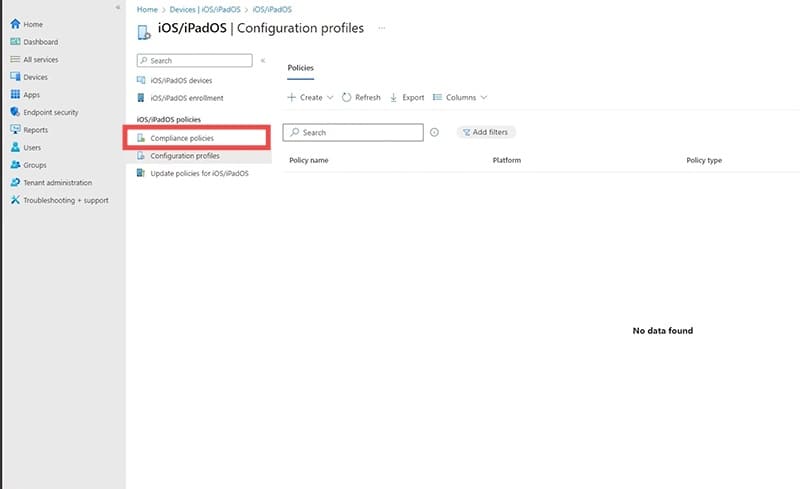
Step 1. Create device configuration profiles to enable or disable settings and features on iOS/iPadOS and macOS devices. Common configurations include:
Step 2. Implement compliance policies that work alongside Conditional Access policies to block access from noncompliant devices.
Step 3. Set up authentication methods including multi-factor authentication, certificates, and derived credentials for secure access to corporate resources.
Step 4. For supervised devices, configure software update policies to manage updates, including scheduled installations and customized update settings.
As an avid gamer, I’ve run into my fair share of error codes and weird faults that have forced me to find fixes to problems I never anticipated. That gave me a passion for sharing those fixes with others so we can all game without feeling like our hardware is rebelling against us.













Write a Comment