• Skip to primary navigation
  • Skip to main content
  • Skip to primary sidebar
  • Skip to footer

AppleToolBox

Tools and Fixes for Mac, iPad, iPhone & iWatch

Search posts

  • About
  • Contact

CONNECT WITH US

CATEGORIES

  • iPhone
  • iPad
  • iPod
  • Apple Watch
  • Mac/MacBook
  • AirPods
  • Apple TV
  • News
  • Apple Services
  • HomePod
  • Reviews

SITE

  • Home
  • About Us
  • Contact
  • Advertise

Search posts

You are here: Home / Mac / How to open a Microsoft Works .XLR spreadsheet file in Mac OS X

How to open a Microsoft Works .XLR spreadsheet file in Mac OS X

By Sudz Kar 0 comments Last updated March 8, 2016

Are you trying to open an XLR file? XLR file type is a an extension for spreadsheet files (or chart files) used by Microsoft Works suite.

Microsoft Works is a discontinued office suite created by Microsoft.

How to open an XLR File on your Mac:

See also: How to open Mac’s .pages file format on Microsoft Windows

1-Locate the .xlr file
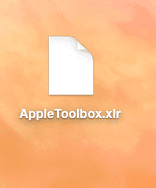
xlr file open

2-You cannot open this file. Double click to open it. You will see this message saying: There is no application set to open the “document .xlr”

unable to open xlr file

3-The easist way to open this file is to change .xlr to .xls extension.

To do this, simply select the file by clicking

xlr select this file

Then, press return (or enter). Now enter the new extension name, .xls.

change xlr to xls

You will be prompted this message saying: Are you sure you want to change the extension from “.xlr” to “.xls”? Simply select Use .xls.

Mac xls

Now simply open this new file. Preview will open this file.
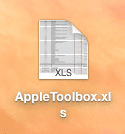
xls file open mac

Alternatively you may want to download and install an app. For instance, Open Office can open .xlr files.

Related Posts:

  • pexels-lukas-590022
    How To Use Numbers: The Basics
  • Mac Output Audio Header
    How to Control Individual Application Volume on Mac
  • authentication-session-has-expired-microsoft-office-mac
    Fix: The Authentication Session Has Expired MS Office
  • Windows computer
    How to AirDrop from iPhone to Windows PC
  • how to convert a pages file into word
    How to Convert a Pages File Into Word File
  • How to Install Windows 11 on Mac
    How to Install Windows 11 on Mac
  • How to Install Windows 11 on Mac
    Want iMessage on Your Windows PC? How-To
  • Games coming to macOS Sonoma
    How to Play Windows Games on Mac
  • How to Add Grammarly to Word on Mac 4 Best Methods in 2023
    How to Add Grammarly to Word on Mac: 4 Best Methods in 2023
sudz - apple
Sudz Kar

Obsessed with tech since the early arrival of A/UX on Apple, Sudz (SK) is responsible for the original editorial direction of AppleToolBox. He is based out of Los Angeles, CA.

Sudz specializes in covering all things macOS, having reviewed dozens of OS X and macOS developments over the years.

In a former life, Sudz worked helping Fortune 100 companies with their technology and business transformation aspirations.

Reader Interactions

Write a Comment Cancel reply

Primary Sidebar

Recent Posts

  • How to Turn Off Apple Music’s Dark Mode
  • How to Disable Predictive Text in iOS 26
  • How to Stop Sharing Analytics in iOS 26
  • How to Manage Your iPhone Call Log
  • Are Apple’s Safety Precautions Enough for AirTags?
  • How to Hide Username and Photo on the Mac Lock Screen

Connect with us

Footer

ABOUT

  • About Us
  • Contact us
  • Advertise
  • Privacy
  • Terms of Use

GUIDES

  • iOS & iPadOS
  • Apple ID
  • iCloud
  • App Store
  • iTunes
  • FaceTime
  • iMessage
  • Siri
  • Books and iBooks
  • Game Center
  • AirPlay

CONNECT

  • Facebook
  • Twitter
  • FeedBurner
  • YouTube

© Copyright 2010-2024 Guiding Tech Media · All Rights Reserved

This site and its content are in no way affiliated or endorsed by Apple, Inc. · Reproduction without explicit permission is prohibited

Last Updated on March 8, 2016 by