With every iOS release , Apple is always making changes to its stock apps. The Notes App received enhanced security features via password protection in 9.3. Prior to that with the release of iOS 9, features such as checklist and sketch were added to Notes.
Along with this App, Apple has also been making several changes to its News App to make it pertinent in the world of e-readers. Apple’s entry has been late into this space as there are many e-news readers available out there for several years now. There are however several advantages that you have by using the “FREE” News App from Apple, the primary being good integration with the other iOS Apps.
In this article, we will focus on some of the important features that you should know about when it comes to getting a smoother experience in the News App.
We have received few emails since the App was released enquiring around the best ways to manage the font size while using the App. Interestingly, This was accomplished in prior iOS versions by going to iphone/ipad Settings > Display and BrightNess > Text Size and adjusting the slider to increase the text size.
With iOS 9.3/9.3.1, Apple has decided to provide this feature right in your News App. You can easily control the font size of your news app text by tapping on “A A” right on the top of the screen. This direct control makes it much easier to manage the reading without going back to the main settings every now and then. With 9.3, the App is much more faster and has more relevant content in the “For You” section.
Basics: Personalizing Your News Stories
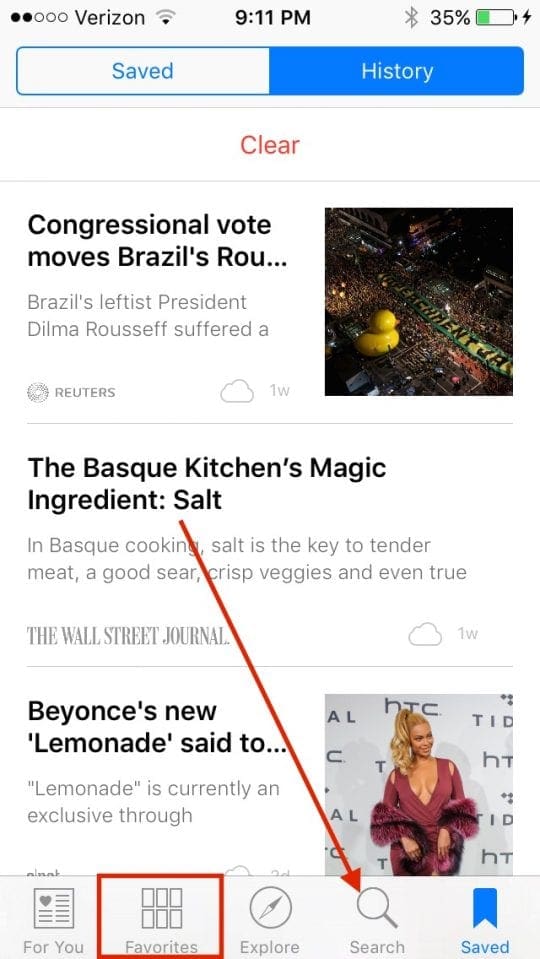
On the News App, you start with picking at least 3 favorite news sources from a list. Apple will show you the relevant headlines related to these favorite sources. Once you have done this, the App will show you the “For You” Screen associated with the For You Menu. Tap on the Favorites icon from the toolbar at the bottom.
Apple shows your all the sources of your choice and also adds recommendations around what other news coverage sources you may like. Press Edit and the “X” button to remove any you don’t like.
What if you do not see the news source in the list. This is where the “Explore” feature comes in handy. Tap on Explore at the bottom of the screen. You can add specific news outlets or Topics by just tapping on the “+” button on the screen.
The “Search” feature in the App is one of my favorite feature. Tap on the Search option and it will let you look for a particular type of article or news source. By pressing on the “+” button next to the search results, you can add the feed into your personalized news repository.
Suggested Workarounds: I do not see this App on my iPad/iphone.
News was made available in US only to start with but now has been made available to folks in Australia, UK and USA. If you are in a region where this App is not supported, Try changing your region in Settings to US and restarting your device to get access to this App.
iOS Integration Options: What do You Mean?
This is where I think the Apple app stands apart from other e-news reader applications. By a quick Tap on the “Share” button at the bottom, you can easily integrate the article to your reading list, share it to your friends via email, text, or post it to Facebook. You also have the choice of “Mute the Channel”. Starting with iOS 9, this feature was made available for the News App. Lets say you landed on a reading material and decided that you do not want to read any more articles from this news source. Instead of going back to your main News Screen, you can tap on “Mute this channel” and confirm. Once you do this , the news source will be blocked from your personalized feed.
Word of Caution: Please pay attention to these two settings as it relates to your News App experience. The first of these is “Use Background Refresh” and the second setting is “Use Cellular Data”. If your turn on these settings they do make the app a little faster, however it will end up using more battery as well as your cellular data limits may be tested if you are not careful. If you have a managed data plan, you may want to monitor this and or disable the use of cellular data and just use the News App when you have access to wi-fi.
Obsessed with tech since the early arrival of A/UX on Apple, Sudz (SK) is responsible for the original editorial direction of AppleToolBox. He is based out of Los Angeles, CA.
Sudz specializes in covering all things macOS, having reviewed dozens of OS X and macOS developments over the years.
In a former life, Sudz worked helping Fortune 100 companies with their technology and business transformation aspirations.











How do I remove the number in a red circle that appears attached to the
“red Font ‘Channels'” at the bottom of the News App
How do I recover a news channel I inadvertently deleted without noticing which one it was? Is there a default list of original channels I can review?
Thank you.
Hi Nick,
Unfortunately, we don’t know of any list of previous channels you used.
Sam