The iOS 26 update has been a big shakeup to iPhone users, not just in terms of graphical user interface (that Liquid Glass is flashy), but also in app and operational technology, like advances in Apple Intelligence or the introduction of a Preview app.
But as with any update, the iOS 26 release comes with its own share of bugs that the next version (26.0.1) tried to address. That said, many users have reported increased heat and battery drain on their iPhones after installing this update. We’re going to be looking at some ways to prevent this in iOS 26 and 26.0.1.
We’ve assembled a few different ways below to get your battery life roughly back to where it was. It’s true that every major update comes with some hit to battery life, but this shouldn’t be permanent.
Install iOS 26.0.1
Many of the initial complaints around freezing, sudden heat increases, and rapid battery drainage were reported with the initial release of iOS 26, made all the worse by the delay in iOS 26.0.1 to patch things up. At the time of writing this article, the updated software version has been released and has ironed out many of the teething issues of its predecessor. So it’s important, before attempting anything else, to fully update your iPhone’s software.
Let the Update Run Its Course
After updating to an OS where so much has changed graphically and performatively, it’s easy to panic when things go wrong, particularly the increased battery drain. Truth be told, all iOS updates take a few days to finish properly indexing your apps and data. In some cases, this can take a few hours, but for bigger phones, this can even take a few days. Allow the update to install properly, even once the official process is finished.
Update All Apps
Another culprit of battery drain is poor app optimization with the new iOS. App manufacturers should be aware of this and release software updates to better integrate. It’s crucial to update all apps on your device, if not automatically, then manually.
Use Adaptive Power Mode
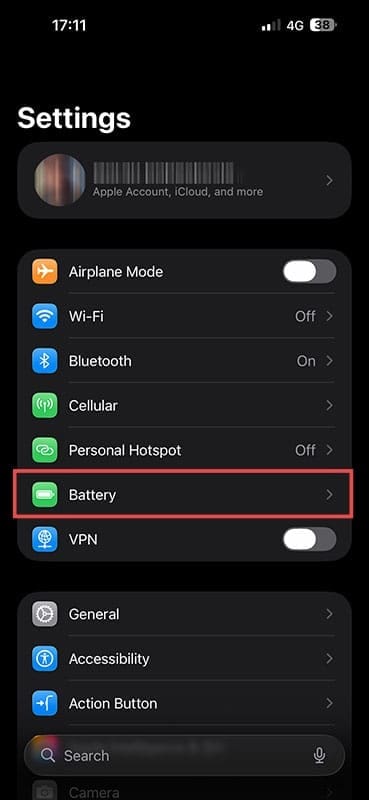
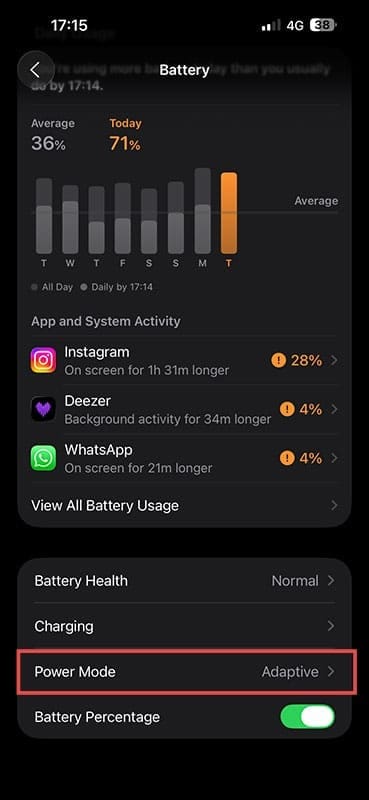
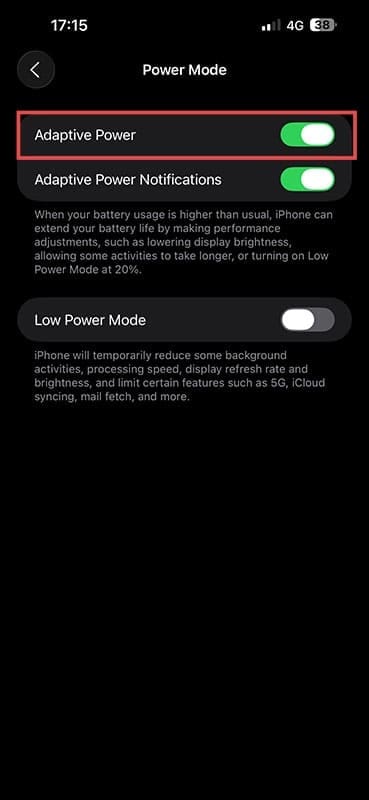
One very handy feature of the latest update and its patches is the introduction of Adaptive Power. This mode manages battery preservation for you automatically, dimming the screen and stopping background apps not in use. When battery use is high, this mode is invaluable. To activate it:
Step 1. Open your Settings and navigate to “Battery.”
Step 2. Tap “Power Mode.”
Step 3. Drag the slider next to “Adaptive Power” to “On.”
Hard Reset a Hot Phone
One of the key reasons for battery drain on iOS26 is the sudden fluctuations in heat, even when the iPhone isn’t in use. If you’re finding your device getting hot for no specific reason, an effective (though not permanent) fix is to hard reset your phone. To do this:
Step 1. Hold both the Lock button and Volume Down button simultaneously.
Step 2. Keep holding, even when the power down screen appears. The screen will go black.
Step 3. Wait until the Apple logo appears, then release both buttons. Your device and all apps are now restarted.
Disable the Graphical Effects
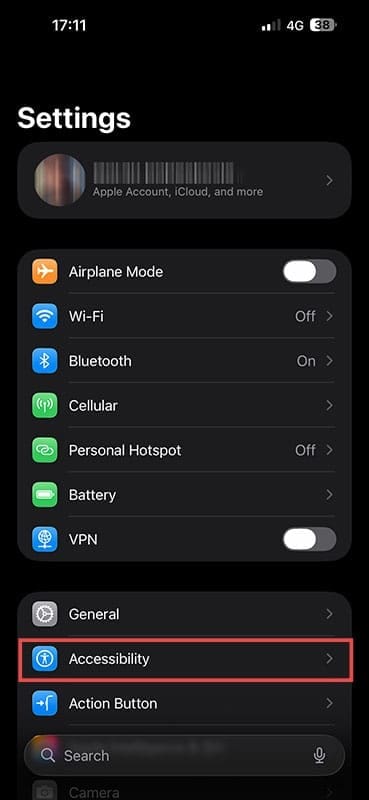
Two other big drains on the battery are the Liquid Glass and transitions between screens. You can disable these too in Settings:
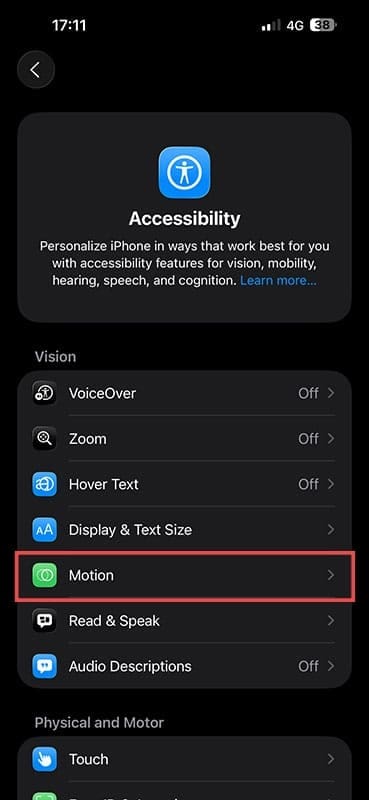
Step 1. Open Settings and navigate to “Accessibility.”
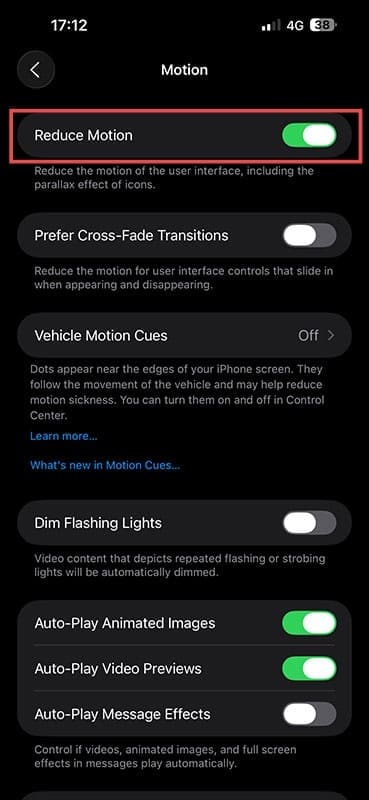
Step 2. Tap on “Motion.”
Step 3. Drag the “Reduce Motion” slider to “On” to disable visual effects.
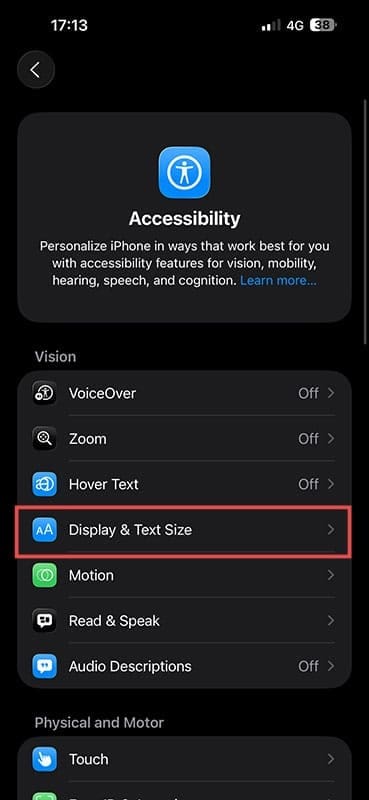
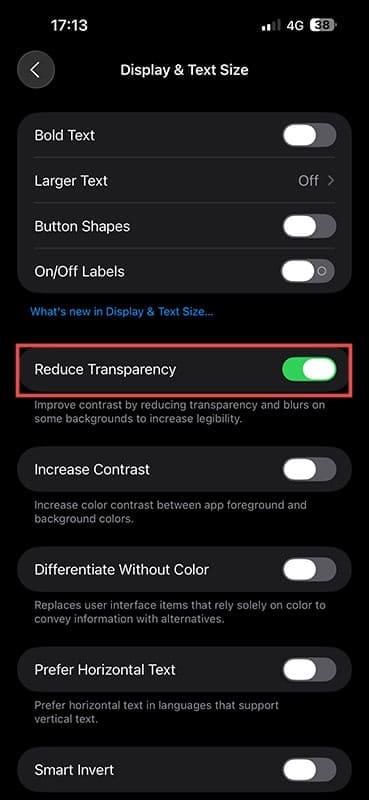
Step 4. For the screen transparency, toggle on “Reduce Transparency” in the “Display & Text Size” submenu, also in Accessibility.
As an avid gamer, I’ve run into my fair share of error codes and weird faults that have forced me to find fixes to problems I never anticipated. That gave me a passion for sharing those fixes with others so we can all game without feeling like our hardware is rebelling against us.











Write a Comment