One of my favorite Apple devices is the 2020 iPad Air. It features the design of the iPad Pro, has Apple Pencil 2 support, and costs way less than its expensive cousins. But I’ll be honest, it took me some time to figure out how to restart the new iPad Air.
If you have one of these devices, you know that it’s now missing the Home Button. And since restarts used to be done by holding down the Home Button and Power Button, it might seem like it’s impossible to restart your iPad Air. After all, holding the Power Button on its own just activates Siri.
In this post, I’ll show you how to quickly restart your new iPad Air with a soft or hard restart. I’ll also walk you through the process of factory resetting your iPad Air and how to restart an iPad Air that still has a Home Button.
A soft restart means restarting your iPad Air using a software prompt rather than forcing it to restart by cutting off its power. Think of it as the difference between pressing the power button on your TV (soft) and unplugging the cable (hard).
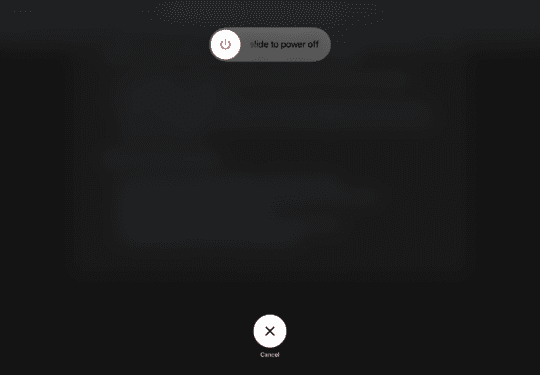
For a soft restart, you’ll press and hold the Power Button at the top of your iPad Air and the Volume Up button at the same time. After a few seconds, a popup will appear.
Swipe right on the slide to power off button to turn off your iPad. Wait about thirty seconds for the iPad to completely turn off, then press and hold the Power Button to turn your iPad back on.
And that’s it! That’s how you can soft restart the new iPad Air. Unlike previous generations, there’s no longer an option that instantly restarts the iPad. You have to power off, then power back on manually.
How to hard restart the iPad Air (2020)
Next up is the hard restart. You should only use this method in situations where you can’t get your iPad Air to turn off or interact with you otherwise. But if you’re in a situation where your iPad is frozen or glitching out, this can be a lifesaver.
First, press and release the Volume Up button. Then, press and release the Volume Down button. Lastly, press and hold the Power Button until your iPad Air begins to reboot. It’s important to press these buttons in quick succession, so if you don’t get it on your first try, just try doing it faster.
If you can’t get your iPad Air to hard restart with this method, and it’s otherwise unresponsive, you might need to pay a visit to the Apple Store. If you’re social distancing, you can usually send in your iPad Air to tech support for free after talking to Apple’s online support.
After learning how to restart the new iPad Air, you might be wanting to learn a more permanent form of restarting: Resetting. Restarting your iPad, whether a hard or soft restart, just turns it off and on again. To reset it to factory settings, you need to do the following steps. Keep in mind that this will wipe any information you haven’t backed up or stored elsewhere.
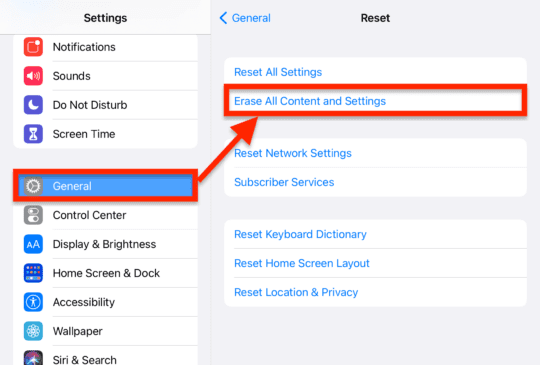
On your iPad Air, open the Settings app and tap General. Scroll down, tap Reset, and then tap Erase All Content and Settings.
It might take a few minutes for this process to complete. Once finished, though, your iPad will be returned to the way it was when you first purchased it. This is a helpful procedure when selling your iPad Air, fixing a badly infected iPad Air, or getting a fresh start with your device. Again, though, only do this if you’re prepared to wipe all of your data, apps, and settings from your iPad.
How to restart an iPad Air with a Home Button
Lastly, I’m going to walk you through the restart process for iPad Airs that still have a Home Button. This will also work on any iPad that still has a Home Button.
Press and hold the Power Button on your iPad Air until the power slider appears. When it does, swipe it right to the off position. Give your iPad Air thirty seconds to completely shut down.
Next, press and hold the Power Button until your iPad Air starts to reboot. This usually takes another thirty seconds.
And that’s it!
Learn more about your new iPad Air
There’s so much more to the new iPad Air than how it restarts. Be sure to check out the rest of our iPad articles to become a power user, learn secret tips and tricks, and stay updated on the latest iPad Air news.












Write a Comment