• Skip to primary navigation
  • Skip to main content
  • Skip to primary sidebar
  • Skip to footer

AppleToolBox

Tools and Fixes for Mac, iPad, iPhone & iWatch

Search posts

  • About
  • Contact

CONNECT WITH US

CATEGORIES

  • iPhone
  • iPad
  • iPod
  • Apple Watch
  • Mac/MacBook
  • AirPods
  • Apple TV
  • News
  • Apple Services
  • HomePod
  • Reviews

SITE

  • Home
  • About Us
  • Contact
  • Advertise

Search posts

You are here: Home / Mac / How to remove hyperlinks from Pages documents

How to remove hyperlinks from Pages documents

By Sudz Kar 1 comment Last updated December 30, 2022

When you enter a Web, such as www.appletoolbox.com, or email address into a Pages document, the text automatically becomes a hyperlink.. This feature can sometimes be very useful, it can also be annoying. This short article shows how to easily remove the hyperlinks.

Mac (OS X)

Steps:

The steps below explains how to remove individual hyperlinks.

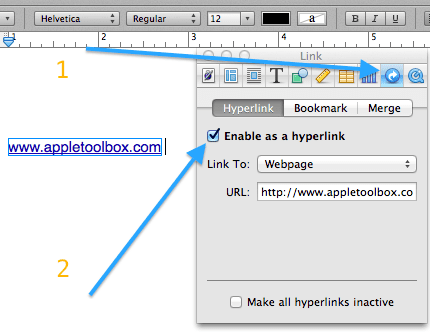
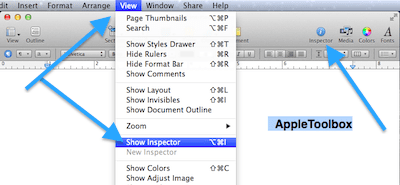
1. Click  “Show Inspector.” (or View > Show Inspector)

Pages link inspector

2. Move your cursor on the hyperlink text.

3. Click on the Link Inspector tab

4. Uncheck the “Enable as a hyperlink” option.

link inspector

Remove all links (hyperlinks) from a Pages document

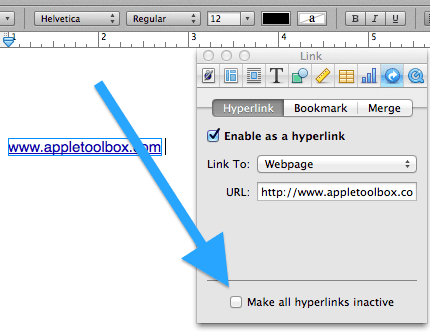
There is a way to deactivate all hyperlinks. Note that this option does not completely remove the hyperlinks just deactivates them. Just click Show Inspector, click the Link inspector, select “Make all hyperlinks inactive”.  But this does not change the formatting meaning that your text will still look like hyperlinks. Thus you may want to change your colors and styles.

deactivate all hyperlinks

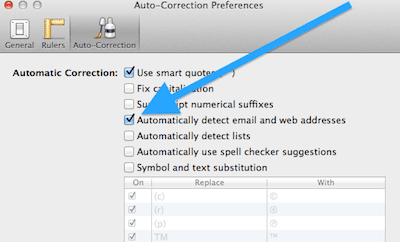
How do I turn off automatic hyperlinks?

To turn off automatic hyperlinks, choose Pages > Preferences, and click Auto-Correction, then uncheck “Automatically detect email and web addresses.”

a

iOS (iPad)

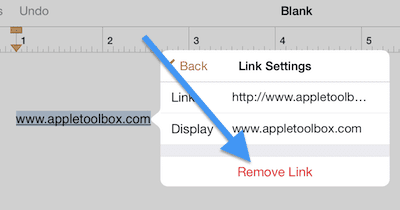
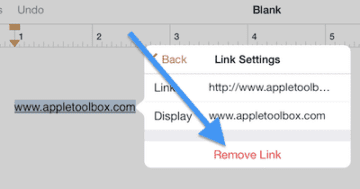
You can remove the hyperlink from text, if you want, when you are using the Pages app for iOS. Just tap the hyperlink text, and tap Link Settings, then tap Remove Link.

remove hyperlinks pages

Related content: How to open Mac’s .pages file format on Microsoft Windows

Related Posts:

  • How to View Web Page Source on iPhone iPad 7 Best Methods
    How to View Web Page Source on iPhone/iPad: 7 Best Methods
  • How To Use Tab Groups in Safari on iPhone and iPad Hero
    How to Use Web Inspector to Debug Mobile Safari…
  • Mac Output Audio Header
    How to Control Individual Application Volume on Mac
  • Screen Shot 2021-08-21 at 6.58.10 PM
    DuckDuckGo's Email Privacy Features Might Beat Apple
  • photo of an iphone with ios 16 downloaded on it
    iOS 16 Tips and Tricks: The Definitive List
  • pexels-skitterphoto-9316
    How To Scan Documents On iPhone And iPad
  • How to Recover Unsaved Word Document on Mac in 5 Best Ways
    How to Recover Unsaved Word Document on Mac in 5 Best Ways
  • Multiple Windows iPad
    How to Open Multiple Windows of Safari on iPad With iOS 16
  • 2023 Mac Studio lifestyle - 1
    macOS Could Not Be Installed, How-To Fix
sudz - apple
Sudz Kar

Obsessed with tech since the early arrival of A/UX on Apple, Sudz (SK) is responsible for the original editorial direction of AppleToolBox. He is based out of Los Angeles, CA.

Sudz specializes in covering all things macOS, having reviewed dozens of OS X and macOS developments over the years.

In a former life, Sudz worked helping Fortune 100 companies with their technology and business transformation aspirations.

Reader Interactions

Write a Comment Cancel reply

Show 1 Comments

  1. Wayne Mikols says

    September 3, 2022 at 1:00 PM

    At least Microsoft Word allows me to remove all hyperlinks. So now I have to copy the text into Microsoft Word, remove hyperlinks, and copy it back to my Pages document. Please provide a way to remove all hyperlinks from future Pages update
    Reply

Primary Sidebar

Recent Posts

  • How to Disable Predictive Text in iOS 26
  • How to Stop Sharing Analytics in iOS 26
  • How to Manage Your iPhone Call Log
  • Are Apple’s Safety Precautions Enough for AirTags?
  • How to Hide Username and Photo on the Mac Lock Screen
  • Microsoft Resume vs. Apple Handoff – Which Wins for Cross-Device Work?

Connect with us

Footer

ABOUT

  • About Us
  • Contact us
  • Advertise
  • Privacy
  • Terms of Use

GUIDES

  • iOS & iPadOS
  • Apple ID
  • iCloud
  • App Store
  • iTunes
  • FaceTime
  • iMessage
  • Siri
  • Books and iBooks
  • Game Center
  • AirPlay

CONNECT

  • Facebook
  • Twitter
  • FeedBurner
  • YouTube

© Copyright 2010-2024 Guiding Tech Media · All Rights Reserved

This site and its content are in no way affiliated or endorsed by Apple, Inc. · Reproduction without explicit permission is prohibited

Last Updated on December 30, 2022 by Mitch Bartlett