• Skip to primary navigation
  • Skip to main content
  • Skip to primary sidebar
  • Skip to footer

AppleToolBox

Tools and Fixes for Mac, iPad, iPhone & iWatch

Search posts

  • About
  • Contact

CONNECT WITH US

CATEGORIES

  • iPhone
  • iPad
  • iPod
  • Apple Watch
  • Mac/MacBook
  • AirPods
  • Apple TV
  • News
  • Apple Services
  • HomePod
  • Reviews

SITE

  • Home
  • About Us
  • Contact
  • Advertise

Search posts

You are here: Home / Mac / How to Reset Launchpad on Mac

How to Reset Launchpad on Mac

By Andrew Myrick 0 comments Last updated June 7, 2022

There are a few different ways to access all of the apps that you have installed on your Mac. One of the easiest ways comes via the iOS-style grid courtesy of Launchpad which is found in your Dock. From here, you’re able to manually rearrange your apps, even grouping some of them together in folders.

Related Reading

  • macOS: Fix ‘cannot be updated because it was refunded or purchased with a different Apple ID.’
  • 12 Built-In Mac Apps You Didn’t Know Existed
  • Best Mac Apps That Support Shortcuts With macOS Monterey
  • The Best Automation Apps For Mac [2022]
  • How to Quit All Apps at the Same Time on Your Mac

How to Reset Launchpad on Mac Manually

While Launchpad is extremely convenient, you may run into some instances where those new apps that you just installed don’t appear. Even after verifying that they are, in fact, installed via the ~Applications folder, they might not be available in Launchpad.

If that’s the case, you don’t have to go through the process of uninstalling and reinstalling the app. Instead, you can just reset Launchpad on Mac which should then fix the issue and show all of your apps. Here’s how you can do so:

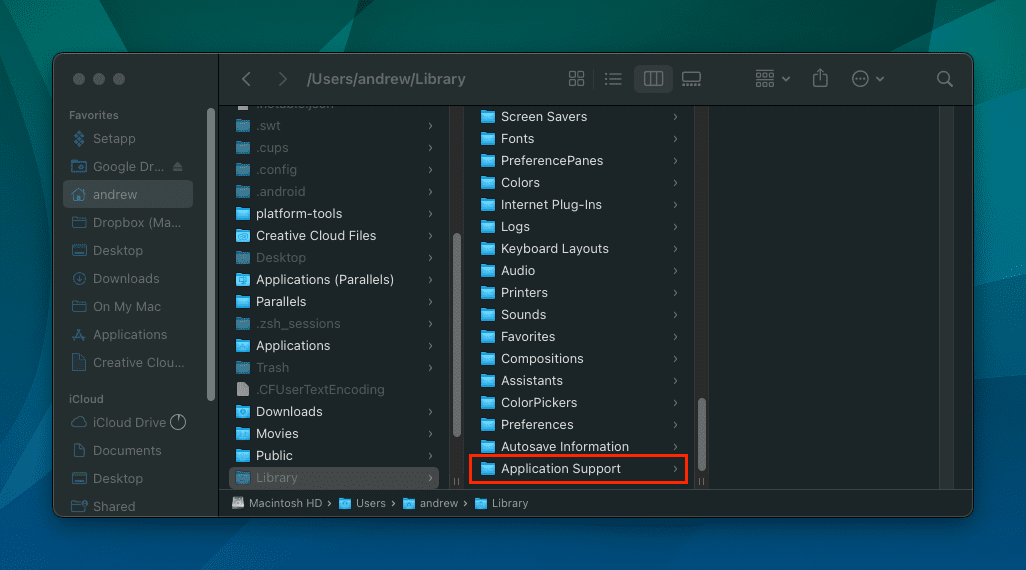
How to Reset Launchpad on Mac - 1
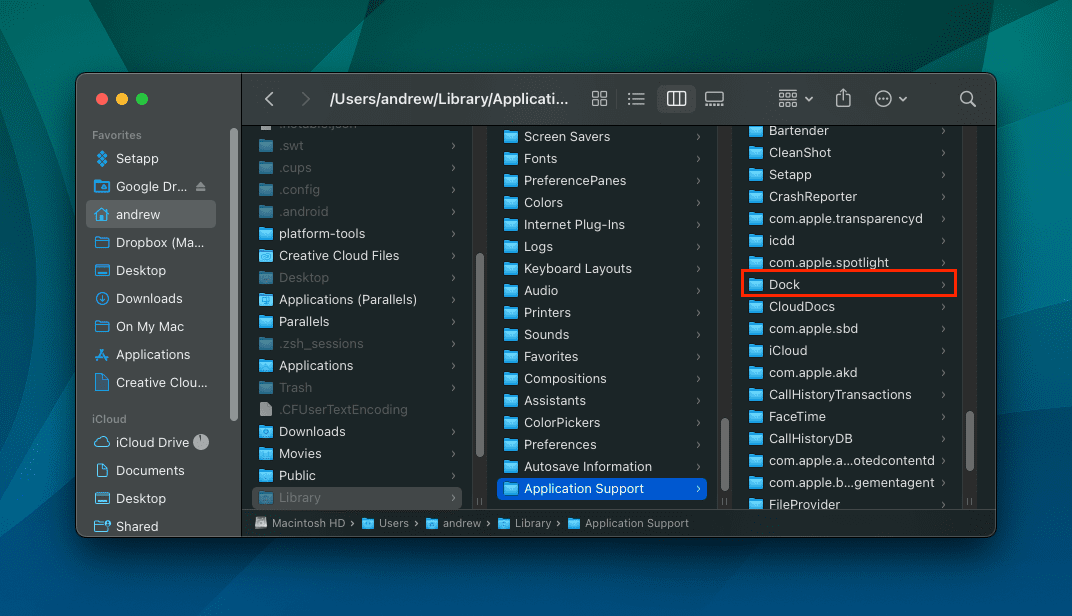
How to Reset Launchpad on Mac - 2
  1. Open the Finder app on your Mac.
  2. Hold down the Option key on your Keyboard.
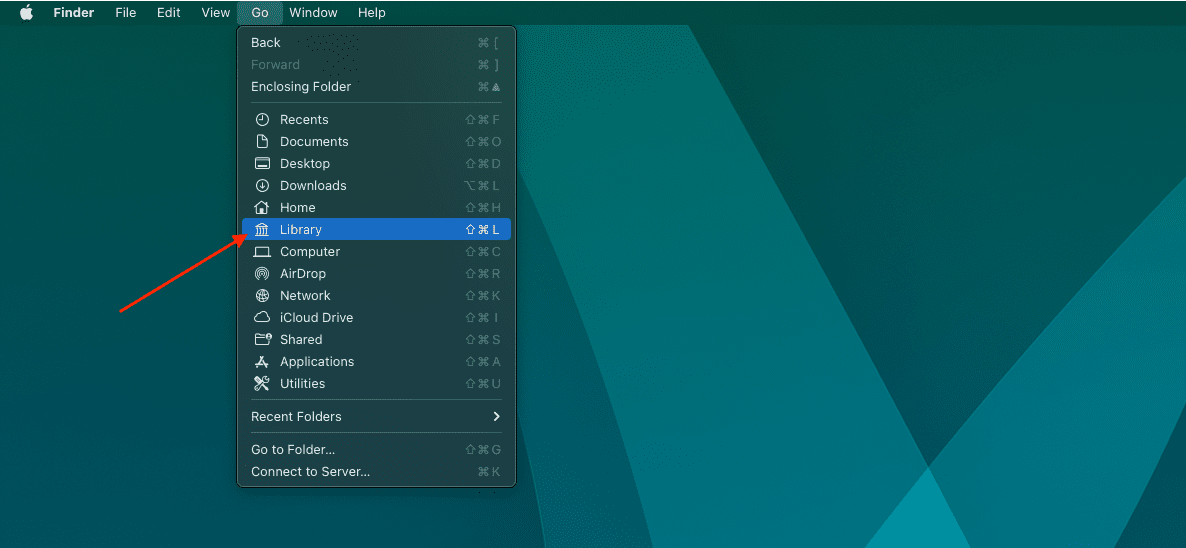
  3. While holding the Option key, click Go in the Menu Bar.
  4. From the drop-down menu, select Library.
  5. Open the Application Support folder.
  6. Scroll through the list of folders and open the one named Dock.
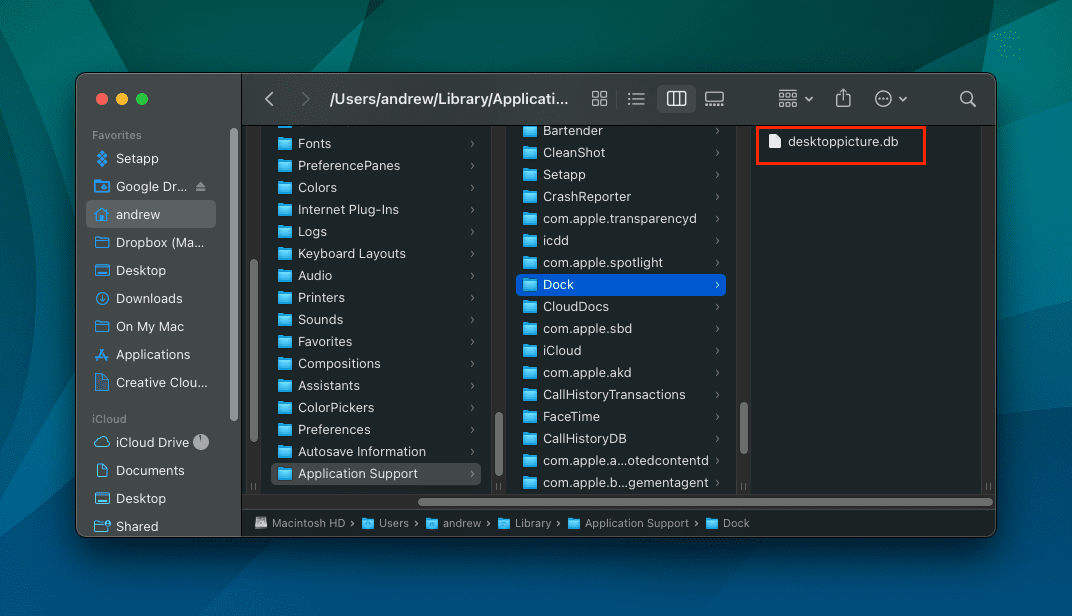
  7. Right-click any files ending in .db.
  8. Select Move to Trash from the context menu that appears.
  9. Right-click the Trash icon in your Dock.
  10. Select Empty Trash from the context menu that appears.
  11. Restart your Mac.
How to Reset Launchpad on Mac - 3
How to Reset Launchpad on Mac - 4

When your Mac restarts, it automatically repopulates Launchpad with any apps that you have installed. After you’ve logged in, you can double-check and make sure that the app that wasn’t there before is available now.

How to Reset Launchpad on Mac With Terminal

There’s another method available if you find yourself needing to reset Launchpad on Mac. However, this method is not for the faint of heart, as you’ll need to use Terminal. Usually, Terminal commands are nothing to be worried about, but with the rm command, it’s possible for you to end up deleting important files on your Mac. This also goes for the use of the * in the command, as it will match any files that end in the file type you are deleting.

If the method above didn’t work, here’s how you can reset Launchpad on Mac using the Terminal app:

  1. Open the Terminal app on your Mac.
  2. Type (or copy and paste) the following command into Terminal:
    • rm ~/Library/Application\ Support/Dock/*.db ; killall Dock
  3. Press Enter.
  4. Restart your Mac.

Again, once your Mac is finished restarting, a new database for your installed applications will be created. This will provide easy access to the various apps that you have installed, including ones that were not previously accessible.

Related Posts:

  • pexels-skylar-kang-6368908
    Keyboard Maestro vs. Shortcuts vs. Automator:…
  • pexels-designecologist-1779487
    The Best iPhone And Mac Shortcuts For Beginners
  • macOS Monterey Universal Control
    How to Reset Dock on Mac
  • macOS: Fix ‘cannot be updated because it was refunded or purchased with a different Apple ID.’ - 1
    macOS: Fix ‘cannot be updated because it was…
  • iPhone Schedule Text Header
    How to Schedule a Text Message on iPhone
  • pexels-tima-miroshnichenko-6860464
    How To Start Using Regex With The Shortcuts App
  • pexels-cottonbro-5077039
    Shortcuts Tips and Tricks To Take Your iPhone…
  • pexels-digital-buggu-171198
    The Best Automation Apps For Mac [2022]
  • Photo of person sleeping after saving so much time with the best Automator routines for Mac
    The Best iPhone Shortcuts (2021 Edition)
Andrew Myrick
Andrew Myrick

Andrew Myrick is a freelance writer based on the East Coast of the US. He enjoys everything to do with technology, including tablets, smartphones, and everything in between. Perhaps his favorite past-time is having a never-ending supply of different keyboards and gaming handhelds that end up collecting more dust than the consoles that are being emulated.
Reader Interactions

Write a Comment Cancel reply

Primary Sidebar

Recent Posts

  • How to Set Up iCloud Passwords on a Windows PC?
  • How to Turn Off Apple Music’s Dark Mode
  • How to Disable Predictive Text in iOS 26
  • How to Stop Sharing Analytics in iOS 26
  • How to Manage Your iPhone Call Log
  • Are Apple’s Safety Precautions Enough for AirTags?

Connect with us

Footer

ABOUT

  • About Us
  • Contact us
  • Advertise
  • Privacy
  • Terms of Use

GUIDES

  • iOS & iPadOS
  • Apple ID
  • iCloud
  • App Store
  • iTunes
  • FaceTime
  • iMessage
  • Siri
  • Books and iBooks
  • Game Center
  • AirPlay

CONNECT

  • Facebook
  • Twitter
  • FeedBurner
  • YouTube

© Copyright 2010-2024 Guiding Tech Media · All Rights Reserved

This site and its content are in no way affiliated or endorsed by Apple, Inc. · Reproduction without explicit permission is prohibited