While there are many of us still rely on manually downloading and installing apps from websites, the truth is that Apple’s Mac App Store has become much more robust. This is especially true following the beginning of the transition to Apple Silicon. Many of your favorite iPhone and iPad apps are now available on the Mac, and all you need to do is go to the Mac App Store to download them.
Unfortunately, there seems to be a long-standing issue when it comes to downloading or installing an update for an app that was already on your Mac. When this occurs, you might see an error message that says “[App Name] cannot be updated because it was refunded or purchased with a different Apple ID.”
What Causes This Issue?
For one reason or another, it seems that the error message appears when attempting to download an update for one of Apple’s apps. This includes the likes of Pages, GarageBand, or Numbers, and does not seem to affect non-Apple applications nearly as frequently.
When it comes to “purchasing” apps on the Mac App Store, Apple associates these purchases with the Apple ID account that made the purchase. It doesn’t matter whether the app is free or if it’s something that you have to pay for, as the app is always tied to that Apple ID. This is the same way that we download and install apps on our iPhone or iPad.
However, this frustrating error message can occur if you purchase (or given) a Mac that was previously owned by another user. By default, the Mac may think that you are trying to download an update for an app that is tied to the old account instead of using your own. It’s one of the more quirky bugs that continues to show up with Macs, even as we are now into macOS Monterey.
How To Fix ‘cannot be updated because it was refunded or purchased with a different Apple ID.’
There are a few different steps that you can take in the event that you are presented with the frustrating and confusing message above. There’s no sure-fire guarantee that any of these will work, but after performing all of the different troubleshooting steps, you should be able to download and install apps and updates.
Open the App Store on your Mac.
Click your name and profile image in the bottom left corner.
Look for an option to accept the applications with your Apple ID.
This may not work, but it’s the first series of steps that we recommend that you should take. In the event that these steps don’t work, you’re not out of luck just yet. The next series of steps include deleting the apps from your Mac and then re-installing them.
Open Launchpad on your Mac.
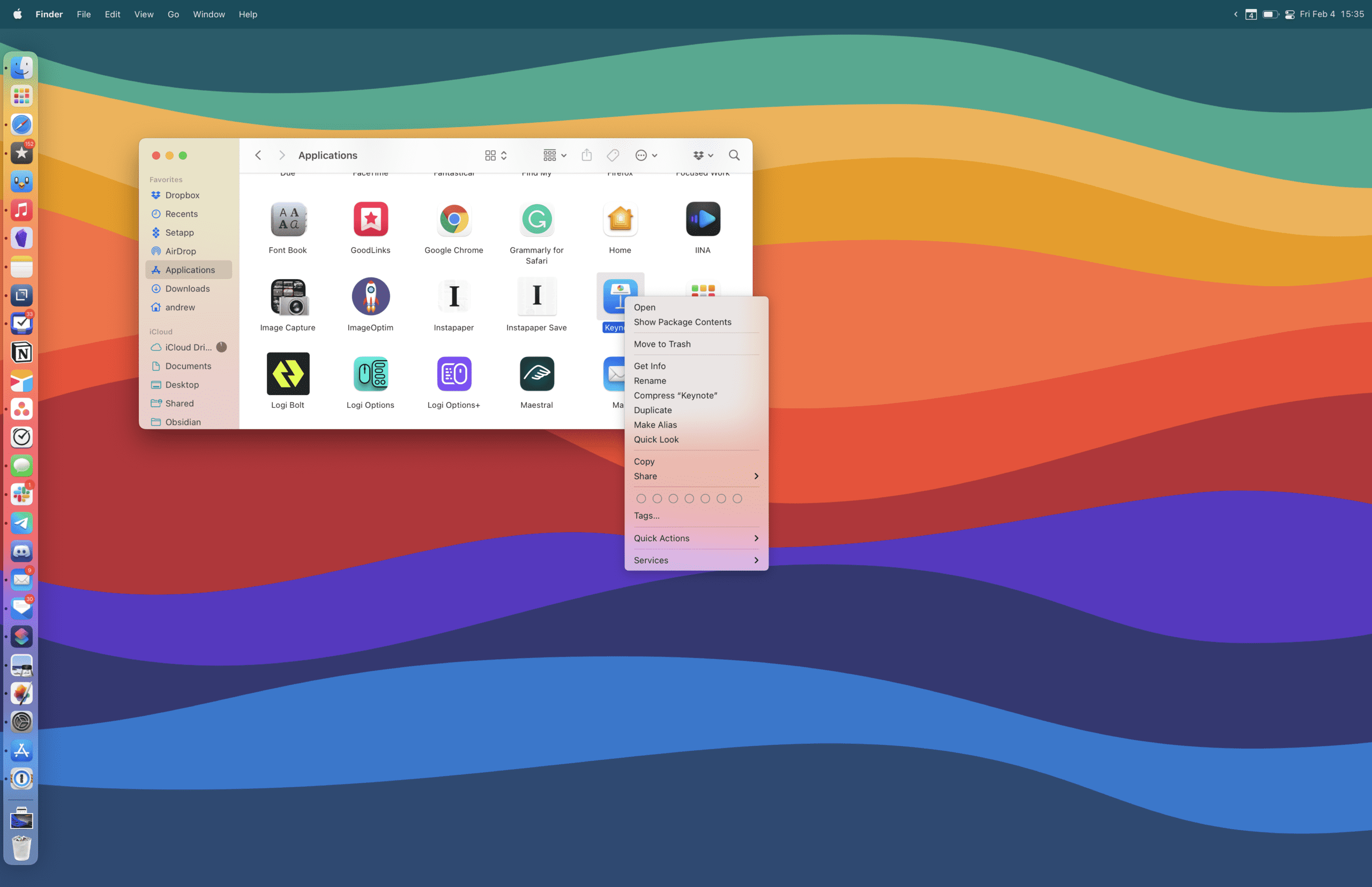
Alternatively, you can open Finder, navigate to the Applications folder, right-click the application and select Delete.
Locate the app that cannot be updated and is causing the error message to appear.
Drag and drop the app from Launchpad and place it in the Trash bin on your Dock.
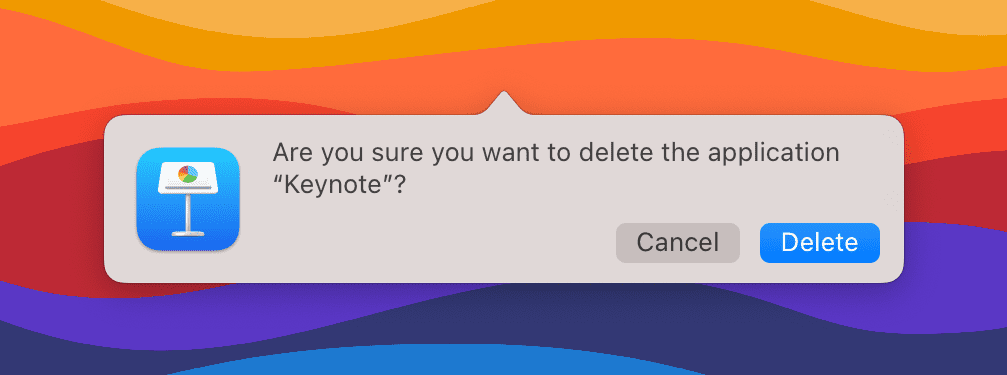
Confirm that you want to delete the app.
Next, we recommend restarting your Mac to try and “clear out the cobwebs” that might have been left behind by the app after it was uninstalled. Then, you will want to go back into the App Store and download the app again just by opening the App Store, searching for the app, and clicking the Install or cloud icon (if it’s already attached to your account).
If neither of those options manages to work, and you are left unable to use the app, then there is one more series of steps that you can take.
Open the App Store on your Mac.
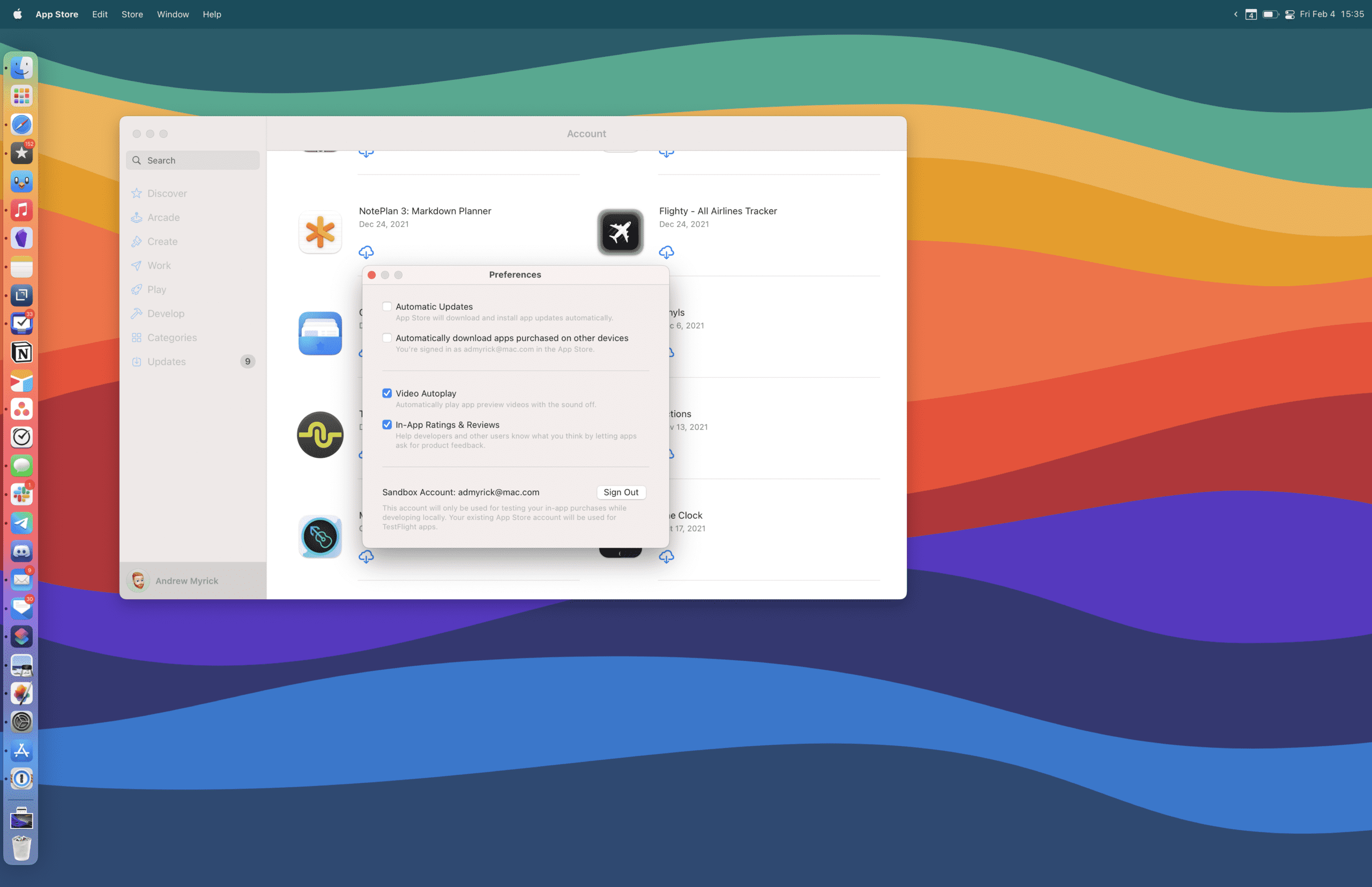
With the App Store focused, click App Store in the Menu Bar.
From the drop-down menu, click Preferences.
You can also open the Mac App Store and press CMD+, on your keyboard.
At the bottom of the Preferences panel, click the Sign Out button.
Close the Mac App Store.
Restart your Mac.
Open the Mac App Store app.
Click the Sign In button in the bottom left corner found within the sidebar.
Enter your Apple ID information.
Click the Sign In button in the prompt.
Locate the app that you were experiencing troubles with.
Click either the Install or Cloud icon.
From here, you should be able to finally install the app’s latest version, while also being able to install any updates that will inevitably arrive in the future. If you continue to run into issues, we recommend reaching out to Apple’s support staff in order to get the issue resolved.
Andrew Myrick is a freelance writer based on the East Coast of the US. He enjoys everything to do with technology, including tablets, smartphones, and everything in between. Perhaps his favorite past-time is having a never-ending supply of different keyboards and gaming handhelds that end up collecting more dust than the consoles that are being emulated.
I was very distraught when i went to work on a lengthy video editing work project on final cut pro and hit this problem. This article saved me in one fail swoop. I typically don’t ever respond to things like this but just wanted to express gratitude, where its due.
1.Open the App Store on your Mac.
2. Click your name and profile image in the bottom left corner.
3. Look for an option to accept the applications with your Apple ID.












i am having this problem when my mac was bought new from a reputable store f#*^)*% maddening
Hey,
I was very distraught when i went to work on a lengthy video editing work project on final cut pro and hit this problem. This article saved me in one fail swoop. I typically don’t ever respond to things like this but just wanted to express gratitude, where its due.
Warmly,
Dr. Marty Lajoie
Thank you!!!! It worked just doing these step:
1.Open the App Store on your Mac.
2. Click your name and profile image in the bottom left corner.
3. Look for an option to accept the applications with your Apple ID.