Accidentally deleted contacts from your iPhone? It’s easily done, and thankfully, just as easily rectified, as long as you’re using Apple’s iCloud. The iCloud service makes an archive every time you make changes on your device, so you can easily restore to an older backup of data.
Learn how to restore contacts via iCloud using this easy-to-follow guide, which applies to both iPhones and iPads.
How to Check iCloud Sync and Delete Contacts on an iPhone
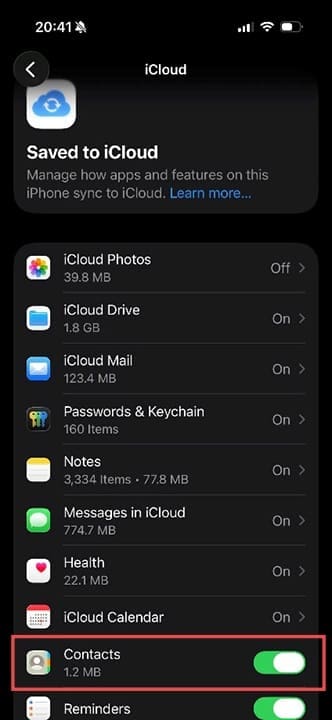
Step 1. Before you start, check that you have your contacts syncing to iCloud. To do this, head to Settings > Account > iCloud > Saved to iCloud. The contacts option should have a green toggle button next to it. If the toggle is gray, your contacts aren’t syncing, and you just need to tap the button to ensure you’re backing up your contacts.
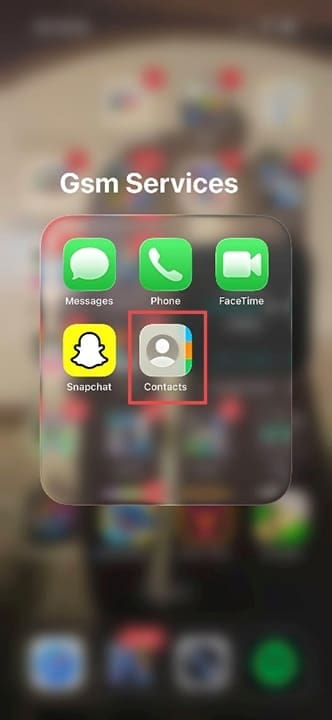
Step 2. Now look for the Contacts icon or the Phone icon. If you can’t find Contacts as a separate icon, tap Phone, and you’ll be able to see Contacts in the Phone app.
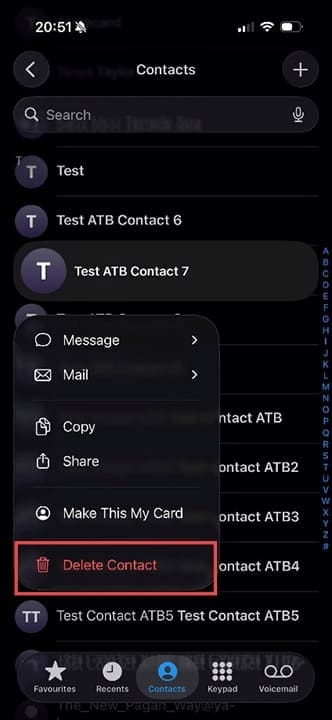
Step 3. Scroll to the contact you want to delete.
Step 4. Hold your finger on the contact until a menu appears. You can copy, share, or send a message to the number from this menu, among other actions. In this instance, choose the red Delete Contact button. Delete as many contacts as required using this method.
How Do I Restore My Contacts via iCloud – Step-by-Step Guide
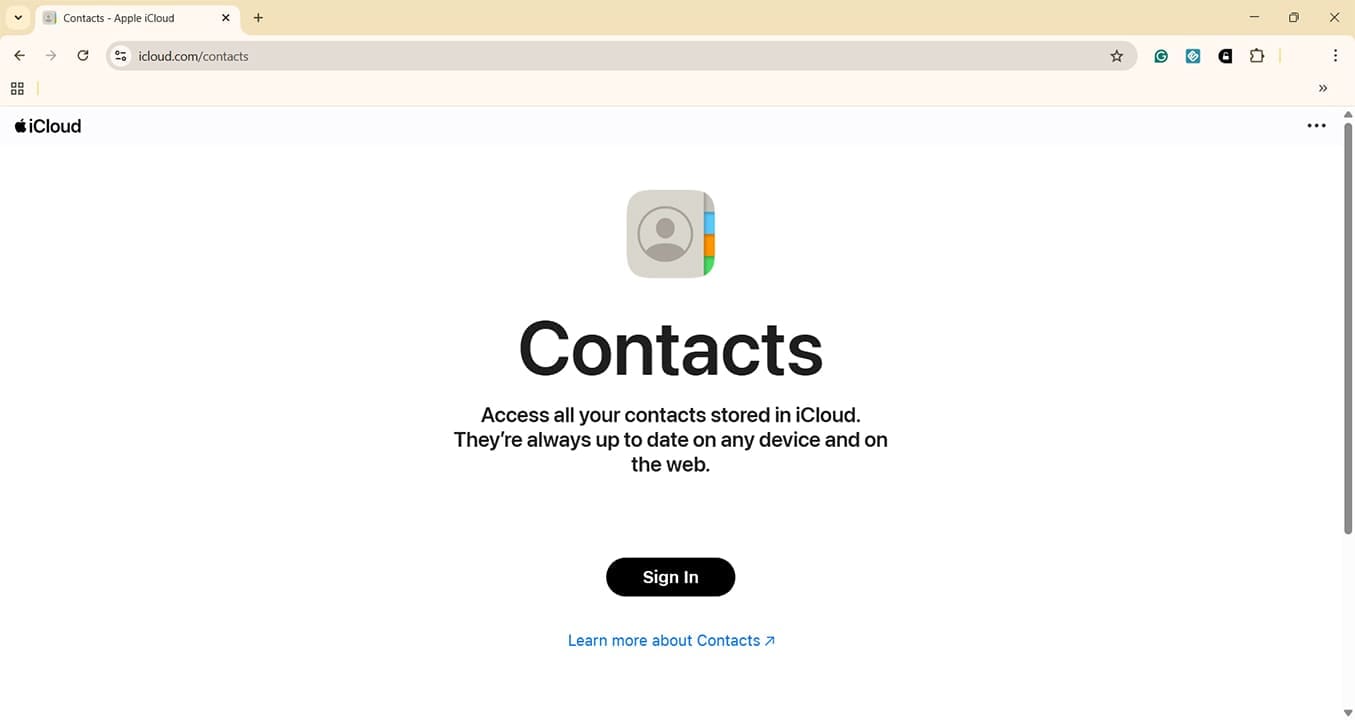
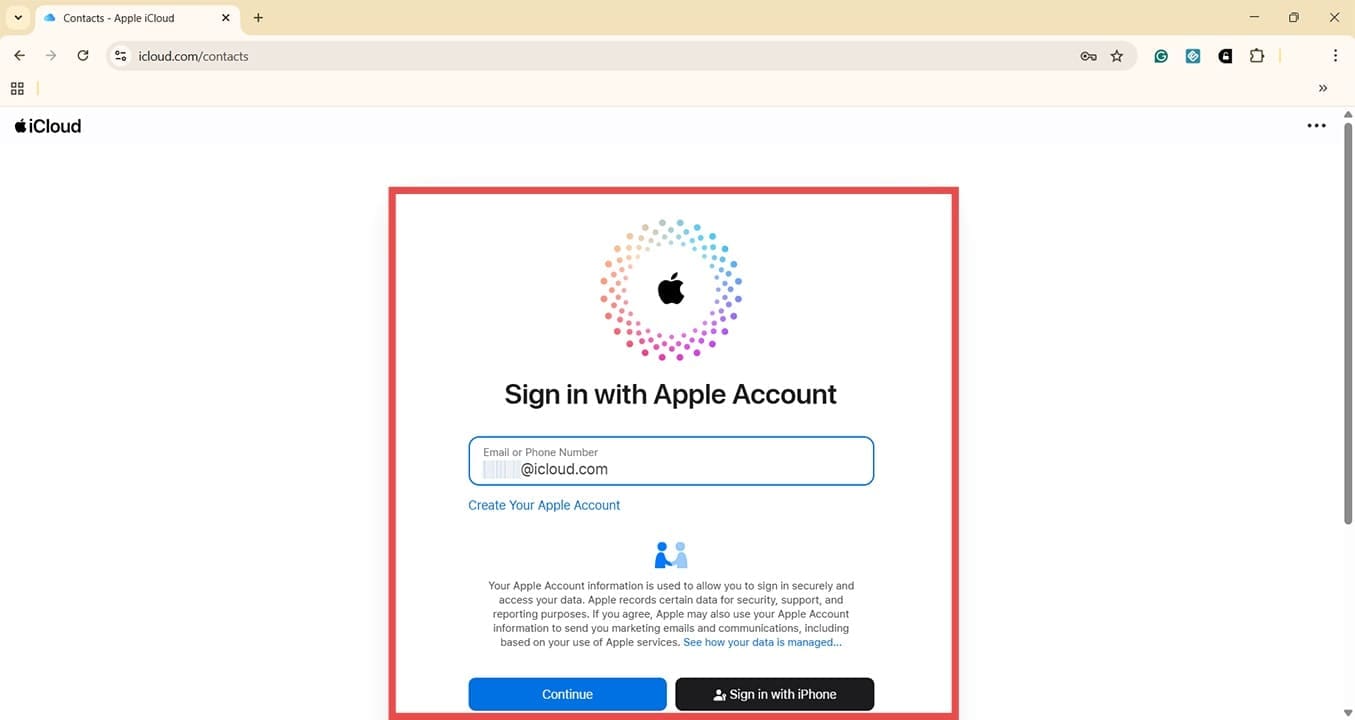
Step 1. If you accidentally deleted contacts at any point, you can get them back using the iCloud backup and restore functions. You’ll need to use your laptop or PC for this part. Open any browser window and head to icloud.com/contacts.
Step 2. Follow the prompts to sign in. Make sure you use the Apple Account (previously Apple ID) username and password that you use on the device on which you’re trying to restore contacts.
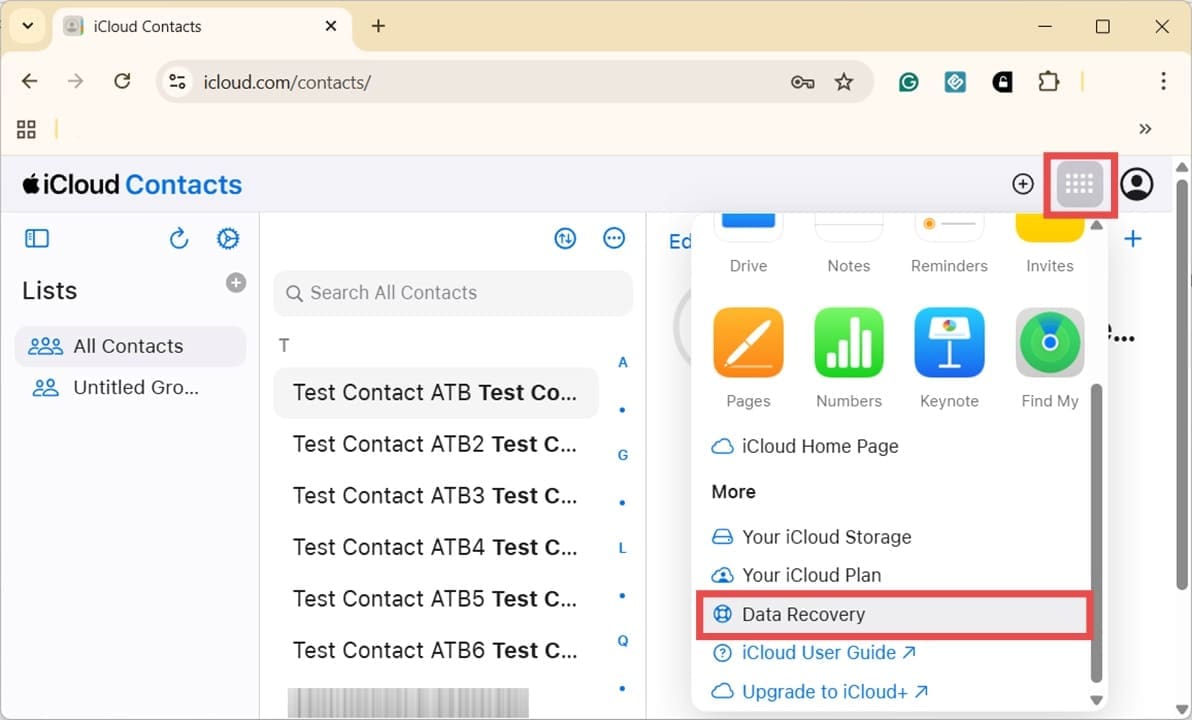
Step 3. Click the grid icon next to the account symbol in the top right corner and select “Data Recovery.”
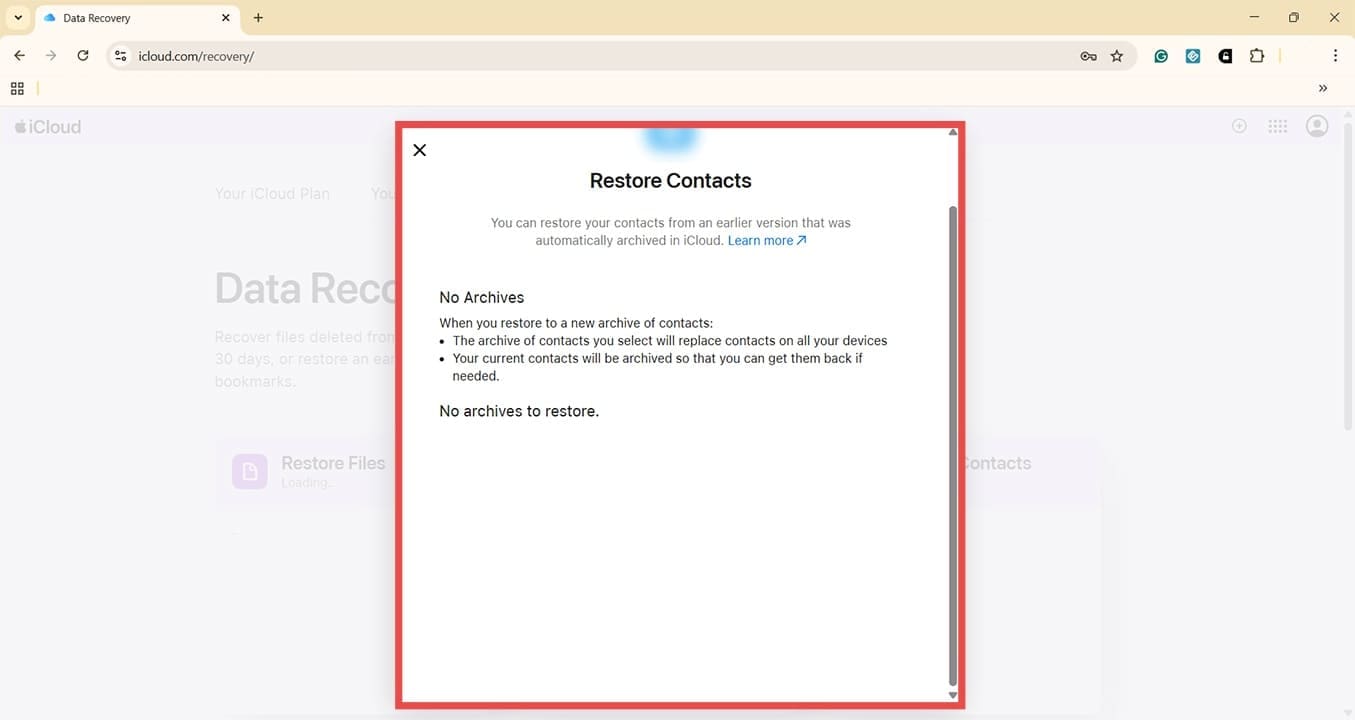
Step 4. Choose the option for “Restore Contacts.” You will see any previous archives, which are versions of the contacts list as it was before you deleted some. Select the option for Restore next to the relevant contacts archive. If you only deleted contacts within the last 24 hours, you may have to wait to see a previous archive. Keep checking back.
Pro Tip: Don’t make any changes to the contact list on your phone while the restore process is completing. These changes will not be saved to iCloud and will likely be overwritten once the iCloud restore process has finished.
As an avid gamer, I’ve run into my fair share of error codes and weird faults that have forced me to find fixes to problems I never anticipated. That gave me a passion for sharing those fixes with others so we can all game without feeling like our hardware is rebelling against us.












Write a Comment