• Skip to primary navigation
  • Skip to main content
  • Skip to primary sidebar
  • Skip to footer

AppleToolBox

Tools and Fixes for Mac, iPad, iPhone & iWatch

Search posts

  • About
  • Contact

CONNECT WITH US

CATEGORIES

  • iPhone
  • iPad
  • iPod
  • Apple Watch
  • Mac/MacBook
  • AirPods
  • Apple TV
  • News
  • Apple Services
  • HomePod
  • Reviews

SITE

  • Home
  • About Us
  • Contact
  • Advertise

Search posts

You are here: Home / iPhone / How to Save a Website as an App on iPhone

How to Save a Website as an App on iPhone

By Louis Roundtree 0 comments Last updated April 18, 2025

Things to Know
  • Apple makes it easy for all major browsers to save websites as apps.
  • The “Add to Home Screen” found under the Share icon creates the app.
  • You can choose the name and exact URL of the app before saving it.

As hard as it might be to believe, there may not always be an app for that. There are plenty of companies and websites that haven’t developed their own app but you might still want access to it regularly. Thus, it can be nice to have a shortcut right on your phone’s home screen rather than having to dig through your favorite websites on Safari.

In this article, we’ll be showing you how to save a website as an app on iPhone.

Contents

  • Your Guide on How to Save a Website as an App on iPhone
    • Safari
    • Chrome
    • Firefox

Your Guide on How to Save a Website as an App on iPhone

The ability to save any website as an app is not a new feature. In fact, the “Add to Home Screen” option was introduced to Safari way back in 2012. Third-party browsers were a bit slower, but as of iOS 16.4, they’ve got the capability too.

When you save a website as an app, the site’s thumbnail will serve as the icon. Tapping it will open your main browser and take you straight to the link. Some sites even offer support for this format, offering links that act like apps, rather than website links.

Here’s how to add major browsers as apps to your home screen.

Safari

Let’s start with Apple’s default browser. Here’s what to do:

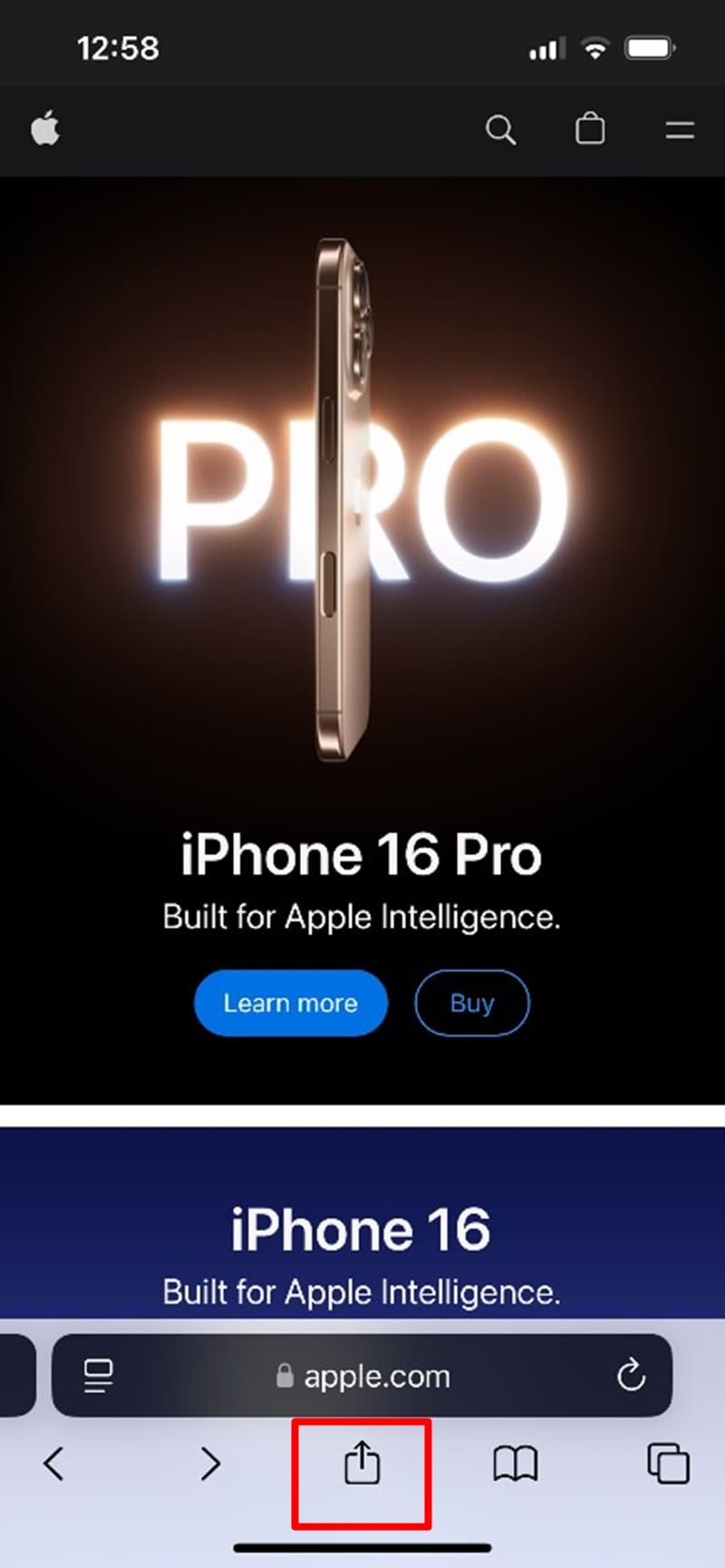
1. Open Safari and enter the link of the site you want to add. For our example, we’ll be using Apple’s site.

How to Save a Website as an App on iPhone 1

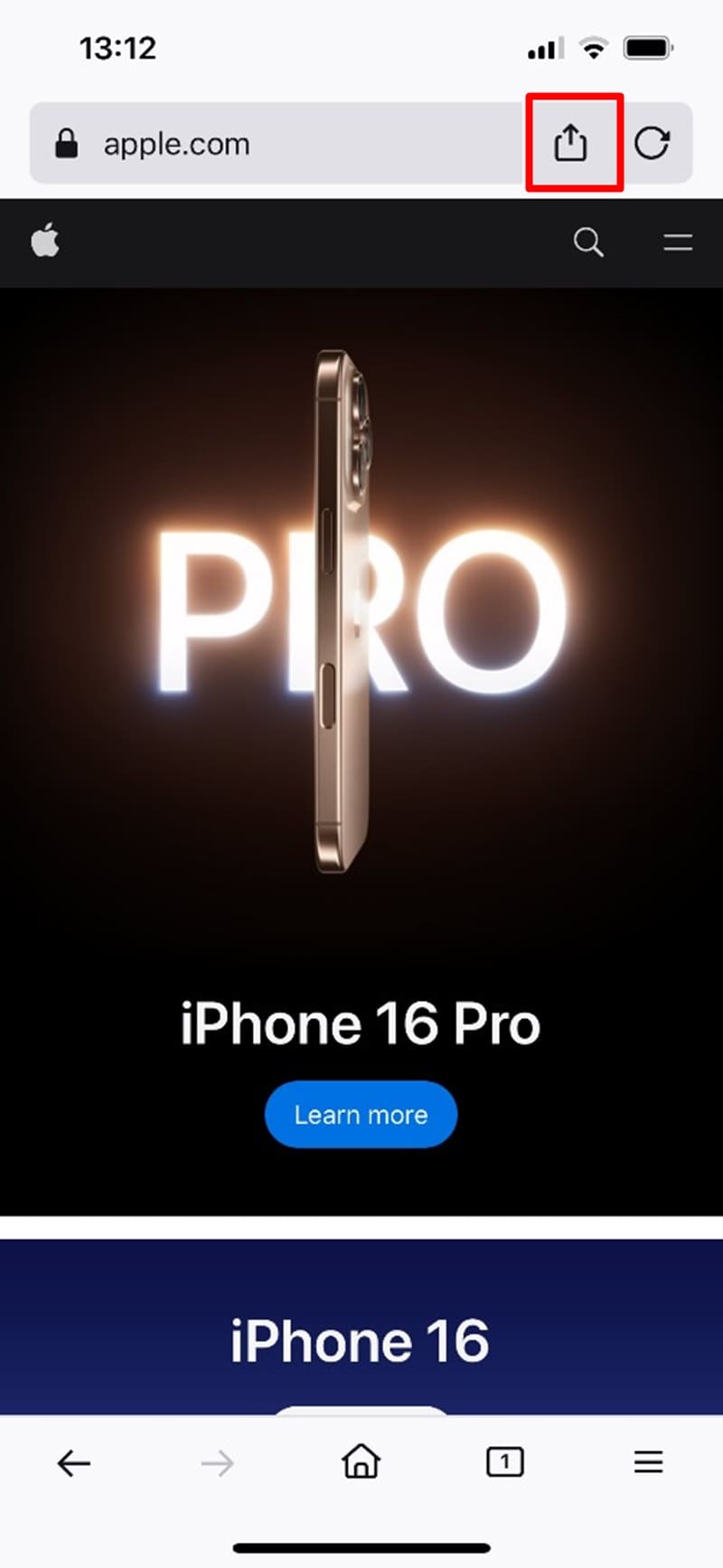
2. Once on the site, tap the Share button (the box with the arrow pointing upwards).

How to Save a Website as an App on iPhone 2

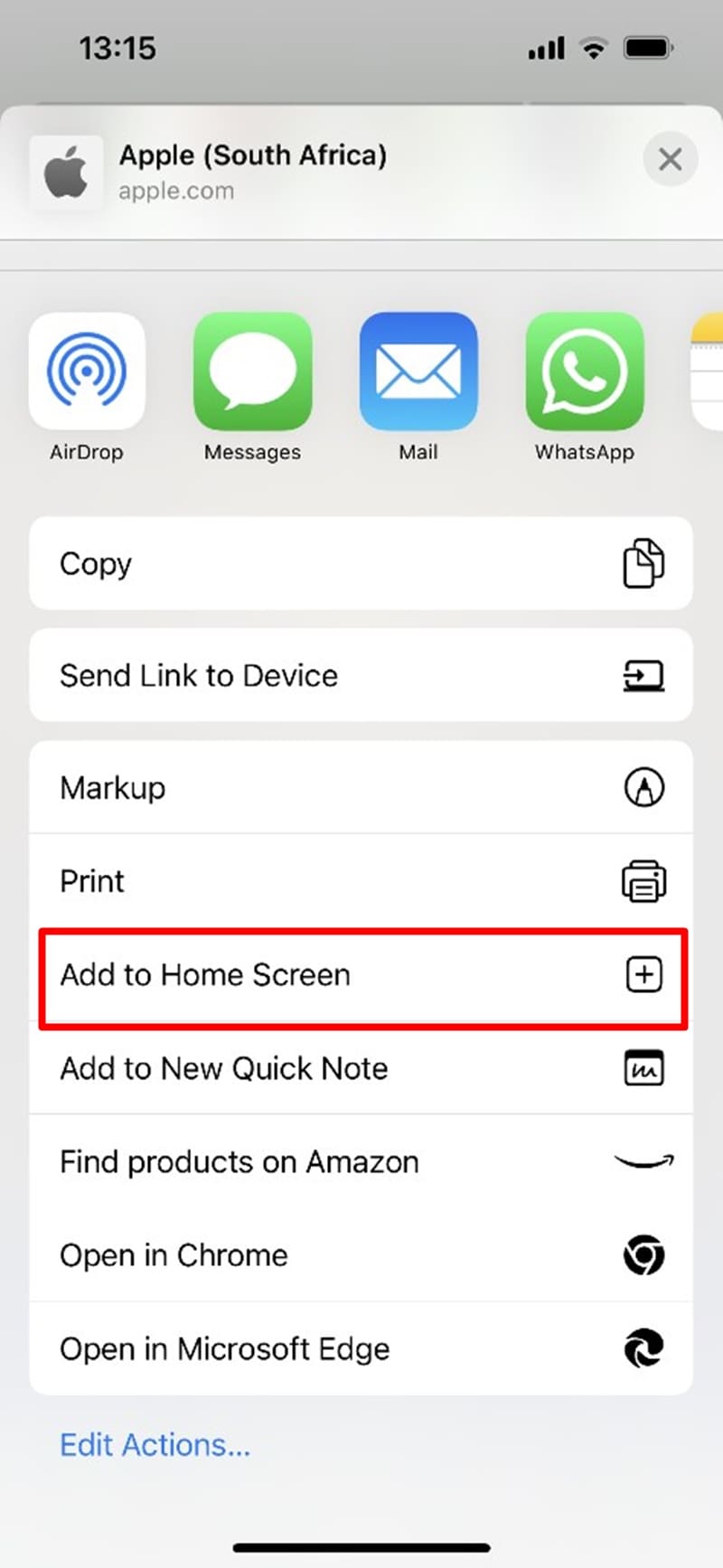
3. Scroll down until you see the “Add to Home Screen” option. Give this a tap.

How to Save a Website as an App on iPhone 3

4. A new window will pop up. You’ll be given the chance to name your app and enter the precise URL you’d like it to take you to. You’ll also get a chance to see what your icon will look like.

How to Save a Website as an App on iPhone 4

5. Tap “Add” once done.

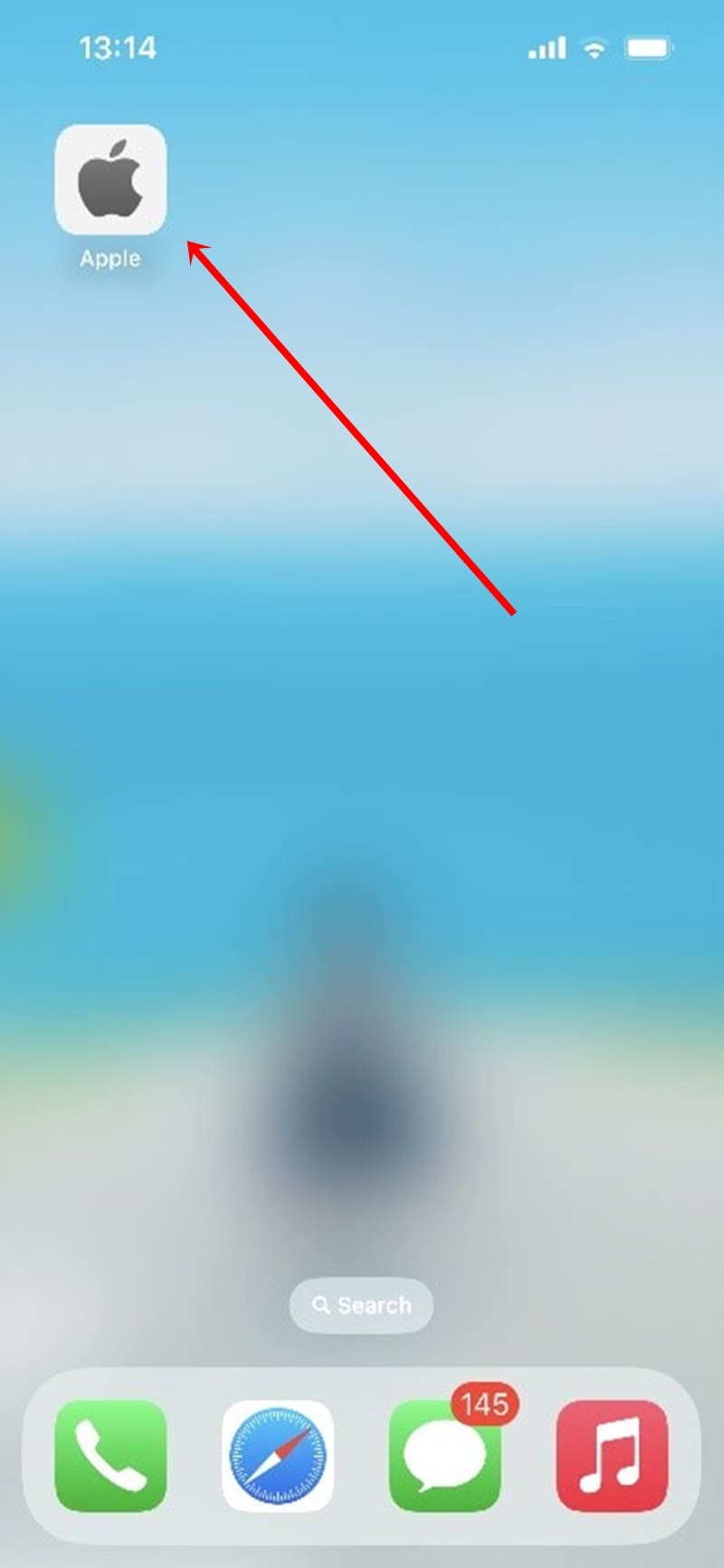
6. Your new app will be added to your iPhone’s menu.

How to Save a Website as an App on iPhone 5

Chrome

Chrome varies in its approach slightly. Here’s how you save an app:

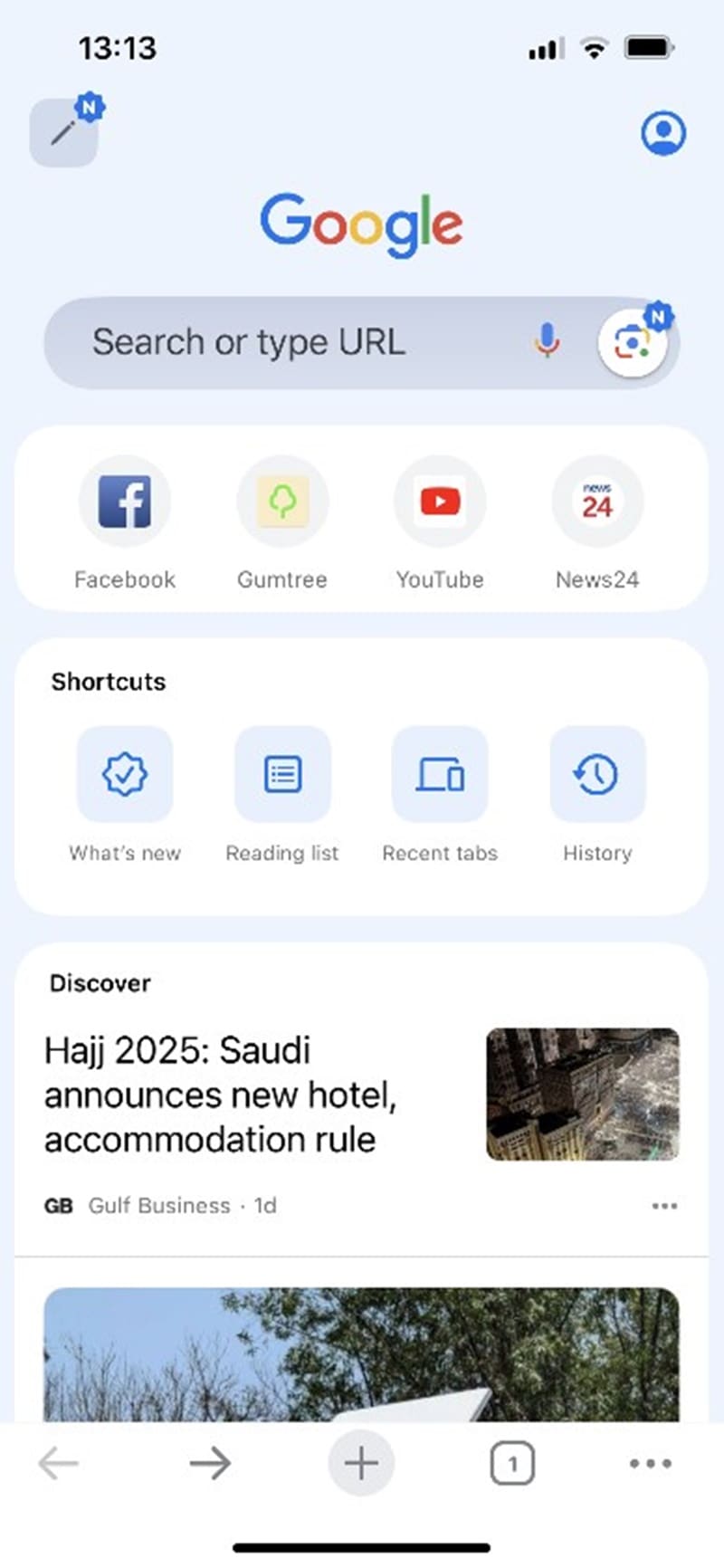
1. Open Chrome and head to your website of choice.

How to Save a Website as an App on iPhone 6

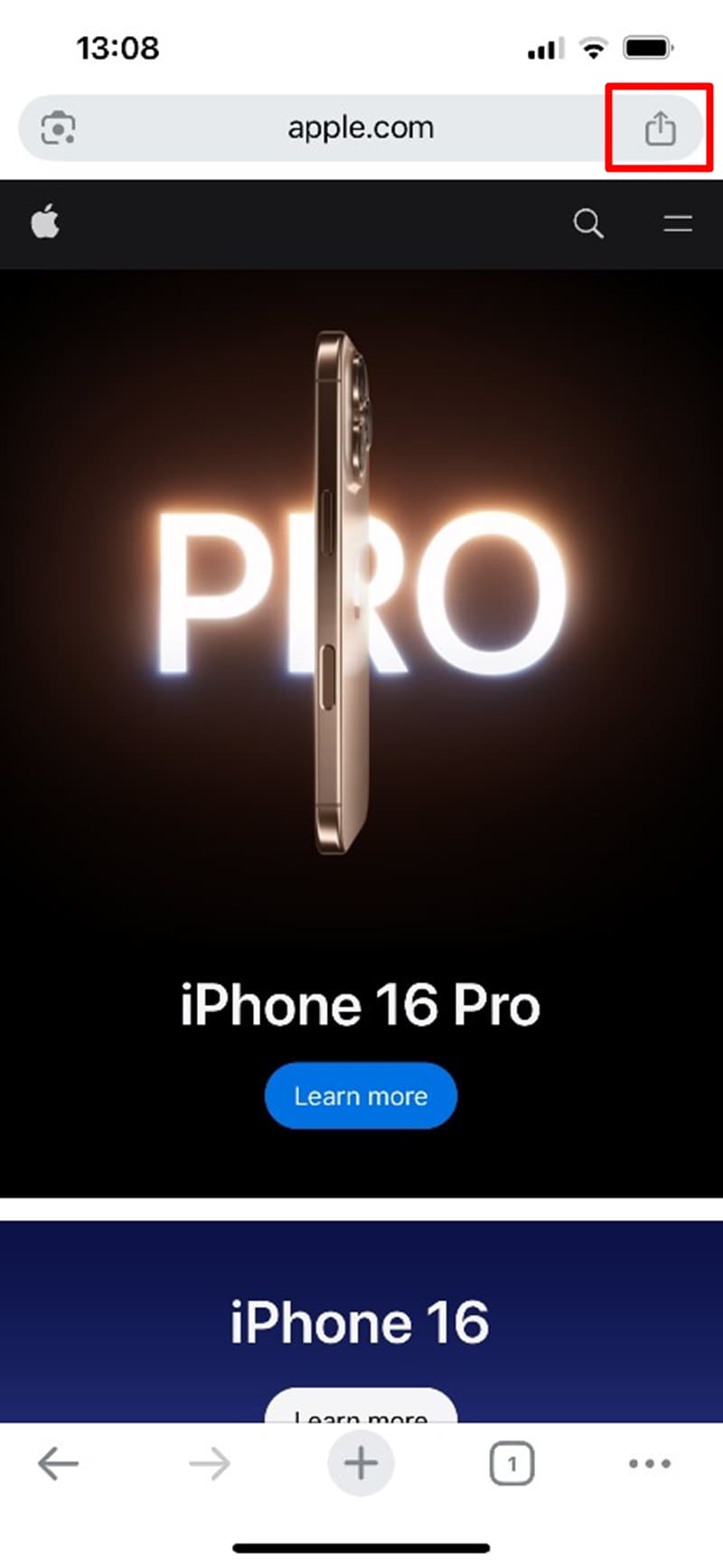
2. Tap the right of the Search Bar, where you see the Share icon.

How to Save a Website as an App on iPhone 7

3. In the menu that pops up, choose “Add to Home Screen.”

How to Save a Website as an App on iPhone 8

4. Confirm the name and URL of your app, then hit “Add” to confirm.

5. Your site should now be saved as an app.

Firefox

For Firefox, the process varies slightly yet again. Here’s what to do:

1. Open the browser and enter the site’s URL into the Search Bar. For the Firefox app, this bar can either be at the top or bottom of your screen, depending on preference.

How to Save a Website as an App on iPhone 9

2. Once on the site, tap the Share button right next to the Reload button on your Search Bar.

How to Save a Website as an App on iPhone 10

3. Scroll down in the menu that pops up and select “Add to Home Screen.”

How to Save a Website as an App on iPhone 11

4. Confirm the name and URL of your app and confirm it all with “Add.”

5. Your app will be added to your Home Screen.

Related Posts:

  • iPhone 15 Pro Max - 1
    10 Handy Apple Shortcuts You Can Use Every Day
  • pexels-designecologist-1779487
    The Best iPhone And Mac Shortcuts For Beginners
  • Photo of person sleeping after saving so much time with the best Automator routines for Mac
    The Best iPhone Shortcuts (2021 Edition)
  • How to use ChatGPT on iPhone and iPad - Hero
    How to Use ChatGPT on iPhone and iPad
  • A problem occurred with this webpage so it was reloaded, fix
    Can’t Clear the Browsing History in Safari on Your…
  • Screenshot showing the Safari icon on an Apple device
    Safari Quick Website Search: What It Is and How to Use It
  • iPhone 15 Pro Max - 4
    Best iPhone Lock Screen Widgets for iOS 17
  • Multiple Windows iPad
    How to Open Multiple Windows of Safari on iPad With iOS 16
  • Holding iPhone
    How to Automatically Change iPhone Wallpaper With Shortcuts
Louis Roundtree
Louis Roundtree

As an avid gamer, I’ve run into my fair share of error codes and weird faults that have forced me to find fixes to problems I never anticipated. That gave me a passion for sharing those fixes with others so we can all game without feeling like our hardware is rebelling against us.

Reader Interactions

Write a Comment Cancel reply

Primary Sidebar

Recent Posts

  • How to Hide Username and Photo on the Mac Lock Screen
  • Microsoft Resume vs. Apple Handoff – Which Wins for Cross-Device Work?
  • How to Export iTunes Library to New Computer
  • What the Gemini Desktop App Will Bring to Mac
  • What to Do When Windows 11 Won’t Detect Your iPad
  • Outlook Outage 2026: iPhone Fixes for Sign-In Chaos

Connect with us

Footer

ABOUT

  • About Us
  • Contact us
  • Advertise
  • Privacy
  • Terms of Use

GUIDES

  • iOS & iPadOS
  • Apple ID
  • iCloud
  • App Store
  • iTunes
  • FaceTime
  • iMessage
  • Siri
  • Books and iBooks
  • Game Center
  • AirPlay

CONNECT

  • Facebook
  • Twitter
  • FeedBurner
  • YouTube

© Copyright 2010-2024 Guiding Tech Media · All Rights Reserved

This site and its content are in no way affiliated or endorsed by Apple, Inc. · Reproduction without explicit permission is prohibited

Last Updated on April 19, 2025 by Louis Roundtree