• Skip to primary navigation
  • Skip to main content
  • Skip to primary sidebar
  • Skip to footer

AppleToolBox

Tools and Fixes for Mac, iPad, iPhone & iWatch

Search posts

  • About
  • Contact

CONNECT WITH US

CATEGORIES

  • iPhone
  • iPad
  • iPod
  • Apple Watch
  • Mac/MacBook
  • AirPods
  • Apple TV
  • News
  • Apple Services
  • HomePod
  • Reviews

SITE

  • Home
  • About Us
  • Contact
  • Advertise

Search posts

You are here: Home / Apple Services / How to Set Up iCloud Passwords on a Windows PC?

How to Set Up iCloud Passwords on a Windows PC?

By Louis Roundtree 0 comments Last updated June 19, 2026

Things to Know
  • If you have set up iCloud for Windows, you can also use iCloud passwords to manage your passwords stored in browsers like Google Chrome and Firefox.
  • The iCloud app adds an extension to the relevant browser.
  • You can then use the iCloud Passwords app to view all your passwords in one place.

If you have hundreds of passwords saved on your Windows PC that you have to type manually on your iPhone or Mac, stop: there’s an easier way. Using the iCloud for Windows app, you can sync your credentials directly into Apple’s ecosystem and manage them uniformly on your PC.

Follow the instructions below to learn how to set up iCloud passwords on Windows.

How to Set Up iCloud Passwords on Windows: Installing iCloud for Windows

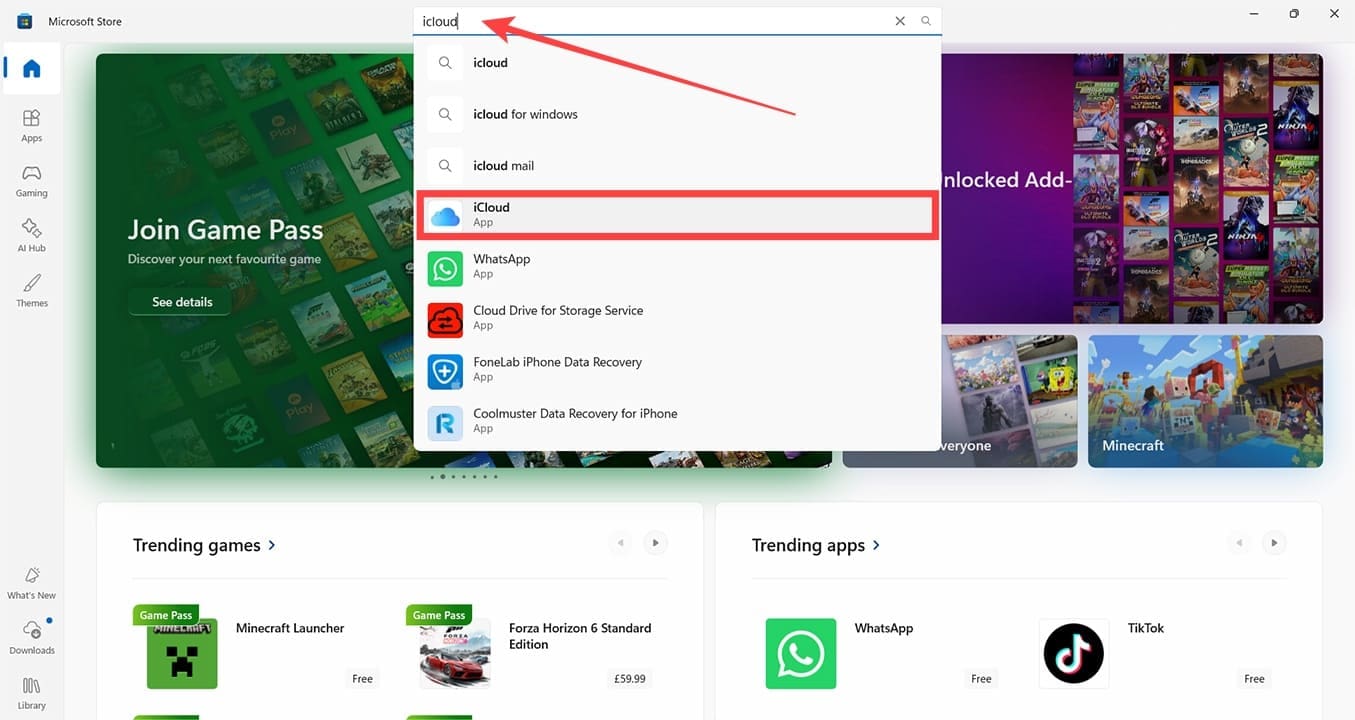
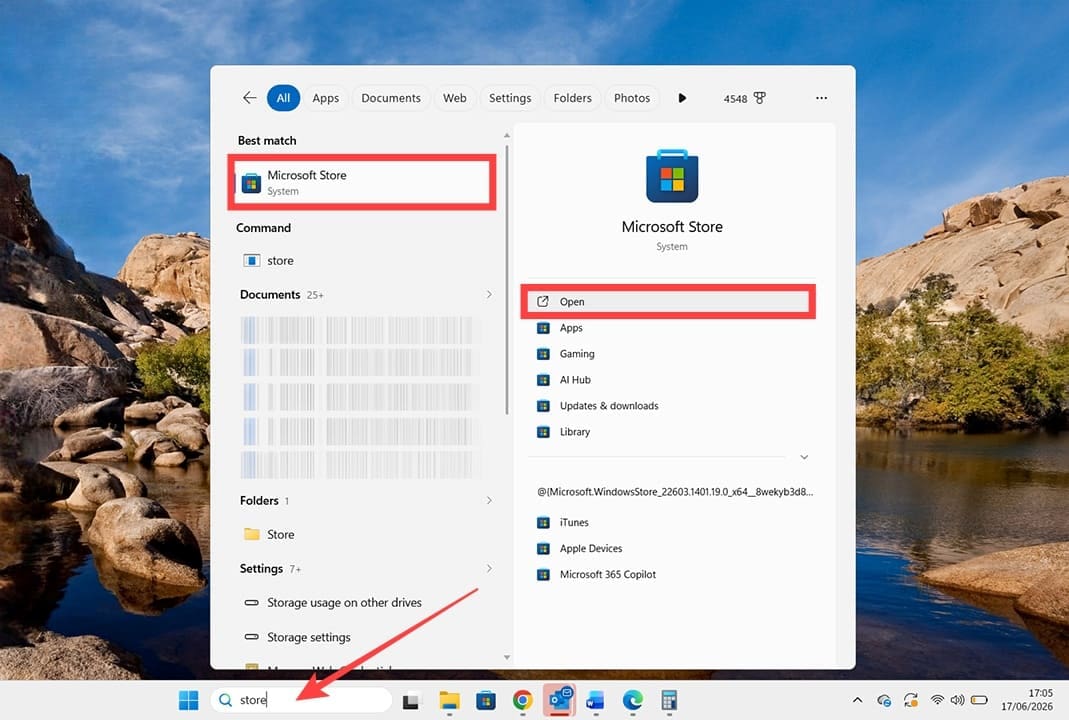
Step 1. Before you determine how to set up iCloud passwords in Windows, you must check that you have the iCloud for Windows app. Head to the Microsoft Store, which you can find by using the search bar.

How to Set Up iCloud Passwords on a Windows PC 1

Step 2. In the store, search for “iCloud,” and click it when you find it.

How to Set Up iCloud Passwords on a Windows PC 2

Step 3. You’ll either see a blue “Open” or “Install” button. If you see “Install,” click and follow the onscreen prompts. Click “Open” and skip to the next section of the guide: How to Set Up iCloud Passwords on Windows: Step-by-Step Guide.

How to Set Up iCloud Passwords on a Windows PC 3

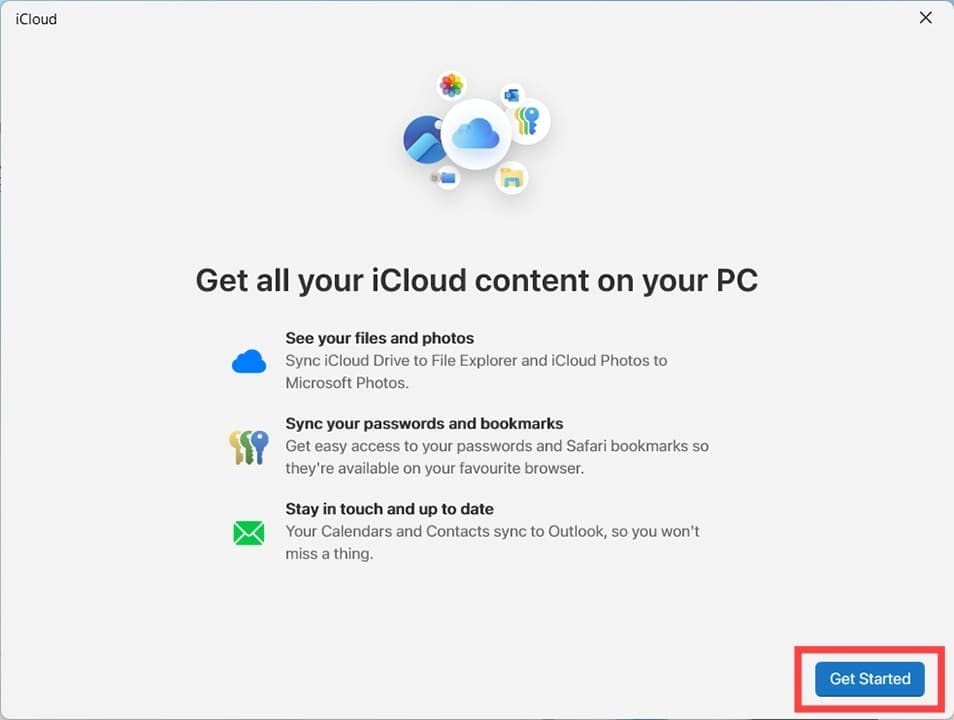
Step 4. You’ll see an overview of what iCloud for Windows can do. Click “Get Started.”

How to Set Up iCloud Passwords on a Windows PC 4

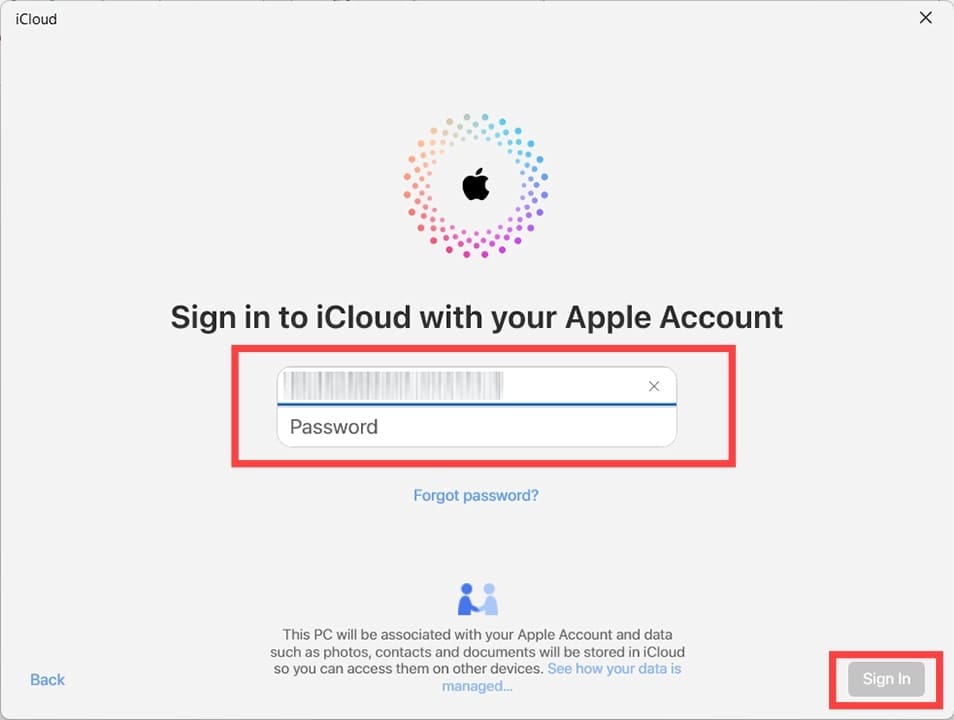
Step 5. Enter your Apple account (previously known as Apple ID) details when prompted.

How to Set Up iCloud Passwords on a Windows PC 5

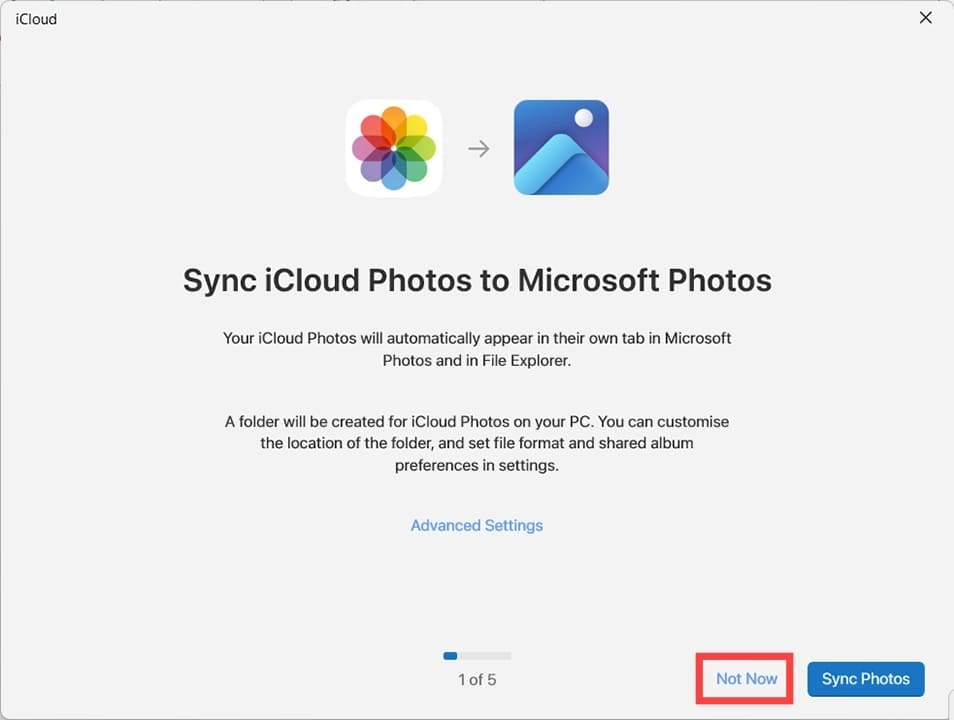
Step 6. You’ll be prompted to sync media; you can work your way through these prompts or click “Not Now” to set this up later.

How to Set Up iCloud Passwords on a Windows PC 6

How to Set Up iCloud Passwords on Windows: Step-by-Step Guide.

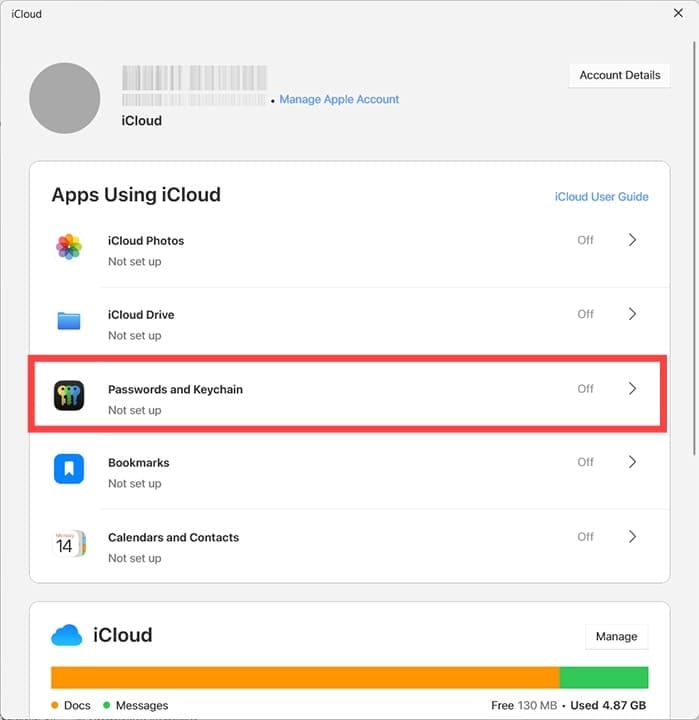
Step 1. Once you’ve finished installation, or after you press “Open” on iCloud for Windows, you’ll see the main screen of the iCloud app. The option you’re looking for is “Passwords and Keychain.”

How to Set Up iCloud Passwords on a Windows PC 7

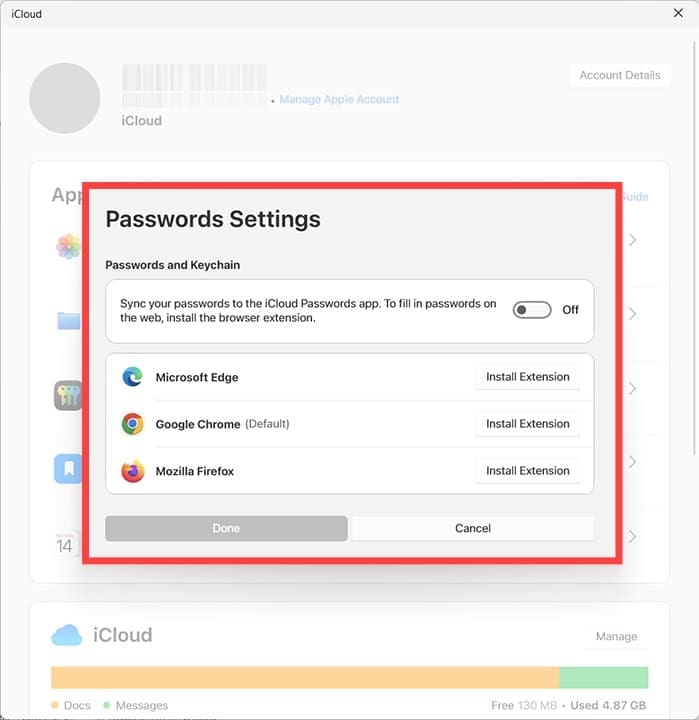
Step 2. When you click the arrow next to “Passwords and Keychain,” you’ll see a setup screen. This allows you to add the iCloud Passwords extension to any browser you have installed on Windows (if compatible). In this instance, there is the option to install a browser extension on Mozilla Firefox, Google Chrome, or Microsoft Edge.

How to Set Up iCloud Passwords on a Windows PC 8

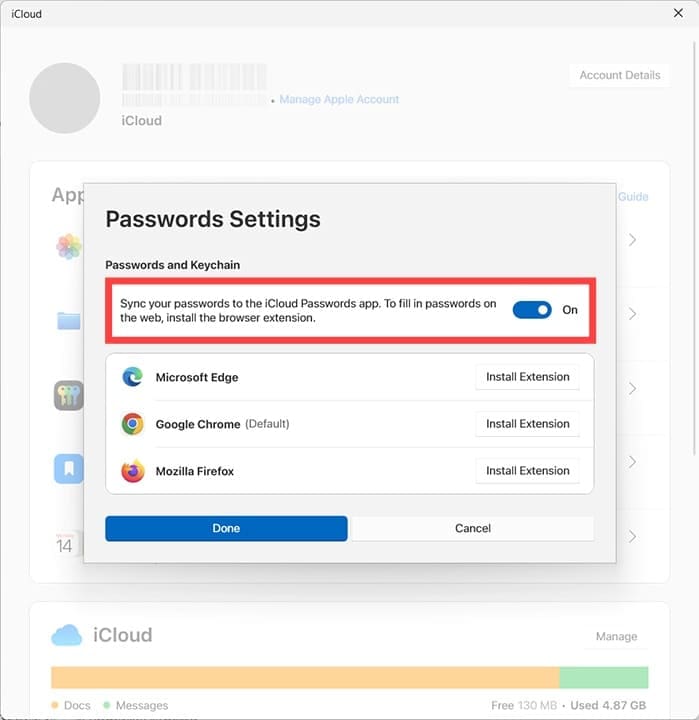
Click the “Sync” button to turn it on, and press “Install Extension” next to the browser you want to sync passwords with.

How to Set Up iCloud Passwords on a Windows PC 9

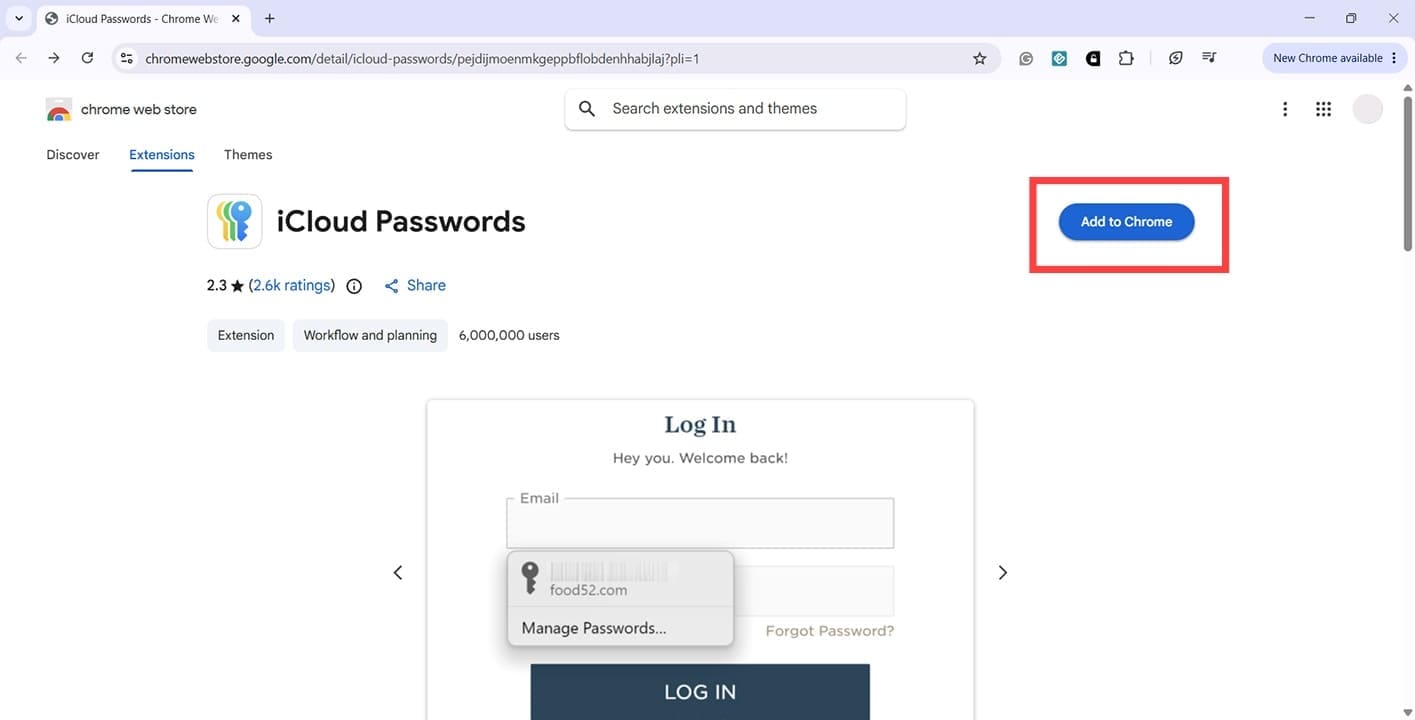
Step 3. You’ll now be taken to a browser page showing the iCloud Passwords extension. Click “Add to Chrome” (or the relevant button for your chosen browser).

How to Set Up iCloud Passwords on a Windows PC 10

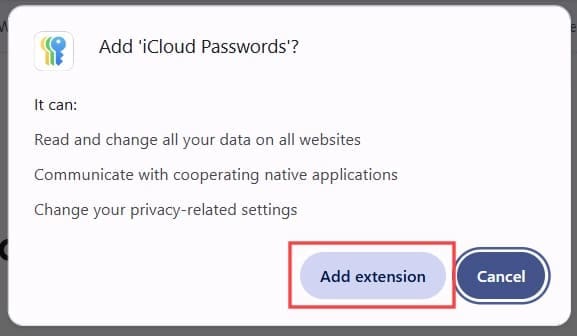
Step 4. Check that you’re happy with the privacy notice before proceeding by clicking “Add Extension.”

How to Set Up iCloud Passwords on a Windows PC 11

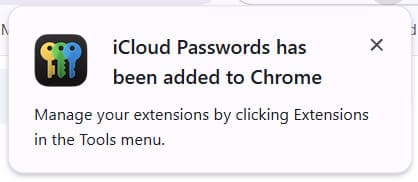
You should now get a message saying that the extension has been added.

How to Set Up iCloud Passwords on a Windows PC 12

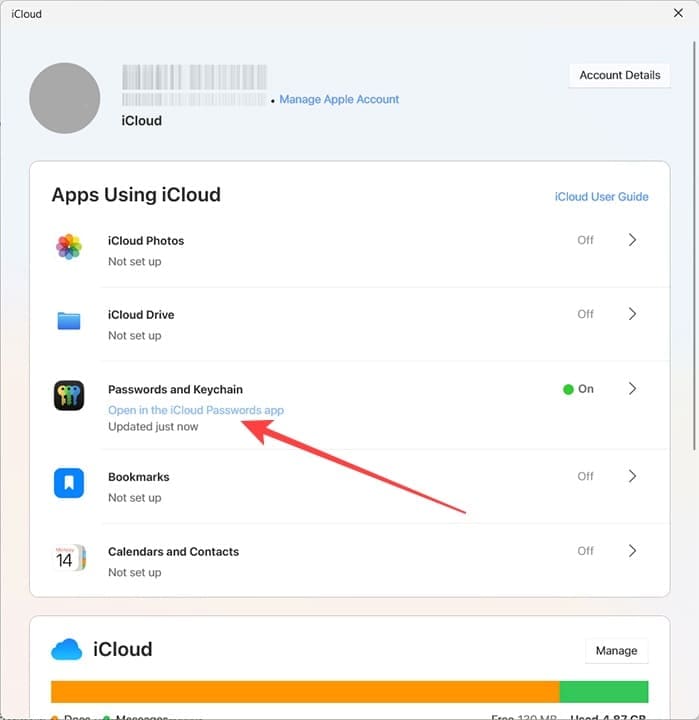
Now, any passwords that you save in Google Chrome (or your chosen browser) on Windows will also be saved in iCloud Passwords. You can use these passwords on any device that also has iCloud connectivity, and manage them via the iCloud for Windows app. You’ll now see an option under Passwords and Keychain for “Open in the iCloud Passwords App.”

How to Set Up iCloud Passwords on a Windows PC 13

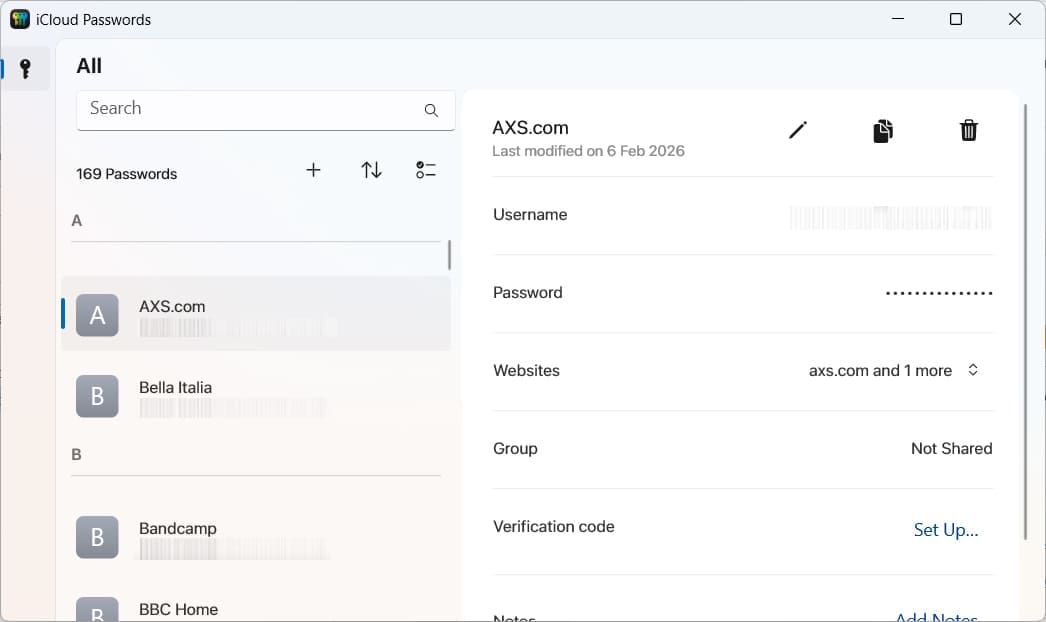
When you click here, you instantly see any accounts and passwords synced from Windows browsers to iCloud. You can edit and manage these passwords within the iCloud Passwords app.

How to Set Up iCloud Passwords on a Windows PC 14

Related Posts:

  • pexels-tranmautritam-326508
    The Best Apple Ecosystem Features
  • 2023 Mac Studio lifestyle - 1
    macOS Could Not Be Installed, How-To Fix
  • 2022 Mac Mini with Studio Display and Accessories
    Mac Tips For New Users In 2023
  • pexels-jess-bailey-designs-810079
    How To Run Linux On Mac: A Step-by-Step Guide
  • pexels-tima-miroshnichenko-6860464
    How To Start Using Regex With The Shortcuts App
  • sidecar on iPadOS and macOS
    Sidecar not working in iPadOS and macOS? How to fix…
  • pexels-designecologist-1779487
    The Best iPhone And Mac Shortcuts For Beginners
  • pexels-cottonbro-4709285
    How To Learn Swift On Mac And iPad
  • 24-inch iMac 2021 - 12
    13 Things To Do With A Mac When Bored
Louis Roundtree
Louis Roundtree

As an avid gamer, I’ve run into my fair share of error codes and weird faults that have forced me to find fixes to problems I never anticipated. That gave me a passion for sharing those fixes with others so we can all game without feeling like our hardware is rebelling against us.

Reader Interactions

Write a Comment Cancel reply

Primary Sidebar

Recent Posts

  • How to Set Up iCloud Passwords on a Windows PC?
  • How to Turn Off Apple Music’s Dark Mode
  • How to Disable Predictive Text in iOS 26
  • How to Stop Sharing Analytics in iOS 26
  • How to Manage Your iPhone Call Log
  • Are Apple’s Safety Precautions Enough for AirTags?

Connect with us

Footer

ABOUT

  • About Us
  • Contact us
  • Advertise
  • Privacy
  • Terms of Use

GUIDES

  • iOS & iPadOS
  • Apple ID
  • iCloud
  • App Store
  • iTunes
  • FaceTime
  • iMessage
  • Siri
  • Books and iBooks
  • Game Center
  • AirPlay

CONNECT

  • Facebook
  • Twitter
  • FeedBurner
  • YouTube

© Copyright 2010-2024 Guiding Tech Media · All Rights Reserved

This site and its content are in no way affiliated or endorsed by Apple, Inc. · Reproduction without explicit permission is prohibited

Last Updated on June 21, 2026 by Louis Roundtree