• Skip to primary navigation
  • Skip to main content
  • Skip to primary sidebar
  • Skip to footer

AppleToolBox

Tools and Fixes for Mac, iPad, iPhone & iWatch

Search posts

  • About
  • Contact

CONNECT WITH US

CATEGORIES

  • iPhone
  • iPad
  • iPod
  • Apple Watch
  • Mac/MacBook
  • AirPods
  • Apple TV
  • News
  • Apple Services
  • HomePod
  • Reviews

SITE

  • Home
  • About Us
  • Contact
  • Advertise

Search posts

You are here: Home / iPhone / How to Share Wi-Fi Password From iPhone to PC (Workarounds)

How to Share Wi-Fi Password From iPhone to PC (Workarounds)

By Louis Roundtree 0 comments Last updated September 17, 2025

Things to Know
  • Seamless sharing of passwords in Apple Intelligence can’t happen with a PC.
  • Instead, you’ll have to input the password manually by accessing passwords on your iPhone.
  • You can use iCloud and synced Notes to send the password from one device to another.

If you’re in the Apple ecosystem with some or all of your devices, you’ll agree that the ability to share Wi-Fi passwords from an iPhone to any other Apple product is a major convenience. Sadly, as is often the case, when you step outside that bubble, things become more difficult.

Today’s case-in-point: how to share Wi-Fi from iPhone to pc.

Fear not, we’re going to show you how to ensure that you can still share a password with your desktop or laptop PC even if it doesn’t have an Apple logo on it.

Contents

  • How to Share Wi-Fi From iPhone to PC
    • Manually
    • iCloud (Limited)

How to Share Wi-Fi From iPhone to PC

If you can no longer rely on the convenience of Apple Intelligence to seamlessly send a Wi-Fi password for you because you’re using a PC, you’ll need to get creative. Unfortunately, there’s only one major way to share passwords between the two different types of devices.

Manually

The simplest (though not necessarily most convenient) way to share a password from an iPhone to a PC is manually. You can copy the network’s password to your clipboard, type it in while looking at your phone, or even write it down on paper in a pinch. For all this to work, you need to know where to locate the Wi-Fi password. Here’s how to locate it:

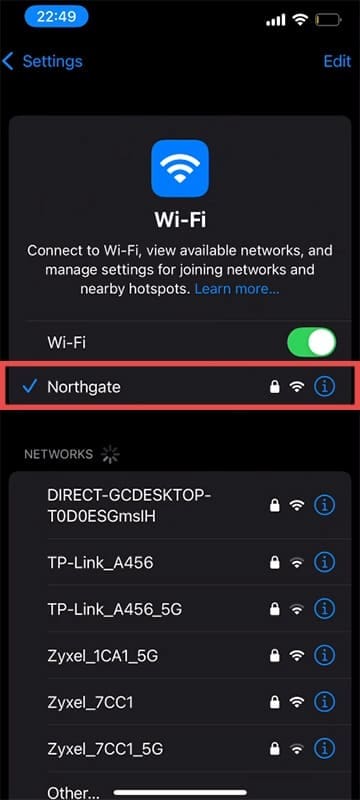
Step 1. Go to Settings on your iPhone and navigate to “Wi-Fi.”

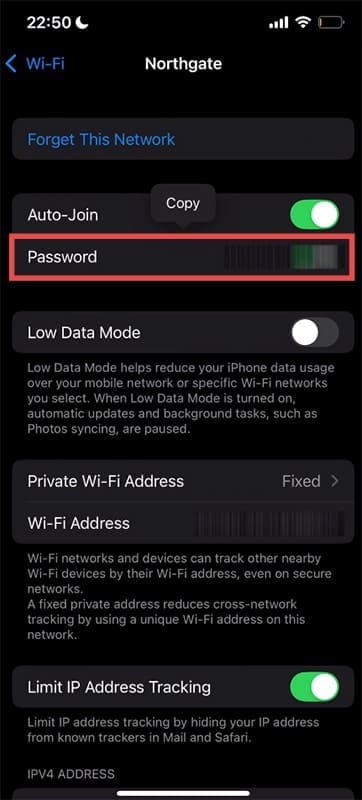
Step 2. In the Wi-Fi window, click the network you are currently connected to.

How to Share Wi-Fi Password From iPhone to PC (Workarounds) 1

Step 3. Tap the “Password” bar. You may be required to enter biometric data (Face ID or fingerprint) for security purposes.

How to Share Wi-Fi Password From iPhone to PC (Workarounds) 2

Step 4. The password will then be visible, and you can type this into your PC under the same network.

For a stored password from a network that isn’t currently being used:

Step 1. Open “Wi-Fi” in Settings.

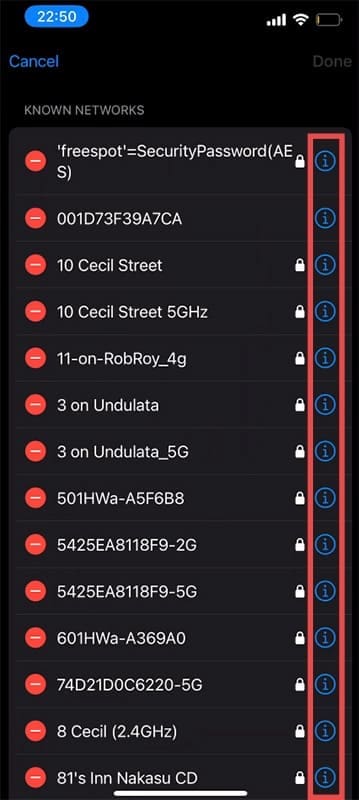
Step 2. Click “Edit” at the top-right of the screen. You may be asked to enter biometric data.

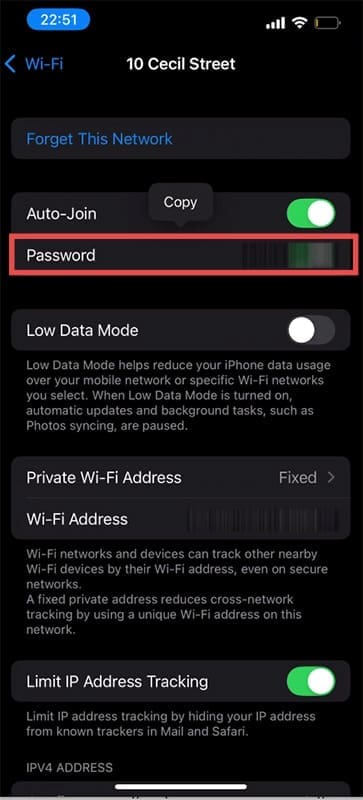
Step 3. Navigate through your stored networks and tap the “I” icon of your desired option.

How to Share Wi-Fi Password From iPhone to PC (Workarounds) 3

Step 4. Tap the “Password” bar, and the details should become visible.

How to Share Wi-Fi Password From iPhone to PC (Workarounds) 4

iCloud (Limited)

Even though iCloud is adept at storing passwords and login data across devices and across the ecosystem, there’s a big drop in abilities when trying to connect with a Windows computer. One such casualty is the loss of stored Wi-Fi networks and shareability. Despite many claims to the contrary, it’s important to know that an iCloud extension, app, or browser window can’t seamlessly share your iPhone’s Wi-Fi details.

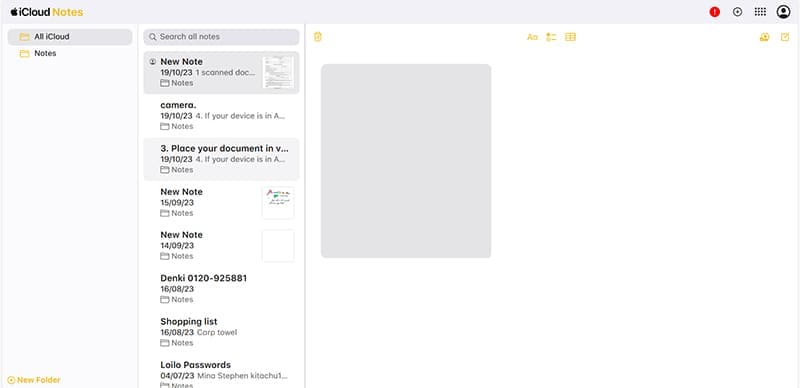
With that said, if you do want to copy and paste the password between devices, you can do so with the help of iCloud and Notes. Here’s what to do:

Step 1. Log in to your iCloud account on your PC, either via the extension, app, or browser window.

Step 2. On your iPhone, press and hold the Wi-Fi password to copy it to the clipboard.

Step 3. Open Notes, create a new note, and paste the password in.

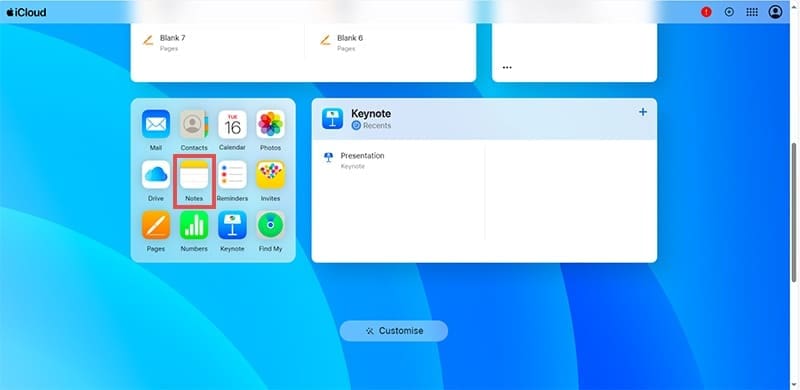
Step 4. Back on your PC, scroll down to the Apple apps in iCloud and choose Notes.

How to Share Wi-Fi Password From iPhone to PC (Workarounds) 5

Step 5. Copy the password from the synced note and place it into your password slot.

How to Share Wi-Fi Password From iPhone to PC (Workarounds) 6

Related Posts:

  • pexels-tranmautritam-326508
    The Best Apple Ecosystem Features
  • transfer iphone passwords to android
    How to Transfer iPhone Passwords to an Android Device
  • AutoFill Passwords From Google Chrome on iPhone 13 Pro
    How to Use Family Passwords on iPhone With iOS 17
  • 2022 Mac Mini with Studio Display and Accessories
    Mac Tips For New Users In 2023
  • pexels-designecologist-1779487
    The Best iPhone And Mac Shortcuts For Beginners
  • Photo of person sleeping after saving so much time with the best Automator routines for Mac
    The Best iPhone Shortcuts (2021 Edition)
  • pexels-tima-miroshnichenko-6860464
    How To Start Using Regex With The Shortcuts App
  • pexels-tranmautritam-696899
    iPhone Tips for New Users In 2023
  • pexels-jess-bailey-designs-810079
    How To Run Linux On Mac: A Step-by-Step Guide
Louis Roundtree
Louis Roundtree

As an avid gamer, I’ve run into my fair share of error codes and weird faults that have forced me to find fixes to problems I never anticipated. That gave me a passion for sharing those fixes with others so we can all game without feeling like our hardware is rebelling against us.
Reader Interactions

Write a Comment Cancel reply

Primary Sidebar

Recent Posts

  • Microsoft Resume vs. Apple Handoff – Which Wins for Cross-Device Work?
  • How to Export iTunes Library to New Computer
  • What the Gemini Desktop App Will Bring to Mac
  • What to Do When Windows 11 Won’t Detect Your iPad
  • Outlook Outage 2026: iPhone Fixes for Sign-In Chaos
  • Guide to Changing iMessage Backgrounds on iPhone and Mac

Connect with us

Footer

ABOUT

  • About Us
  • Contact us
  • Advertise
  • Privacy
  • Terms of Use

GUIDES

  • iOS & iPadOS
  • Apple ID
  • iCloud
  • App Store
  • iTunes
  • FaceTime
  • iMessage
  • Siri
  • Books and iBooks
  • Game Center
  • AirPlay

CONNECT

  • Facebook
  • Twitter
  • FeedBurner
  • YouTube

© Copyright 2010-2024 Guiding Tech Media · All Rights Reserved

This site and its content are in no way affiliated or endorsed by Apple, Inc. · Reproduction without explicit permission is prohibited

Last Updated on September 17, 2025 by Louis Roundtree