Over the past few years, we’ve been seeing Apple make some rather impressive strides in an effort to keep its users information private. From improving password creation and management to introducing new privacy features that give you more control, our devices are more private than ever.
Apple has even gone so far as to require app developers to provide detailed information as to what data is linked to your device or Apple ID. This can be found at the bottom of practically every app listing on the App Store. From here, you’ll see an App Privacy section with the following pieces of information:
Data Used to Track You
Data Linked to You
Data Not Linked to You
Each of these sections has even more information available, so you can see what each app is using. This gives you a better idea of whether you should stop apps from you tracking you or not.
How To Stop Apps From Tracking You on iPhone and iPad
Most of the time, you’re only downloading apps from developers that you trust, or those that are found on the top of the App Store charts. Whenever a new app is installed or is updated and it attempts to track your activity, a prompt will appear. When the prompt appears, you’ll be able to grant permission or deny it by tapping the Ask App Not to Track button in the prompt. But here’s how you can go through and prune the list and see what apps have app tracking abilities:
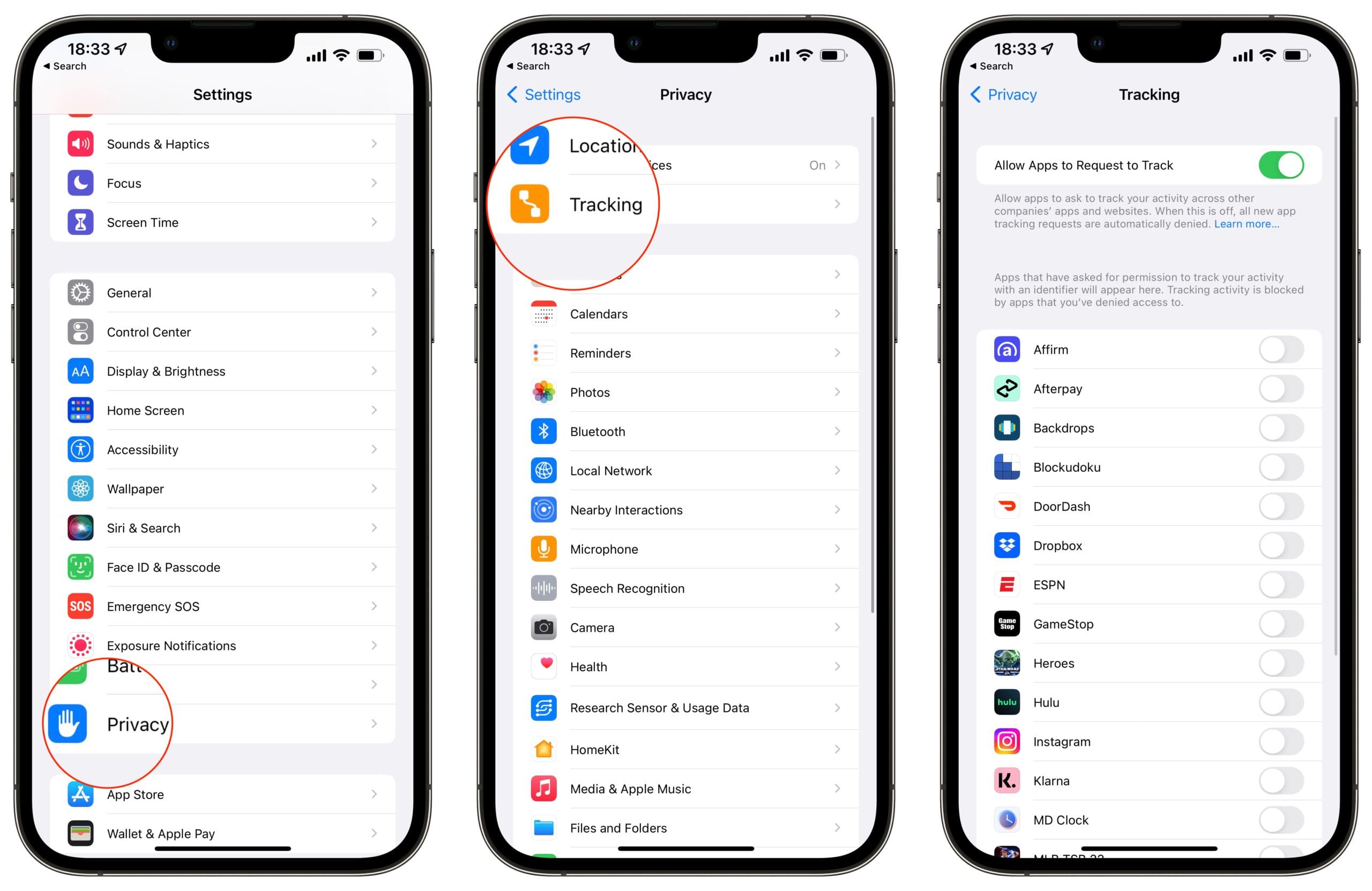
Open the Settings app on your iPhone or iPad.
Scroll down and tap Privacy.
At the top of the page, tap Tracking.
Tap the toggle next to Allow Apps to Request to Track to the On position.
But what about those apps that you just blindly allowed to track you before? Can you go back and stop apps from tracking you on iPhone and iPad? The short answer is yes, but this is going to be a bit more of a tedious process.
Open the Settings app on your iPhone or iPad.
Scroll down and tap Privacy.
At the top of the page, tap Tracking.
Go through the list of apps and tap the toggle next to the apps that you don’t want to be able to track.
As we mentioned, this could end up being a rather tedious process, especially if you’re like us and have a boatload of apps installed on your devices. But it’s definitely worth it in the end, as those applications will no longer be able to track your device’s activity.
What To Do if ‘Allow Apps to Request to Track’ Is Disabled
There are some applications that don’t allow you to toggle whether they can have access to your device activity or not. Apple says that this was done on purpose, and if you run into this situation, here are a few reasons why this might be the case:
For users with child accounts or under age 18 by birth year, signed in with their Apple ID
If your Apple ID is managed by an educational or business institution
If your device is managed and uses a configuration profile that limits tracking
If your Apple ID was created in the last 3 days
Unfortunately, if your device or Apple ID falls under any of those categories, you will not be able to toggle app tracking.
Andrew Myrick is a freelance writer based on the East Coast of the US. He enjoys everything to do with technology, including tablets, smartphones, and everything in between. Perhaps his favorite past-time is having a never-ending supply of different keyboards and gaming handhelds that end up collecting more dust than the consoles that are being emulated.












Write a Comment