If you have multiple Apple devices, you probably use the same Apple ID/Apple Account on all of them. The downside of this is that it can mean that you end up with all the same data and apps on every device, including photos, files, and contacts. If you’d rather keep just one device synced to Apple services and manage the others separately, there is a way to achieve this.
This guide shows you how to sync one specific Apple device, but not others, so you can have different apps and data on each device.
Sync Your Apple Device – Step-by-Step
Before you start un-syncing your devices, it helps to know how to sync them. Follow these steps on the device that you want fully synced to your Apple Account.
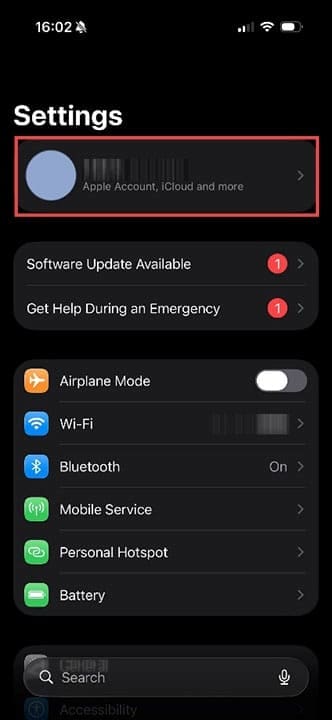
Step 1. On your iPhone or iPad, go to Settings and tap on the area with your name right at the top. This is where you find details about your Apple Account, connected email address, and iCloud backup.
Step 2. Tap on iCloud.
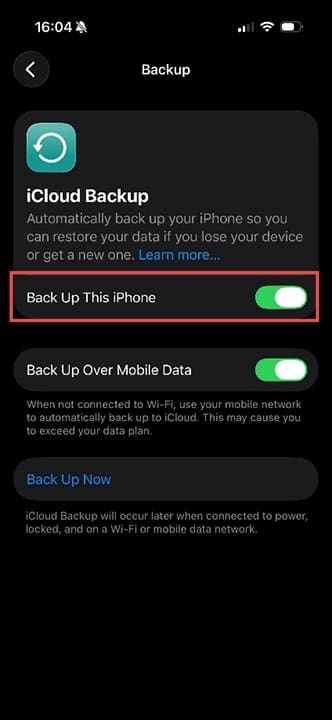
Step 3. Check if iCloud Backup is off or on. If it’s off, tap the arrow next to where it says this.
Step 4. Press the toggle button next to “Back Up This iPhone/iPad.” You can now also choose whether you want backups to use cellular data as well as Wi-Fi. Your phone plan provider may charge you for this.
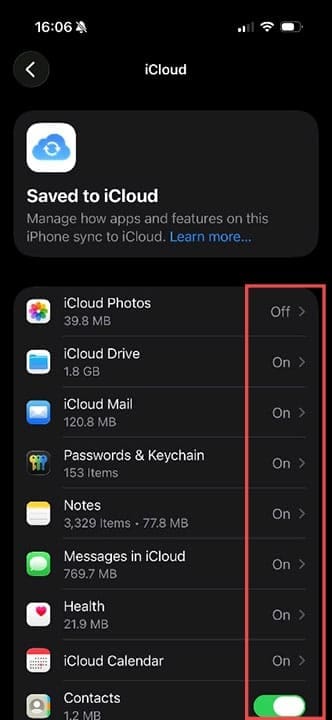
Step 5. Go back into iCloud and tap on Saved to iCloud. Here, you can choose exactly what data you want to be synced, including photos, passwords, notes, and more.
Removing Sync From Other Apple Devices
Step 1. On another Apple device, follow the steps 1-4 above, but in reverse. In other words, ensure that iCloud Backup is switched off to prevent the data on this device from syncing to another device, and vice versa.
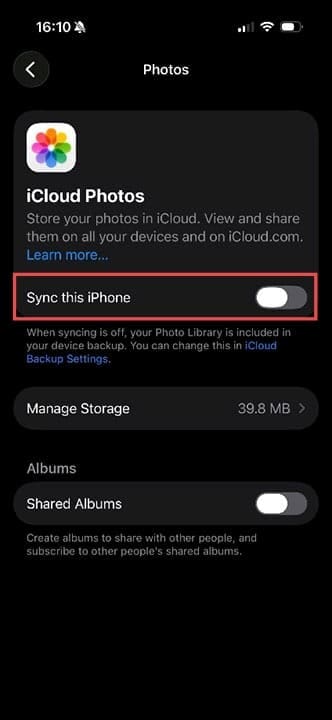
Step 2. Alternatively, you can keep the backup on and adjust specific settings. For example, to ensure that the photos remain only on this device, head to Settings > iCloud > Saved to iCloud. Click on iCloud Photos and toggle Sync this iPhone to off. You can do the same with any app or service listed in the iCloud settings.
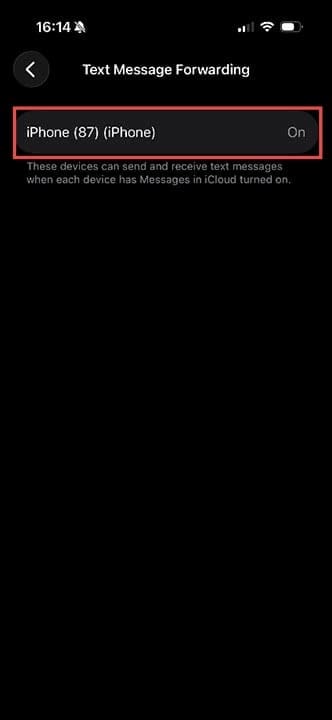
Step 3. To ensure you don’t get text messages from other Apple devices, go back to the Apple device you are syncing. On this device, tap on Settings > Apps > Messages >Text Message Forwarding. If there are other devices listed here, you will be able to turn text message forwarding off. This keeps your text messages and iMessages private to one device.
As an avid gamer, I’ve run into my fair share of error codes and weird faults that have forced me to find fixes to problems I never anticipated. That gave me a passion for sharing those fixes with others so we can all game without feeling like our hardware is rebelling against us.













Write a Comment