• Skip to primary navigation
  • Skip to main content
  • Skip to primary sidebar
  • Skip to footer

AppleToolBox

Tools and Fixes for Mac, iPad, iPhone & iWatch

Search posts

  • About
  • Contact

CONNECT WITH US

CATEGORIES

  • iPhone
  • iPad
  • iPod
  • Apple Watch
  • Mac/MacBook
  • AirPods
  • Apple TV
  • News
  • Apple Services
  • HomePod
  • Reviews

SITE

  • Home
  • About Us
  • Contact
  • Advertise

Search posts

You are here: Home / iPad / How to temporarily disable autocorrect on an iPad or iPhone

How to temporarily disable autocorrect on an iPad or iPhone

By Sudz Kar 1 comment Last updated January 2, 2023

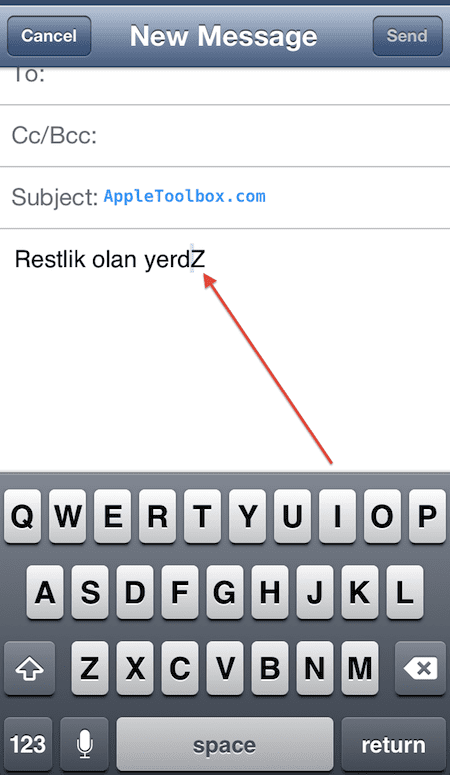
Autocorrect feature provides an automatic “spell-check” function. A lot of people find that the changes/corrections that autocorrect makes are essential. Although I find this feature very useful, there are times I do not want athe auto-correct feature to kick in and  want to turn this feature off  temporarily. For instance sometimes I write messages/emails in another language and autocorrect feature really makes it difficult to write. I can easily disable autocorrect (Settings> General> Keyboard> AutoCorrect). But turning on or turning off the autocorrect feature each time can be time consuming and annoying. There is an easier way if you want to temporarily disable autocorrect on your iPad, iPhone or iPod touch. Here is how:

Let’s say you are writing an email message and even though autocorrect is turned on on your device, you do not want to use this feature and yo do not want to change all your settings. Type  letter “z” and place your cursor before the z and start typing. This way you can write without the auto-correct feature correcting you. When you finish, remove the “z”.

auto correct

Related:

Some cool iOS tips and tricks you may not know about

Apple ID account settings on the iPad, iPod or iPhone

Related Posts:

  • pexels-tima-miroshnichenko-6860464
    How To Start Using Regex With The Shortcuts App
  • pexels-cottonbro-4064840
    The Best Keyboard Maestro Macros For Your Mac
  • macbook on a table
    The Best Apps For Mac Customization
  • ipad air 5
    iPad Air 5 2022 Review: What to Expect
  • photo of an iphone saying hello
    The Best Language-Learning Apps for iOS
  • Photo of an iPhone with Siri on it
    How to Change Siri's Language on iPhone, iPad, and Mac
  • 0E4A6A0B-65E8-4184-B0C9-16C2179A1256
    The Best Weight Loss Apps For iPhone In 2021
  • pexels-skylar-kang-6368908
    Keyboard Maestro vs. Shortcuts vs. Automator:…
  • photo of an iphone with ios 16 downloaded on it
    iOS 16 Tips and Tricks: The Definitive List
sudz - apple
Sudz Kar

Obsessed with tech since the early arrival of A/UX on Apple, Sudz (SK) is responsible for the original editorial direction of AppleToolBox. He is based out of Los Angeles, CA.

Sudz specializes in covering all things macOS, having reviewed dozens of OS X and macOS developments over the years.

In a former life, Sudz worked helping Fortune 100 companies with their technology and business transformation aspirations.
Reader Interactions

Write a Comment Cancel reply

Show 1 Comments

  1. Shaun says

    January 25, 2016 at 1:11 AM

    That is a very clever hack indeed, but unfortunately it looks as though they’ve ‘fixed’ that bug in the newest iOS updates.

    Reply

Primary Sidebar

Recent Posts

  • How to Disable Predictive Text in iOS 26
  • How to Stop Sharing Analytics in iOS 26
  • How to Manage Your iPhone Call Log
  • Are Apple’s Safety Precautions Enough for AirTags?
  • How to Hide Username and Photo on the Mac Lock Screen
  • Microsoft Resume vs. Apple Handoff – Which Wins for Cross-Device Work?

Connect with us

Footer

ABOUT

  • About Us
  • Contact us
  • Advertise
  • Privacy
  • Terms of Use

GUIDES

  • iOS & iPadOS
  • Apple ID
  • iCloud
  • App Store
  • iTunes
  • FaceTime
  • iMessage
  • Siri
  • Books and iBooks
  • Game Center
  • AirPlay

CONNECT

  • Facebook
  • Twitter
  • FeedBurner
  • YouTube

© Copyright 2010-2024 Guiding Tech Media · All Rights Reserved

This site and its content are in no way affiliated or endorsed by Apple, Inc. · Reproduction without explicit permission is prohibited

Last Updated on January 2, 2023 by Mitch Bartlett