• Skip to primary navigation
  • Skip to main content
  • Skip to primary sidebar
  • Skip to footer

AppleToolBox

Tools and Fixes for Mac, iPad, iPhone & iWatch

Search posts

  • About
  • Contact

CONNECT WITH US

CATEGORIES

  • iPhone
  • iPad
  • iPod
  • Apple Watch
  • Mac/MacBook
  • AirPods
  • Apple TV
  • News
  • Apple Services
  • HomePod
  • Reviews

SITE

  • Home
  • About Us
  • Contact
  • Advertise

Search posts

You are here: Home / iPhone / How to Transfer Contacts From Android to iPhone

How to Transfer Contacts From Android to iPhone

By Louis Roundtree 0 comments Last updated March 14, 2025

Things to Know
  • The easiest way to transfer contacts to an iPhone is with the Move to iOS app.
  • Alternatively, you can copy everything over from your Google account.
  • Or, save your contact info to your SIM card and put the SIM in the iPhone.

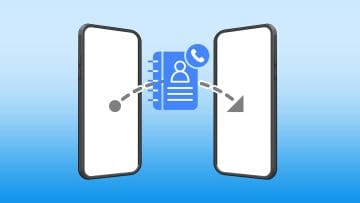
There are many reasons why you might want to switch from an Android device to an iPhone. However, it can be a hassle to set everything up on your new device and you won’t want to manually type in all of your contact details, one by one. Fortunately, it is possible to transfer your contact information

This guide shows you how to transfer contacts from Android to iPhone in several ways, namely using an app, your Google account, or your SIM.

Contents

  • Method 1. Move to iOS
  • Method 2. Google
  • Method 3. SIM Card

Method 1. Move to iOS

Arguably the easiest way to get your contacts from your Android device onto your iPhone is with Move to iOS. Move to iOS is an official Apple app, created purely for the purpose of helping people switch over to an iOS device, like an iPhone.

As well as contacts, it helps you transfer your message history, photos, calendar information, and more. Here is how it works, but note that you need to have the iOS Setup Assistant open on your iPhone, which should appear when you turn it on for the first time or reset the device.

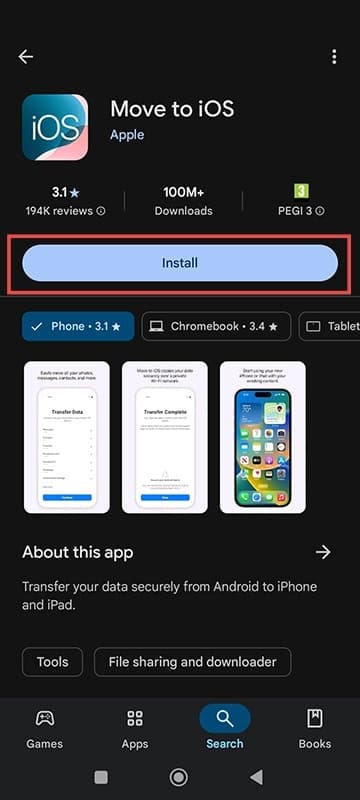
Step 1. Download and open Move to iOS on your Android phone.

How to Transfer Contacts From Android to iPhone 1

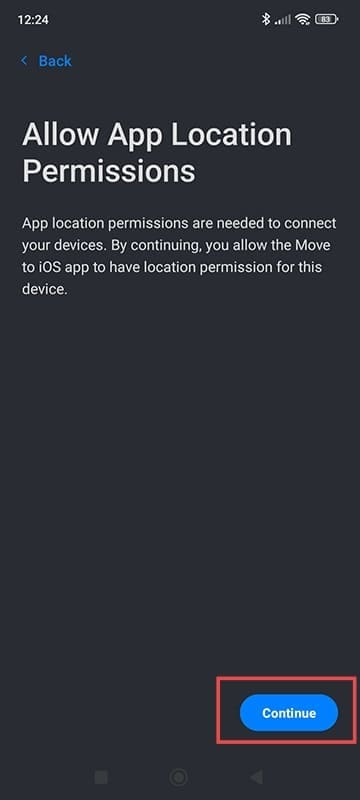
Step 2. Allow the app to see the device’s location.

How to Transfer Contacts From Android to iPhone 2

Step 3. On the Find Your Code page, tap on “Continue.” Then, switch over to your iPhone and proceed through the setup until you get to an option labeled “Move Data from Android.”

Step 4. You will see either a six or 10-digit code on your iPhone. Type that into your Android.

Step 5. On the “Transfer Data” screen, select everything you want to copy over. Then, continue and leave the two devices next to each other for a while (up to half an hour) for the process to finish.

Method 2. Google

Another option is to sync your contacts to your Google account, then use that to add them all to your iPhone.

Step 1. On your Android device, open the Settings.

How to Transfer Contacts From Android to iPhone 3

Step 2. Find the “Google” tab. It might be under “Accounts,” depending on what device you’re using.

How to Transfer Contacts From Android to iPhone 4

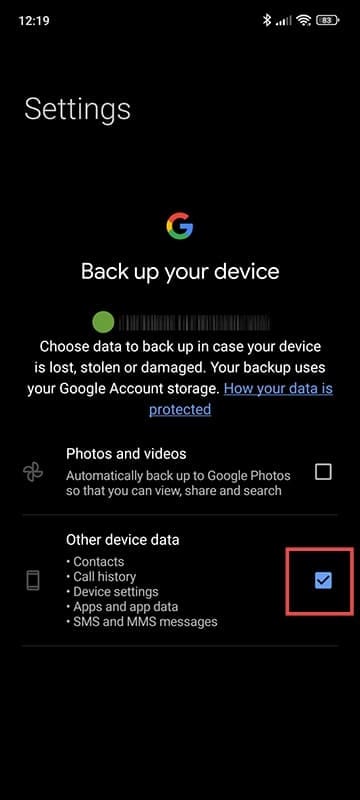
Step 3. Tap on “Backup” or “Manage Backup” and make sure that “Contacts” is one of the selected options to back up. You may have to toggle it on and press “Save” or “Confirm.”

How to Transfer Contacts From Android to iPhone 5

Step 4. On your iPhone, open the Settings.

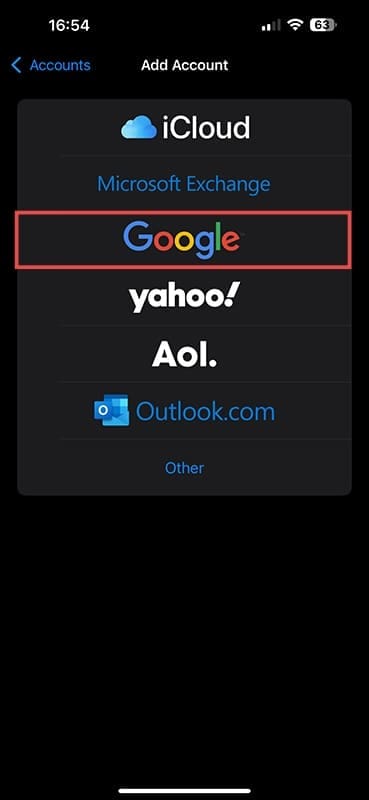
Step 5. Go to “Apps” “Mail,” then “Accounts,” and tap on “Add Account.”

How to Transfer Contacts From Android to iPhone 6

Step 6. Enter your Gmail account details to add your Google account. Your contacts should then sync up automatically.

Method 3. SIM Card

If you plan to use the same SIM in your iPhone as you did in your Android device, you can also use that to carry the contacts over. Just make sure that your iPhone model is able to accept the type of SIM you wish to use, as compatibility may vary.

Step 1. Open “Contacts” on your Android device.

How to Transfer Contacts From Android to iPhone 8

Step 2. Tap the “three lines” button or any other “Menu” or “Organize” button you can see, depending on your device. Tap on “Manage Contacts,” then “Import or export contacts,” and finally “Export.”

How to Transfer Contacts From Android to iPhone 9

Step 3. Wait for the export process to finish. Then turn off your Android, take out the SIM, and put into your iPhone. Turn it on and the contacts should all be there once it loads up.

Related Posts:

  • iPhone with No SIM Card Installed message
    Why does my iPhone say No SIM and what can I do to fix it?
  • Photo of an iPhone being taken out of its box
    How To Use Dual SIM and eSIM on Your iPhone
  • sidecar on iPadOS and macOS
    Sidecar not working in iPadOS and macOS? How to fix…
  • photo of an iphone with ios 16 downloaded on it
    iOS 16 Tips and Tricks: The Definitive List
  • Update Apple ID settings on your iPhone, iPad, or Mac after changing your password
    Getting a Message to Update Apple ID Settings on…
  • iPhone 15 Pro Max - 4
    Best iPhone Lock Screen Widgets for iOS 17
  • 2023 Mac Studio lifestyle - 1
    macOS Could Not Be Installed, How-To Fix
  • iPhone 15 Pro unboxing
    How To Extend Your iPhone Battery Life
  • iphone and airpods on a table
    These Apps Have the Best iOS 17 Widgets
Louis Roundtree
Louis Roundtree

As an avid gamer, I’ve run into my fair share of error codes and weird faults that have forced me to find fixes to problems I never anticipated. That gave me a passion for sharing those fixes with others so we can all game without feeling like our hardware is rebelling against us.
Reader Interactions

Write a Comment Cancel reply

Primary Sidebar

Recent Posts

  • How to Hide Username and Photo on the Mac Lock Screen
  • Microsoft Resume vs. Apple Handoff – Which Wins for Cross-Device Work?
  • How to Export iTunes Library to New Computer
  • What the Gemini Desktop App Will Bring to Mac
  • What to Do When Windows 11 Won’t Detect Your iPad
  • Outlook Outage 2026: iPhone Fixes for Sign-In Chaos

Connect with us

Footer

ABOUT

  • About Us
  • Contact us
  • Advertise
  • Privacy
  • Terms of Use

GUIDES

  • iOS & iPadOS
  • Apple ID
  • iCloud
  • App Store
  • iTunes
  • FaceTime
  • iMessage
  • Siri
  • Books and iBooks
  • Game Center
  • AirPlay

CONNECT

  • Facebook
  • Twitter
  • FeedBurner
  • YouTube

© Copyright 2010-2024 Guiding Tech Media · All Rights Reserved

This site and its content are in no way affiliated or endorsed by Apple, Inc. · Reproduction without explicit permission is prohibited

Last Updated on March 16, 2025 by Louis Roundtree