An eSIM is made for convenience, and transferring it from one phone to another should be just as convenient. Sadly, this isn’t always the case, and certain cellular networks may require you to contact them directly to facilitate moving eSIM to another device. However, despite this, the process of transferring an eSIM from an Android device to an iPhone is straightforward.
In this guide, we will show you how to transfer eSIM from Android to iPhone.
How to Transfer eSIM From an Android Phone to iPhone Step By Step
If you’re wondering, “How do I transfer eSIM from Android to iPhone?” there are two easy methods you can try.
Before You Begin
Before you start the process, it’s important to prepare for the transfer. You can do this by:
Updating both devices to their latest OS versions.
Ensuring your local network (Wi-Fi) is stable and strong.
Making sure that all important contact info has been backed up, just in case.
Checking that your cellular network allows eSIM transfers.
Method 1: The Direct Transfer
By far the easiest way to transfer your eSIM is directly, through QR Code and your iPhone’s cellular settings. Here’s what to do:
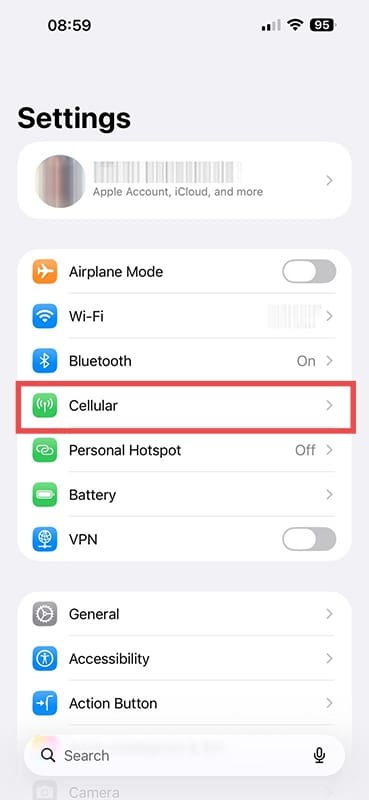
Step 1. Open Settings on your iPhone and navigate to “Set Up Cellular,” “Cellular,” or “Mobile Service,” depending on your network provider and iOS version.
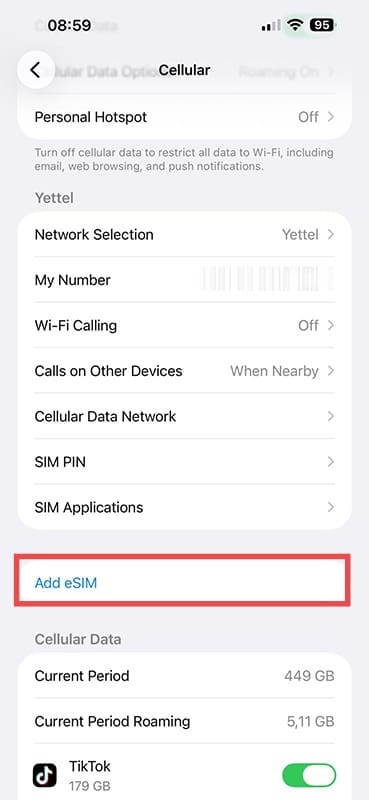
Step 2. Navigate down to “Add eSIM” and tap it.
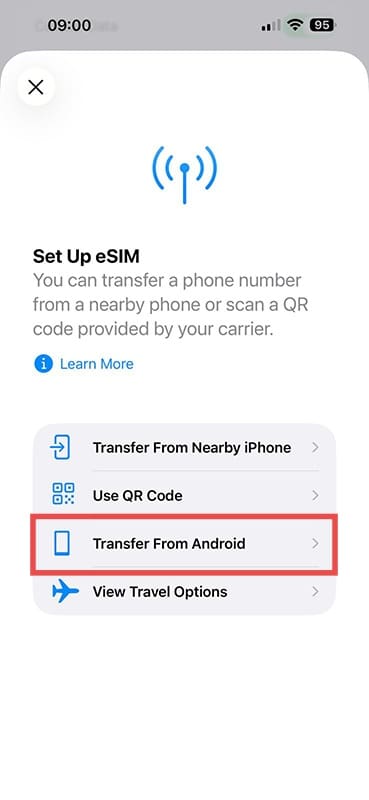
Step 3. In the next screen, tap “Transfer from Android.”
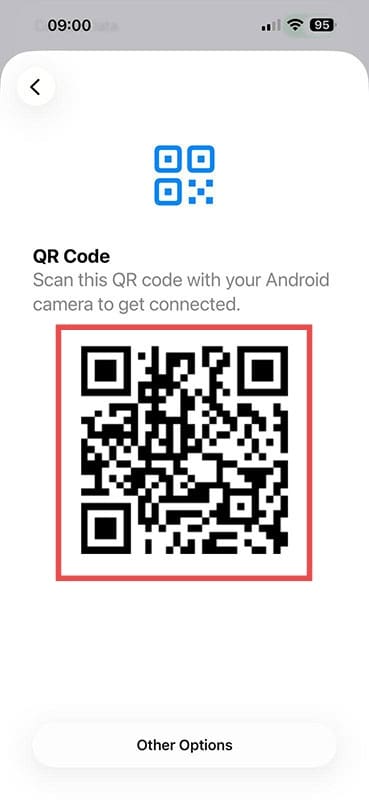
Step 4. A QR code will be generated on your iPhone’s screen. Take a photo of this with your Android phone’s camera.
Step 5. Your Android device should ask for the number you want to transfer. Tap it and confirm your choice if asked.
Step 6. Allow the transfer to complete and tap “Done” on your iPhone.
Method 2: The Indirect Transfer
If the QR code approach is not convenient or not an option, you can use Google Services to get the job done:
Step 1. Open “Google Services” on your Android device and navigate to “All Services.”
Step 2. Tap “Pair with iPhone or iPad.”
Step 3. Then select “Transfer eSIM.”
Step 4. On your iPhone, click “Other Options” under the pairing QR code. It will display a pairing code. Enter this on your Android device.
Step 5. Select the number you want to transfer and click any confirmation required.
Step 6. Allow the transfer to complete and click “Done” and “OK” on your iPhone to finalize.
Contact Your Provider
If you can’t use either of these methods to transfer your eSIM, you might have to contact your service provider directly to facilitate the transfer. This process will most likely involve your 32-digit EID number for your iPhone, so have it handy. You can find this either on the product box or under ‘Settings,” “General,” and then “About.”
As an avid gamer, I’ve run into my fair share of error codes and weird faults that have forced me to find fixes to problems I never anticipated. That gave me a passion for sharing those fixes with others so we can all game without feeling like our hardware is rebelling against us.











Write a Comment