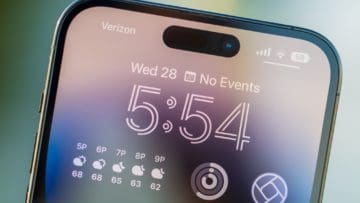
Despite the fact that Apple decided to continue using the same overall design that was introduced with the iPhone 12, that’s not to say that there weren’t meaningful changes made with the iPhone 14 series. More specifically, the iPhone 14 Pro and iPhone 14 Pro Max finally ditched the notch in favor of what Apple has named the “Dynamic Island”.
At the time, the introduction of the notch with the iPhone X was touted as a big step in the right direction. But until the iPhone 14 Pro and Pro Max, the notch has remained a staple in the flagship iPhone lineup. That’s all changed with the Dynamic Island, which is now a simply cutout at the top of your iPhone’s display. Making this even better, at least for some users, the addition of Live Activities allow for glanceable and interactive notifications.
How to Turn off Dynamic Island on iPhone
But what if you just picked up Apple’s latest iPhone 14 Pro or iPhone 14 Pro Max and don’t like what the Dynamic Island has to offer? Well, at least for the time being, you’re kind of just stuck with it. You might be able to have a little bit of fun with your Home Screen wallpaper if you want to try and make the Island blend in. But this obviously won’t apply when you are using any applications.
One option you do have, if you want to turn off Dynamic Island, is that you can turn off the Live Activities feature. This was officially made available with the final release of iOS 16.1, and opens the door for applications to offer a unique way to have information presented.
However, we also understand that this might not be for everyone. While Apple doesn’t make it possible to just make the Dynamic Island look like a notch again, you can turn off Live Activities.
Open the Settings app on your iPhone running iOS 16.1 or higher.
Scroll down and tap Face ID & Passcode.
Scroll down again until you reach the Allow Access When Locked section.
Tap the toggle next to Live Activities to the Off position.
Exit the Settings app.
As is the case with many iPhone features, you can always go back and re-enable Live Activities if you find an app or use case for the feature. We’ve previously covered some of our favorites, but it’s important to keep a lookout for new and exciting apps that can enhance your iPhone experience.
That’s part of the beauty of Apple’s recent trend of giving its users more flexibility when it comes to customization on the iPhone. But we wouldn’t count on the company making any exceptions for those want to hide or turn off the Dynamic Island altogether.
Andrew Myrick is a freelance writer based on the East Coast of the US. He enjoys everything to do with technology, including tablets, smartphones, and everything in between. Perhaps his favorite past-time is having a never-ending supply of different keyboards and gaming handhelds that end up collecting more dust than the consoles that are being emulated.
this isnt even in the settings. ALL features should be able to be disabled by the user owner of the device. The dynamic island is not needed and is useless to me. when I close or go to another app I dont need the app Im not using period! I can find and open the app I need. no help needed from anything. each app should have a toggle for the island and able to use it or not. power to the people no tech or ai. tax the rich their fair share and regulate all tech, expose the algorithm and show chain of production costs and profit margin for ALL consumer products and services. this is not private info and the consumer CAN NOT make an informed decision without this info.
I was excited to try it out coming from my iPhone into a 15. But now I just don’t see the usefulness that I thought it might be. It’s one of those active features that’s just too small to be that optically useful.
I was going to buy an iPhone 14 promax but will not, now, because of dynamic island. I do not like this feature. To me it is just another area of busyness and distraction.










this isnt even in the settings. ALL features should be able to be disabled by the user owner of the device. The dynamic island is not needed and is useless to me. when I close or go to another app I dont need the app Im not using period! I can find and open the app I need. no help needed from anything. each app should have a toggle for the island and able to use it or not. power to the people no tech or ai. tax the rich their fair share and regulate all tech, expose the algorithm and show chain of production costs and profit margin for ALL consumer products and services. this is not private info and the consumer CAN NOT make an informed decision without this info.
How do I remove the Dynamic Island black bar from my iPhone 15 Pro screen please?
I was excited to try it out coming from my iPhone into a 15. But now I just don’t see the usefulness that I thought it might be. It’s one of those active features that’s just too small to be that optically useful.
I was going to buy an iPhone 14 promax but will not, now, because of dynamic island. I do not like this feature. To me it is just another area of busyness and distraction.