Closed captioning or subtitling is displaying text on the video screen to provide additional information to people who wish to access it. This is an essential accessibility feature for certain individuals, who are hearing impaired or hard of hearing. Or for folks wanting to watch a video without audio!
Set your caption and subtitle preferences on iPhones or iPads
If you want videos to use captions or subtitles by default
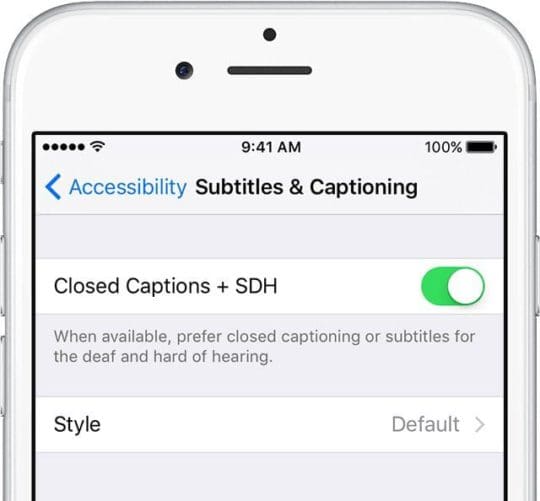
Go to Settings > General > Accessibility
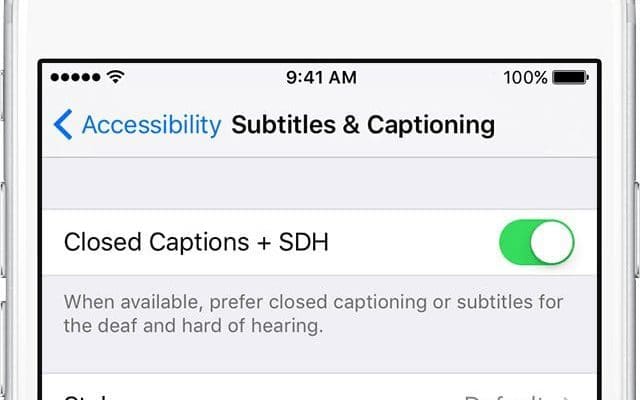
Scroll to the Media section and tap Subtitles & Captioning
Turn on Closed Captions + SDH
Customize your captions and subtitles style
Go to Settings > General > Accessibility > Subtitles & Captioning > Style
Choose a default setting that works for you (Large Text, Classic, Outline Text) or create your own using the Create New Style feature
How to Enable Closed Captioning on iOS Videos
First things first: not all videos include a caption or subtitle track
So check with the video provider (like Hulu or Netflix for example) to see what options they provide. Or search for closed-captioned and subtitled content when looking for videos.
Additionally, some websites and apps provide their own custom caption interfaces for videos. So be on the lookout for those too!
Turn On (or Off) Closed Captioning or Subtitles Using the TV or Videos App
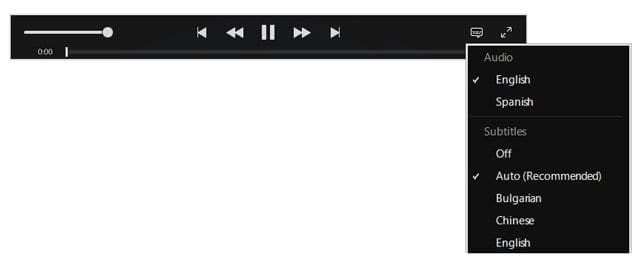
When you’re watching videos that include captions and subtitles, open the Audio & Subtitles menu
While viewing, tap the screen to reveal the playback controls
Tap the speech bubble icon to open the Audio & Subtitles menu
Choose the closed caption or subtitles option that you want
Older iOS (with the Videos App)
Just tap Settings > Videos and toggle on Closed Captioning.
Note that enabling closed captions only works if you have a video that supports it. Also, when you enable closed captioning, it turns on closed captioning for your third-party video apps (e.g., Netflix).
Turn On Closed Captioning in iTunes
You can also turn on closed captioning in iTunes on Mac and Windows PCs.
Closed Captioning and Subtitles on Macs
macOS supports closed captions and subtitles in these native apps: iTunes, DVD Player, QuickTime Player, and HTML5 video viewed in Safari.
Find them in the Audio & Subtitles menu
Move your pointer over the video
Click the speech bubble
If you don’t see the speech bubble, the video you’re watching does not include captions or subtitles
Choose the subtitles option that you want to use
Set your Mac’s caption and subtitle preferences
Turn on captions or subtitles default
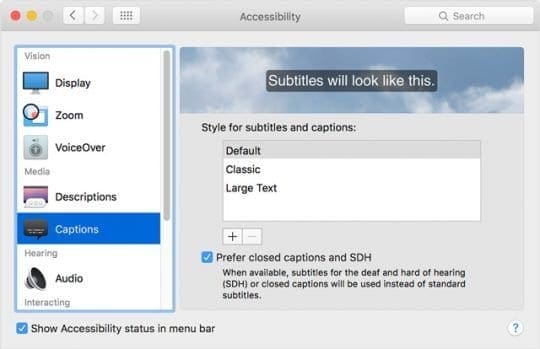
Choose Apple Menu > System Preferences > Accessibility
Select Captions in the sidebar
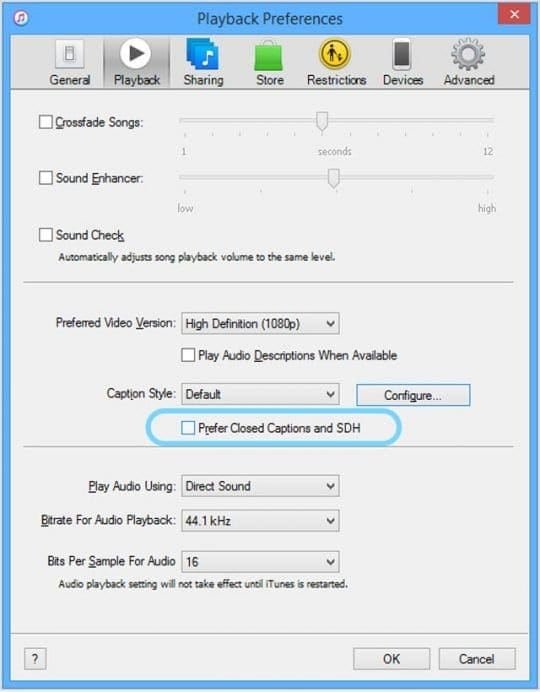
Choose Prefer closed captions and SDH
Select one of the predefined styles: Default, Large Text, or Classic. Or to create your own style, click the plus sign
Change the font, size, and color of the text, along with the color and opacity of the background. A preview of your new style appears at the top of the window
After you make your selections, click OK to save them. Your new style is then used as the default style for captions and subtitles in each app
For Older Macs and MacOS X, open iTunes
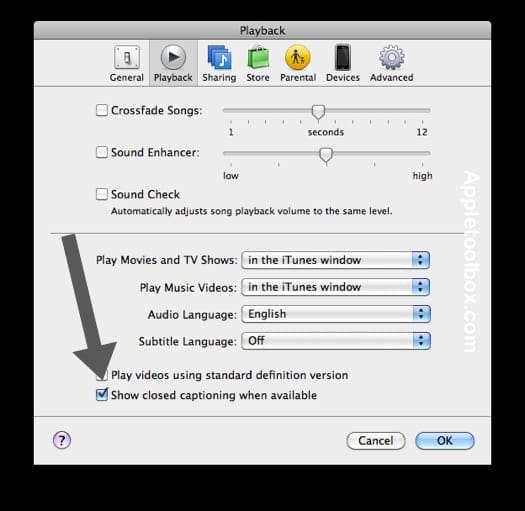
Launch iTunes > Preferences from the “iTunes” menu for Mac
Select the “Playback” tab
Check the box for “Show closed captioning when available”
Closed Captioning and Subtitles on Windows
Like Macs, find these settings in the Audio & Subtitles menu while playing your video
Move your pointer over your video
Click the speech bubble icon
Choose the subtitle options that you want to use
Set your Windows PC’s caption and subtitle preferences
Turn on captions or subtitles default
Hold down the Control and B keys on your keyboard to open the iTunes menu bar
Select iTunes > Preferences (“Edit” menu for PC) then select the “Playback” tab
Check the box for Prefer Closed Captions and SDH
To Customize Look, click Configure
Choose one of the predefined styles, or create your own style by clicking New.
Change the font, size, and color of the text, along with the color and opacity of the background. A preview of your new style displays at the top of the window
Click OK to save your choices. iTunes uses this style as the default style for captions and subtitles for iTunes video playback
How to find videos that support closed captioning
Turning closed captioning on will only work if your video supports it. Nowadays, many videos support this feature. To find videos that support closed captioning see below:
Find movies that support closed captioning on PC and Mac
Open iTunes.
Go to the iTunes Store
In the search bar in the upper-right corner, type a specific title or keyword
And type “closed caption” to browse available titles with closed captions
Or type “subtitles” or “SDH” to browse available titles with subtitles for the deaf and hard of hearing
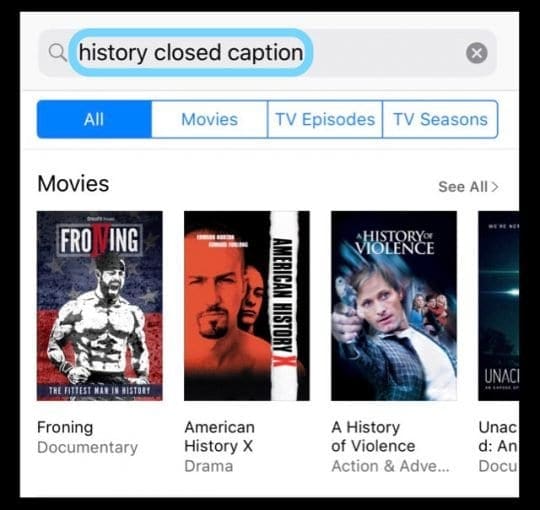
For example, use search term: history closed caption to search contents that include the keyword history and support closed captioning
In the column on the right-hand side of the window, click Movies or TV Shows
When you find something that you’d like to watch, click it. Look for a closed caption icon (CC) or subtitles for the deaf and hard of hearing icon (SDH) on the item’s product page, under its title
Scroll to the bottom of an item’s product page and look in the Languages section for information about available closed caption and subtitle languages.
Find movies and videos that support closed captioning on iOS devices
Tap iTunes Store
Tap Search
In the search bar in the upper-right corner, type a specific title or keyword for a movie you want to see
And type “closed caption” to browse available titles with closed captions
Or type “subtitles” or “SDH” to browse available titles with subtitles for the deaf and hard of hearing
For example, use search term: history closed caption to search contents that include the keyword history and support closed captioning
When you find something that you’d like to watch, tap it. Look for a closed caption icon (CC) or subtitles for the deaf and hard of hearing icon (SDH) on the item’s product page, underneath its title.
Scroll to the bottom of an item’s product page and look in the Languages section for information about available closed caption and subtitle languages
Remember that movies that support closed captioning show a CC (Close Caption) logo and videos that support subtitles for the Deaf and Hard of Hearing show an SDH icon.
And again, not all videos include a caption or subtitle track.
Obsessed with tech since the early arrival of A/UX on Apple, Sudz (SK) is responsible for the original editorial direction of AppleToolBox. He is based out of Los Angeles, CA.
Sudz specializes in covering all things macOS, having reviewed dozens of OS X and macOS developments over the years.
In a former life, Sudz worked helping Fortune 100 companies with their technology and business transformation aspirations.
How to turn on subtitles and closed captions in iOS
1.Launch the Settings app on your iPhone or iPad.
2.Tap on General.
3.Tap on Accessibility.
4.Under the Hearing section, tap on Subtitles & Captioning.
5.Turn On the option for Closed Captions + SDH.
6.Tap on Style in order to customize how closed captions work if you’d like.















I have an iPad mini and under video I don’t have that feature of turning CC on or off. I wonder why it’s missing? Any ideas.
How to turn on subtitles and closed captions in iOS
1.Launch the Settings app on your iPhone or iPad.
2.Tap on General.
3.Tap on Accessibility.
4.Under the Hearing section, tap on Subtitles & Captioning.
5.Turn On the option for Closed Captions + SDH.
6.Tap on Style in order to customize how closed captions work if you’d like.