All iOS devices work in the Apple ecosystem and connect to your Apple ID. This is fantastic for ensuring every device syncs up. You can start reading your favorite novel on Apple Books on your iPhone and finish it on your iPad. You can even make sure you have the same Apple Music playlists on all your devices.
However, it can get tricky or even annoying if you’re getting the same messages across multiple devices. Most people only use their phones for texting, so they don’t also want to get text messages on their iPads. It’s just more notifications to deal with and extra hassle.
There’s also the issue of privacy. Your smartphone might rarely leave your pocket, but your iPad is a larger device and might be on view. It may even be a household device, used by multiple family members. That’s not ideal if you’ve got private or work-related information coming via text messages.
Thankfully, there are ways to unlink your iPad and iPhone text messaging or iMessaging services. Try one of the following methods.
iMessage is a dedicated Apple instant messaging feature. Instant messages use Wi-Fi or cellular data to send messages directly between devices. This is slightly different from normal text messages or SMS, which uses the standard GSM network rather than cellular data. In other words, if you have no data network available, you can still send an SMS but iMessage won’t work.
iMessages sync between all Apple devices. This includes your iPhone, iPad, and if you have them, your Mac and Apple Watch. The simplest way to stop messages going to any of these devices is to switch the service off:
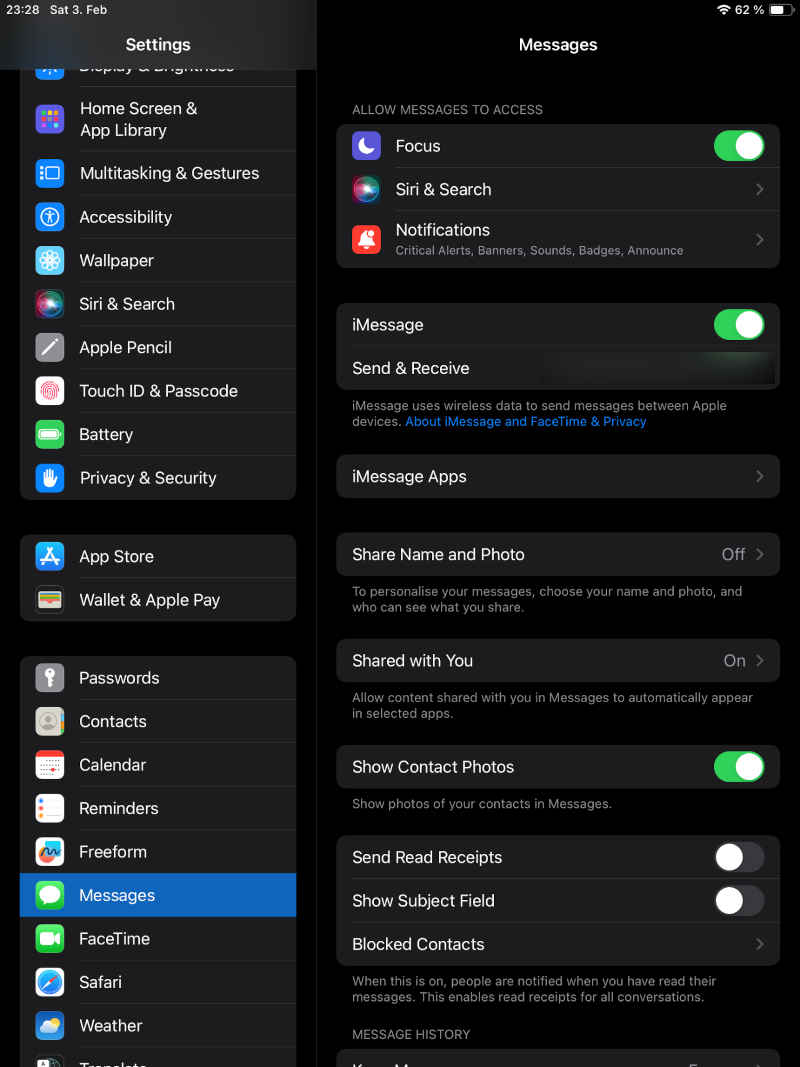
On your iPad, go to Settings > Messages.
Near the top, you should see the iMessage option.
Switch it from on (green) to off.
This should now prevent any iMessages from coming to your iPad. It’s important to note that you will no longer have access to this service at all on the iPad unless you switch it back on. So, if you occasionally used the iPad to reply to a message if your phone was out of reach, you won’t be able to do that anymore.
2. Change Your Messages iCloud Settings
If your iPad is downloading messages regardless of whether your iMessage function is switched on or not, this could be an iCloud setting issue. iCloud is Apple’s online storage facility for iOS devices. It’s useful for backing up data and media and ensures all devices can hold the same information.
You would rarely need messages duplicated across multiple devices. To check if you’re inadvertently sharing message data with your iPad:
On iOS 16 to 17.1 or iPadOS 16 to 17.1:
On your iPhone, go to Settings.
Click your name at the top under the search bar.
Click iCloud.
Look for “Apps Using iCloud” and click “Show All.”
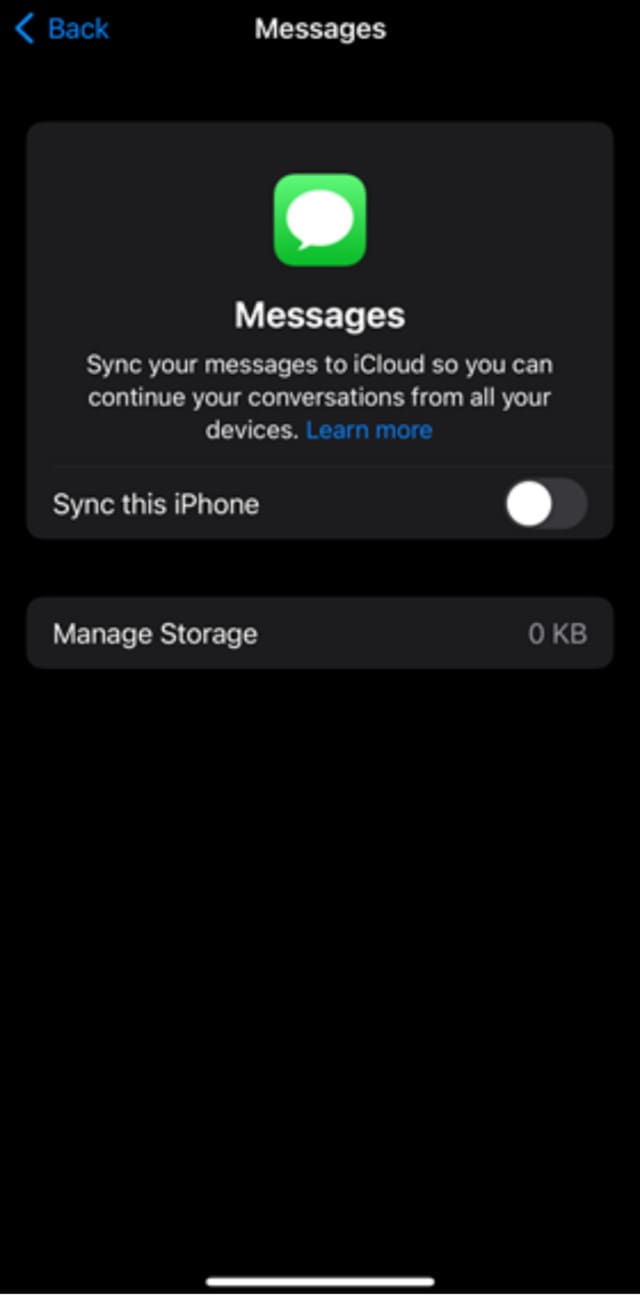
Click “Messages”.
Toggle off “Sync this iPhone” to prevent messages from going to your iPad.
On iOS 17.2, iPadOS 17.2, or later:
Head to Settings.
Click your name.
Click iCloud.
Look for “Apps Using iCloud” and click “Show All.”
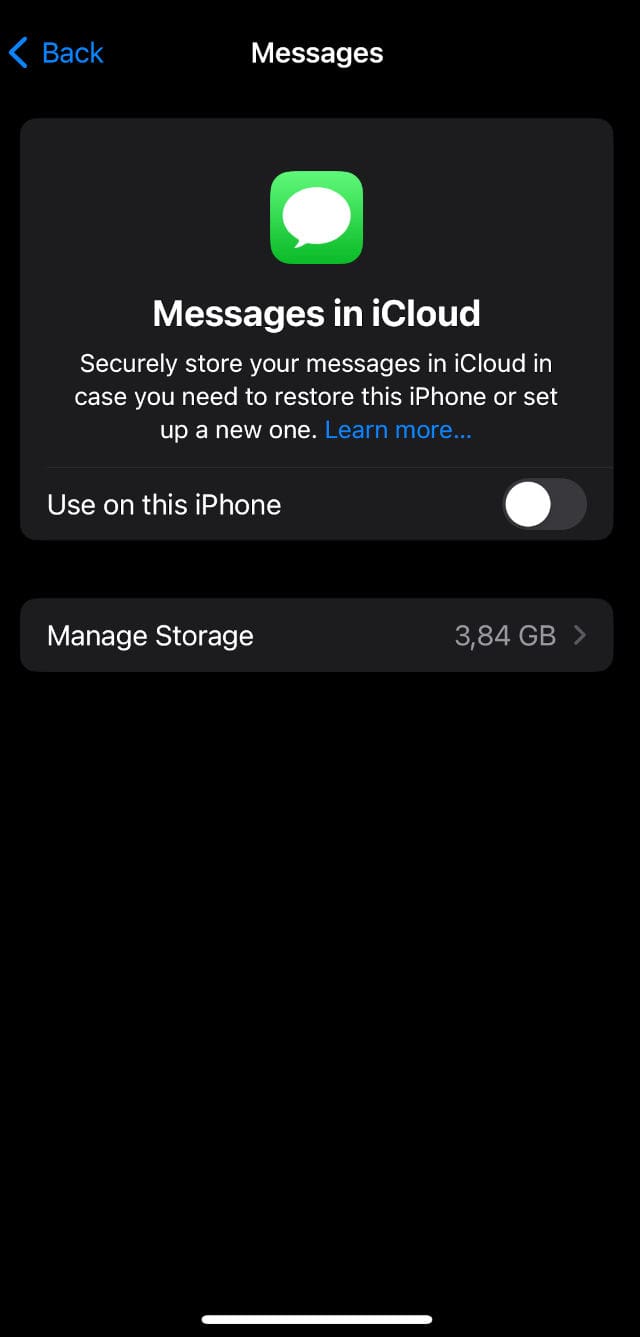
Click “Messages in iCloud”.
Toggle off “Use on this iPhone.”
This effectively unlinks iPad and iPhone text messages. It also prevents any automatic backup of your messages, so you may need to do this manually.
Tip: You can go through all your apps one by one and change their iCloud settings to better control what data transfers to your iPad.
3. Disable Text Message Forwarding
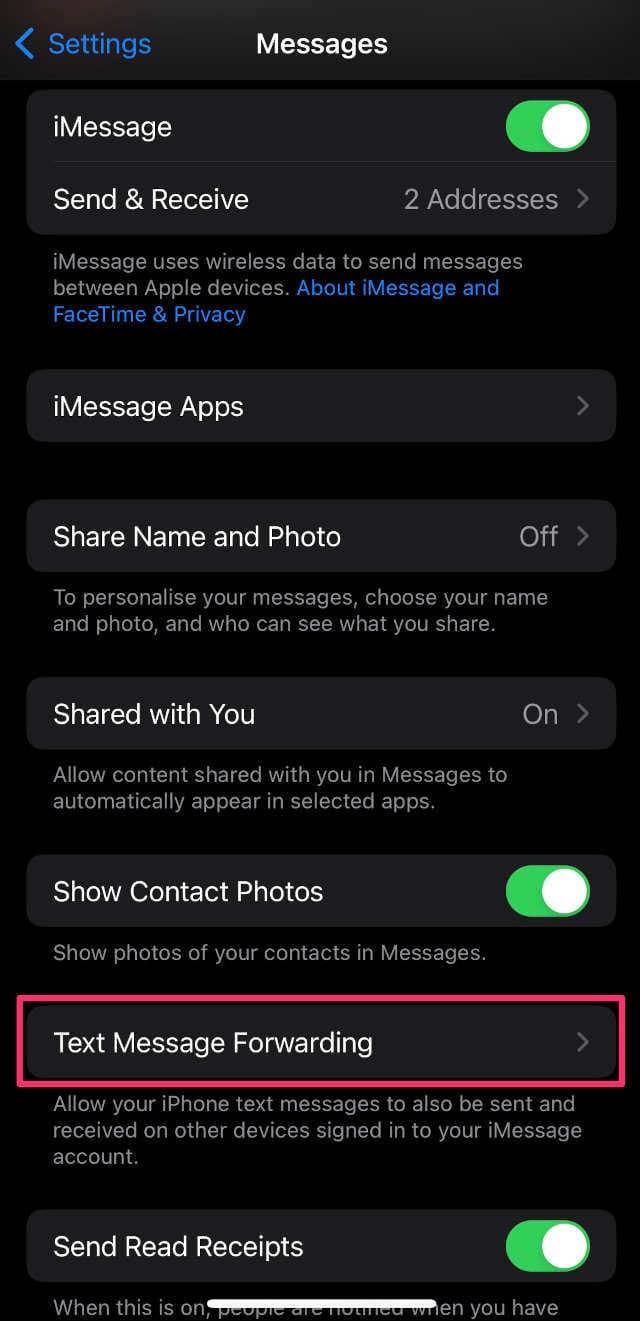
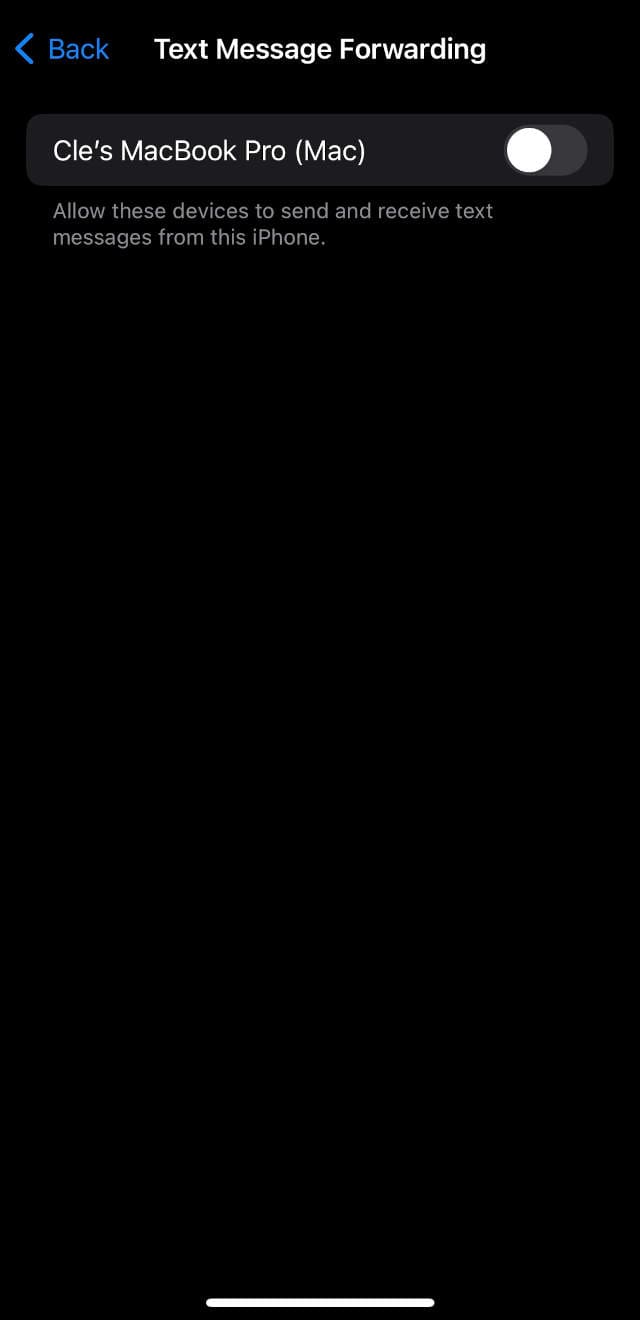
To further ensure you don’t see text messages on your iPad or other Apple devices, you can disable other settings within the messages feature. Text Message Forwarding duplicates messages and sends them to your iPad or Mac. You can turn this option off for individual devices. This is really useful if you want to keep messages coming to your Mac but not to your iPad. Follow these steps:
On your iPhone, go to Settings > Messages > Text Message Forwarding.
You’ll see “Allow these devices to send and receive text messages from this iPhone” and a list of your active Apple devices.
Simply click the button next to any of the devices to switch message forwarding on or off.
This prevents all types of text messages from arriving at other Apple devices.
4. Sign Out of Apple ID for iMessage
As an alternative method, it is possible to selectively sign out of your Apple ID for certain services. This doesn’t stop syncing on any other apps or features. However, it means that you’ll have to sign in again if you decide you do want to restore the functionality of that particular feature.
For iMessage, signing out of your Apple ID stops messages completely. Follow these steps:
On your iPad, go to Settings > Messages.
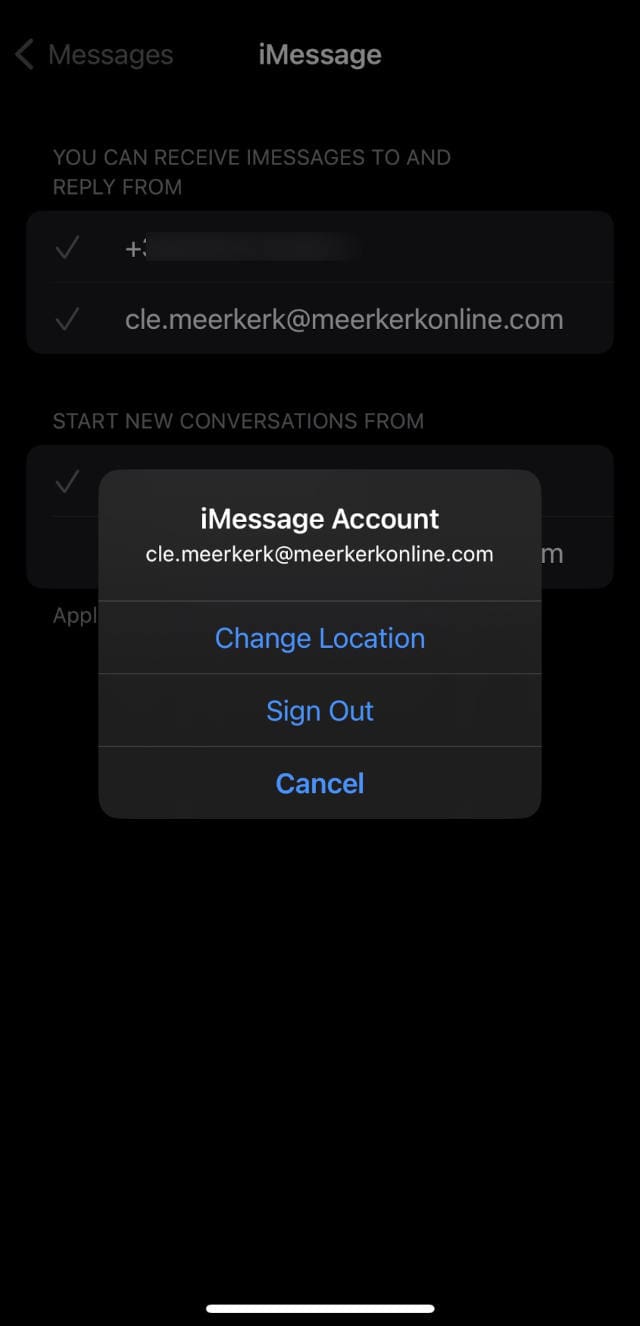
Under iMessage, click “Send & Receive.” This shows a list of all connected numbers and email addresses.
Look for your Apple ID right at the bottom of the screen.
Click the Apple ID (which should be blue) for the following options: Change Location, Sign Out, or Cancel.
Click Sign Out.
This tells the iPad that you no longer wish to sync with any iMessaging services. This action, combined with turning text message forwarding off, should completely unlink iPad and iPhone text messages.
You may find that if you do a software update or get a new phone, you need to follow one or more of these processes again. After making any changes to your settings, turn your device off and on again.
Of course, if you decide that it’s actually useful to see messages on your iPad, just use the steps above to access the relevant menus and switch the services you need back on.
As an avid gamer, I’ve run into my fair share of error codes and weird faults that have forced me to find fixes to problems I never anticipated. That gave me a passion for sharing those fixes with others so we can all game without feeling like our hardware is rebelling against us.












Write a Comment