There’s a lot to love about the sleek, compact, and lightweight design of the Apple Magic Keyboard. In fact, you might be so attached to it that you want to bring the experience with you over to a Windows PC. The good news is that it’s possible and not too hard to do.
Thanks to Bluetooth being a feature on most modern devices, Windows is easily able to connect with Mac’s Magic Keyboards, even with the older models. All you need to get the two devices paired is a working Bluetooth connection on both devices.
To properly pair the devices, you’ll also have to ensure you have disconnected any Mac device from the keyboard. You need to ensure that any connected Apple device forgets the keyboard. After that, you’re good to go.
Using Mac Keyboards on Windows – The Easy Part
Let’s start simple: the actual pairing. To connect your Magic Keyboard to your Windows machine, do the following:
Step 1. Type “Bluetooth” into your search bar and select “Bluetooth and other devices settings” when it pops up.
Step 2. In the window that pops up, click the “Add Bluetooth or other device” option at the top of the screen. Ensure that your Bluetooth slider is switched to “On.”
Step 3. A new window will appear. Choose the “Bluetooth” option.
Step 4. Your machine will then begin searching for Bluetooth devices in the area. Your keyboard should show up as “Magic Keyboard” or something similar. Select it when it does.
Step 5. You may be shown a code, but you won’t need to enter it. Click the “Connect” button and let the devices pair.
If your Magic Keyboard isn’t showing up in the Bluetooth search, try connecting it to your Windows machine via a USB cable.
Dealing with the Mac Keys – The Trickier Part
Like most things Apple and Microsoft-related, the cross-platform shift of the Magic Keyboard isn’t entirely seamless. While most keys will work fine, certain Apple-specific ones (like the Command key) will not. Thankfully, third-party apps can help with this transition. Many of these are open source and free to use. That said, certain features, like Touch ID, will not work no matter what.
Let’s take a look at a few:
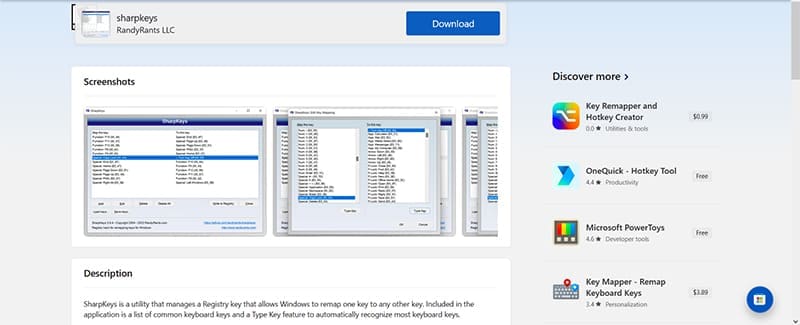
SharpKeys
This is a utility that allows you to remap keys via the Registry. It does this in quite a user-friendly way, giving you the choice to remap one key to another through two side-by-side lists. You can manually choose the Apple keys you want to remap and what the equivalent key will be. The utility then writes that to the Registry.
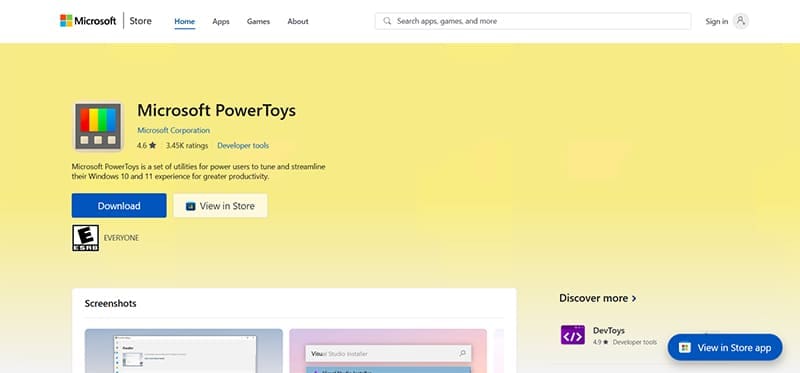
Microsoft PowerToys
PowerToys is a fantastic freeware utility that’s been available for Windows machines for decades. It allows users to create custom workflows in a variety of ways, and one such way can be through the Keyboard Manager. This feature allows you to remap keys with ease. It’s a cinch to download and install, and it can be downloaded through the Microsoft Store.
AutoHotkey
This utility was built with automation in mind, making it easy for users to bind shortcuts to keys to make their own workflow that much quicker and simpler. It can also be used on Magic Keyboards to easily remap Mac-specific keys to Windows. It can be downloaded from GitHub, and the bindings can be changed by creating a new script and editing it in Notepad.
This is a less beginner-friendly option, but still free and definitely viable.
As an avid gamer, I’ve run into my fair share of error codes and weird faults that have forced me to find fixes to problems I never anticipated. That gave me a passion for sharing those fixes with others so we can all game without feeling like our hardware is rebelling against us.












Write a Comment