• Skip to primary navigation
  • Skip to main content
  • Skip to primary sidebar
  • Skip to footer

AppleToolBox

Tools and Fixes for Mac, iPad, iPhone & iWatch

Search posts

  • About
  • Contact

CONNECT WITH US

CATEGORIES

  • iPhone
  • iPad
  • iPod
  • Apple Watch
  • Mac/MacBook
  • AirPods
  • Apple TV
  • News
  • Apple Services
  • HomePod
  • Reviews

SITE

  • Home
  • About Us
  • Contact
  • Advertise

Search posts

You are here: Home / Mac / How to Use Copilot on Mac

How to Use Copilot on Mac

By Louis Roundtree 0 comments Last updated October 4, 2024

Things to Know
  • Microsoft Copilot is a generative AI tool that helps with creating and editing written content.
  • Mac users can download the Copilot app or use it via a browser.
  • The basic Copilot app is free but some features are only available via a paid, premium version.

Contents

  • How to Use Microsoft Copilot on Mac: Installing the App
  • How to Use Copilot on Mac: Via the App
  • Bonus Tips: What You Can Do With the Free Version of Microsoft Copilot for Mac

How to Use Microsoft Copilot on Mac: Installing the App

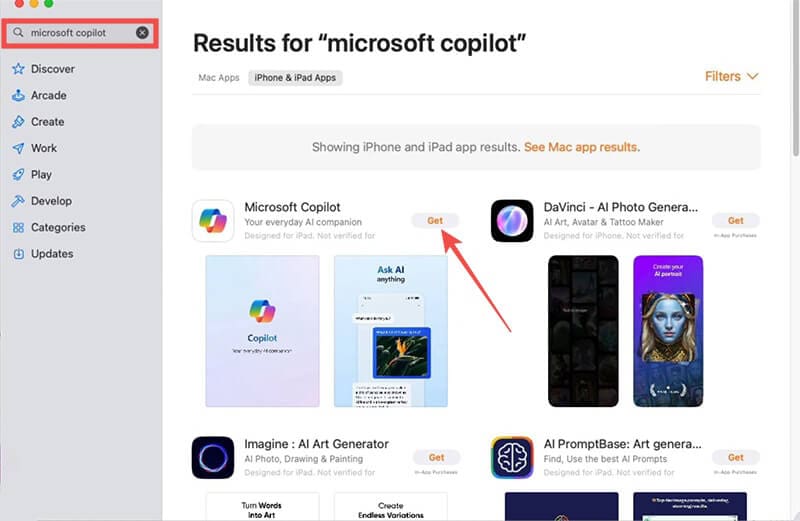
Step 1: Go to the App Store on your Mac and search for Microsoft Copilot.

Step 2: Click “Get” and follow the onscreen prompts to install the app.

How to Use Copilot on Mac 1

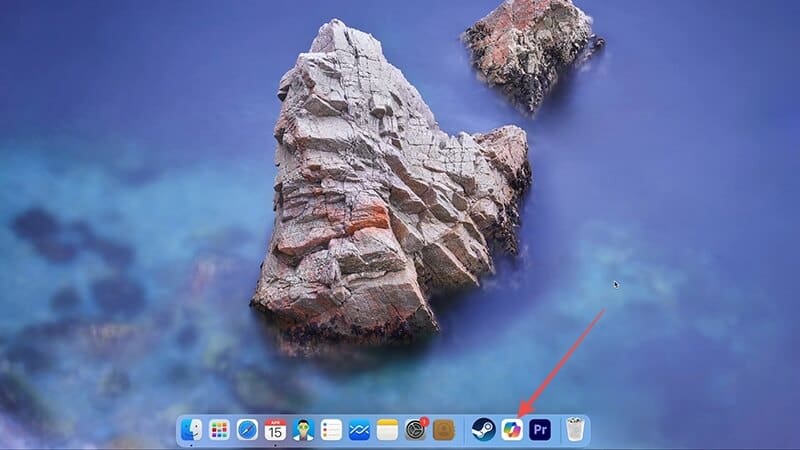
Step 3: You can now see an icon for Copilot in the Finder. Double-click this icon to run the Copilot app.

How to Use Copilot on Mac 2

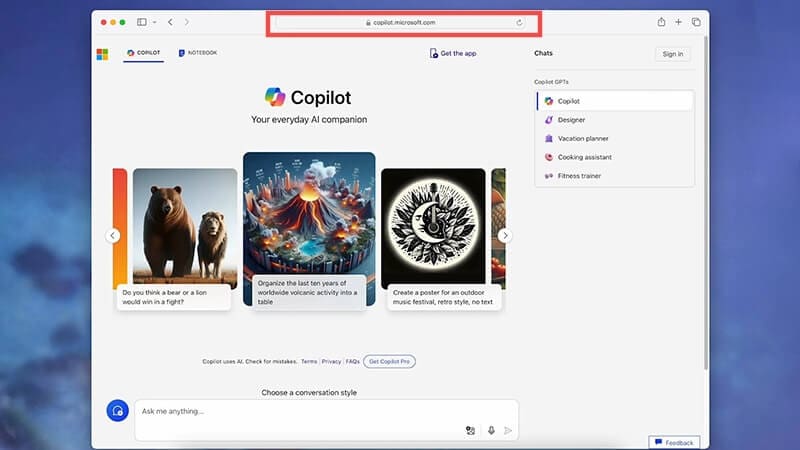
Step 4: If you don’t want to download the Microsoft Copilot app, you can access Copilot by going to https://copilot.microsoft.com/. This link provides the same free chat options as found in the Mac App.

How to Use Copilot on Mac 3

How to Use Copilot on Mac: Via the App

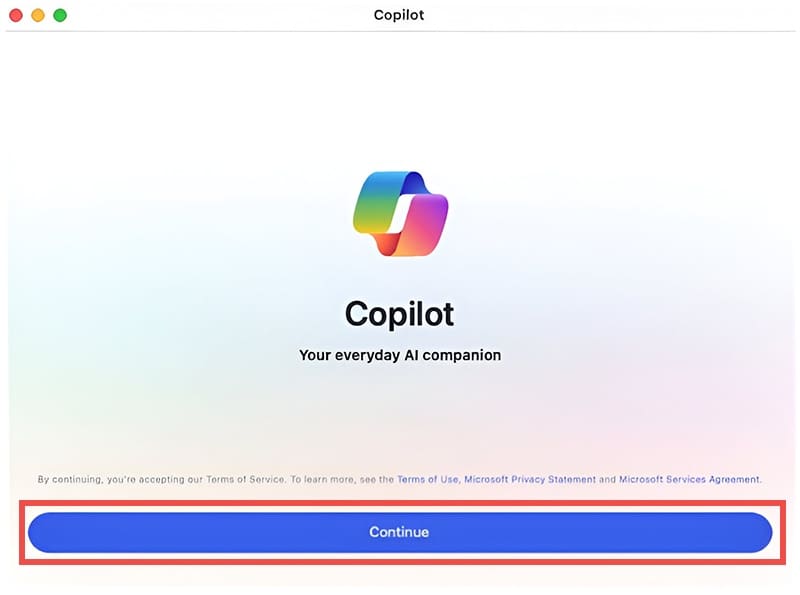
Step 1: Once the app is running, you’ll be prompted to accept the terms of service. Press the blue “Continue” button.

How to Use Copilot on Mac 4

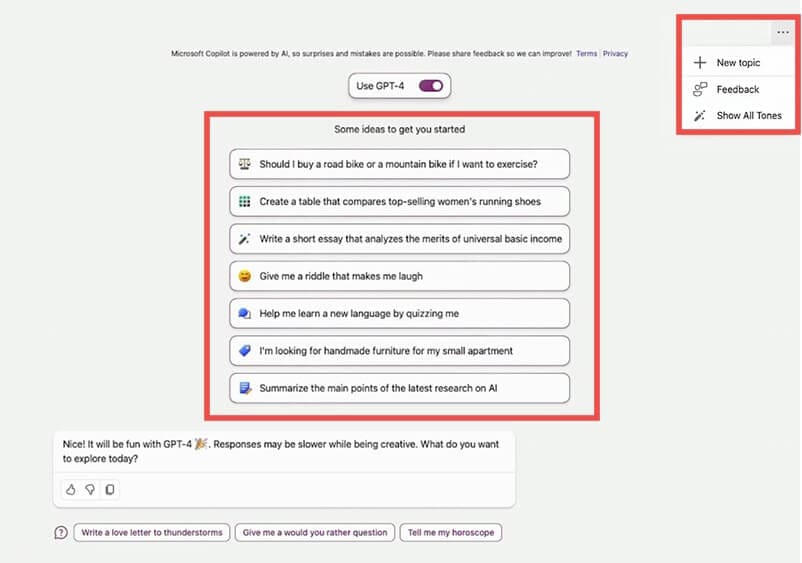
Step 2: Click the three dots at the right of the app to start a new topic or click one of the pre-populated options under “Some ideas to get you started.”

How to Use Copilot on Mac 5

Step 3: Type questions or prompts directly into the text box. The Copilot app will answer or generate text based on the prompts you enter. You can also choose from three conversational styles: Creative, Balanced, or Precise.

How to Use Copilot on Mac 6

Step 4: Press “Stop responding” at any time to halt text generation.

Step 5: Start a new topic as often as you like. Remember, generative AI doesn’t fact-check its text so if you want to use the generated text, check any facts or figures first. You can copy and paste directly from Copilot into other apps like Pages and edit the text as needed.

Bonus Tips: What You Can Do With the Free Version of Microsoft Copilot for Mac

Microsoft will prompt Copilot users to sign up for a paid version — prices vary between regions. Copilot Premium is not free with a Microsoft 365 subscription. If you’re not interested in the premium version of Copilot, there are still plenty of things you can do with the free version. The most common use is as a chatbot, either for inspiration or bouncing ideas around.

  • Use Copilot to summarize complex ideas and make big thoughts more concise.
  • Ask Copilot to draft emails or social media captions
  • Chat with Copilot to get ideas for writing topics, presentation ideas, and more.

Integrating Copilot into Pages and other Apple document creation services isn’t currently possible. However, you can use Microsoft Office services via a web browser if you have an Office 365 subscription. You can have MS Word open in one Safari tab and Copilot open in another to help increase your productivity.

Related Posts:

  • How to use ChatGPT on iPhone and iPad - Hero
    How to Use ChatGPT on iPhone and iPad
  • 2023 Mac Studio lifestyle – 1
    macOS Could Not Be Installed, How-To Fix
  • MacBook Pro 2021 iPad Mini iPhone 13 Pro AirPods 3 Beats Fit Pro iPad Pro Best Apple Products – 2
    The Best Apps and Games Of 2022, According to Apple
  • pexels-jess-bailey-designs-810079
    How To Run Linux On Mac: A Step-by-Step Guide
  • iPhone 15 Pro Max – 4
    Best iPhone Lock Screen Widgets for iOS 17
  • MacBook, iPhone, and Camera Lenses
    How to Use Notes on Mac: A Complete User Guide
  • How to Control Individual Application Volume on Mac
    How to Control Individual Application Volume on Mac
  • How to Install Windows 11 on Mac
    How to Install Windows 11 on Mac
  • iphone and airpods on a table
    These Apps Have the Best iOS 17 Widgets
Louis Roundtree
Louis Roundtree

As an avid gamer, I’ve run into my fair share of error codes and weird faults that have forced me to find fixes to problems I never anticipated. That gave me a passion for sharing those fixes with others so we can all game without feeling like our hardware is rebelling against us.

Reader Interactions

Write a Comment Cancel reply

Primary Sidebar

Recent Posts

  • How to Use iPhone as Internet for PC
  • How to Connect AirPods to an Android Phone
  • How to Migrate From OneNote to Apple Notes
  • How to Fix Microsoft Teams Not Working on iPhone
  • Best Intel Unison Alternatives
  • How to Fix Apple Music Crashing on Windows 11

Connect with us

Footer

ABOUT

  • About Us
  • Contact us
  • Advertise
  • Privacy
  • Terms of Use

GUIDES

  • iOS & iPadOS
  • Apple ID
  • iCloud
  • App Store
  • iTunes
  • FaceTime
  • iMessage
  • Siri
  • Books and iBooks
  • Game Center
  • AirPlay

CONNECT

  • Facebook
  • Twitter
  • FeedBurner
  • YouTube

© Copyright 2010-2024 Guiding Tech Media · All Rights Reserved

This site and its content are in no way affiliated or endorsed by Apple, Inc. · Reproduction without explicit permission is prohibited

Last Updated on October 7, 2024 by Louis Roundtree