Gaming is a significant part of the digital world, and its importance extends to Mac users as well. For many, gaming is a favorite pastime, a way to relax, or even a professional pursuit. Therefore, improving the gaming experience on Macs is crucial for several reasons.
As high-end devices, Macs are expected to deliver a top-notch gaming experience. Enhancing gaming capabilities can meet these expectations and increase user satisfaction. To stay competitive in the market, Apple needs to ensure Macs can offer a gaming experience on par with other platforms like Windows, which are traditionally more gaming-friendly. Enhancing gaming on Macs can attract a broader user base, including serious gamers and game developers, potentially boosting Mac sales.
What Is Game Mode on macOS Sonoma?
The day when the Mac becomes a superior platform for gaming, beyond Apple Arcade and older Steam titles, is still on the horizon. However, progress was showcased during WWDC ’23, with the introduction of a new game porting toolkit. This toolkit is designed to simplify the process of porting games from other platforms to Mac.
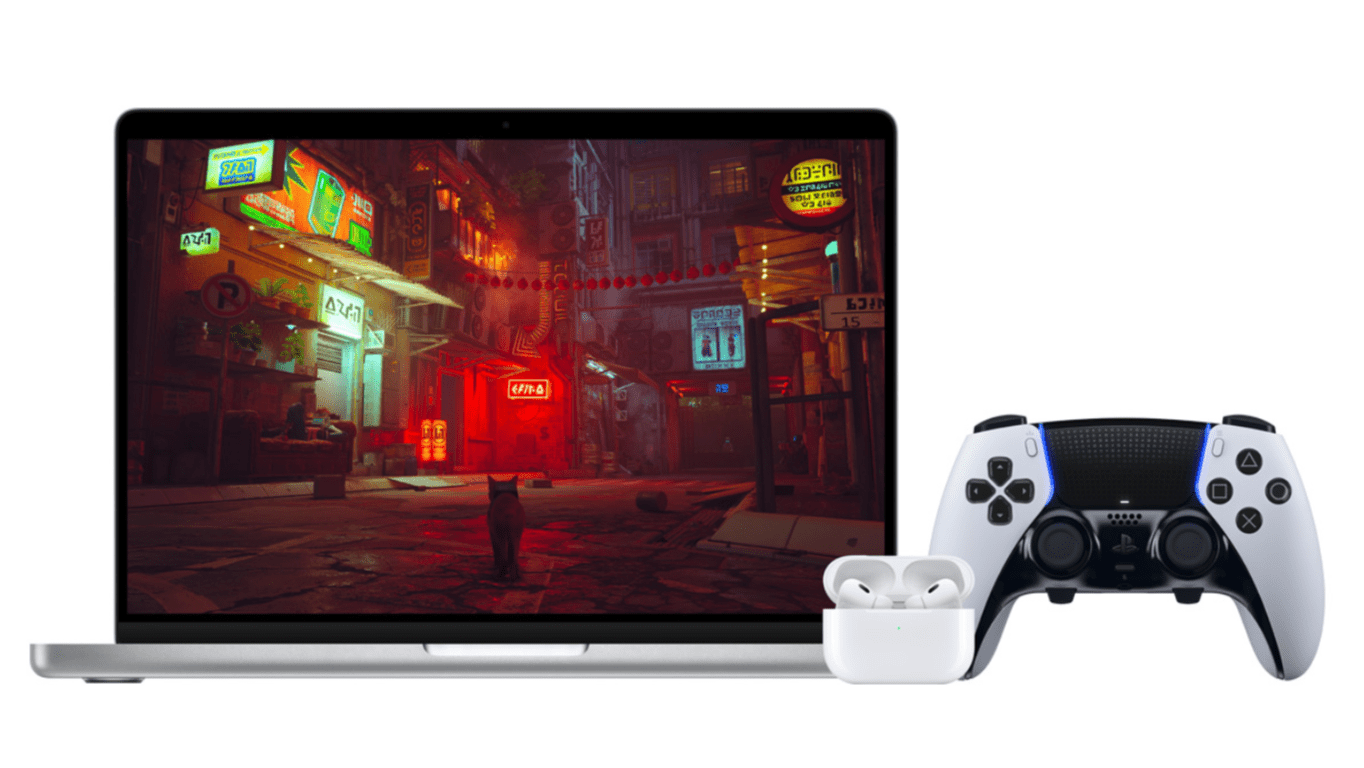
With the announcement of macOS Sonoma, a new feature known as Game Mode was introduced. This feature promises to enhance gaming experiences by providing smoother and more consistent frame rates, achieved by prioritizing games on the CPU and GPU. Additionally, Game Mode will decrease audio latency with AirPods and notably cut down on input latency with widely-used game controllers such as those for Xbox and PlayStation by doubling the Bluetooth sampling rate.
How to Use Game Mode on macOS Sonoma
In what shouldn’t come as too much of a surprise, there’s actually nothing that you need to do in order to use Game Mode on macOS Sonoma. Instead, all you need to do is fire up your favorite game, and your Mac will automatically start Game Mode.
Since there are no settings to configure, you won’t even find as much as a preferences pain within the System Settings app. Instead, the only way you can even tell that Game Mode is activated is if you exit Full Screen Mode in the game that you are playing.
From there, a little game icon will appear on the right side of your Menu Bar. Clicking the icon provides a drop-down menu with the only option being to Turn Game Mode Off. However, the only reason why you might even want to do this is if you find that the game that you are playing isn’t running as well with Game Mode enabled.
As development on macOS Sonoma continues, along with Apple’s renewed push into the gaming segment, we hope that developers will see the strides being made. And in turn, Mac users everywhere will be able to enjoy better performance when playing games, instead of needing to use a dedicated console or a building a Windows computer for gaming.
Andrew Myrick is a freelance writer based on the East Coast of the US. He enjoys everything to do with technology, including tablets, smartphones, and everything in between. Perhaps his favorite past-time is having a never-ending supply of different keyboards and gaming handhelds that end up collecting more dust than the consoles that are being emulated.













Write a Comment